Practical Malware Analysis – Chapter 6: Recognizing C Code Constructs in Assembly

As we move through the book, I’m noticing myself starting to become more comfortable reading assembly and able to recognize what some functions do more quickly. It still takes me a long time (and a good bit of googling sometimes) to figure out what exactly is happening at the assembly level, but hey, it’s progress.

Chapter 6 was interesting in that it takes the basic aspects of a programming language (in this case C) and shows how they are implemented in Assembly to help an analyst pick out the patterns more easily. It covers some of the concepts I’m already familiar with, at least at a basic level, such as if statements, loops, and arrays, but also adds a little more complexity with structs and linked lists. I had to look up some of the C syntax for structs and linked lists to get a better idea of why they’re formatted like they are, but it at least makes enough sense for me to get through the labs now.

Lab 6-1 (Lab06-01.exe)

Question 1: What is the major code construct found in the only subroutine called by main?

It’s an if statement that prints a message depending on the outcome of the “InternetGetConnectedState” function. If the function returns 0, it will print a message stating there is no internet, otherwise it will print a message indicating the computer has an internet connection.

Question 2: What is the subroutine located at 0x40105F?

As the subroutine follows the push of the strings mentioned above, it is likely printing the string to the shell. This is confirmed when running the program from the command line.

Question 3: What is the purpose of this program?

The purpose seems to be just to check the internet connection of the computer it is running on and print a success/failure message.

Lab 6-2 (Lab06-02.exe)

Question 1: What operation does the first subroutine called by main perform?

The first subroutine called is sub_401000 and performs the check for an internet connection that was used in Lab6-1.

Question 2: What is the subroutine located at 0x40117F?

This seems to have the same function as sub_40105F in the last lab. It seems to print the result of the internet connectivity check to the screen.

Question 3: What does the second subroutine called by main do?

The second subroutine, sub_401040, is called if there is an internet connection and tries to connect to the URL “http://www.practicalmalwareanalysis.com/cc.htm&#8221;. If it successfully connects to the site it will attempt to read the cc.htm file and, if there is an HTML comment in the file, read a command from after the comment. The second screenshot below shows the steps it takes on the right hand side to iterate through an array of the characters in the html file. If it reads the first three characters as “<!–“, or the beginning of a comment, it will store the next character as the command. If any of these steps fail it will print an error message.

Question 4: What type of code construct is used in this subroutine?

This subroutine uses an array to store information read from an html file to try and retrieve a command. It iterates over the html file looking for a comment at the beginning (starting with the characters “<!–“).

Question 5: Are there any network-based indicators for this program?

The network-based indicator would be an attempted connection to “http://www.practicalmalwareanalysis.com/cc.htm&#8221; or the user-agent it creates to connect to the URL “Internet Explorer 7.5/pma”.

Question 6: What is the purpose of this malware?

This malware builds on the first from Lab 6-1 by checking for an internet connection and, if so, attempting to connect to a URL to get a command from a file stored there. If it is able to connect and successfully retrieve a command it will then sleep for 60 seconds.

Lab 6-3 (Lab06-03.exe)

Question 1: Compare the calls in main to Lab 6-2’s main method. What is the new function called from main?

The new function called is sub_401130, which can create a directory, create/delete a file, create a registry key, sleep for 100 seconds, or print an error depending on which command it is passed.

Question 2: What parameters does this new function take?

The sub_401130 function takes two parameters: the command character parsed from the previous function and “argv[0]” which is a standard parameter for the main function and isn’t very useful for us.

Question 3: What major code construct does this function contain?

This function uses a switch statement.

Question 4: What can this function do?

Depending on the file name parameter passed, this function can: create a Temp directory, create the new file cc.exe in the Temp directory, delete the file from the Temp directory, create a registry key to have the cc.exe file run on startup, set the program to sleep for 100 seconds, or try to read a command from the website again.

Question 5: Are there any host-based indicators for this malware?

The two host-based indicators would be the malicious file at C:\Temp\cc.exe or the registry key “Malware” under HKLM\Software\Microsoft\Windows\CurrentVersion\Run.

Question 6: What is the purpose of this malware?

This malware starts the same as the first two labs by checking for an internet connection, connecting to a website to download a file and get a command, then, depending on the command, will perform one of the actions from question 4.

Lab 6-4 (Lab06-04.exe)

Question 1: What is the difference between the calls made from the main method in Labs 6-3 and 6-4?

The main function now includes a loop that will continue trying to connect to the website and get a command until var_C is greater than or equal to 1440.

Question 2: What new code construct has been added to main?

A for loop.

Question 3: What is the difference between this lab’s parse HTML function and those of the previous lab?

It takes a parameter now, the counter from the main function, and calls _sprintf when creating the user agent to add the parameter passed to the end of the agent string. This makes the agent string dynamic, allowing the malware creator to track how long it has been running.

Question 4: How long will this program run? (Assume that it is connected to the Internet.)

24 hours. Each time it goes through the process it sleeps for 60 seconds after successfully parsing a command and the while loop runs while the incremental value is less than 1440 (and 1440 minutes is equal to 24 hours).

Question 5: Are there any new network-based indicators for this malware?

The user-agent changes depending on how long the malware has been running. An indicator could be to look for the agent “Internet Explorer 7.50/pma%d”.

Question 6: What is the purpose of this malware?

The malware starts working the same way as the previous labs by checking an internet connection, parsing an html page for a document starting with a comment (“<!–“), reads the comment for a command to pass to the malware and chooses between multiple options based on the command received. Where this version differs is that it implements a for loop in the main function that will continue to run (if there is still an internet connection) for 24 hours. It also modifies the user agent used when parsing the website by adding a number to the end of the string that matches how long the program has been running. If it doesn’t find an internet connection on any iteration, the program terminates.
Practical Malware Analysis – Chapter 4 & 5: Adventures in Assembly Code

Chapter 4 starts off with a brief explanation of the different types of programming languages (machine code, low-level/assembly, high-level, and interpreted) and how their interaction with the computer differs. I’ve dabbled in various interpreted languages, such as Python and Java, and even experimented with a high-level language like C, but I’m not what I’d call proficient in any of them. Assembly code is an entirely different beast. The book focuses on assembly code for the x86 architecture, which is what most 32-bit personal computers use, so the book is showing it’s age a little bit in this regards, but it says x64 will be covered briefly in a later chapter.

I’m not going to try and explain how assembly code works as it still seems like mostly black magic to me at this point. I’ve had a little exposure to reading and manipulating assembly code when practicing buffer overflows in “Penetration Testing: A Hands-On Introduction to Hacking” by Georgia Weidman, and this book covers much of the same basic information, but the chapter 5 labs definitely left me feeling a lot more comfortable with at least the basics and how to navigate it using IDA.

Chapter 4 doesn’t have any labs as it’s just an introduction to assembly and the chapter 5 labs focus on practical application of that knowledge.

Chapter 5 is entirely devoted to the IDA Pro disassembly application by Hex-Rays. There is only 1 lab for this chapter, but that one lab has 21 questions to ensure we get a lot of experience poking around the tool.

Lab 5-1 (Lab05-01.dll)

Question 1: What is the address of DllMain?

0x10000D02E

Question 2: Use the Imports window to browse to gethostbyname. Where is the import located?

“gethostbyname” is located in the WS2_32 library at address 0x100163CC in memory.

Question 3: How many functions call gethostbyname?

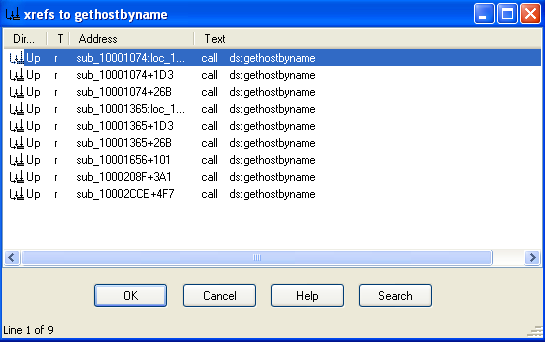
By searching for cross-references to the gethostbyname import, we see it is referenced 9 times.

Question 4: Focusing on the call to gethostbyname located at 0x10001757, can you figure out which DNS request will be made?

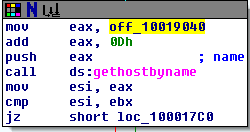
When looking at this call, we see the first instruction is to move the data stored in offset 10019040 into eax and then add 0xD to it. If we double-click on the offset, it shows us the data stored in that location – “[This is RD0]pics.practicalmalwareanalysis.com”. Adding 0xD (13) to this, we get “pics.practicalmalwareanalysis.com” as the address the program is trying to resolve.

The call to “gethostbyname” at 0x10001757
The data stored at offset 0x10019040

Question 5: How many local variables has IDA Pro recognized for the subroutine at 0x10001656?

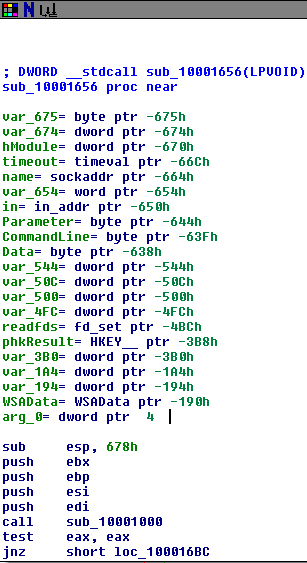
IDA recognizes 20 local variables at this address. The book says there are 23 variables, so it seems IDA Free has a 20 variable limit.

Question 6: How many parameters has IDA Pro recognized for the subroutine at 0x10001656?

IDA found 1 parameter. See “arg_0” in the screenshot above.

Question 7: Use the Strings window to locate the string \cmd.exe /c in the disassembly. Where is it located?

It’s located at 0x10095B34.

Question 8: What is happening in the area of code that references \cmd.exe /c?

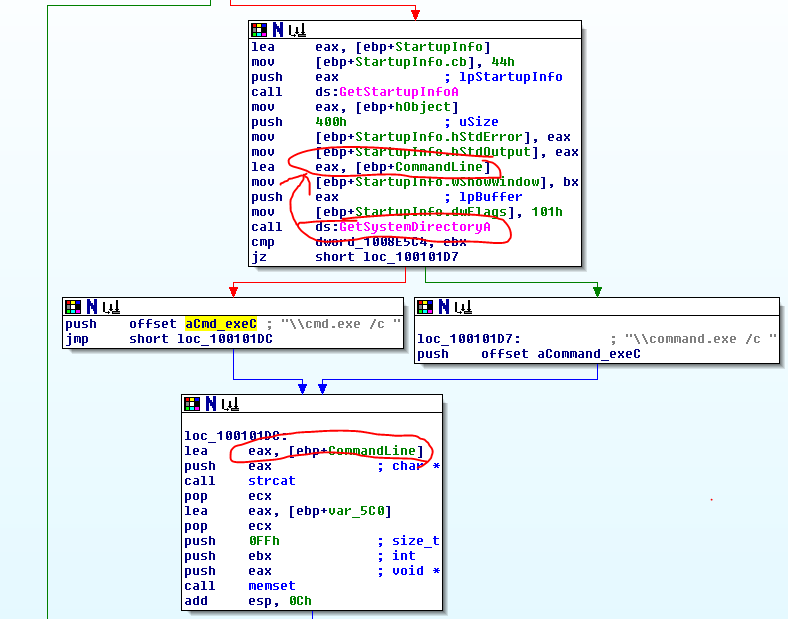
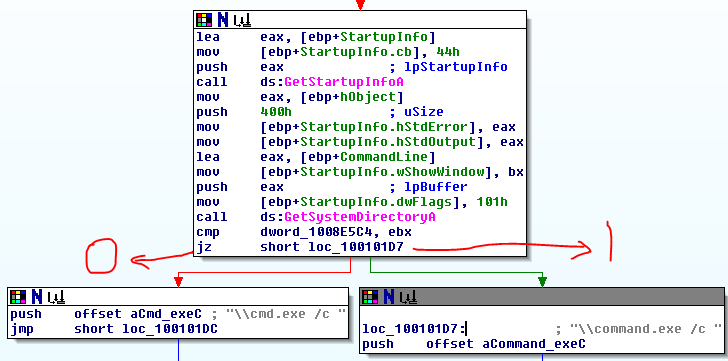
This area of code seems to be used for creating a string that will call cmd.exe on the user’s system, possibly to get a reverse shell. In the screenshot below, the variable “CommandLine” in the top box gets assigned the value of the “GetSystemDirectoryA” function. The next step after the cmd.exe push concatenates the CommandLine variable from before with the command for cmd.exe, creating a command to open a shell (i.e. “C:\Windows\System32\cmd.exe /c”.

Question 9: In the same area, at 0x100101C8, it looks like dword_1008E5C4 is a global variable that helps decide which path to take. How does the malware set dword_1008E5C4? (Hint: Use dword_1008E5C4’s cross-references.)

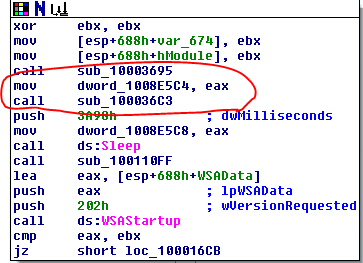
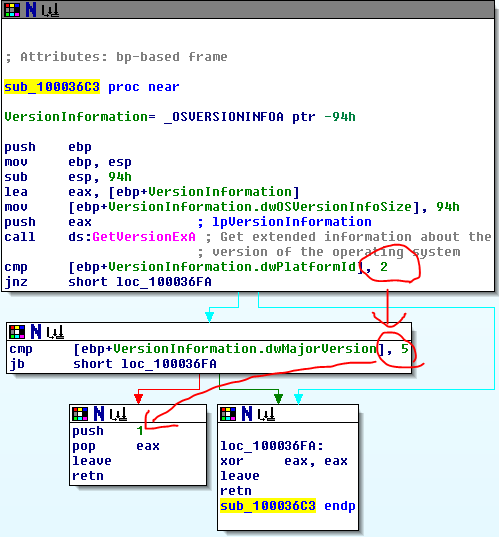
The malware assigns a value to dword_1008E5C4 at the beginning of subroutine 10001656 at the very beginning of the program. It assigns the value of eax to dword_1008E5C4 and then calls sub_100036C3, which seems to gather information about the operating system. In the 2nd screenshot below, the subroutine will return 1 if the platform ID == 2 and MajorVersion == 5, else it will return 0. This all comes together to decide which version of the command prompt text to use based on the operating system of the computer. In screenshot 3, we see that if it returns 1 it will use “command.exe /c” and it if returns 0 it will use “cmd.exe /c”.

dword_1008E5C4 assignment
sub_100036C3 checking information on the OS
Choosing which command prompt to use based on OS version

Question 10: A few hundred lines into the subroutine at 0x1000FF58, a series of comparisons use memcmp to compare strings. What happens if the string comparison to robotwork is successful (when memcmp returns 0)?

If the comparison is successful, it calls the subroutine sub_100052A2, where it queries a registry value at “SOFTWARE\Microsoft\Windows\CurrentVersion” for the value of the “WorkTime” key. Once it has the value, it converts it to an integer and pushes it in the format “\r\n\r\n[Robot_WorkTime :] %d\r\n\r\n” through an open network socket. It then does the same thing for the “WorkTimes” key.

Question 11: What does the export PSLIST do?

It first queries the OS version using the same sub_100036C3 as before and continues on the version is 5,2 (it just returns if the version is not 5,2). It then checks the length of a string it has been given. If the length is not equal to zero, it calls sub_10006518 where it searches through active processes trying to find a match. If the string length is equal to zero, then it does similar, but returns a list of all active processes.

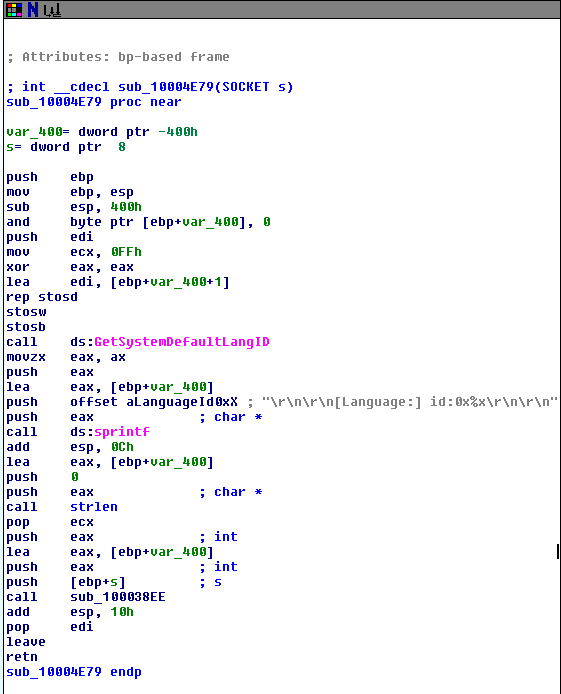
Question 12: Use the graph mode to graph the cross-references from sub_10004E79. Which API functions could be called by entering this function? Based on the API functions alone, what could you rename this function?

This function could call the “GetSystemDefaultLangID”, “sprintf”, “strlen”, and “sub_100038EE” functions. It could be named to match the function it calls or something similar to “GetDefaultLanguage”.

Question 13: How many Windows API functions does DllMain call directly? How many at a depth of 2?

The DLLMain function calls CreateThread, strncpy, strlen, and _strnicmp.

At a depth of two, DLLMain calls 33 total API functions including Sleep and a variety of network-related functions like socket, connect, recv, and send. The screenshot below shows all of the functions (API functions are pink) with DLLMain circled in red for reference.

Question 14: At 0x10001358, there is a call to Sleep (an API function that takes one parameter containing the number of milliseconds to sleep). Looking backward through the code, how long will the program sleep if this code executes?

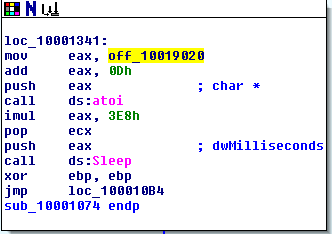
In this section, eax is first given the value of the string at 0x10019020 – “[This is NTI]30”. It then adds 0Dh (13) to the value, setting the string as “30”. In the next few steps it converts the string “30” to the integer 30 and multiplies it by 3E8h (1000). Judging by this, the program will sleep for 30000 seconds or 30 seconds.

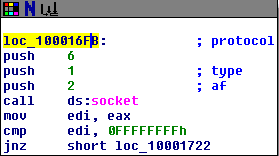
Question 15: At 0x10001701 is a call to socket. What are the three parameters?

The three parameters of socket are all integers: af, type, and protocol. In this program, they’re passed the values 2, 1, and 6.

Question 16: Using the MSDN page for socket and the named symbolic constants functionality in IDA Pro, can you make the parameters more meaningful? What are the parameters after you apply changes?

Yes, after the changes the parameters are changed to AF_INET (af), SOCK_STREAM (type), and IPPROTO_TCP (protocol).

Question 17: Search for usage of the in instruction (opcode 0xED). This instruction is used with a magic string VMXh to perform VMware detection. Is that in use in this malware? Using the cross-references to the function that executes the in instruction, is there further evidence of VMware detection?

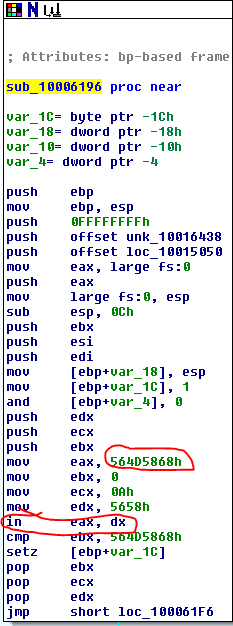
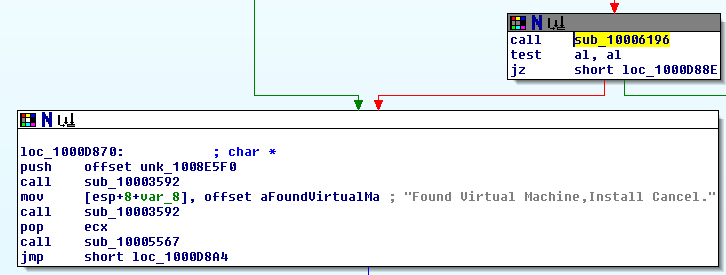
Yes, we find the “in” instruction in the subroutine sub_10006196. The instructions here copy the hex value 564D5868h into eax (which is VMXh in ASCII) and then call “in” on eax. There are cross-references to 3 functions in the program that all call this subroutine and they all include the string “Found Virtual Machine,Install Cancel.”.

Question 18: Jump your cursor to 0x1001D988. What do you find?

Starting at 0x1001D988 we see a list of readable ASCII characters, followed by a string of zeroes, and then a very long list of something IDA doesn’t seem to have recognized and labeled “? ;”.

Question 19: If you have the IDA Python plug-in installed (included with the commercial version of IDA Pro), run Lab05-01.py, an IDA Pro Python script provided with the malware for this book. (Make sure the cursor is at 0x1001D988.) What happens after you run the script?

I don’t have the Pro version and a few quick Google searches says the free version doesn’t support IDA Python, so we’ll skip this question.

Question 20: With the cursor in the same location, how do you turn this data into a single ASCII string?

Pressing “A” tells IDA to combine as many ASCII characters as it can until the next empty space character.

Question 21: Open the script with a text editor. How does it work?

The script Lab05-01.py uses the “ScreenEA” function to get the current position of the cursor in IDA. It then iterates through the next 0x50 bytes and uses an XOR to compare each byte to 0x55, then uses PatchByte to merge them all together on one line.